existing_vpc_resources Template
Overview
The existing_vpc_resources template creates the Inspection VPC and supporting infrastructure required for the FortiGate autoscale deployment. All resources are tagged with Fortinet-Role tags that allow the autoscale_template to discover and deploy into them.
Warning
This template must be run BEFORE autoscale_template. The autoscale_template discovers VPCs using Fortinet-Role tags created by this template. If you skip this template, you must manually apply the required tags to your existing VPCs.
What It Creates
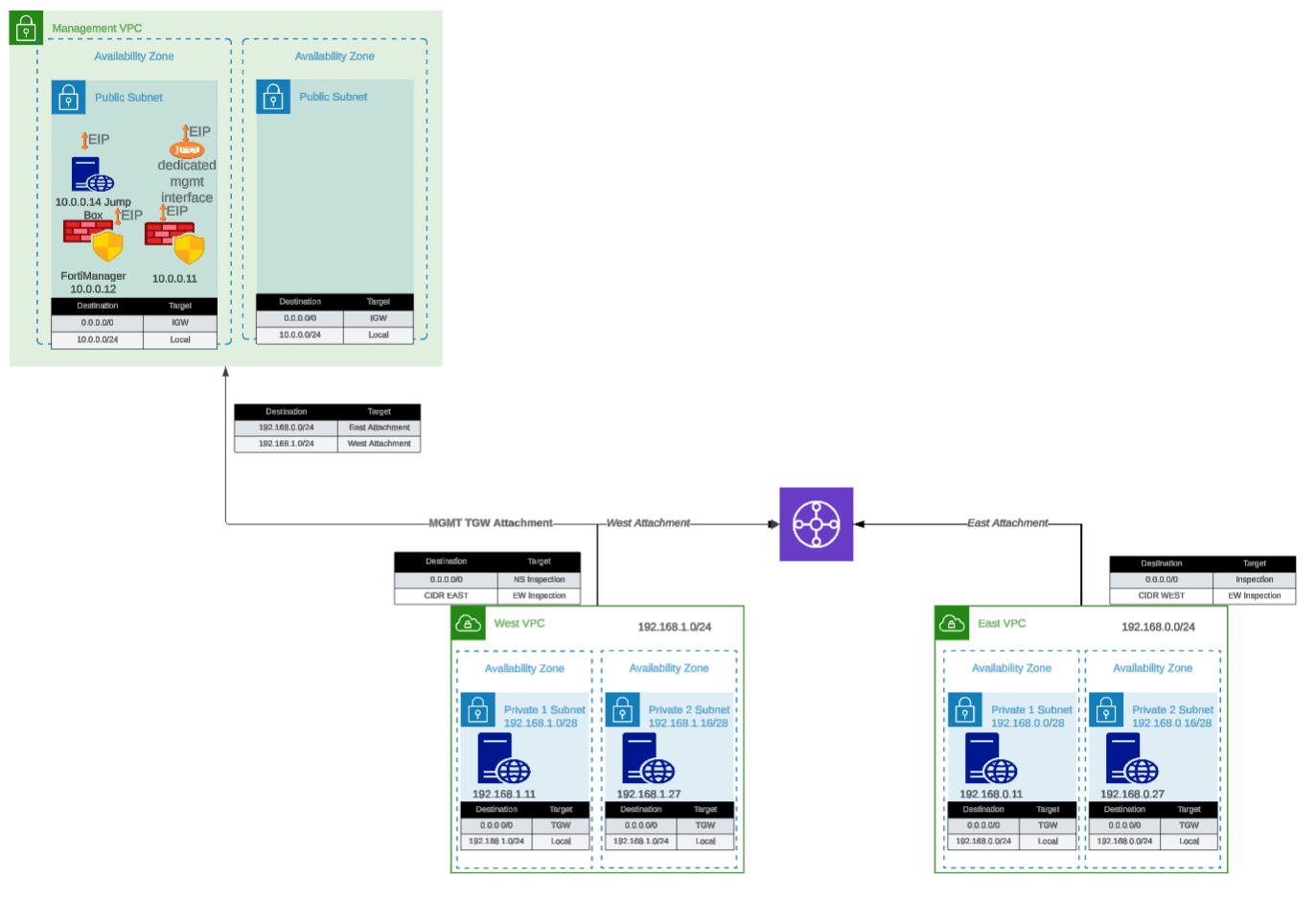
The template conditionally creates the following components based on boolean variables. All resources are tagged with Fortinet-Role tags for discovery by autoscale_template.
Component Overview
| Component | Purpose | Required | Typical Cost/Month |
|---|---|---|---|
| Inspection VPC | VPC for FortiGate autoscale deployment | Yes | ~$50 (VPC/networking) |
| Management VPC | Centralized management infrastructure | No | ~$50 (VPC/networking) |
| FortiManager | Policy management and orchestration | No | ~$73 (m5.large) |
| FortiAnalyzer | Logging and reporting | No | ~$73 (m5.large) |
| Jump Box | Bastion host for secure access | No | ~$7 (t3.micro) |
| Transit Gateway | Central hub for VPC interconnectivity | No | ~$36 + data transfer |
| Spoke VPCs (East/West) | Simulated workload VPCs | No | ~$50 (networking) |
| Linux Instances | HTTP servers and traffic generators | No | ~$14 (2x t3.micro) |
Total estimated cost for complete lab: ~$300-400/month
Component Details
0. Inspection VPC (Required)
Purpose: The VPC where FortiGate autoscale group will be deployed by autoscale_template
Configuration variable:
enable_build_inspection_vpc = trueWhat gets created:
Inspection VPC (10.0.0.0/16)
├── Public Subnet AZ1 (FortiGate login/management)
├── Public Subnet AZ2
├── GWLBE Subnet AZ1 (Gateway Load Balancer Endpoints)
├── GWLBE Subnet AZ2
├── Private Subnet AZ1 (TGW attachment)
├── Private Subnet AZ2
├── Management Subnet AZ1 (optional - dedicated management ENI)
├── Management Subnet AZ2 (optional)
├── Internet Gateway
├── NAT Gateways (optional - if nat_gw mode)
├── Route Tables (per subnet type and AZ)
└── TGW Attachment (optional - if TGW enabled)
Fortinet-Role tags applied (for autoscale_template discovery):
| Resource | Fortinet-Role Tag |
|---|---|
| VPC | {cp}-{env}-inspection-vpc |
| IGW | {cp}-{env}-inspection-igw |
| Public Subnet AZ1 | {cp}-{env}-inspection-public-az1 |
| Public Subnet AZ2 | {cp}-{env}-inspection-public-az2 |
| GWLBE Subnet AZ1 | {cp}-{env}-inspection-gwlbe-az1 |
| GWLBE Subnet AZ2 | {cp}-{env}-inspection-gwlbe-az2 |
| Private Subnet AZ1 | {cp}-{env}-inspection-private-az1 |
| Private Subnet AZ2 | {cp}-{env}-inspection-private-az2 |
| Public RT AZ1 | {cp}-{env}-inspection-public-rt-az1 |
| Public RT AZ2 | {cp}-{env}-inspection-public-rt-az2 |
| GWLBE RT AZ1 | {cp}-{env}-inspection-gwlbe-rt-az1 |
| GWLBE RT AZ2 | {cp}-{env}-inspection-gwlbe-rt-az2 |
| Private RT AZ1 | {cp}-{env}-inspection-private-rt-az1 |
| Private RT AZ2 | {cp}-{env}-inspection-private-rt-az2 |
| NAT GW AZ1 | {cp}-{env}-inspection-natgw-az1 (if nat_gw mode) |
| NAT GW AZ2 | {cp}-{env}-inspection-natgw-az2 (if nat_gw mode) |
| TGW Attachment | {cp}-{env}-inspection-tgw-attachment (if TGW enabled) |
| TGW Route Table | {cp}-{env}-inspection-tgw-rtb (if TGW enabled) |
Example: For cp="acme" and env="test", tags would be acme-test-inspection-vpc, acme-test-inspection-public-az1, etc.
Warning
Critical Variable Coordination
The cp and env values used here must match exactly in autoscale_template for tag discovery to work. Mismatched values will cause autoscale_template to fail with “no matching VPC found” errors.
Inspection VPC Internet Mode
inspection_access_internet_mode = "nat_gw" # or "eip"- nat_gw: Creates NAT Gateways for FortiGate internet access (recommended for production)
- eip: FortiGates use Elastic IPs directly (simpler, lower cost)
Inspection VPC Dedicated Management ENI
inspection_enable_dedicated_management_eni = trueCreates additional management subnets within the Inspection VPC for dedicated management interfaces on FortiGate instances.
1. Management VPC (Optional)
Purpose: Centralized management infrastructure isolated from production traffic
Components:
- Dedicated VPC with public and private subnets across two Availability Zones
- Internet Gateway for external connectivity
- Security groups for management traffic
Fortinet-Roletags for discovery byautoscale_template
Configuration variable:
enable_build_management_vpc = trueWhat gets created:
Management VPC (10.3.0.0/16)
├── Public Subnet AZ1 (10.3.1.0/24)
├── Public Subnet AZ2 (10.3.2.0/24)
├── Internet Gateway
└── Route Tables
Fortinet-Role tags applied (for autoscale_template discovery):
| Resource | Fortinet-Role Tag |
|---|---|
| VPC | {cp}-{env}-management-vpc |
| Public Subnet AZ1 | {cp}-{env}-management-public-az1 |
| Public Subnet AZ2 | {cp}-{env}-management-public-az2 |
FortiManager (Optional within Management VPC)
Configuration:
enable_fortimanager = true
fortimanager_instance_type = "m5.large"
fortimanager_os_version = "7.4.5"
fortimanager_host_ip = "10" # Results in .3.0.10Access:
- GUI:
https://<FortiManager-Public-IP> - SSH:
ssh admin@<FortiManager-Public-IP> - Default credentials:
admin/<instance-id>
Use cases:
- Testing FortiManager integration with autoscale group
- Centralized policy management demonstrations
- Device orchestration testing
FortiAnalyzer (Optional within Management VPC)
Configuration:
enable_fortianalyzer = true
fortianalyzer_instance_type = "m5.large"
fortianalyzer_os_version = "7.4.5"
fortianalyzer_host_ip = "11" # Results in .3.0.11Access:
- GUI:
https://<FortiAnalyzer-Public-IP> - SSH:
ssh admin@<FortiAnalyzer-Public-IP> - Default credentials:
admin/<instance-id>
Use cases:
- Centralized logging for autoscale group
- Reporting and analytics demonstrations
- Log retention testing
Jump Box (Optional within Management VPC)
Configuration:
enable_jump_box = true
jump_box_instance_type = "t3.micro"Access:
ssh -i ~/.ssh/keypair.pem ec2-user@<jump-box-public-ip>Use cases:
- Secure access to spoke VPC instances
- Testing connectivity without FortiGate in path (via debug attachment)
- Management access to FortiGate private IPs
Management VPC TGW Attachment (Optional)
Configuration:
enable_mgmt_vpc_tgw_attachment = truePurpose: Connects management VPC to Transit Gateway, allowing:
- Jump box access to spoke VPC Linux instances
- FortiManager/FortiAnalyzer access to FortiGate instances via TGW
- Alternative management access paths
Routing:
- Management VPC → TGW → Spoke VPCs
- Can be combined with
enable_debug_tgw_attachmentfor bypass testing
2. Transit Gateway and Spoke VPCs (Optional)
Purpose: Simulates production multi-VPC environment for traffic generation and testing
Configuration variable:
enable_build_existing_subnets = trueWhat gets created:
Transit Gateway
├── East Spoke VPC (192.168.0.0/24)
│   ├── Public Subnet AZ1
│   ├── Private Subnet AZ1
│   ├── NAT Gateway (optional)
│   └── Linux Instance (optional)
│
├── West Spoke VPC (192.168.1.0/24)
│   ├── Public Subnet AZ1
│   ├── Private Subnet AZ1
│   ├── NAT Gateway (optional)
│   └── Linux Instance (optional)
│
└── TGW Route Tables
    ├── Spoke-to-Spoke (via inspection VPC)
    └── Inspection-to-Internet
Transit Gateway
Configuration:
# Created automatically when enable_build_existing_subnets = true
# Named: {cp}-{env}-tgwPurpose:
- Central hub for VPC interconnectivity
- Enables centralized egress architecture
- Allows east-west traffic inspection
Attachments:
- East Spoke VPC
- West Spoke VPC
- Inspection VPC (created by autoscale_template)
- Management VPC (if
enable_mgmt_vpc_tgw_attachment = true) - Debug attachment (if
enable_debug_tgw_attachment = true)
Spoke VPCs (East and West)
Configuration:
vpc_cidr_east = "192.168.0.0/24"
vpc_cidr_west = "192.168.1.0/24"
vpc_cidr_spoke = "192.168.0.0/16"  # Supernet
Components per spoke VPC:
- Public and private subnets
- NAT Gateway for internet egress
- Route tables for internet and TGW connectivity
- Security groups for instance access
Linux Instances (Traffic Generators)
Configuration:
enable_east_linux_instances = true
east_linux_instance_type = "t3.micro"

enable_west_linux_instances = true
west_linux_instance_type = "t3.micro"
What they provide:
- HTTP server on port 80 (for connectivity testing)
- Internet egress capability (for testing FortiGate inspection)
- East-West traffic generation between spoke VPCs
Testing with Linux instances:
# From jump box or another instance
curl http://<linux-instance-ip>
# Returns: "Hello from <hostname>"

# Generate internet egress traffic
ssh ec2-user@<linux-instance-ip>
curl http://www.google.com  # Traffic goes through FortiGate
Debug TGW Attachment (Optional)
Configuration:
enable_debug_tgw_attachment = truePurpose: Creates a bypass attachment from Management VPC directly to Transit Gateway, allowing traffic to flow:
Jump Box → TGW → Spoke VPC Linux Instances (bypassing FortiGate inspection)Debug path use cases:
- Validate spoke VPC connectivity independent of FortiGate inspection
- Compare latency/throughput with and without inspection
- Troubleshoot routing issues by eliminating FortiGate as variable
- Generate baseline traffic patterns for capacity planning
Warning
Security Consideration
The debug attachment bypasses FortiGate inspection entirely. Do not enable in production environments. This is strictly for testing and validation purposes.
Configuration Scenarios
Scenario 1: Complete Lab Environment
Use case: Full-featured lab for testing all capabilities
# Inspection VPC (Required)
enable_build_inspection_vpc            = true
inspection_access_internet_mode        = "nat_gw"
inspection_enable_dedicated_management_eni = false

# Management VPC Components
enable_build_management_vpc    = true
enable_fortimanager            = true
enable_fortianalyzer           = true
enable_jump_box                = true
enable_mgmt_vpc_tgw_attachment = true

# Spoke VPC Components
enable_build_existing_subnets  = true
enable_east_linux_instances    = true
enable_west_linux_instances    = true
enable_debug_tgw_attachment    = true
What you get: Complete environment with inspection VPC (with Fortinet-Role tags), management, spoke VPCs, traffic generators, and debug path
Cost: ~$300-400/month
Best for: Training, demonstrations, comprehensive testing
Scenario 2: Inspection + Management VPC Only
Use case: Testing FortiManager/FortiAnalyzer integration without spoke VPCs
# Inspection VPC (Required)
enable_build_inspection_vpc            = true
inspection_access_internet_mode        = "eip"

# Management VPC Components
enable_build_management_vpc    = true
enable_fortimanager            = true
enable_fortianalyzer           = true
enable_jump_box                = false
enable_mgmt_vpc_tgw_attachment = false

# Spoke VPC Components
enable_build_existing_subnets  = false
What you get: Inspection VPC (with Fortinet-Role tags) and Management VPC with FortiManager and FortiAnalyzer
Cost: ~$200/month
Best for: FortiManager/FortiAnalyzer integration testing, centralized management evaluation
Scenario 3: Inspection VPC + Traffic Generation
Use case: Testing autoscale with traffic generators, no management VPC
# Inspection VPC (Required)
enable_build_inspection_vpc            = true
inspection_access_internet_mode        = "nat_gw"

# Management VPC Components
enable_build_management_vpc    = false

# Spoke VPC Components
enable_build_existing_subnets  = true
enable_east_linux_instances    = true
enable_west_linux_instances    = true
enable_debug_tgw_attachment    = false
What you get: Inspection VPC (with Fortinet-Role tags), Transit Gateway, and spoke VPCs with Linux instances
Cost: ~$100-150/month
Best for: Autoscale behavior testing, load testing, capacity planning
Scenario 4: Minimal Inspection VPC Only
Use case: Lowest cost configuration - Inspection VPC only
# Inspection VPC (Required)
enable_build_inspection_vpc            = true
inspection_access_internet_mode        = "eip"  # Lower cost than nat_gw

# Management VPC Components
enable_build_management_vpc    = false

# Spoke VPC Components
enable_build_existing_subnets  = false
What you get: Inspection VPC with Fortinet-Role tags only - minimum required for autoscale_template
Cost: ~$30-50/month (VPC infrastructure only)
Best for: Minimal FortiGate testing, cost-sensitive environments, integration with existing TGW/spoke VPCs
Step-by-Step Deployment
Prerequisites
- AWS account with appropriate permissions
- Terraform 1.0 or later installed
- AWS CLI configured with credentials
- Git installed
- SSH keypair created in target AWS region
Step 1: Clone the Repository
Clone the repository containing both templates:
git clone https://github.com/FortinetCloudCSE/Autoscale-Simplified-Template.git
cd Autoscale-Simplified-Template/terraform/existing_vpc_resources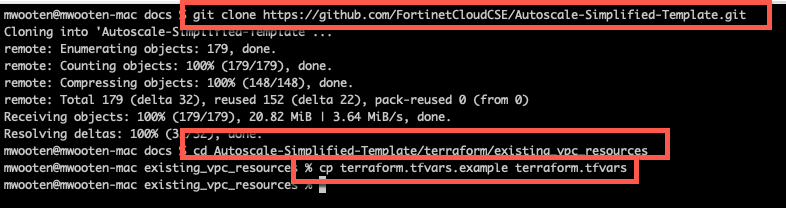
Step 2: Create terraform.tfvars
Copy the example file and customize:
cp terraform.tfvars.example terraform.tfvarsStep 3: Configure Core Variables
Region and Availability Zones
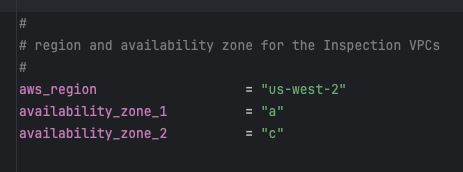
aws_region         = "us-west-2"
availability_zone_1 = "a"
availability_zone_2 = "c"
Tip
Availability Zone Selection
Choose AZs that:
- Support your desired instance types
- Have sufficient capacity
- Match your production environment (if testing for production)
Verify AZ availability:
aws ec2 describe-availability-zones --region us-west-2Customer Prefix and Environment
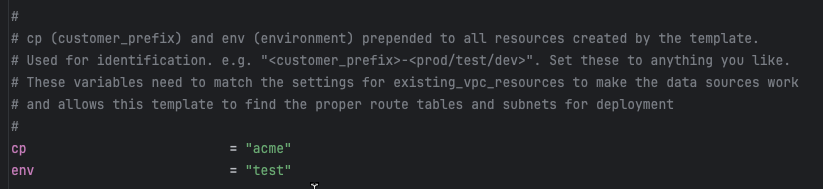
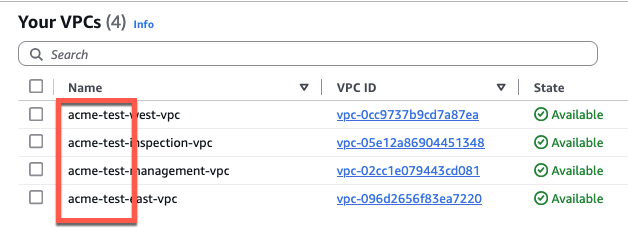
These values are prepended to all resources for identification:
cp  = "acme"    # Customer prefix
env = "test" # Environment: prod, test, devResult: Resources named like acme-test-management-vpc, acme-test-tgw, etc.
Warning
Critical: Variable Coordination
These cp and env values must match between existing_vpc_resources and autoscale_template for proper resource discovery via tags.
Step 4: Configure Component Flags
Inspection VPC (Required)
The Inspection VPC is required and must be enabled. This creates the VPC where FortiGate autoscale group will be deployed.
enable_build_inspection_vpc            = true
inspection_access_internet_mode        = "nat_gw"  # or "eip"
inspection_enable_dedicated_management_eni = false  # or true for dedicated mgmt ENI
Info
Fortinet-Role Tags: All Inspection VPC resources are automatically tagged with Fortinet-Role tags using the pattern {cp}-{env}-inspection-*. These tags are used by autoscale_template to discover the VPC resources.
Management VPC (Optional)
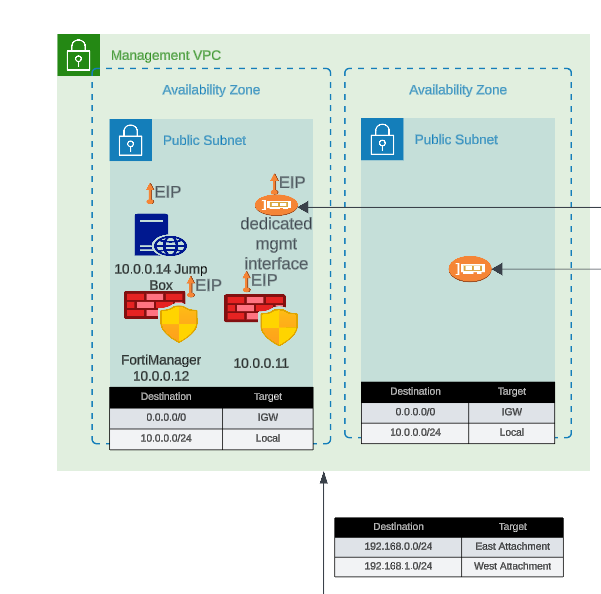
enable_build_management_vpc = trueSpoke VPCs and Transit Gateway (Optional)
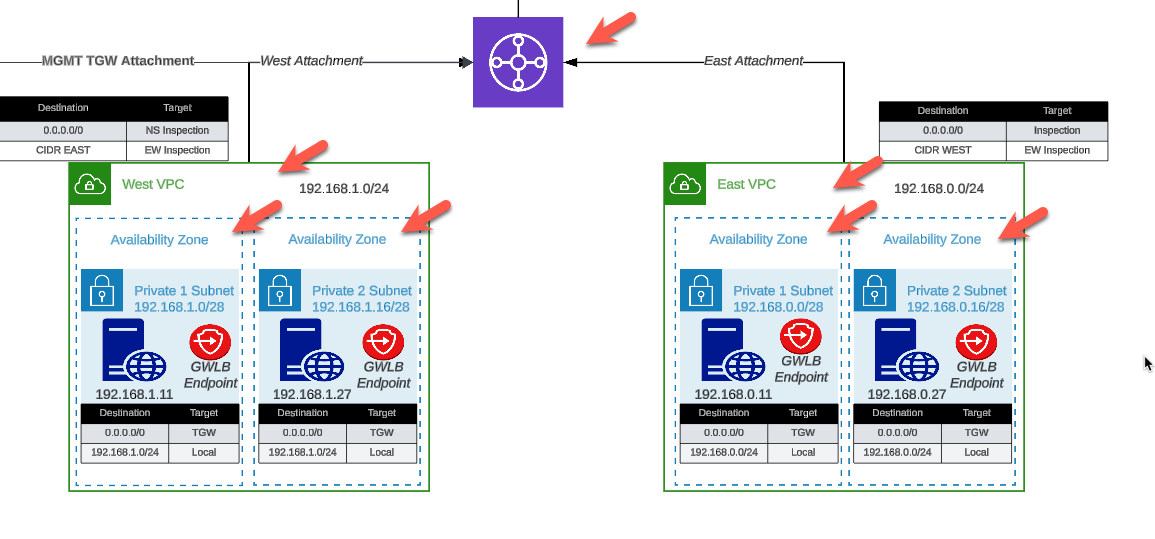
enable_build_existing_subnets = trueStep 5: Configure Optional Components
FortiManager and FortiAnalyzer
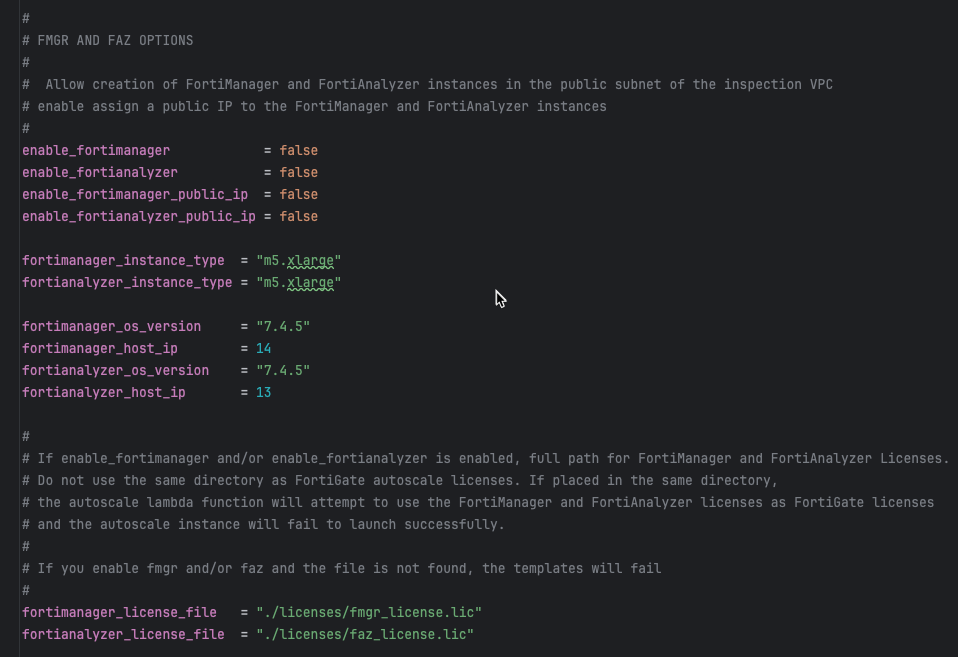
enable_fortimanager  = true
fortimanager_instance_type = "m5.large"
fortimanager_os_version = "7.4.5"
fortimanager_host_ip = "10"  # .3.0.10 within management VPC CIDR

enable_fortianalyzer = true
fortianalyzer_instance_type = "m5.large"
fortianalyzer_os_version = "7.4.5"
fortianalyzer_host_ip = "11"  # .3.0.11 within management VPC CIDR
Info
Instance Sizing Recommendations
For testing/lab environments:
- FortiManager: m5.large (minimum)
- FortiAnalyzer: m5.large (minimum)
For heavier workloads or production evaluation:
- FortiManager: m5.xlarge or m5.2xlarge
- FortiAnalyzer: m5.xlarge or larger (depends on log volume)
Management VPC Transit Gateway Attachment

enable_mgmt_vpc_tgw_attachment = trueThis allows jump box and management instances to reach spoke VPC Linux instances for testing.
Linux Traffic Generators
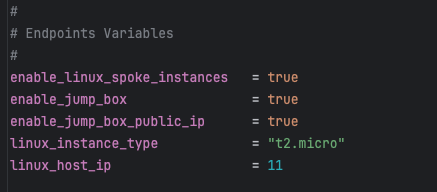
enable_jump_box = true
jump_box_instance_type = "t3.micro"

enable_east_linux_instances = true
east_linux_instance_type = "t3.micro"

enable_west_linux_instances = true
west_linux_instance_type = "t3.micro"
Debug TGW Attachment
enable_debug_tgw_attachment = trueEnables bypass path for connectivity testing without FortiGate inspection.
Step 6: Configure Network CIDRs
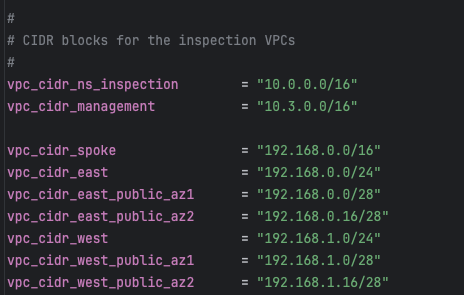
vpc_cidr_management = "10.3.0.0/16"
vpc_cidr_east       = "192.168.0.0/24"
vpc_cidr_west       = "192.168.1.0/24"
vpc_cidr_spoke      = "192.168.0.0/16"  # Supernet for all spoke VPCs
Warning
CIDR Planning
Ensure CIDRs:
- Don’t overlap with existing networks
- Match between
existing_vpc_resourcesandautoscale_template - Have sufficient address space for growth
- Align with corporate IP addressing standards
Step 7: Configure Security Variables
keypair = "my-aws-keypair"  # Must exist in target region
my_ip   = "203.0.113.10/32" # Your public IP for SSH access
Tip
Security Group Source IP
The my_ip variable restricts SSH and HTTPS access to management interfaces.
For dynamic IPs, consider:
- Using a CIDR range:
"203.0.113.0/24" - VPN endpoint IP if accessing via corporate VPN
- Multiple IPs: Configure directly in security groups after deployment
Step 8: Deploy the Template
Initialize Terraform:
terraform initReview the execution plan:
terraform planExpected output will show resources to be created based on enabled flags.
Deploy the infrastructure:
terraform applyType yes when prompted to confirm.
Expected deployment time: 10-15 minutes
Deployment progress:
Apply complete! Resources: 47 added, 0 changed, 0 destroyed.

Outputs:

east_linux_instance_ip = "192.168.0.50"
fortianalyzer_public_ip = "52.10.20.30"
fortimanager_public_ip = "52.10.20.40"
jump_box_public_ip = "52.10.20.50"
management_vpc_id = "vpc-0123456789abcdef0"
tgw_id = "tgw-0123456789abcdef0"
tgw_name = "acme-test-tgw"
west_linux_instance_ip = "192.168.1.50"
Step 9: Verify Deployment
Verify Management VPC
aws ec2 describe-vpcs --filters "Name=tag:Name,Values=acme-test-management-vpc"Expected: VPC ID and CIDR information
Access FortiManager (if enabled)
# Get public IP from outputs
terraform output fortimanager_public_ip

# Access GUI
open https://<FortiManager-Public-IP>

# Or SSH
ssh admin@<FortiManager-Public-IP>
# Default password: <instance-id>
First-time FortiManager setup:
- Login with admin / instance-id
- Change password when prompted
- Complete initial setup wizard
- Navigate to Device Manager > Device & Groups
Enable VM device recognition (FortiManager 7.6.3+):
config system global
    set fgfm-allow-vm enable
end
Access FortiAnalyzer (if enabled)
# Get public IP from outputs
terraform output fortianalyzer_public_ip

# Access GUI
open https://<FortiAnalyzer-Public-IP>

# Or SSH
ssh admin@<FortiAnalyzer-Public-IP>
Verify Transit Gateway (if enabled)
aws ec2 describe-transit-gateways --filters "Name=tag:Name,Values=acme-test-tgw"Expected: Transit Gateway in “available” state
Test Linux Instances (if enabled)
# Get instance IPs from outputs
terraform output east_linux_instance_ip
terraform output west_linux_instance_ip

# Test HTTP connectivity (if jump box enabled)
ssh -i ~/.ssh/keypair.pem ec2-user@<jump-box-ip>
curl http://<east-linux-ip>
# Expected: "Hello from ip-192-168-0-50"
Step 10: Save Outputs for autoscale_template
Save key outputs for use in autoscale_template configuration:
# Save all outputs
terraform output > ../outputs.txt

# Or save specific values
echo "tgw_name: $(terraform output -raw tgw_name)" >> ../autoscale_template/terraform.tfvars
echo "fortimanager_ip: $(terraform output -raw fortimanager_private_ip)" >> ../autoscale_template/terraform.tfvars
Outputs Reference
The template provides these outputs. Note that autoscale_template discovers resources via Fortinet-Role tags rather than using output values directly.
Inspection VPC Outputs
| Output | Description | Notes |
|---|---|---|
inspection_vpc_id | ID of inspection VPC | Discovered by autoscale_template via Fortinet-Role tag |
inspection_vpc_cidr | CIDR of inspection VPC | Used for route table configuration |
Management and Supporting Infrastructure Outputs
| Output | Description | Used By autoscale_template |
|---|---|---|
management_vpc_id | ID of management VPC | VPC peering or TGW routing |
management_vpc_cidr | CIDR of management VPC | Route table configuration |
tgw_id | Transit Gateway ID | TGW attachment |
tgw_name | Transit Gateway name tag | attach_to_tgw_name variable |
fortimanager_private_ip | FortiManager private IP | fortimanager_ip variable |
fortimanager_public_ip | FortiManager public IP | GUI/SSH access |
fortianalyzer_private_ip | FortiAnalyzer private IP | FortiGate syslog configuration |
fortianalyzer_public_ip | FortiAnalyzer public IP | GUI/SSH access |
jump_box_public_ip | Jump box public IP | SSH bastion access |
east_linux_instance_ip | East spoke instance IP | Connectivity testing |
west_linux_instance_ip | West spoke instance IP | Connectivity testing |
Info
Tag-Based Discovery: The autoscale_template discovers Inspection VPC resources using Fortinet-Role tags rather than relying on output values. This allows the templates to be run independently as long as the cp and env values match.
Post-Deployment Configuration
Configure FortiManager for Integration
If you enabled FortiManager and plan to integrate with autoscale group:
Access FortiManager GUI:
https://<FortiManager-Public-IP>Change default password:
- Login with
admin/<instance-id> - Follow password change prompts
- Login with
Enable VM device recognition (7.6.3+):
config system global
    set fgfm-allow-vm enable
end
Create ADOM for autoscale group (optional):
- Device Manager > ADOM
- Create ADOM for organizing autoscale FortiGates
Note FortiManager details for autoscale_template:
- Private IP: From outputs
- Serial number: Get from CLI:
get system status
Configure FortiAnalyzer for Logging
If you enabled FortiAnalyzer:
Access FortiAnalyzer GUI:
https://<FortiAnalyzer-Public-IP>Change default password
Configure log settings:
- System Settings > Storage
- Configure log retention policies
- Enable features needed for testing
Note FortiAnalyzer private IP for FortiGate syslog configuration
Important Notes
Resource Lifecycle Considerations
Warning
Management Resource Persistence
If you deploy the existing_vpc_resources template:
- Management VPC and resources (FortiManager, FortiAnalyzer) will be destroyed when you run
terraform destroy - If you want management resources to persist across inspection VPC redeployments, consider:
- Deploying management VPC separately with different Terraform state
- Using existing management infrastructure instead of template-created resources
- Setting appropriate lifecycle rules in Terraform to prevent destruction
Cost Optimization Tips
Info
Managing Lab Costs
The existing_vpc_resources template can create expensive resources:
- FortiManager m5.large:
$0.10/hour ($73/month) - FortiAnalyzer m5.large:
$0.10/hour ($73/month) - Transit Gateway: $0.05/hour (~$36/month) + data processing charges
- NAT Gateways: $0.045/hour each (~$33/month each)
Cost reduction strategies:
- Use smaller instance types (t3.micro, t3.small) where possible
- Disable FortiManager/FortiAnalyzer if not testing those features
- Destroy resources when not actively testing
- Use AWS Cost Explorer to monitor spend
- Consider AWS budgets and alerts
Example budget-conscious configuration:
enable_fortimanager = false    # Save $73/month
enable_fortianalyzer = false   # Save $73/month
jump_box_instance_type = "t3.micro"  # Use smallest size
east_linux_instance_type = "t3.micro"
west_linux_instance_type = "t3.micro"
State File Management
Store Terraform state securely:
# backend.tf (optional - recommended for teams)
terraform {
  backend "s3" {
    bucket = "my-terraform-state"
    key    = "existing-vpc-resources/terraform.tfstate"
    region = "us-west-2"
    encrypt = true
    dynamodb_table = "terraform-locks"
  }
}
Troubleshooting
Issue: Terraform Fails with “Resource Already Exists”
Symptoms:
Error: Error creating VPC: VpcLimitExceededSolutions:
- Check VPC limits in your AWS account
- Clean up unused VPCs
- Request limit increase via AWS Support
Issue: Cannot Access FortiManager/FortiAnalyzer
Symptoms:
- Timeout when accessing GUI
- SSH connection refused
Solutions:
Verify security groups allow your IP:
aws ec2 describe-security-groups --group-ids <sg-id>Check instance is running:
aws ec2 describe-instances --filters "Name=tag:Name,Values=*fortimanager*"Verify
my_ipvariable matches your current public IP:curl ifconfig.meCheck instance system log for boot issues:
aws ec2 get-console-output --instance-id <instance-id>
Issue: Transit Gateway Attachment Pending
Symptoms:
- TGW attachment stuck in “pending” state
- Spoke VPCs can’t communicate
Solutions:
- Wait 5-10 minutes for attachment to complete
- Check TGW route tables are configured
- Verify no CIDR overlaps between VPCs
- Check TGW attachment state:
aws ec2 describe-transit-gateway-attachments
Issue: Linux Instances Not Reachable
Symptoms:
- Cannot curl or SSH to Linux instances
Solutions:
- Verify you’re accessing from jump box (if not public)
- Check security groups allow port 80 and 22
- Verify NAT Gateway is functioning for internet access
- Check route tables in spoke VPCs
Issue: High Costs After Deployment
Symptoms:
- AWS bill higher than expected
Solutions:
Check what’s running:
aws ec2 describe-instances --filters "Name=instance-state-name,Values=running"Identify expensive resources:
# Use AWS Cost Explorer in AWS Console
# Filter by resource tags: cp and env
Shut down unused components:
terraform destroy -target=module.fortimanager
terraform destroy -target=module.fortianalyzer
Or destroy entire deployment:
terraform destroy
Cleanup
Destroying Resources
To destroy the existing_vpc_resources infrastructure:
cd terraform/existing_vpc_resources
terraform destroy
Type yes when prompted.
Warning
Destroy Order is Critical
If you also deployed autoscale_template, destroy it FIRST before destroying existing_vpc_resources:
# Step 1: Destroy autoscale_template
cd terraform/autoscale_template
terraform destroy

# Step 2: Destroy existing_vpc_resources
cd ../existing_vpc_resources
terraform destroy
Why? The inspection VPC has a Transit Gateway attachment to the TGW created by existing_vpc_resources. Destroying the TGW first will cause the attachment deletion to fail.
Selective Cleanup
To destroy only specific components:
# Destroy only FortiManager
terraform destroy -target=module.fortimanager

# Destroy only spoke VPCs and TGW
terraform destroy -target=module.transit_gateway
terraform destroy -target=module.spoke_vpcs

# Destroy only management VPC
terraform destroy -target=module.management_vpc
Verify Complete Cleanup
After destroying, verify no resources remain:
# Check VPCs
aws ec2 describe-vpcs --filters "Name=tag:cp,Values=acme" "Name=tag:env,Values=test"

# Check Transit Gateways
aws ec2 describe-transit-gateways --filters "Name=tag:cp,Values=acme"

# Check running instances
aws ec2 describe-instances --filters "Name=instance-state-name,Values=running" "Name=tag:cp,Values=acme"
Next Steps
After deploying existing_vpc_resources, proceed to deploy the autoscale_template to create the FortiGate autoscale group and inspection VPC.
Key information to carry forward:
- Transit Gateway name (from outputs)
- FortiManager private IP (if enabled)
- FortiAnalyzer private IP (if enabled)
- Same
cpandenvvalues
Recommended next reading: