Kubernetes / Helm Setup
Kubernetes / Helm path
This whole page is the Kubernetes / Helm path. If you chose Docker Compose, use Docker Compose Setup instead.
Prerequisites
| Requirement | Version | Check |
|---|---|---|
| kubectl | 1.28+ | kubectl version --client |
| Helm | 3.14+ | helm version |
| jq | 1.6+ | jq --version |
| A running cluster | — | kubectl cluster-info |
| Default StorageClass | — | kubectl get storageclass |
The Helm chart creates a PersistentVolumeClaim for Ollama’s model cache. A
default StorageClass is required unless you set ollama.storage.storageClassName
explicitly.
Storage class
If you are continuing from the Kubernetes 101 workshop, the storage class has already been created.
If your cluster has no default StorageClass (check with kubectl get storageclass),
install Rancher local-path-provisioner — it uses local node disk and works on any cluster:
kubectl apply -f https://raw.githubusercontent.com/rancher/local-path-provisioner/master/deploy/local-path-storage.yaml
kubectl patch storageclass local-path -p '{"metadata":{"annotations":{"storageclass.kubernetes.io/is-default-class":"true"}}}'
Resource requirements
Ollama needs at least 4 GB RAM on the node where it schedules. If your cluster
nodes are smaller, set the OLLAMA_MODEL env var to a lighter model in
values-lab1.yaml.
1. Reconnect from Azure Cloud Shell
Verify Kubernetes access
kubectl config current-context
kubectl get nodes
If kubectl get nodes works, you are connected to the cluster and continue to the Clone the repo step.
Run ONLY if access is lost
refresh the kubeconfig from the K8s 101 master node
cd $HOME/k8s-101-workshop/terraform/

nodename=$(terraform output -json | jq -r .linuxvm_master_FQDN.value)
username=$(terraform output -json | jq -r .linuxvm_username.value)

rm -rf $HOME/.kube/
mkdir -p $HOME/.kube/

scp -o 'StrictHostKeyChecking=no' $username@$nodename:~/.kube/config $HOME/.kube/config

kubectl get nodes
kubectl config view --minify -o jsonpath='{.clusters[0].cluster.server}'; echo
2. Clone the repo
cd ~
git clone https://github.com/FortinetCloudCSE/ai-101.git
cd ai-101
3. Install the chart for Lab 1
- Pre-built multi-arch images (amd64 + arm64) are published to GHCR and pulled automatically by the cluster — no manual image pull required.
cd ~/ai-101/lab-app/helm
helm upgrade --install ai101 ./ai101 -f ai101/values-lab1.yaml
Release "ai101" does not exist. Installing it now.
NAME: ai101
LAST DEPLOYED: Tue Jul 14 18:35:02 2026
NAMESPACE: default
STATUS: deployed
REVISION: 1
DESCRIPTION: Install complete
TEST SUITE: None- Wait for the Ollama pod to start, then follow its logs to track the model download:
kubectl get pods -wNAME READY STATUS RESTARTS AGE
ai101-ollama-8699cc758-sqrgt 1/1 Running 0 12m- Once the
ai101-ollama-*pod showsRunning(may take 60–90 s for the image pull)
To open a new terminal in Azure Cloud Shell, click on the New Session tab
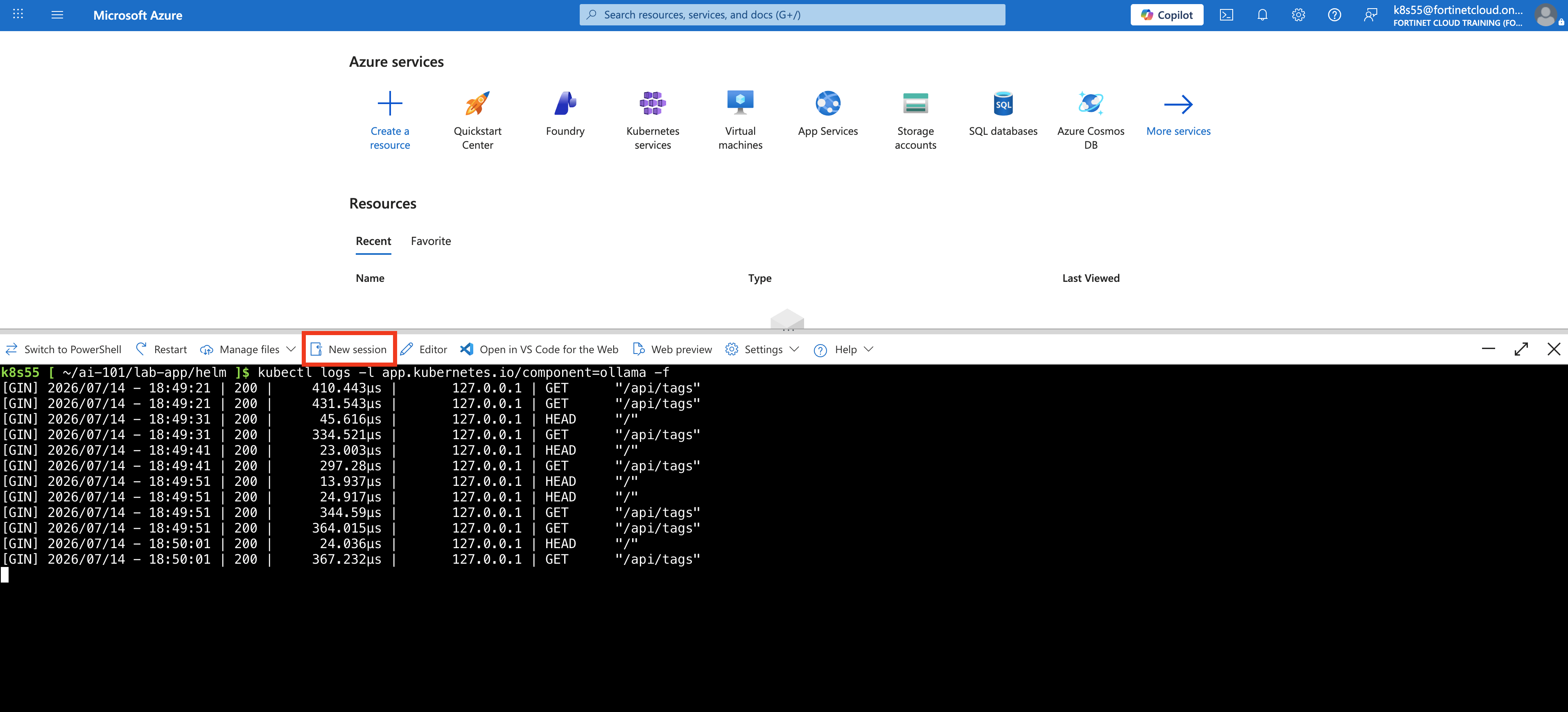
In the session lab paste the below:
cd ~/ai-101/lab-app/helmkubectl logs -l app.kubernetes.io/component=ollama -f[GIN] 2026/07/14 - 18:49:21 | 200 | 410.443µs | 127.0.0.1 | GET "/api/tags"
[GIN] 2026/07/14 - 18:49:21 | 200 | 431.543µs | 127.0.0.1 | GET "/api/tags"
[GIN] 2026/07/14 - 18:49:31 | 200 | 45.616µs | 127.0.0.1 | HEAD "/"
[GIN] 2026/07/14 - 18:49:31 | 200 | 334.521µs | 127.0.0.1 | GET "/api/tags"
[GIN] 2026/07/14 - 18:49:41 | 200 | 23.003µs | 127.0.0.1 | HEAD "/"4. Verify
First, port-forward the Ollama service so Cloud Shell can reach the Ollama API running inside the Kubernetes cluster (or background it with &):
kubectl port-forward svc/ai101-ollama 11434:11434 > /tmp/ai101-ollama-port-forward.log 2>&1 < /dev/null &Then, in a new terminal or current terminal, send a test prompt to the Ollama OpenAI-compatible API endpoint:
curl -s http://localhost:11434/v1/chat/completions \
  -H "Content-Type: application/json" \
  -d '{"model":"qwen2.5:3b","messages":[{"role":"user","content":"ping"}]}' \
  | jq -r '.choices[0].message.content'
If the command returns a text response, Ollama is running successfully and the model is able to perform inference.
Pong! Your request was “ping”, and my response is “Pong”. I hope that answered your question about the status of your connection to me! If you need assistance with something else, feel free to ask.
The kubectl port-forward command creates a temporary connection from localhost:11434 in Azure Cloud Shell to the Ollama service running inside the Kubernetes cluster. The curl command then sends a small test prompt to that local endpoint. Kubernetes forwards the request to Ollama, Ollama runs the model, and the model response is returned back to Cloud Shell.
5. Reference — upgrade per lab
cd ~/ai-101/lab-app/helm

# Lab 1 — Ollama only
helm upgrade --install ai101 ./ai101 -f ai101/values-lab1.yaml

# Lab 2 — Agent (hardcoded tools) + UI
helm upgrade --install ai101 ./ai101 -f ai101/values-lab2.yaml

# Lab 3 — Agent (MCP mode) + MCP server + UI
helm upgrade --install ai101 ./ai101 -f ai101/values-lab3.yaml

# Lab 4 — Same as lab3 (security demo steps use env overrides)
helm upgrade --install ai101 ./ai101 -f ai101/values-lab4.yaml
Keep it running
Leave the release running as you work through the labs. Each lab section tells you which values file to upgrade to. Only uninstall when you are completely done.
The two sections below are not part of the lab flow — they are reference material for optional extensions and post-workshop teardown.
6. Optional — FortiAIGate routing
To route the agent through FortiAIGate instead of the local Ollama:
cd ~/ai-101/lab-app/helm
helm upgrade ai101 ./ai101 -f ai101/values-lab4.yaml \
    --set agent.openaiBaseUrl=https://your-fortiaigate-host/v1
See the FortiAIGate Workshop for policy configuration details.
7. Cleanup (after the workshop)
helm uninstall ai101
kubectl delete pvc ai101-ollama-data