Getting Started
Provisioning the Azure environment (40min)
Provision your Azure Environment, enter your Email address and click Provision
Provision your Portal Accounts
Required for hands-on portion of this workshop
Warning
Enter your email and click **Provision Accounts** once. You'll see a live progress bar while your account is created — this typically takes a few minutes. When it's done, your credentials (username and sign-in info) will appear directly on this page, and a copy is also sent to your email as a backup. If you reload this page or come back later, your credentials will still be here — no need to re-submit.
When provisioning finishes, one of the following happens on this page:
- Success — your credentials (username and sign-in info) appear directly above, and a copy is also emailed to you as a backup.
- Failure — a clear error message appears (for example, an unsupported email domain, or a technical issue), along with a Retry Provisioning button.
Tasks
- Setup Azure Cloud Shell
- Run Terraform
- Verify Terraform
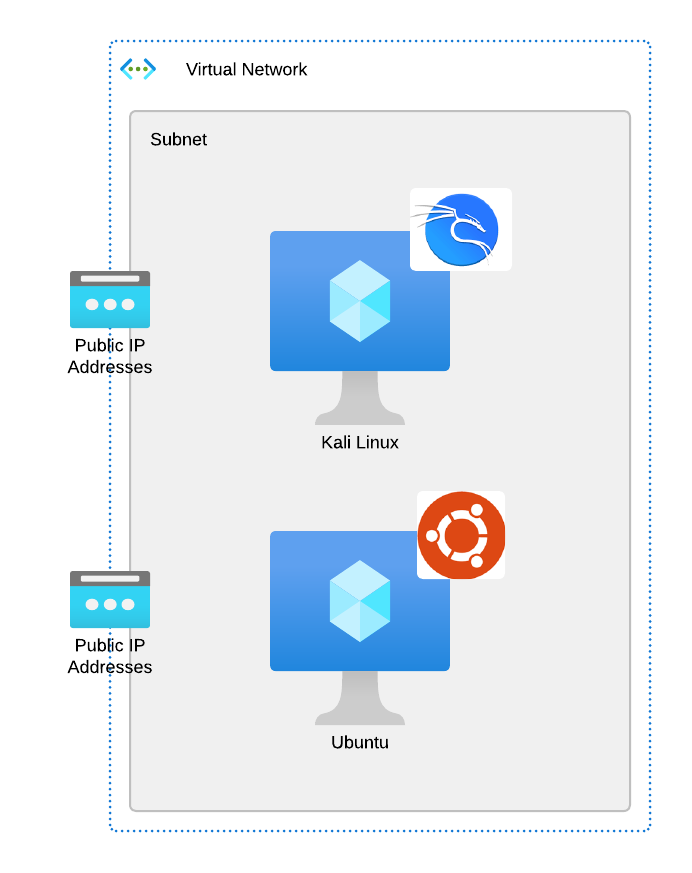
Student Setup Diagram
Each Student will have their own environment for the lab. The following diagram provides an overview of the Student environment.