Task 3: Identify VM Information and Unsecured Services
Login to Linux VM Serial Console
Now that both Linux virtual machines, linux-a-vm and linux-b-vm, have been deployed, you are going to identify their assigned private and public IP (PIP) addresses, confirm which ports are open on each VM, and what access is available to and from their assigned subnets.
In the following steps 1-6, you will navigate and identify IP information for both VMs and login to each VM via the serial console, in Azure.
Tip
Access the serial console of each virtual machine in different browser tabs.
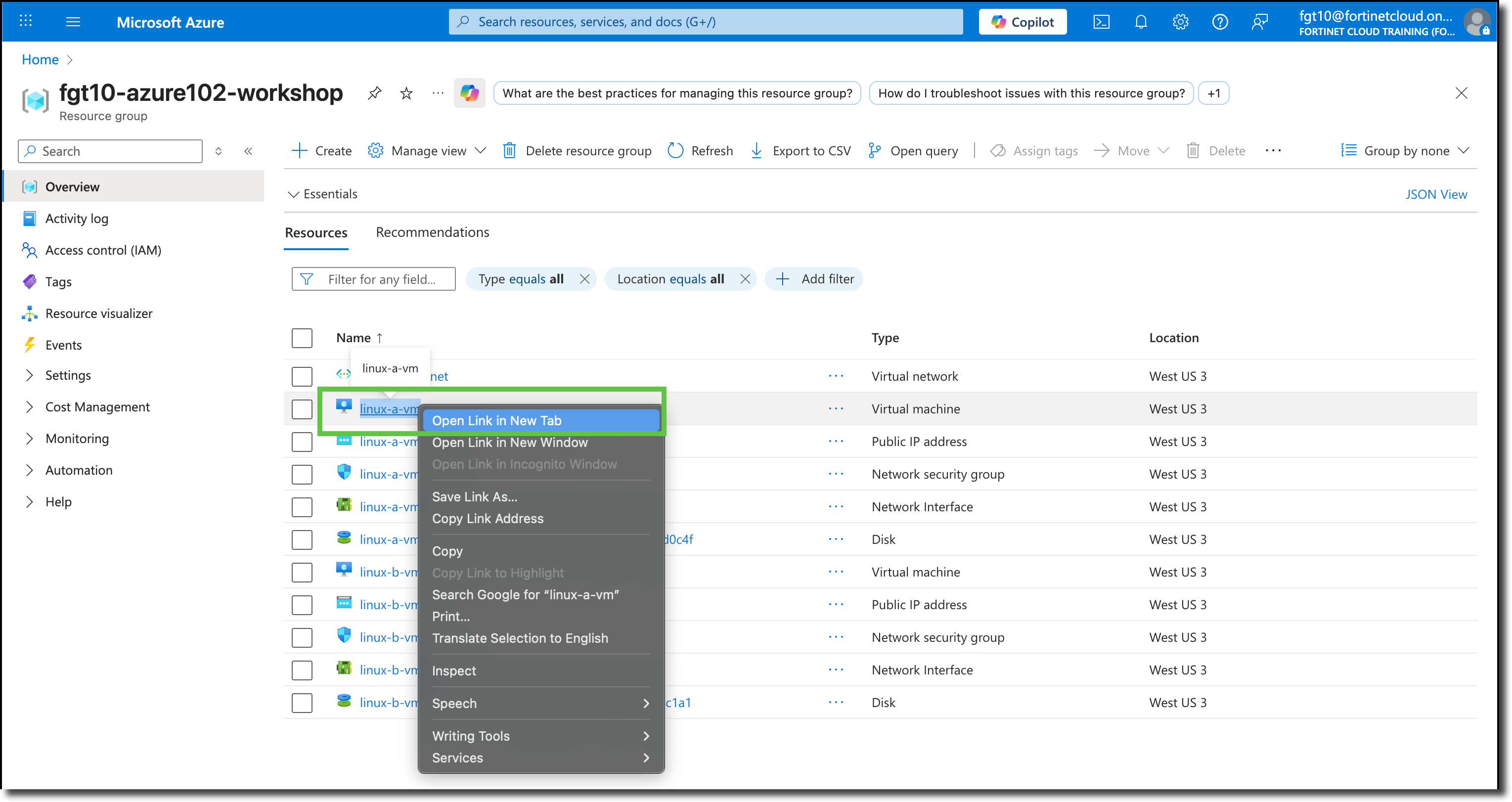
Navigate to your Resource Group
Right Click on the virtual machine linux-a-vm
Select “Open Link in New Tab”
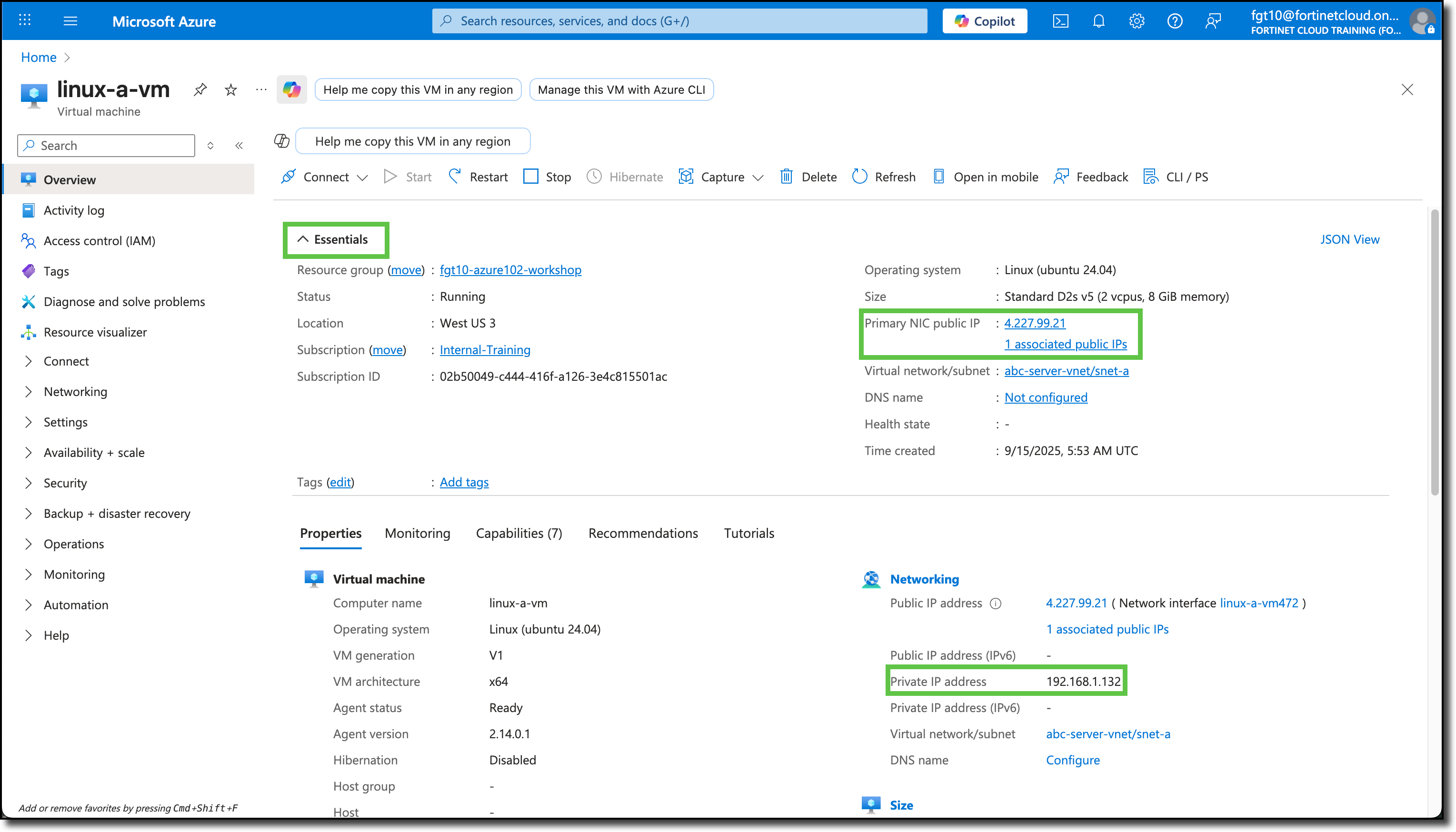
The browser tab will open to the linux-a-vm Overview page, under the Essentials and Properties sections, right-hand side, identify the assigned private and public IP of linux-a-vm
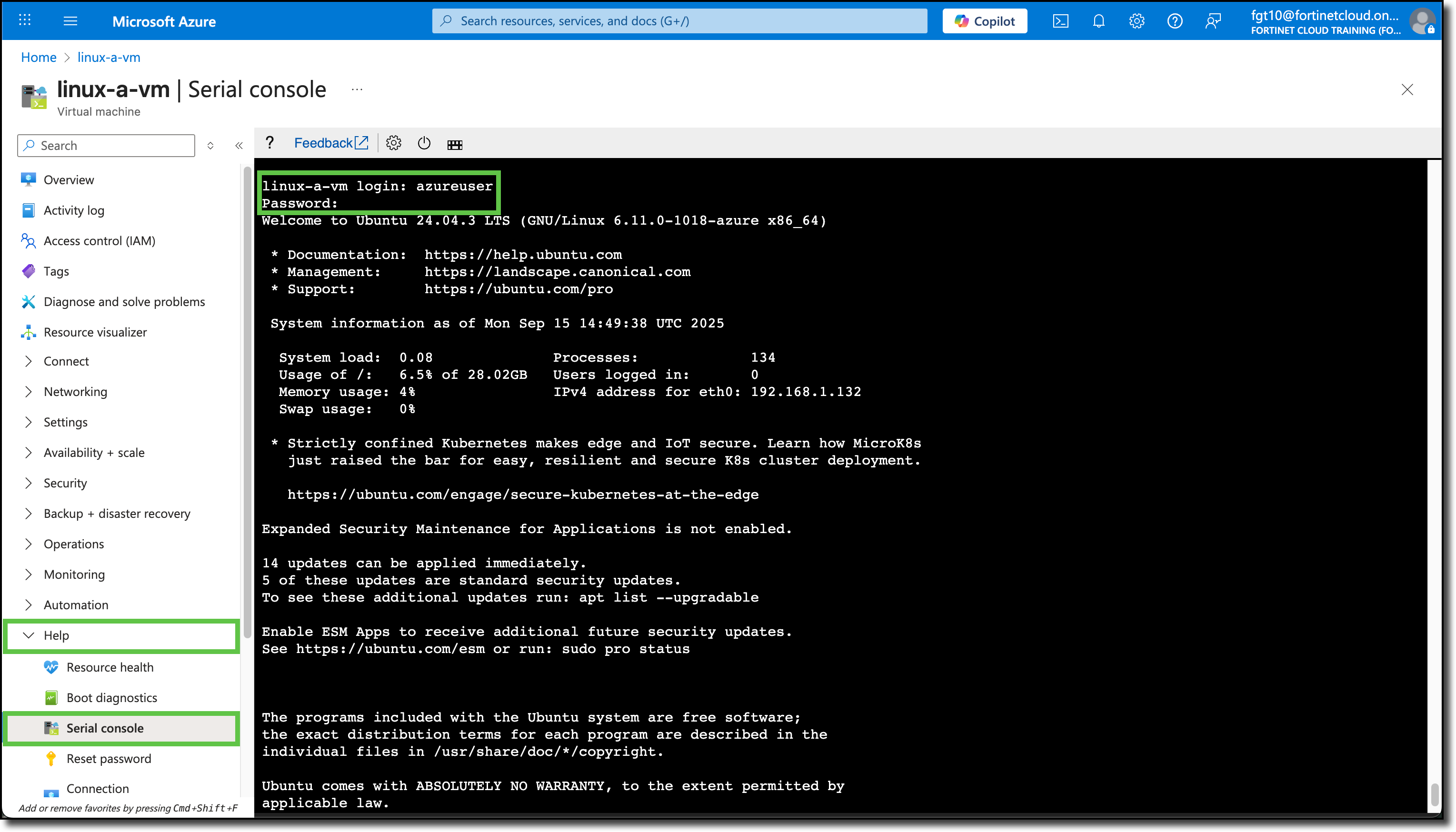
Navigate to the bottom of the left-side menu
Expand “Help”
Select “Serial console”
Login to the linux-a-vm console using the credentials used when creating the linux-a-vm.
Repeat the same process to login to the serial console of **linux-b-vm-in another tab
The VNET security policy for company ABC is as follows
linux-a-vm will be the management server. Per company ABC security policy:
- linux-a-vm should only have SSH and PING access to linux-b-vm
- linux-a-vm should have HTTP/HTTPS access to the Internet
- linux-a-vm should be SSH accessible from the Internet
linux-b-vm is the www server. Per company ABC security policy:
- linux-b-vm should be HTTP accessible from the Internet
- linux-b-vm should have HTTP and HTTPS access to the Internet
- linux-b-vm should only have PING access to linux-a-vm
The goals of the following steps, are to note:
- Which service ports are open and listening on each VM
- What access does each VM have across subnets
- Which services to and from the Internet are available to each VM
Using this information, we can implement company ABC’s security policies when securing the VNET with a FortiGate
Configure linux-b-vm first
Tip
Use the linux clear command to clear the screen
Verify Connectivity and Services
Note
These commands are completed from the linux-b-vm
- Use
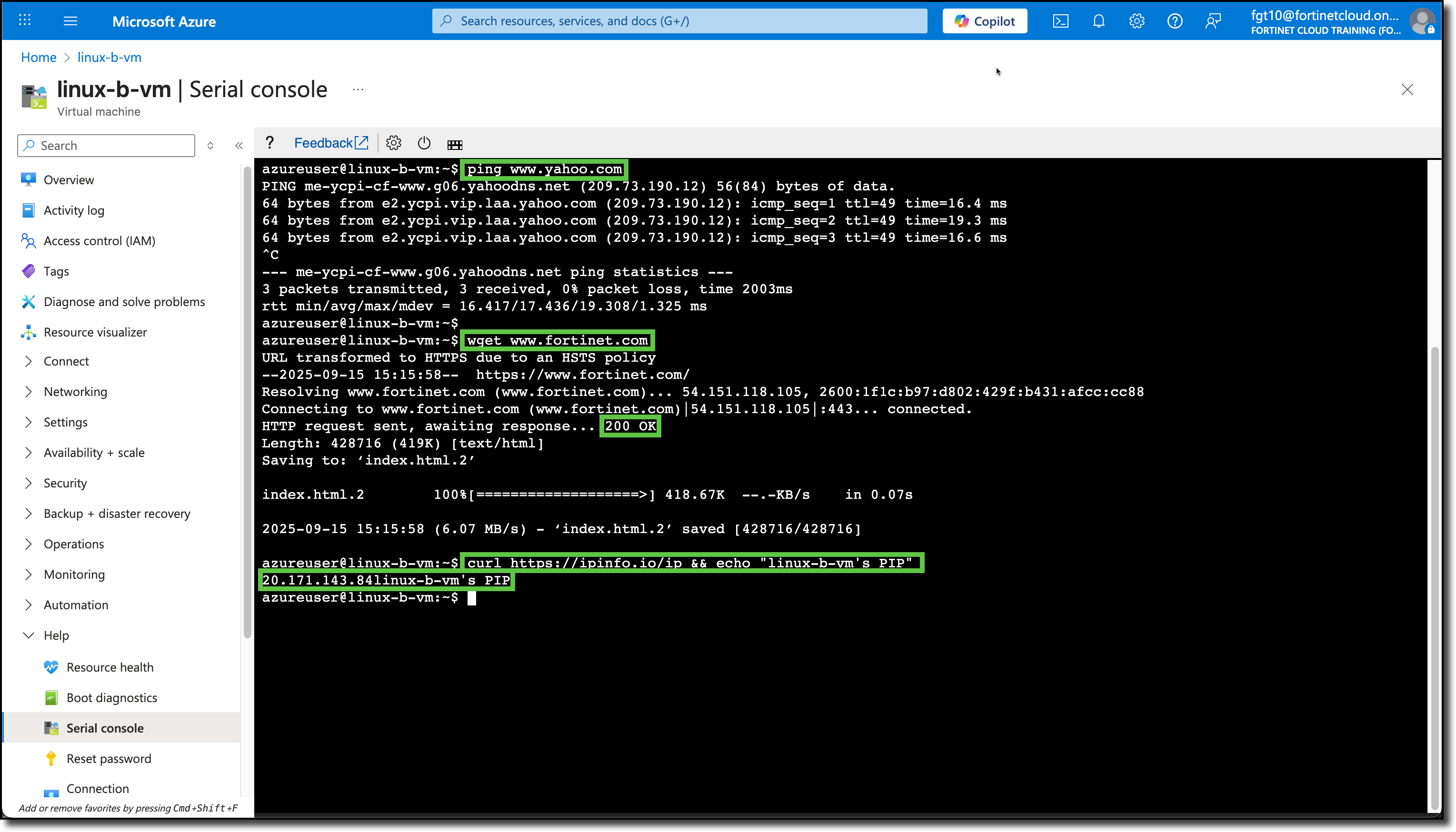
ping www.yahoo.com- confirms DNS and ICMP access to the Internet: (CTRL+c to stop ping)
- Use
wget www.fortinet.com- confirms port 80 access to the Internet: (Confirm “200 OK” response)
- Use
curl https://ipinfo.io/ip && echo " linux-b-vm's PIP"- confirms port 443 access to the Internet
- confirms Public IP assigned to linux-b-vm: (Verify against what the Azure portal listed in the Overview section for this VM)
Check for and install Ubuntu updates
sudo apt updatesudo apt -y upgradeclearafter updates have finished
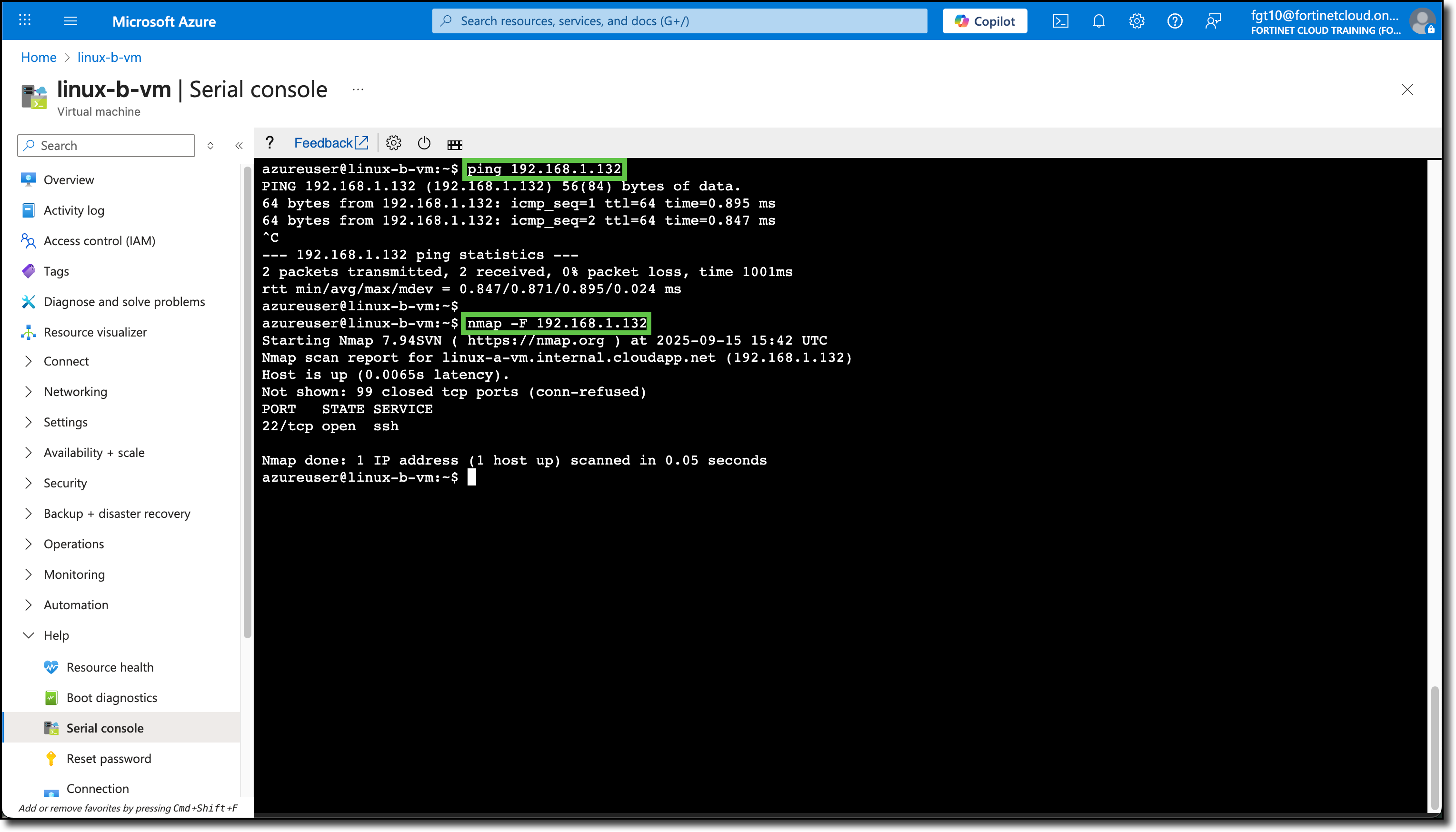
Ping the private IP of linux-a-vm
ping 192.168.1.xxx(Refer to previous steps for Private IP)
Install NMAP Scan open ports on linux-a-vm
sudo apt -y install nmapnmap -F 192.168.1.xxx(Refer to previous steps for Private IP)- Note the open port(s) on linux-a-vm
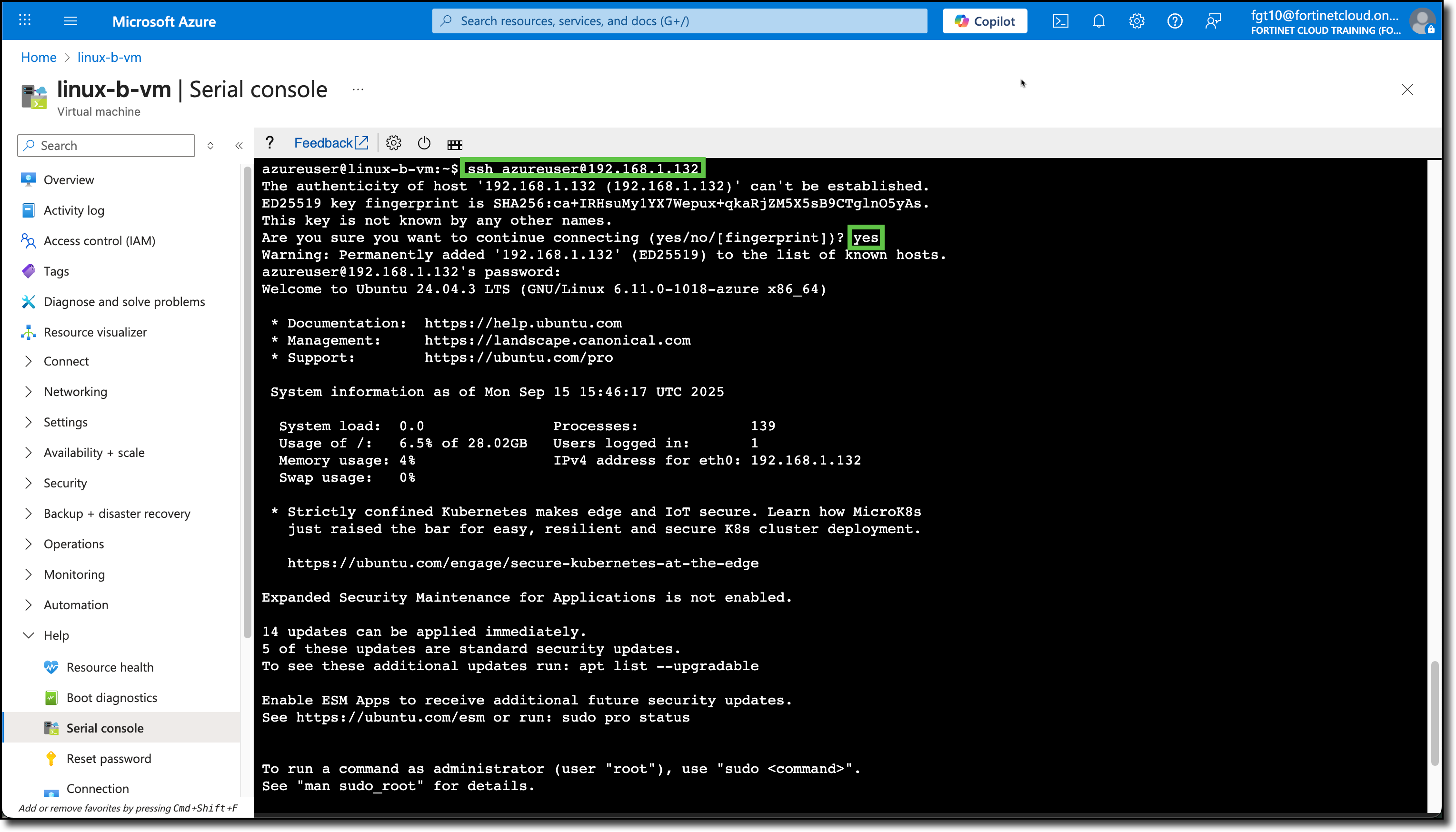
- Confirm SSH access to linux-a-vm:
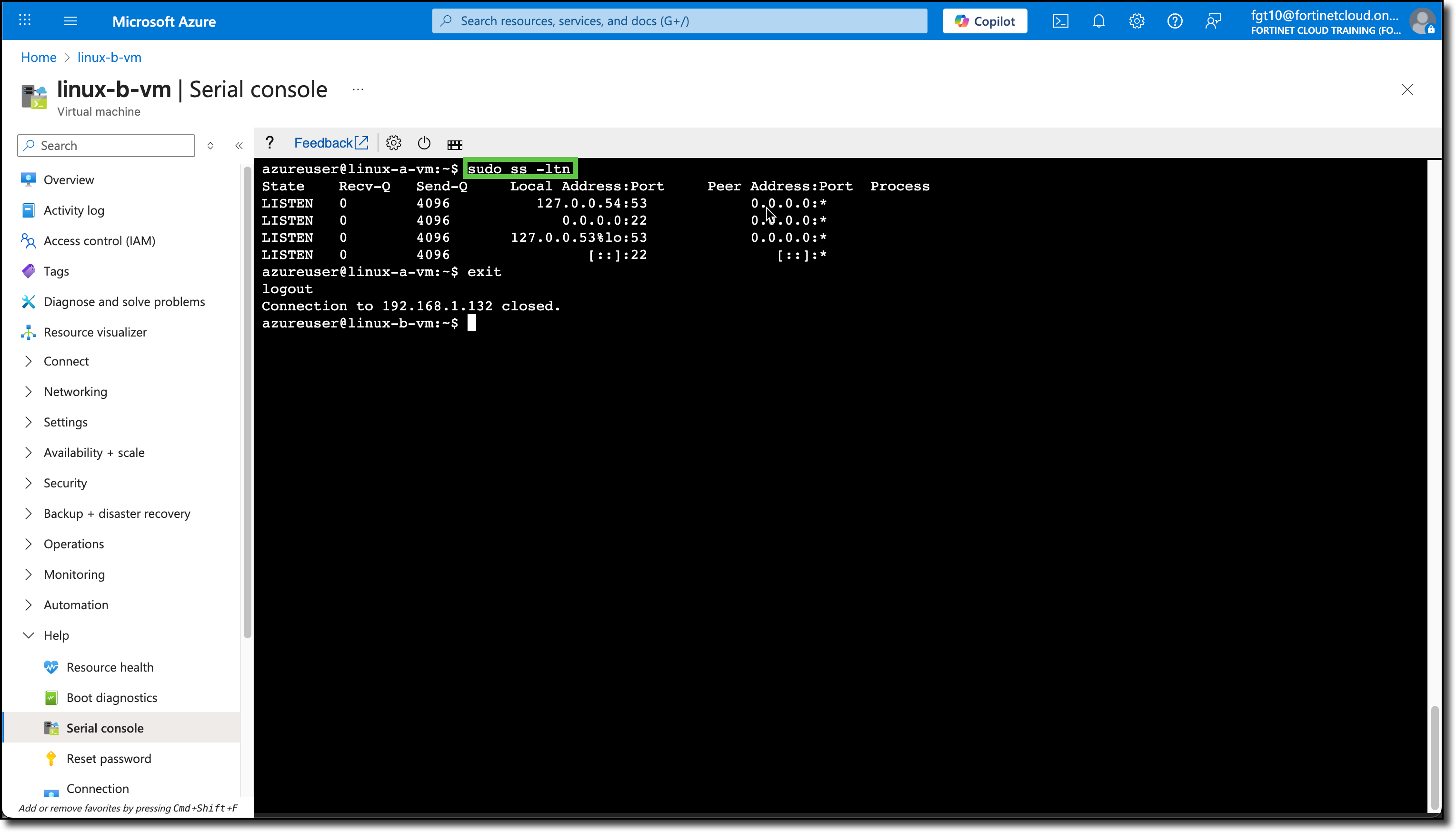
ssh azureuser@192.168.1.xxx(Refer to previous steps for Private IP)- Use
sudo ss -ltnto confirm the same open ports that NMAP reported - Use
exitto disconnect from linux-a-vm
- Install the web service NGINX
sudo apt -y install nginx
- Use
Configure linux-a-vm second
Note
These commands are completed from the linux-a-vm
Use
ping www.yahoo.com- confirms DNS and ICMP access to the Internet: (CTRL+c to stop ping)
Use
wget www.fortinet.com- confirms port 80 access to the Internet: (Confirm “200 OK” response)
Use
curl https://ipinfo.io/ip && echo " linux-a-vm's PIP"- confirms port 443 access to the Internet
- confirms Public IP assigned to linux-a-vm: (Verify against what the Azure portal listed in the Overview section for this VM)
Check for and install Ubuntu updates
sudo apt updatesudo apt -y upgradeclearafter updates have finished
Ping the private IP of linux-b-vm
ping 192.168.1.xxx(Refer to previous steps for Private IP)
Install NMAP Scan open ports on linux-b-vm
sudo apt -y install nmapnmap -F 192.168.1.xxx(Refer to previous steps for Private IP)- Note the open port(s) on linux-a-vm
Confirm SSH access to linux-b-vm:
ssh azureuser@192.168.1.xxx(Refer to previous steps for Private IP)- Use
sudo ss -ltnto confirm the same open ports that NMAP reported - Use
exitto disconnect from linux-b-vm
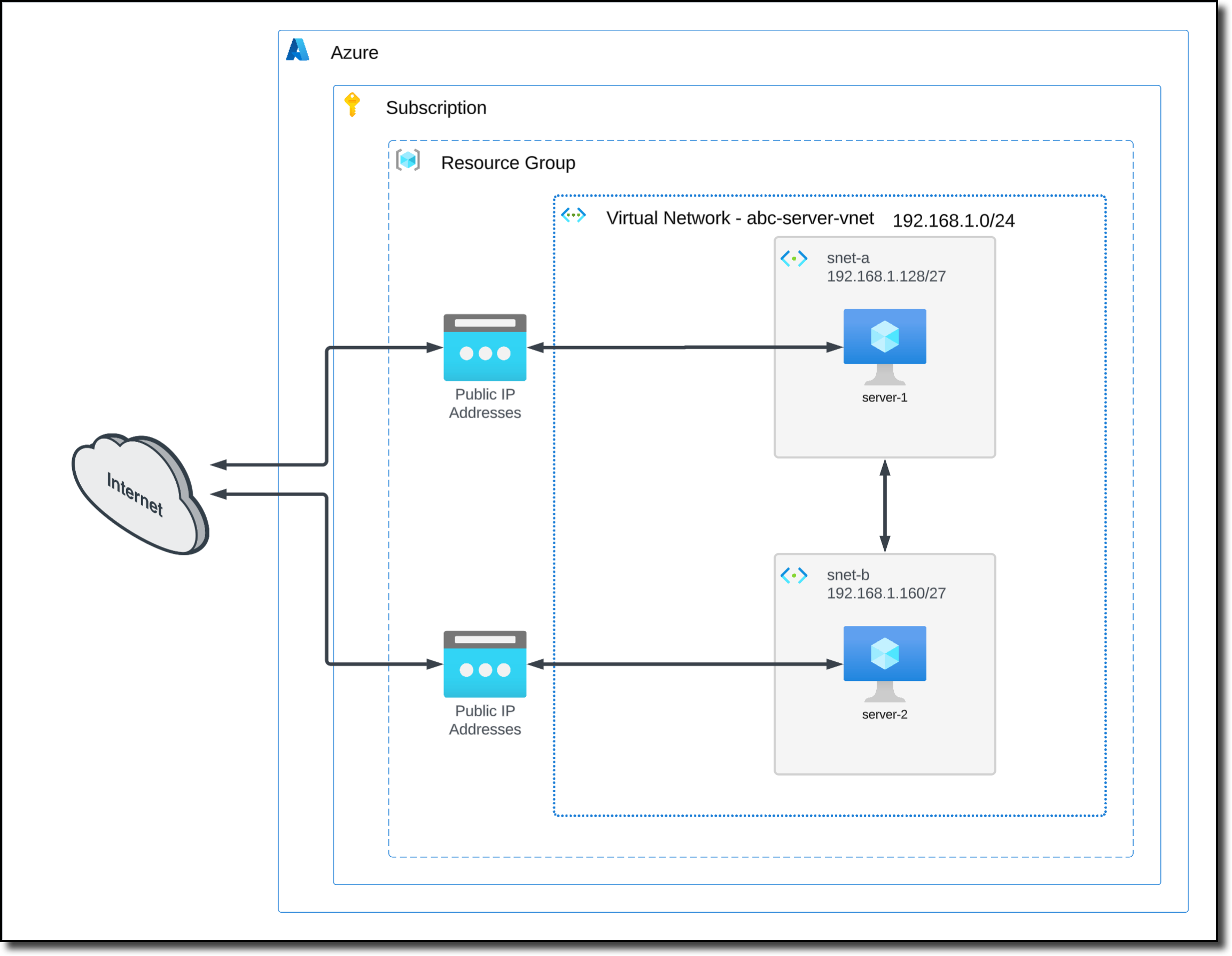
The following diagram is a representation of your current VNET and VM deployment.