Setting up the LLM
LLM and Chatbot Setup
FortiAIGate is designed to provide visibility as well as guardrails around LLM so we will need an LLM to protect. The following steps will walk you through using helm to setup and configure the required pods (containers) to run our own LLM within our K8s cluster.
Info
While this demo shows FortiAIGate protecting an internal, or self-hosted LLM, it can also be used to protect external LLMs like OpenAI, Anthropic, AWS Bedrock Converse, and Azure AI Foundry. Protection of these environments allows customers to avoid unnecessary token spend on unauthorized or malicious requests. Just keep in mind anywhere you see LLM, that means it can be _any_ supported LLM.
Helper Containers
The FortiAIGate demo consists of three containers that allow the demo to function.
- LLM - This container runs llamacpp. This software provides a gateway to talk to the LLM. It processes the requests you send (prompts) as well as the response (output) from the LLM and returns it back to you. Other examples of LLM gateways are: ollama, vllm, SGLang, and bifrost. In our lab we will be running the LLM model “llama3.2:3B” (llama version 3.2, 3 billion parameter model). This is a small, lightweight model that will run on CPU without too much delay (it isn’t fast, but it isn’t too slow either).
- Chatbot - This container is running a custom chatbot application written in Python. The chatbot has a set of instructions known as a “system prompt” that help guide the LLM in how to understand and respond to the user’s prompts. This is also called a “harness” and it is designed to put guardrails on what the LLM should and should not respond to.
- Landing - The last container is just running Nginx and provides a landing page for users to access the various services within our demo. The LLM is accessible externally via the
/llmendpoint and the chatbot is accessible externally via the/chatendpoint. This container just provides a nice web interface to access each of those services without having to type in the actual URL endpoint.
Installing the Helper Containers
Run the following commands to download the helm charts to install and setup the helper containers.
Log into the Azure Portal.
Open the Azure Cloud Console.

We need to prep the nodes for FortiAIGate and we need NFS storage in K8s to do that. Run the following commands to install the required NFS packages on each host:
cd $HOME/k8s-101-workshop/terraform/
mastername=$(terraform output -json | jq -r .linuxvm_master_FQDN.value)
username=$(terraform output -json | jq -r .linuxvm_username.value)
workername=$(terraform output -json | jq -r .linuxvm_worker_FQDN.value)
cd $HOME
ssh -o 'StrictHostKeyChecking=no' $username@$mastername sudo apt install -y nfs-common
ssh -o 'StrictHostKeyChecking=no' $username@$workername sudo apt install -y nfs-common
Run the following command to download the scripts:
cd $HOME
git clone https://github.com/FortinetCloudCSE/faig-training-workshop.git
cd $HOME/faig-training-workshop/scripts/faig/
./deploy.sh
When this is done it should like this:
...
>> Deployed.

   FortiAIGate (installed separately) attaches its own Ingress for /ui, /v1/...,
   and the '/' catch-all against IngressClass nginx.
The information displayed is the script deploying the various containers and services required via helm.
Let’s verify that everything is working correctly. Use the following command to generate a link to your worker node:
echo https://$(whoami)-worker.centralus.cloudapp.azure.comThe output should look something like this:

You should be able to click on the link output directly in the Cloud Console and it will open up in a new tab in your browser. It should look something like this:
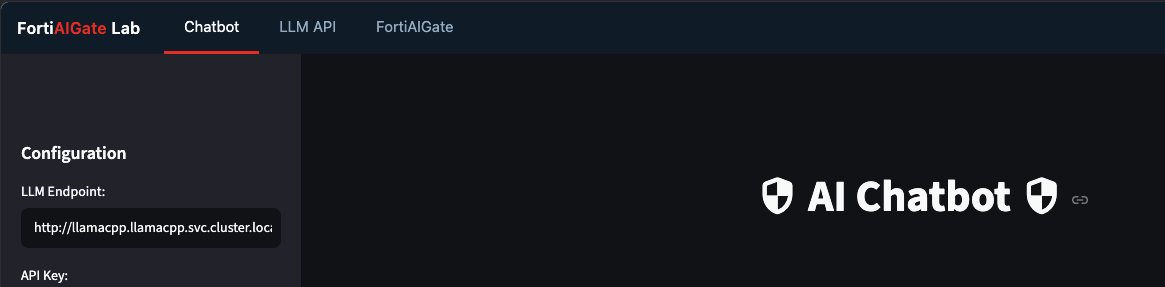
In the Chatbot window down at the bottom you will see “Say something…”. Type in
Helloand hit enter. This will verify that the Chatbot can communicate with the LLM correctly.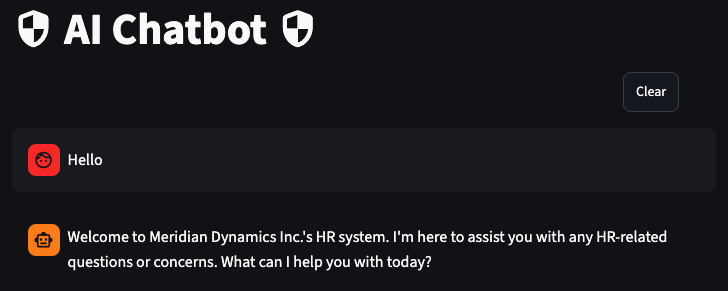
Info
The LLM might take anywhere from 15 to 30 seconds to respond. This is normal as it takes time for the model to load into memory. Subsequent requests should be faster once the model is loaded. If you pause and come back you might encounter a longer delay because the LLM might need to be loaded back into memory again.
Ready to Go
We now have a working demo environment with an LLM model and a chatbot that can talk to it. In the next section we will start installing and configuring FortiAIGate so that we can properly demo the application.
Continue on to the next page.
Continue to the Setting up FortiAIGate.