Configuring AI Chatbot
Configuring the AI Chatbot
The next steps we will configure the the AI Chatbot to talk to FortiAIGate instead of talking directly to the LLM. This is to allow FortiAIGate to proxy the requests to the LLM and perform inspection and logging of the prompt inputs and outputs.
Info
It is important to remember that, currently, all clients must be configured to talk to the FortiAIGate instead of directly to the LLM. For customer deployments it is advised to block all AI communication via Application Controls on the FortiGate, and then only allow communication from the FortiAIGate. This is currently the best deployment option to ensure that the FortiAIGate is not bypassed.
Within FortiAIGate, using the left navigation menu, click on Settings > API Keys.
Click on the “Copy” action button to copy the current API key to your clipboard.

Navigate back to the tab with the FortiAIGate landing page titled “FortiAIGate Lab”.
Click on “Chatbot” in the top menu.

Click on the field named “API Key” and paste in the API key you copied from the FortiAIGate. This API key will be included in every request that is sent to the FortiAIGate. This is used to ensure that the FortiAIGate is not accessed without permission or authorization.
Back in the Azure Portal, use the Cloud Console to run the following command:
echo http://$(whoami)-worker.centralus.cloudapp.azure.com/v1/hrbotCopy the URL generated and use it in the next step.
Info
Each student's environment has a unique number assigned. We use this process to ensure we have the correct endpoint URL to access the FortiAIGate. We are also using http here instead of HTTPS to avoid any issues with unsigned certificates. In a production environment you would use HTTPS.
Click on the field named “LLM Endpoint” and enter the URL generated in the previous step:
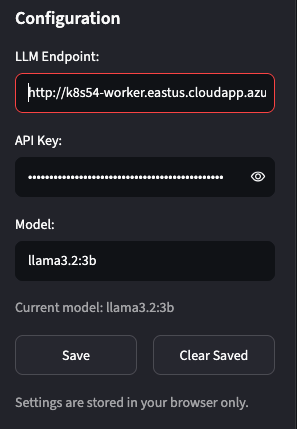
Click on “Save” to commit the changes to your local browser.
In the “Say something…” at the bottom of the chat window type
helloto verify that the chatbot can talk to the FortiAIGate and that the FortiAIGate can also communicate with the backend LLM.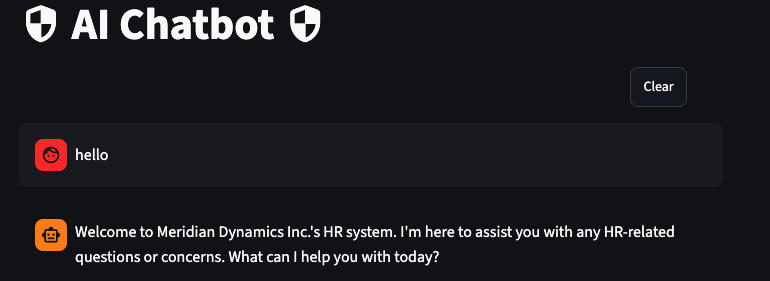
Let’s Get Started with FortiAIGate
We now have a fully operational “AI stack” to start testing FortiAIGate. Let’s get started!
Continue on to the next page.
Continue to the Demoing FortiAIGate.