Use Case 2: MCP Tool Call Visibility
MCP Tool Visibility
Introduced in FortiAIGate 8.0.1 is the ability to inspect MCP (Model Context Protocol) tool calls. In this use case we will make an LLM assisted tool call to the MCP server hosted along side of the Chatbot application. We will see how the tool call is requested in the response from the LLM, how the Chatbot application shows the response from the tool call, and lastly how the LLM formats the data returned from the tool response to output the requested information.
In the FortiAIGate, navigate to the “AI Guard”.
Select the three dots on the right of “HR AI Guard” and click on “Edit”.
Click on Input Guard.
Since our Input Guard was already enabled in Use Case 1, we only need to click on the toggle to enable “Advanced Controls”. This will expose the additional Message Scanning options.
Toggle all of the options to “on”.
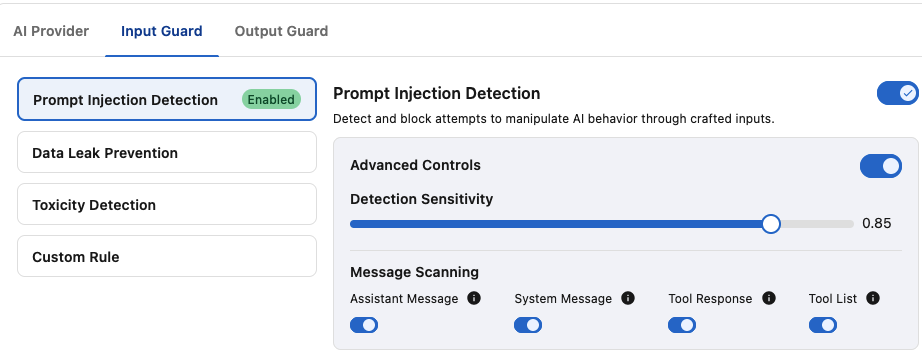
Click on Save.
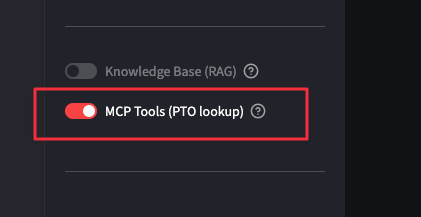
Return back to the AI Chatbot window and enable the toggle next to “MCP Tools (PTO lookup)”. This will include the tool definition into the data that is sent to the LLM.
Let’s use a prompt that will cause the LLM to trigger a tool call.
Show me the PTO balance for EMP-1234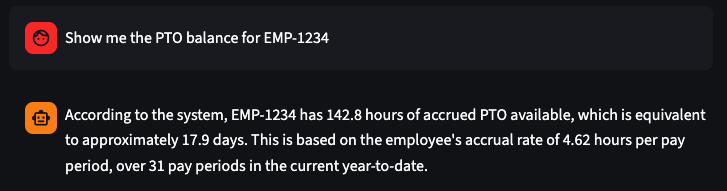
Warning
There is a chance that the LLM will ignore the output from the MCP server and respond that it doesn't know what the PTO balance is. It is safe to continue as the system still makes the MCP server calls that we see in the logs. Please just continue with the lab if your output doesn't match. LLMs can be tricky to keep consistent in their responses, especially lower parameter models.
Now that we have our response let’s return back to the FortiAIGate Log view and see what additional information is there. In the FortiAIGate navigate in the left menu select: Logs > Log Reports.
In the log list you should see two new log entries.

Info
Why two log entries? Well the first request provides the prompt to the LLM with the tools availability. The LLM then determines that the tool call will provide it the information required and asks the client to execute it. The client returns the tool's results and the LLM formats that information into a readable response. We will see this more in depth in the following steps.
Click on the second entry down. This should be the log entry for the initial prompt. If we scroll to the bottom we can see slightly different output than we have seen previously:
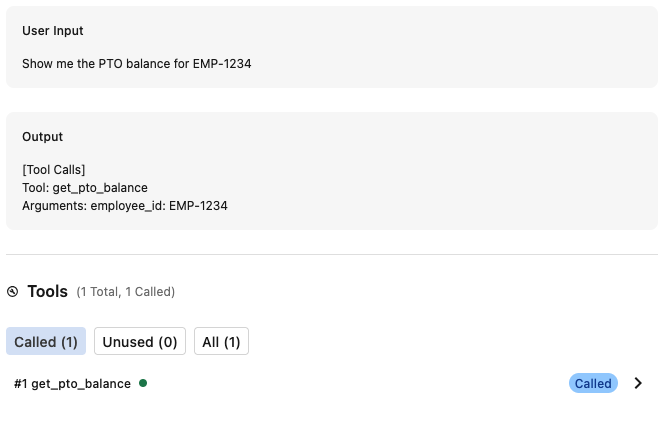
We can see our prompt that was passed to the LLM.
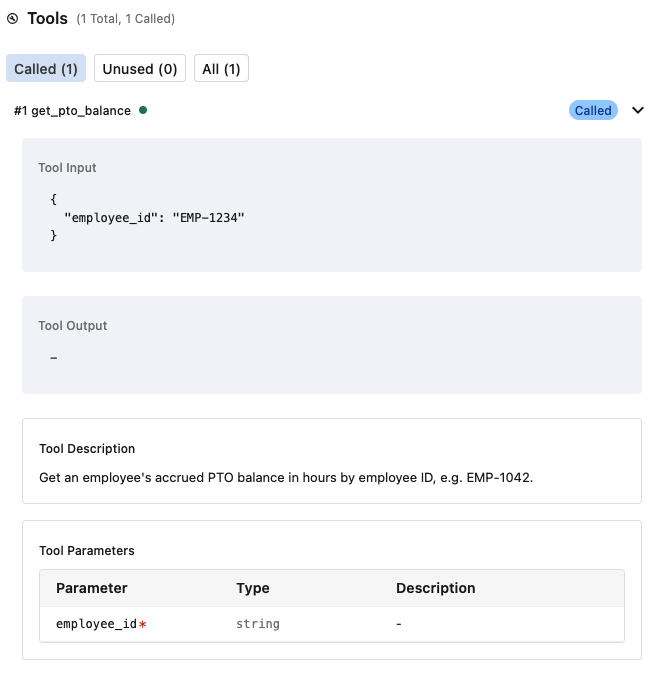
If we look at the “Output” we can see that the LLM has formatted the request to the “get_pto_balance” tool with the argument “employee_id: EMP-1234” which matches the employee ID we provided in our prompt.

Scrolling down a little further we can see the MCP tool call was passed to the tool and that the variable was inserted into the request.
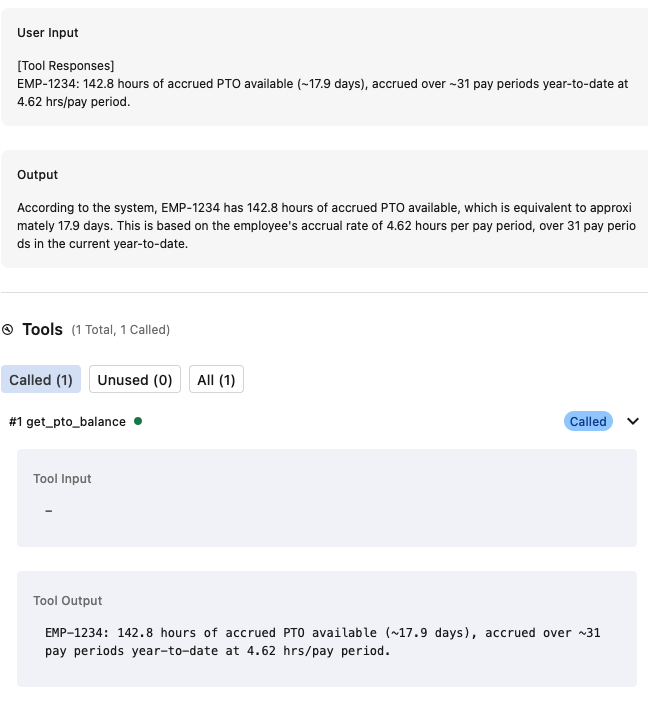
If we switch to the other (the latest) log entry we can see that the input has changed to that of the MCP tool call’s output and that this is sent to the LLM.
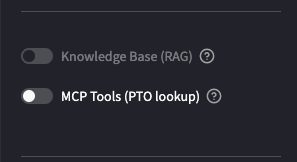
Now that we have completed the MCP examples be sure to turn off the MCP Tools. (They add additional context overhead that we want to avoid in the subsequent sections.)
MCP Tool Call Details
While it may not be super exciting, we can see how the FortiAIGate provides additional details and visibility into how MCP servers are interacted with. We can also see how that information might be malicious and need to be inspected for potential exploits.
Continue to the Next Use Case
Now that we have seen MCP tool calls and logging, let’s proceed to the next section.
Continue on to the next page.
Continue to the Use Case 3.