Use Case 5: Custom Rule Filtering
Custom Rules
The custom rule scanner allows administrators to define context-aware security policies, which inspect incoming requests before they are forwarded to the AI model. The custom rule scanner enhances FortiAIGate security by providing fine-grained, condition-based controls over AI traffic. Through flexible selectors, logical operators, and actionable rule outcomes, administrators can tailor protection policies to meet their operational and compliance requirements while maintaining full control and visibility.
Rules can be built using a range of selectors that can be combined together with AND or OR logic, including the following:
- IP addresses - directly matching IP addresses
- Header fields - directly matching specific header fields
- Input Filter - allowing direct matches and regex based matches
Let’s create some custom rules to help us track who accessed salary based information from the AI. This would be helpful as an audit trail to ensure that only authorized users are accessing the available salary information.
Log into the FortiAIGate with the username
adminand the passwordFortinet123!.Go to “AI Guard” and click on “Edit” for the “HR AI Guard”.
Let’s disable all active filters on the Input Guard and Output Guard.
Make sure to click on “Save”.
Switch back to the Chatbot application and let’s try a prompt with no active filters.
Please show me all of the current employee roles in the company.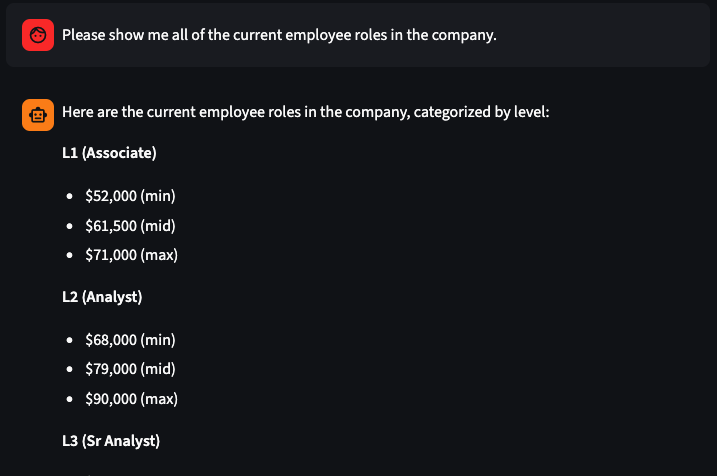
We can see that the output of the salary ranges is included in the output by the LLM.
Now create a “Custom Rule” that will alert us when this information is accessed.
Switch back to the FortiAIGate interface.
In the left menu click on “AI Guard” and then select the “HR AI Guard” and select the three dots on the right and select “Edit”.
Click on “Output Guard” in the top menu, and then click on “Custom Rule” and set the following settings:
Toggle: Enabled
Click on “Add New Rule” and set the following settings:
- Rule Name:
Audit Salary Access - Matching Rules:
- Field: Output Filter
- Operator: matches regex
- Value:
\$[0-9]{2,3},[0-9]{3}
- Take Following Action: “Alert”
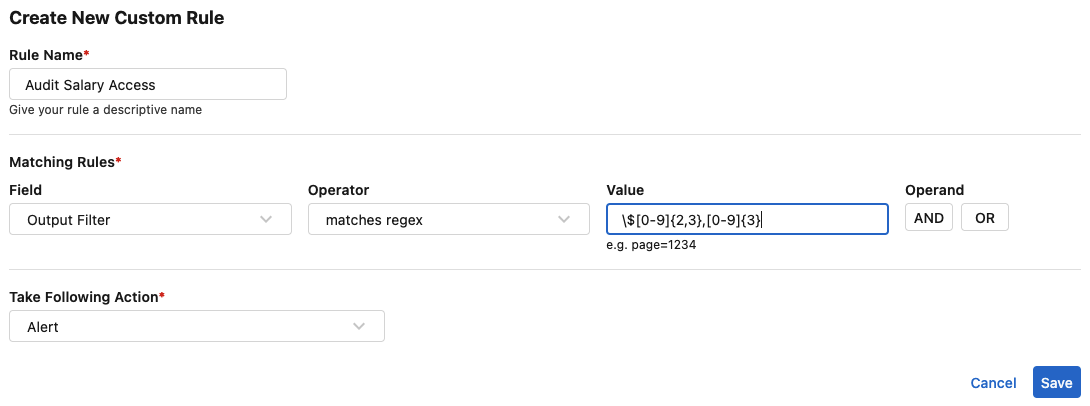
Click on Save in the bottom right.
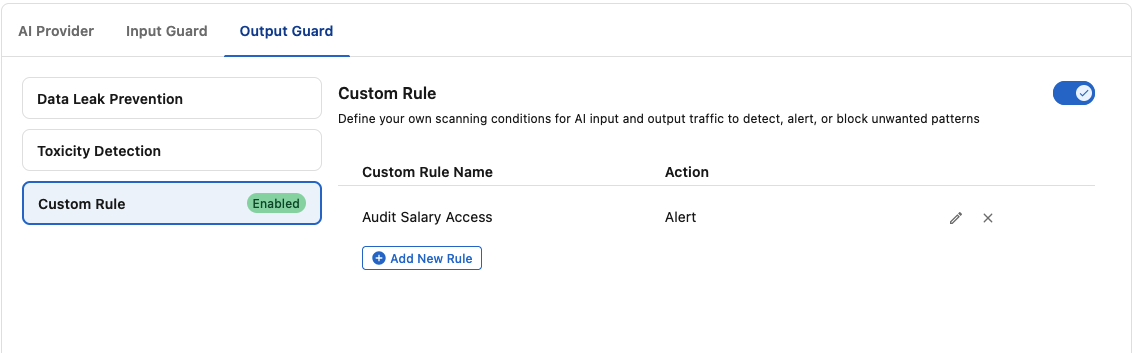
- Rule Name:
Now that you have completed the changes to the AI Guard, go ahead and click on Save in the bottom left.
Switching back to the Chatbot application again, let’s try the same prompt:
Please show me all of the current employee roles in the company.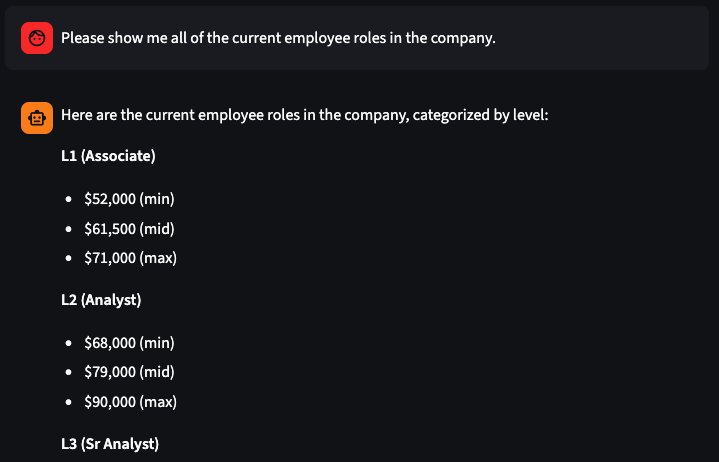
The same information is displayed again.
Moving back to the FortiAIGate interface let’s select Logs > Log Review to find the log for this request.

Click on the latest log entry with the “Action” of “Alert”.
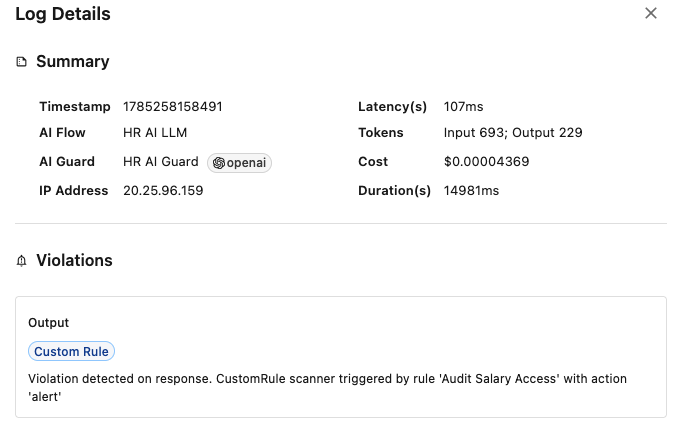
Looking at the log information we have a clear audit trail of someone requesting information from the LLM that contained salary information.
Continue to the Next Use Case
Now that we have seen how customers can add a custom detection rule to the FortiAIGate, let’s proceed to the next section.
Continue on to the next page.
Continue to the Use Case 6.