Use Case 6: Intelligent Routing
Intelligent Routing
The last use case within this section covers using the “Intelligent Routing” functionality within the FortiAIGate to inspect the input from the user and then based on the detected content of the prompt make a decision on which LLM to route the prompt to. The “Intelligent Routing” can detect what language the prompt is written in and redirect it to an LLM that is trained in that language (i.e. French could be sent to Mistral LLM as it is a French native LLM). The system also has the ability to detect the language code is written in and send that to an LLM that is good at processing programming languages (i.e. Anthropic based frontier models like Opus).
Important
In the next steps we will walk through the steps required to configure AI Flow routing decisions. This lab only has one LLM though, so any of the routing decisions will still end up on the same LLM. In a real production environment the customer could have API access to a local LLM, OpenAI and Anthropic and could use these same steps to detect and route user prompts to the required LLMs automatically.
Log into the FortiAIGate with the username
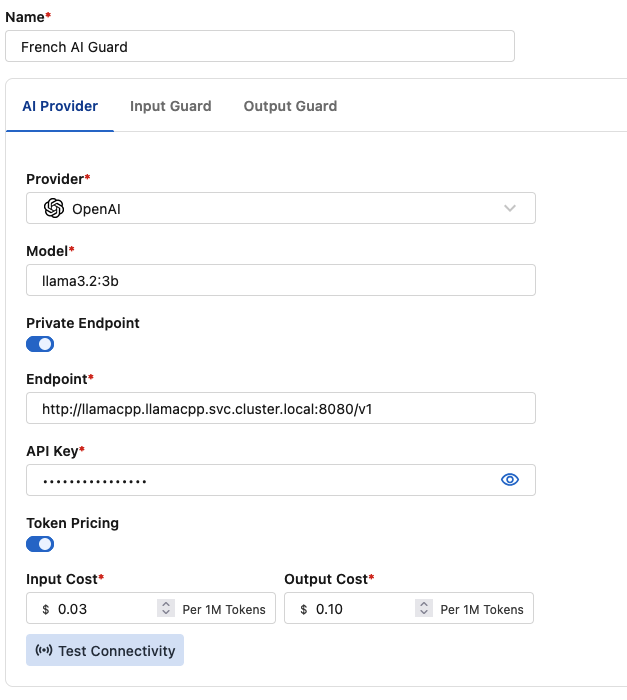
adminand the passwordFortinet123!.We are going to create a “French AI Guard” to use in the next steps. Click on “AI Guard” and set the following settings:
- Name:
French AI Guard - Provider: “OpenAI”
- Model:
llama3.2:3b - Private Endpoint: on
- Endpoint:
http://llamacpp.llamacpp.svc.cluster.local:8080/v1 - API Key:
llamacpp-testing - Token Pricing: on
- Input Cost: 0.03
- Output Cost: 0.10
- Name:
Click on Save to save the new AI Guard.
In the left menu click on “AI Flow”.
In the top right click on “Create Flow” to create a new AI Flow.
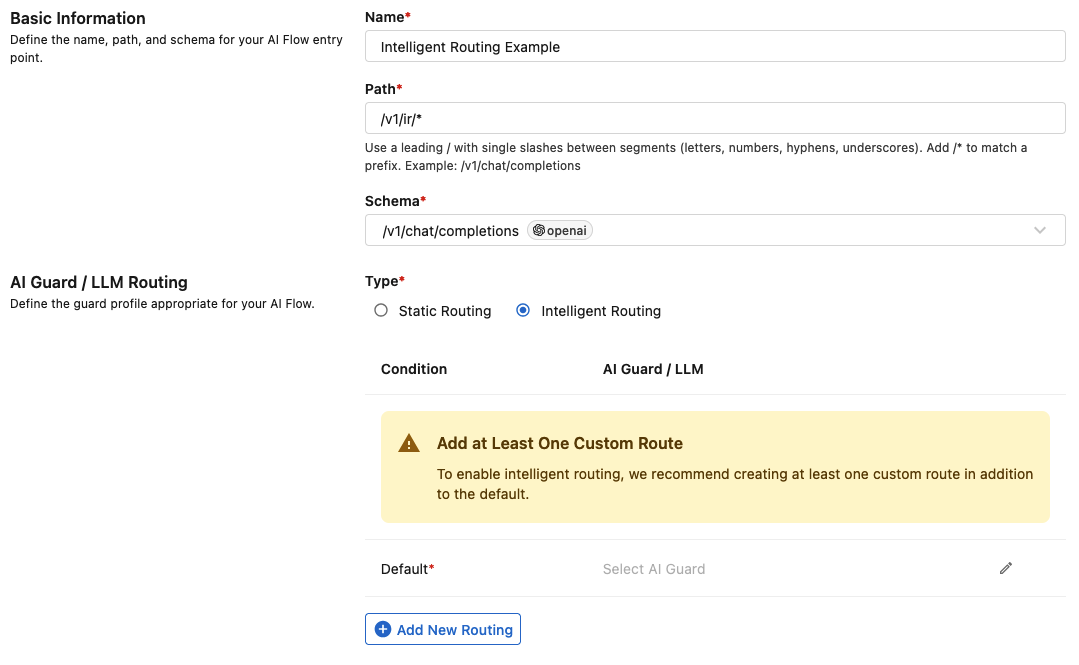
Enter the following information:
- Name:
Intelligent Routing Example - Path:
/v1/ir/* - Schema:
/v1/chat/completions - Type: select “Intelligent Routing”
- Name:
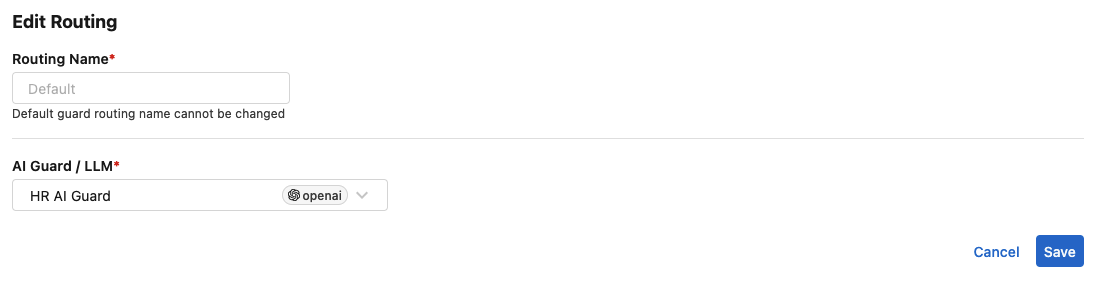
Next let’s assign a Default AI Guard. This is always required as it is the fall back route when the other routes do not match. Click the “pencil” on the “Default” line and in the dialog window select our “HR AI Guard”. Then click on “Save”.
Let’s add another route by clicking on “Add New Routing”.
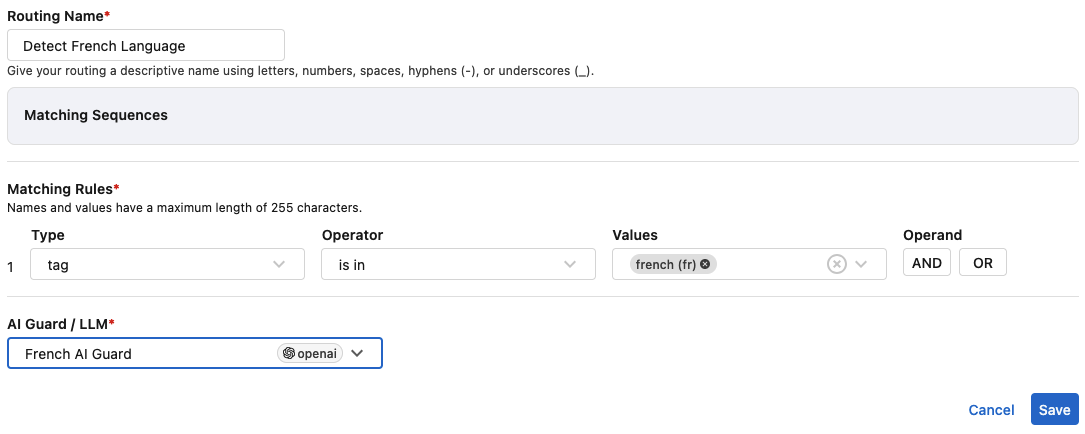
In the dialog box we want to set the following information:
- Name:
Detect French Language - Matching Rules:
- Type: “tag”
- Operator: “is in”
- Values: select “french”
- AI Guard / LLM: French AI Guard
- Name:
Now that we are done click on “Save” in the lower left hand corner to save this “AI Flow”.
Within the chatbot application let’s modify the LLM endpoint to point to the new AI Flow we just created. In the field LLM Endpoint edit the last part of the URL to remove “hrbot” and replace it with “ir”.
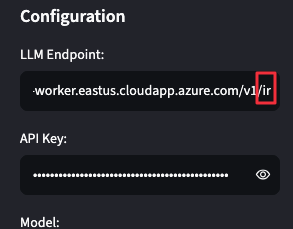
Click on “Save” to save the change in the Chatbot.
Now let’s try a prompt in French.
Fourchettes salariales pour L3 Data Eng à Atlanta. Format : min / médiane / max.The response will look something like this:
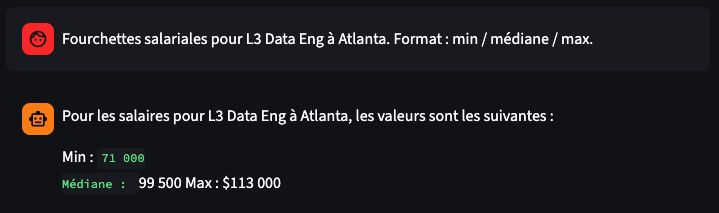
Switching back to the FortiAIGate let’s look at Logs > Log Reports and see how the input was routed. Click on the most recent log and look at the information in the summary.
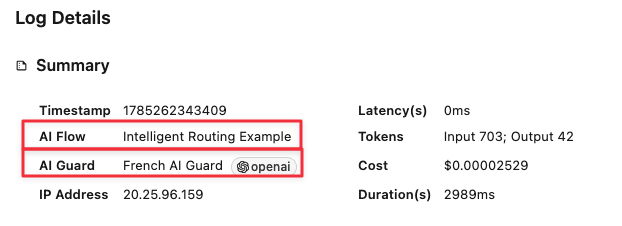
Looking at the information in the Summary we can see that the request hit the “Intelligent Routing Example” AI Flow, and because of the intelligent routing we had set in that flow, we can see that it was routed to the “French AI Guard” we created specifically looking for French based prompts.
Continue to the Next Use Case
Now that we have seen how Intelligent Routing works in the FortiAIGate, let’s proceed to the next section.
Continue on to the next page.
Continue to the Use Case 7.