fortigate-aws-cwanconnect-active-active-cloudformation
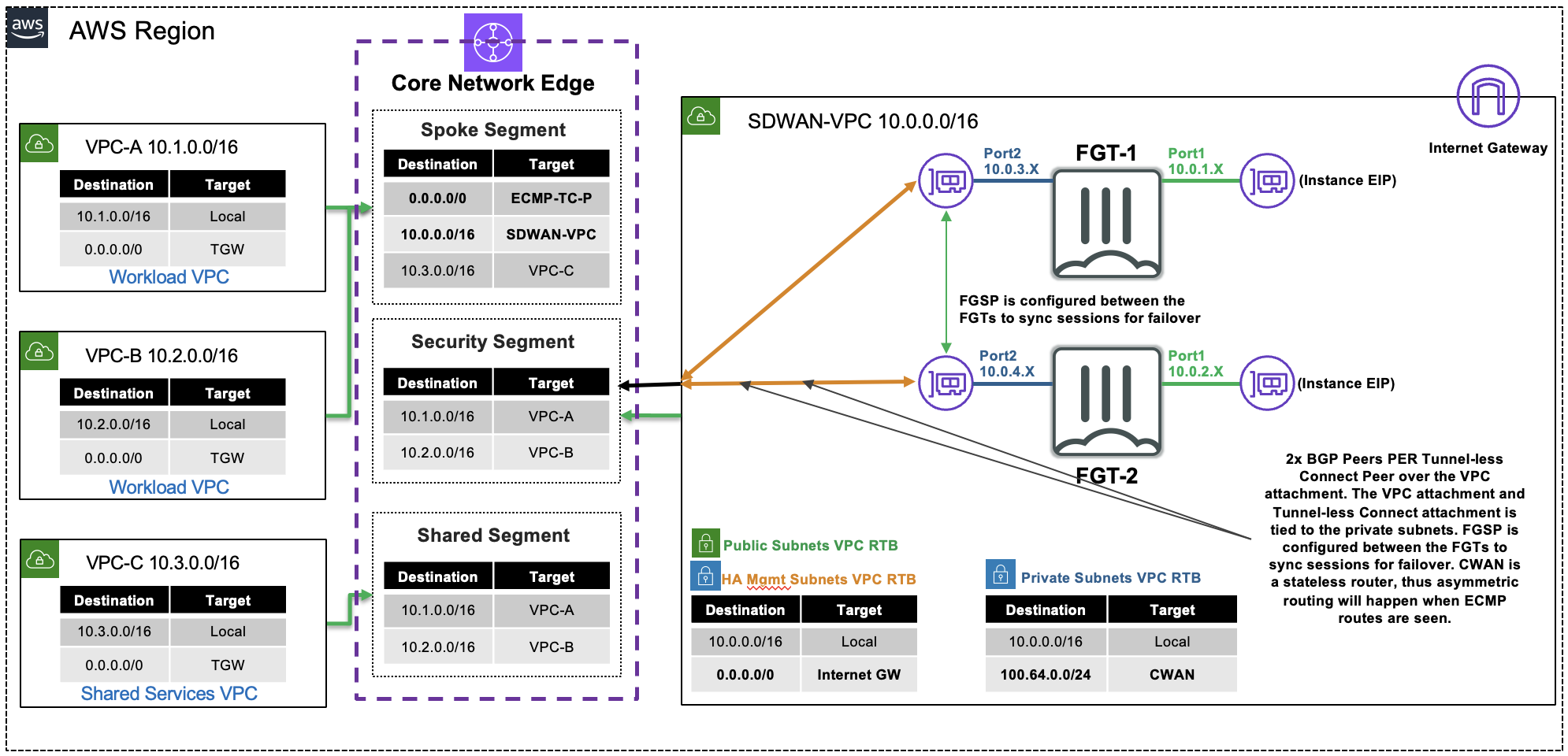

The purpose of this site is to provide a quick start guide for using Infrastructure as Code (IaC) templates located in the repo fortigate-aws-cwanconnect-active-active-cloudformation.
Reference the prerequisites and deployment sections on this site to get started.
For other documentation needs such as FortiOS administration, please reference docs.fortinet.com.
Before attempting to create a stack with the templates, a few prerequisites should be checked to ensure a successful deployment:
An AMI subscription must be active for the FortiGate license type being used in the template.
The solution requires 3 EIPs to be created so ensure the AWS region being used has available capacity. Reference AWS Documentation for more information on EC2 resource limits and how to request increases.
If BYOL licensing is to be used, ensure these licenses have been registered on the support site.
Create a new S3 bucket in the same region where the template will be deployed. If the bucket is in a different region than the template deployment, bootstrapping will fail and the FGTs will be inaccessible.
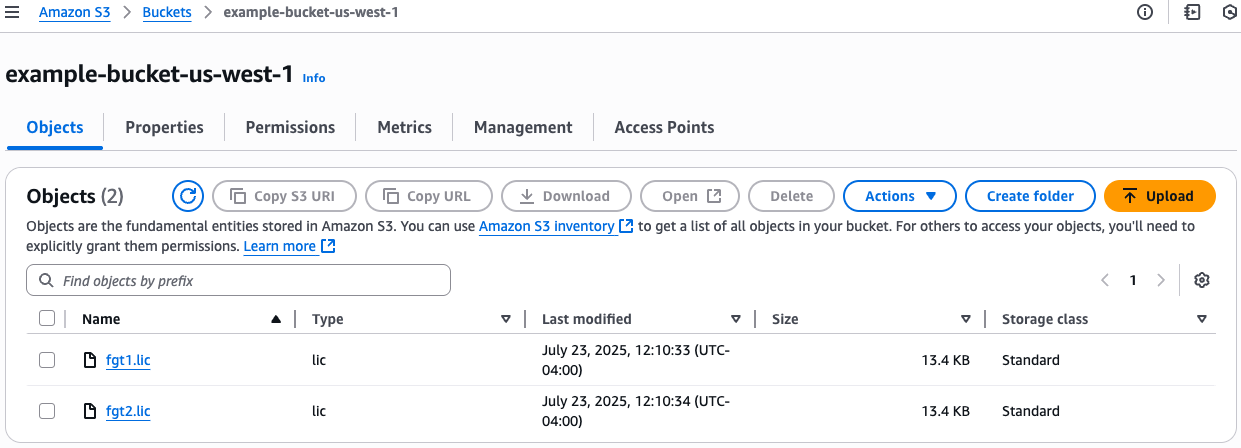
If BYOL licensing is to be used, upload these licenses to the root directory of the same S3 bucket from the step above.
Once the prerequisites have been satisfied proceed with the deployment steps below.
git clone https://github.com/FortinetCloudCSE/fortigate-aws-cwanconnect-active-active-cloudformation.git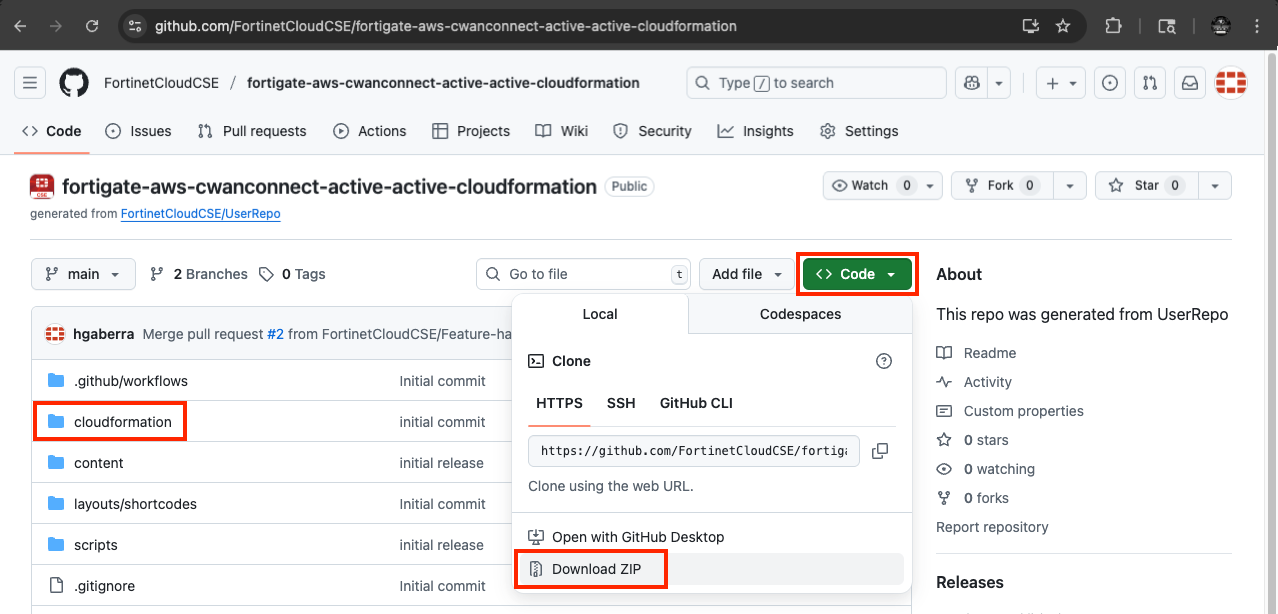
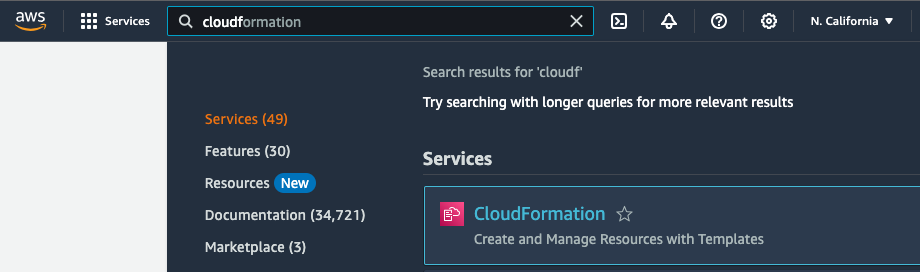
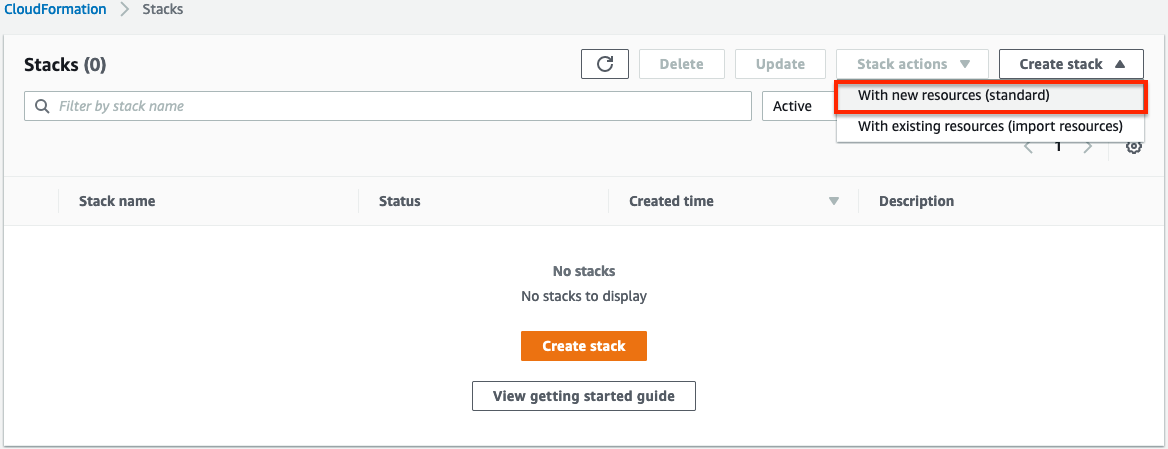
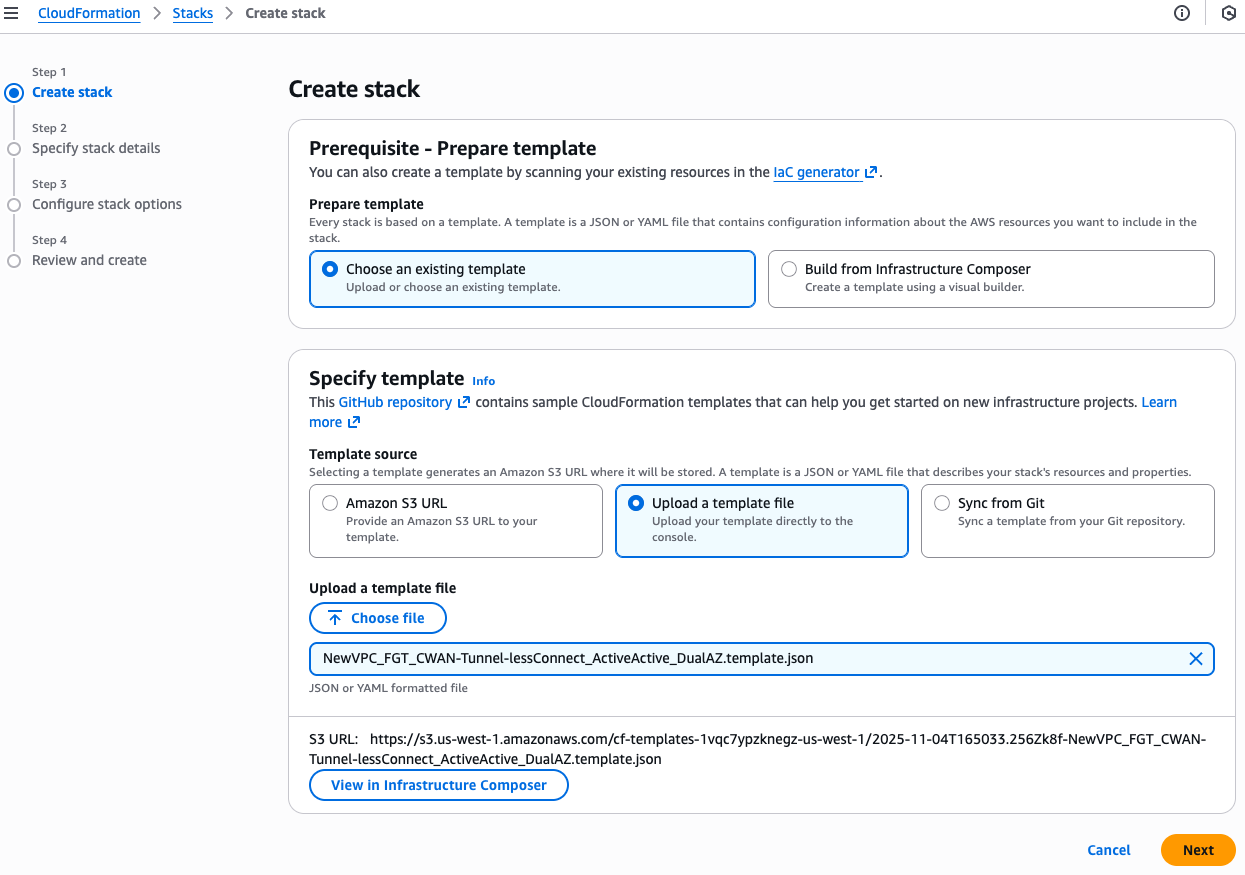
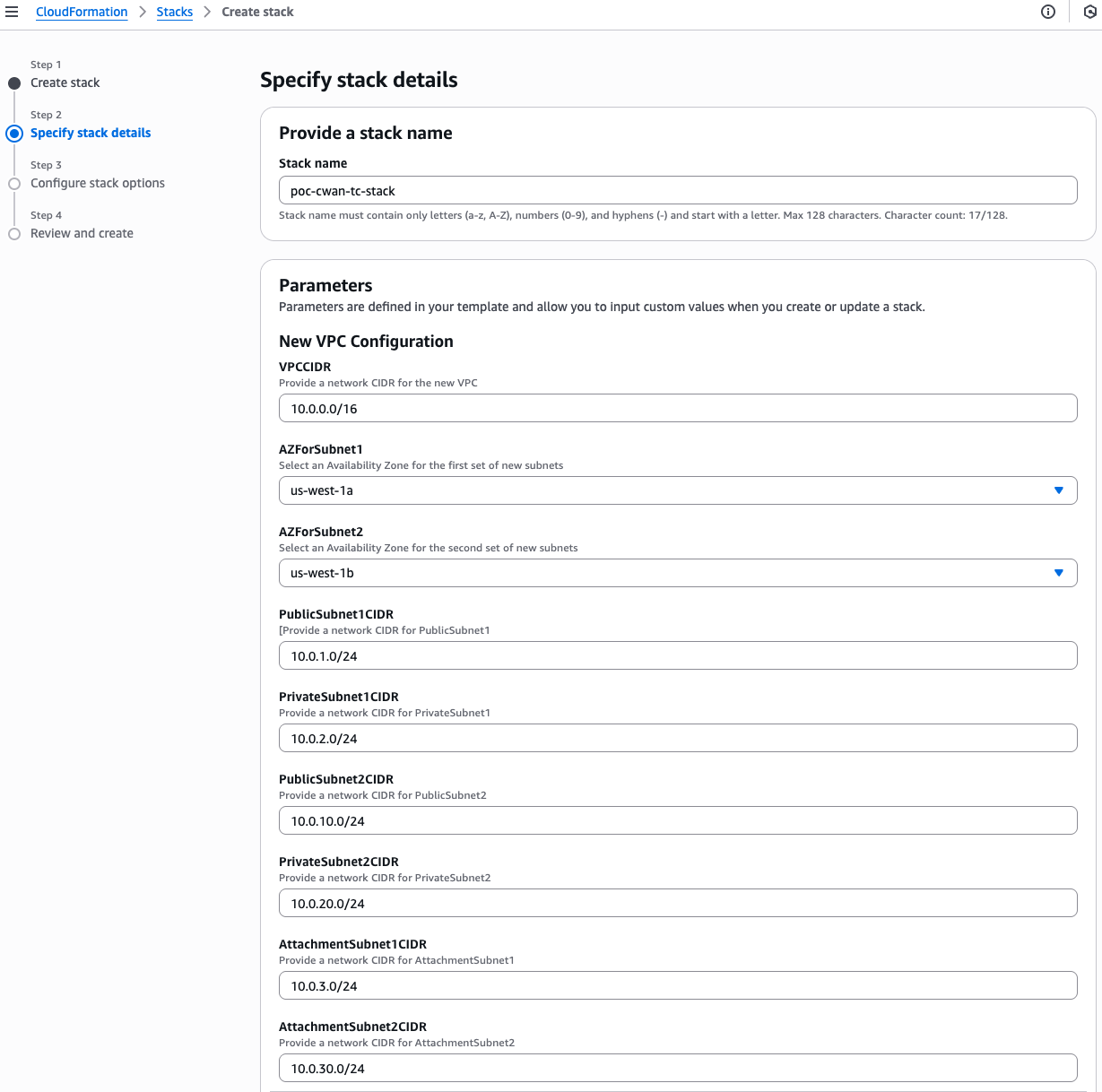
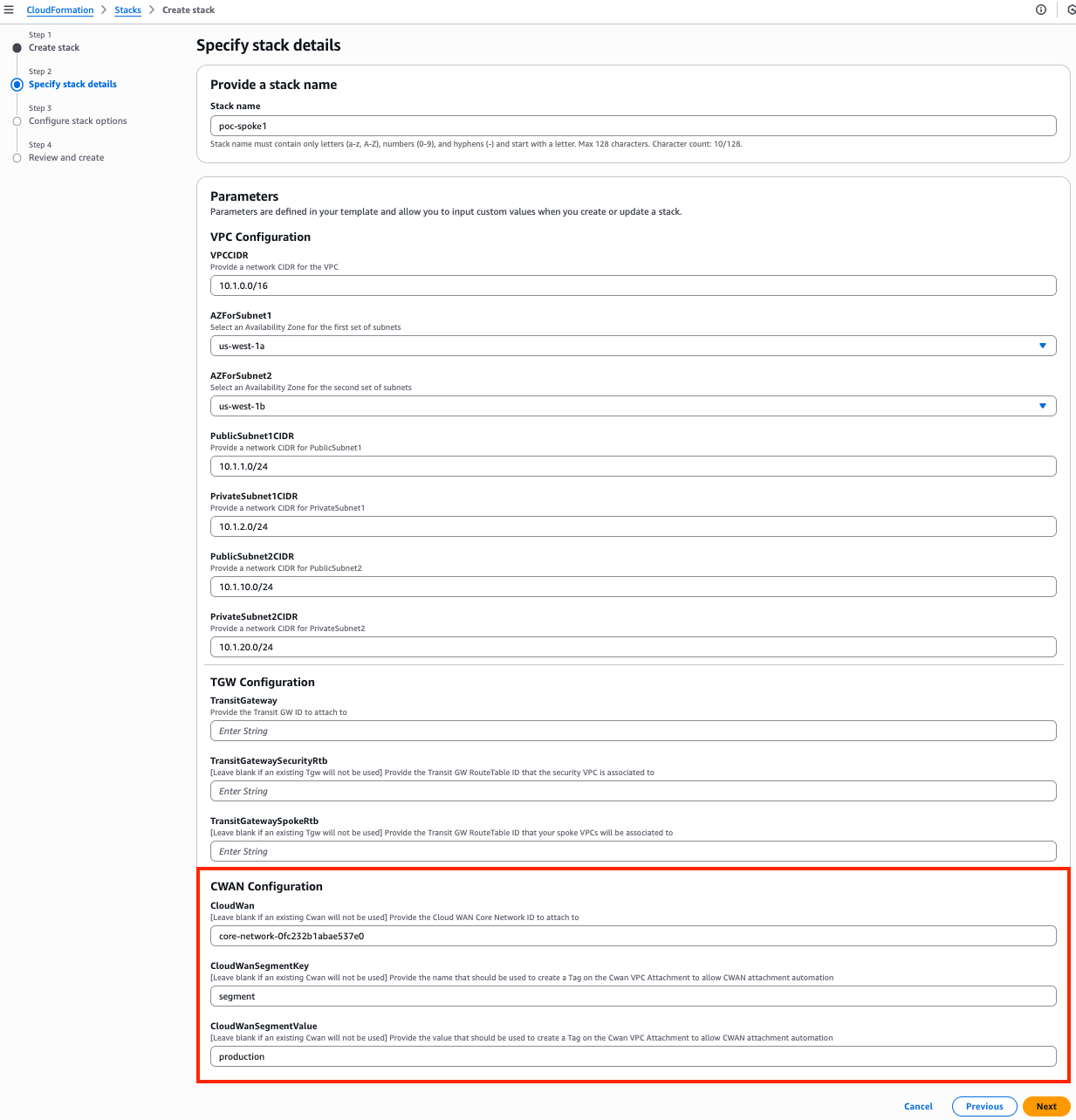
We are choosing to deploy a new CWAN so we have set ‘CwanCreation’ to ‘Yes’. Note you can also attach to an existing CWAN by changing ‘CwanCreation’ to ‘No’ and providing the appropriate values for the ‘CwanConnectCIDRBlock’, ‘CwanBgpAsn’, and ‘CwanExisting…’ parameters.

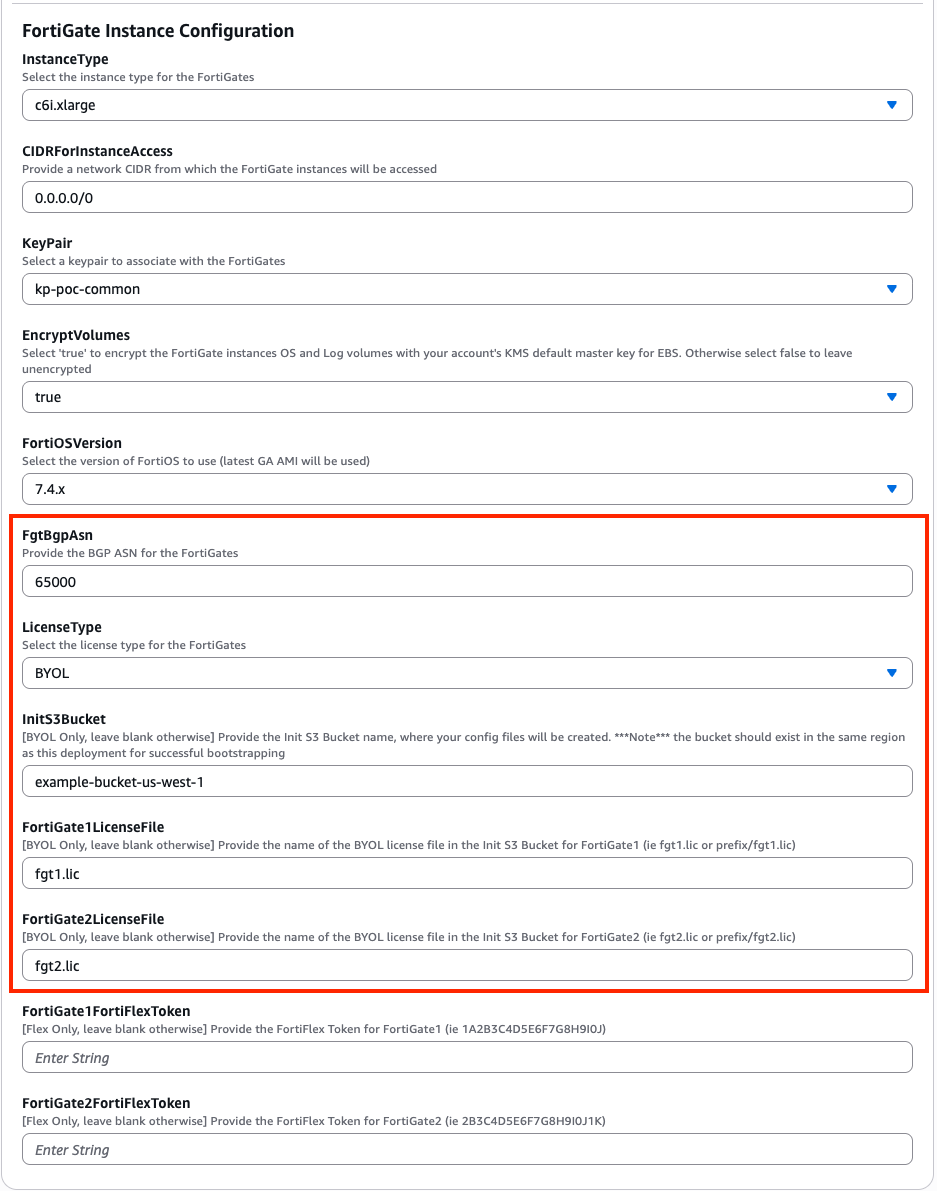
Notice that the license files are in the root directory of the S3 bucket, so we did not need to specify a prefix in our values for FortiGate1LicenseFile and FortiGate2LicenseFile.
On the Options page, you can scroll to the bottom and select Next.
On the Review page, scroll down to the capabilities section. As the template will create IAM resources, you need to acknowledge this by checking the box next to ‘I acknowledge that AWS CloudFormation might create IAM resources’ and then click Submit.