fortimanager-aws-ha-dualaz-cloudformation
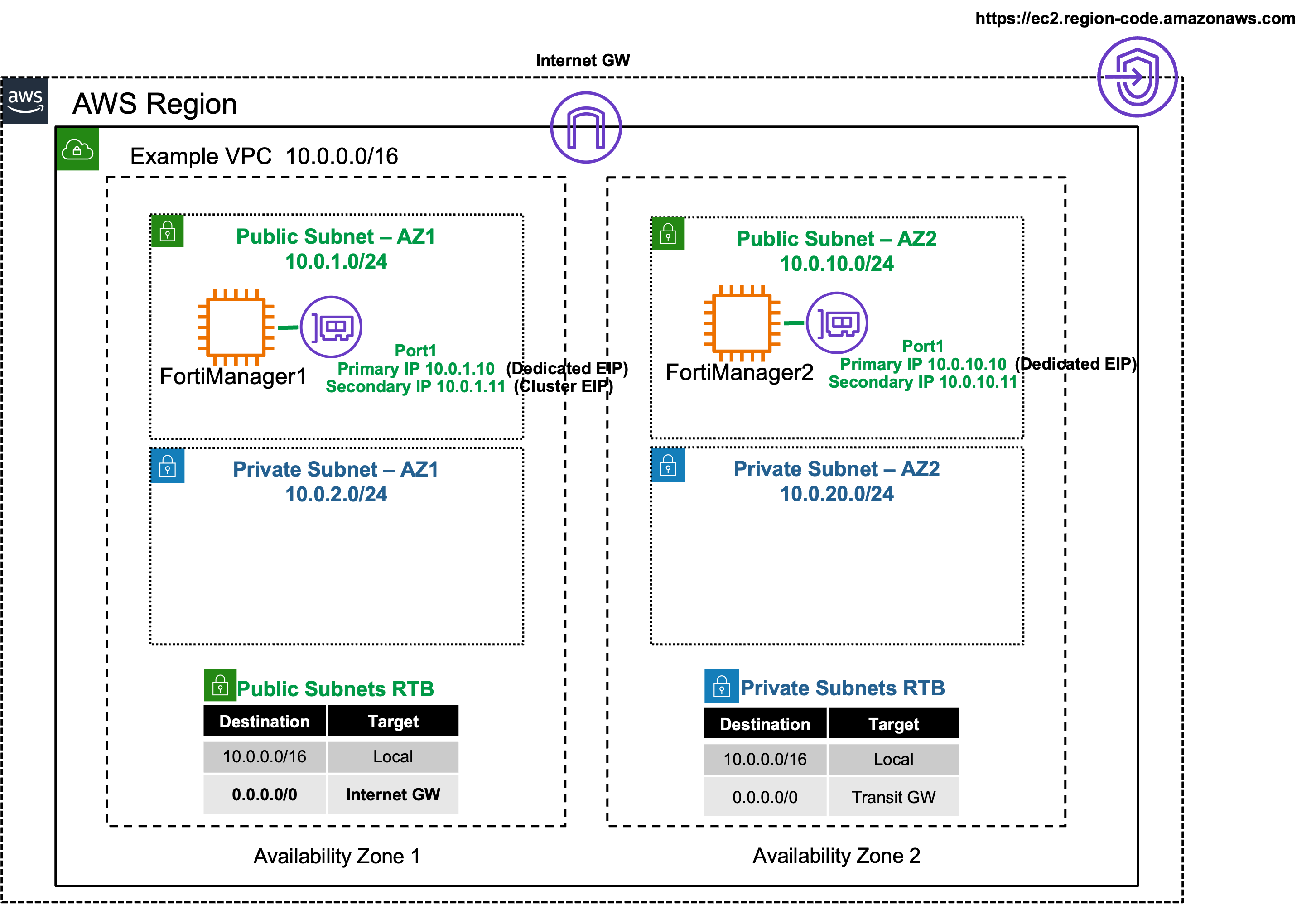
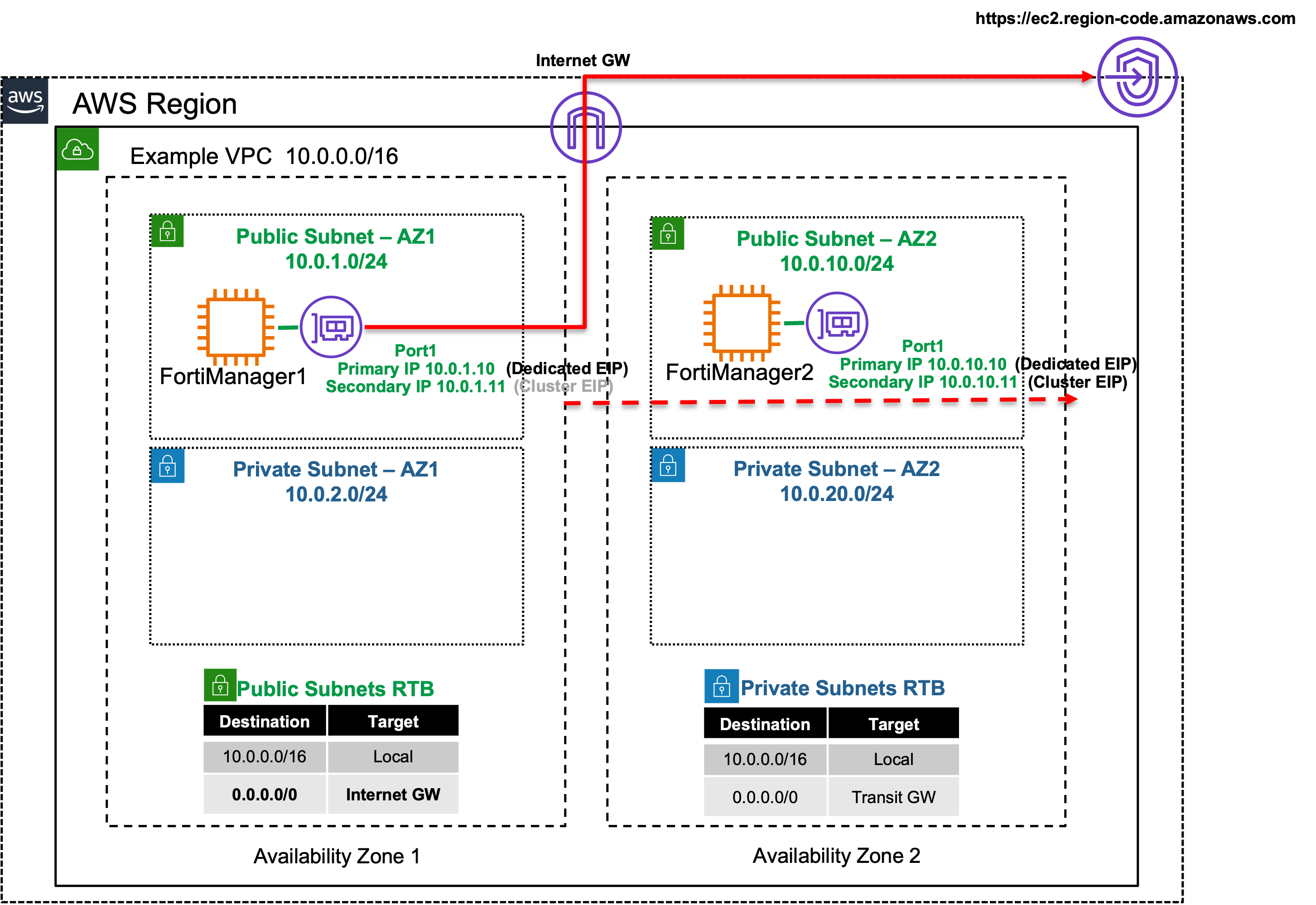

The purpose of this site is to provide a quick start guide for using Infrastructure as Code (IaC) templates located in the repo fortimanager-aws-ha-dualaz-cloudformation.
Reference the prerequisites and deployment sections on this site to get started.
For other documentation needs such as FortiOS administration and additional use cases, please reference docs.fortinet.com.
Before attempting to create a stack with the template, a few prerequisites should be checked to ensure a successful deployment:
An AMI subscription must be active for the FortiManager license type being used in the template.
The solution requires 3 EIP to be created so ensure the AWS region being used has available capacity. Reference AWS Documentation for more information on EC2 resource limits and how to request increases.
If BYOL licensing is to be used, ensure these licenses have been registered on the support site.
Create a new S3 bucket in the same region where the template will be deployed. If the bucket is in a different region than the template deployment, bootstrapping will fail.
If BYOL licensing is to be used, upload these licenses to the root directory of the same S3 bucket from the step above.
Ensure that the PublicSubnet’s AWS route table has a default route to an AWS Internet Gateway, otherwise bootstrapping and licensing will fail. Reference AWS Documentation for further information.
If using the existing VPC template and you are deploying into private subnets, ensure an S3 endpoint is deployed in that subnet and that a VPC route allows reachability to FortiCloud for license validation and PAYG registration.
If PAYG licensing is to be used, you will need to configure HA peers as the serial numbers are generated on first boot. First login via SSH or serial console and get the serial number get system status, then register this in FortiCloud. Next, reboot the instances exec reboot. In the GUI navigate to Sytem Settings > HA and add the primary interface IP and serial number of the HA peer on both instances.
Once the prerequisites have been satisfied proceed with the deployment steps below.
git clone https://github.com/FortinetCloudCSE/fortimanager-aws-ha-dualaz-cloudformation.git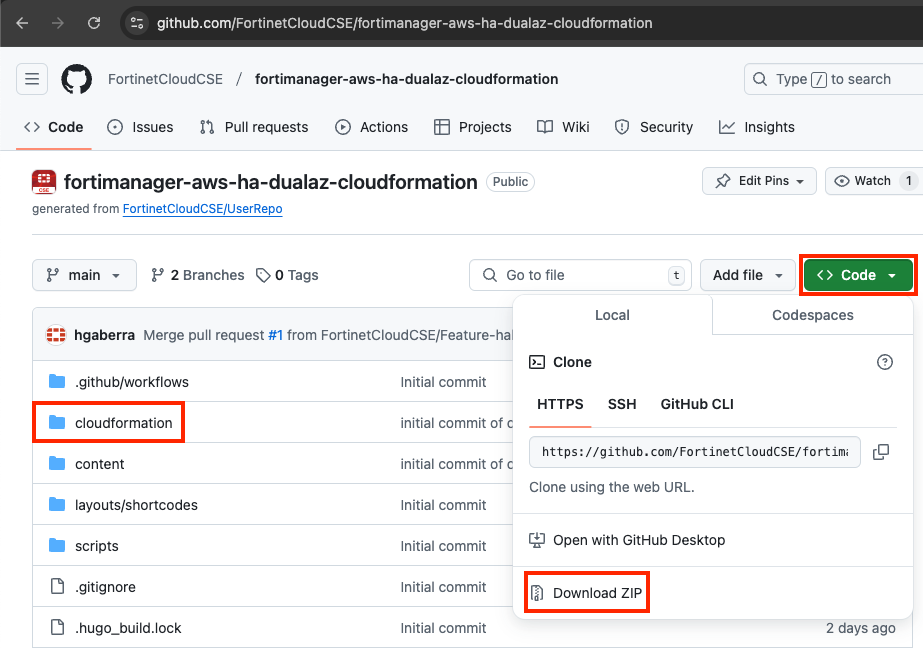
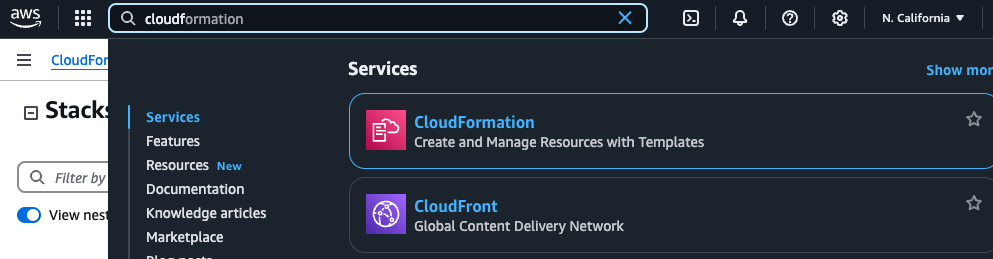
Login to your AWS account. In the AWS services page under All Services > Management Tools, select CloudFormation.
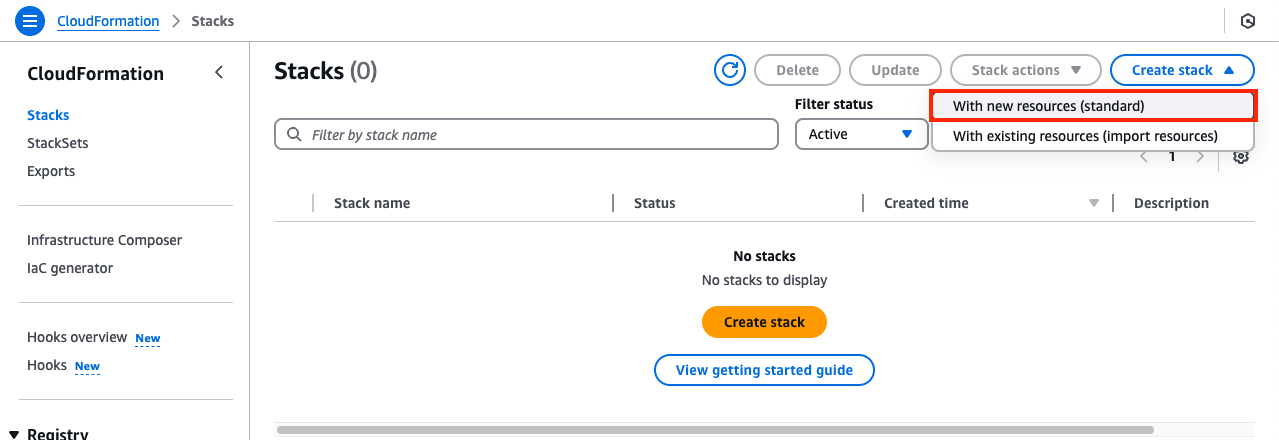
Select Create Stack then select with new resources.
On the Select Template page, under the Choose a Template section select Upload a template to Amazon S3 and browse to your local copy of the chosen deployment template.
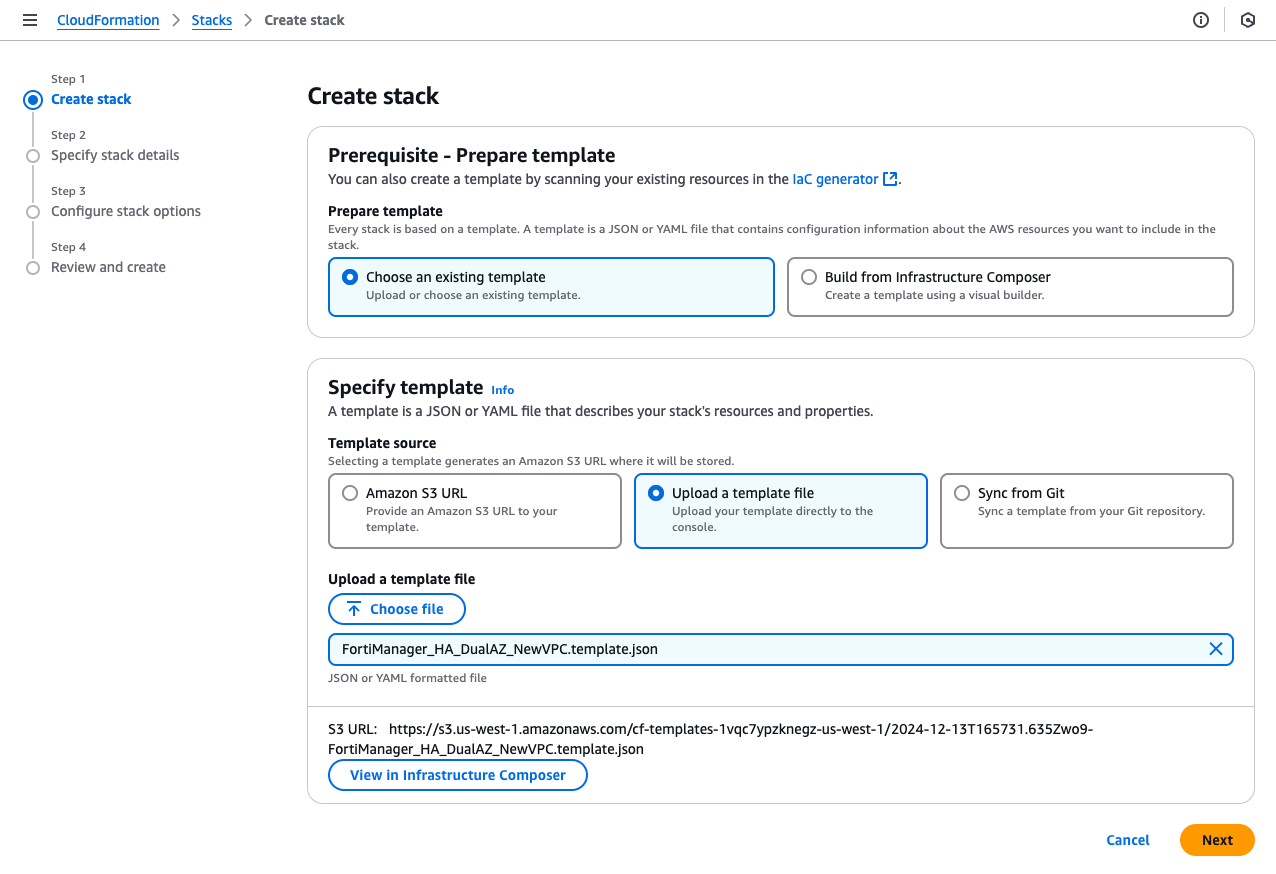
On the Specify Details page, you will be prompted for a stack name and parameters for the deployment. We are using the ‘FortiManager_HA_DualAZ_NewVPC.template.json’ template which deploys FMG into a new VPC’s public subnets and gives options for configuring the instance settings.
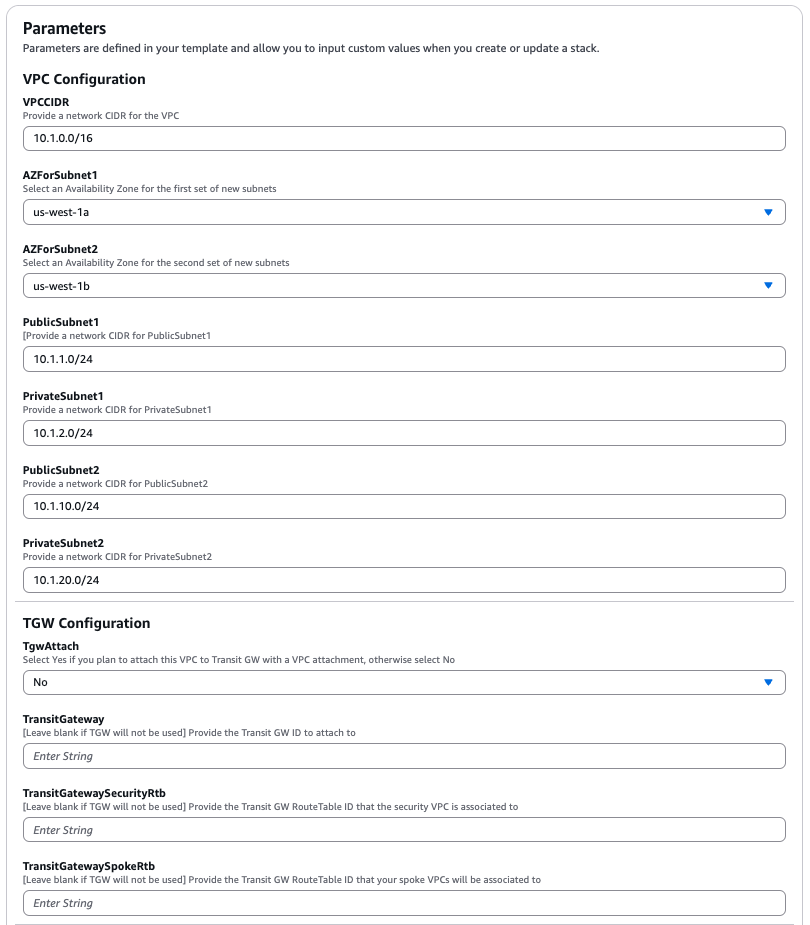
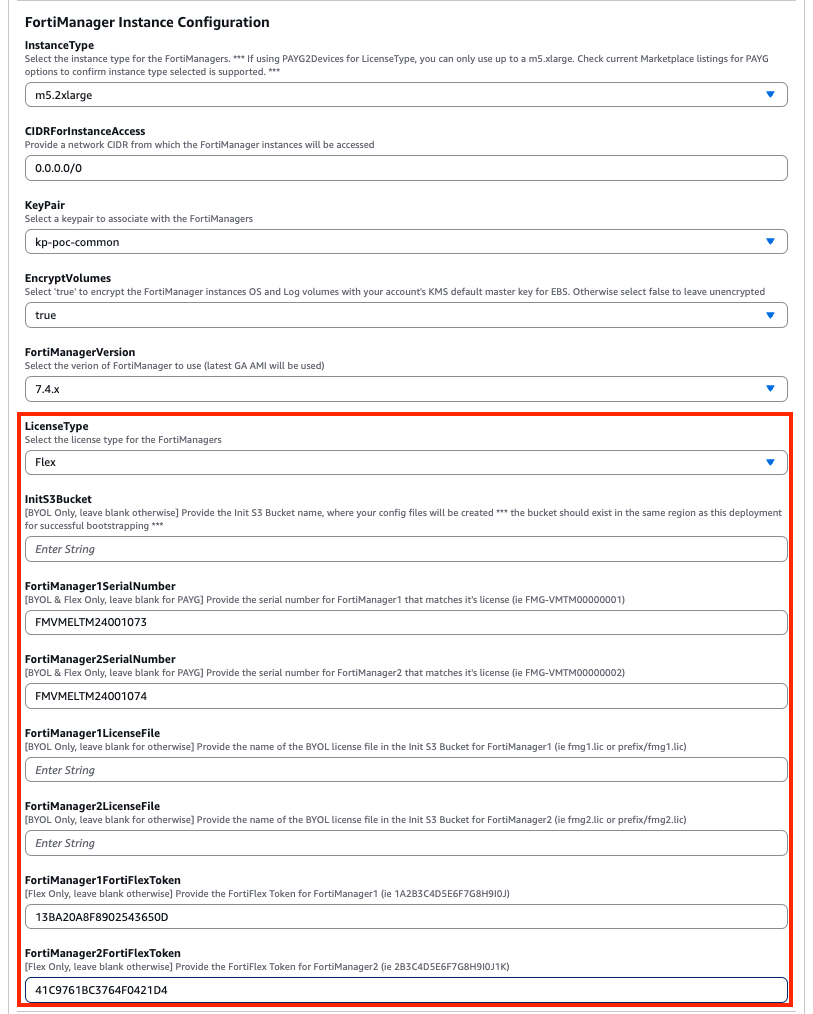
In the FortiManager Instance Configuration parameters section, we have selected an Instance Type and Key Pair to use, chose to encrypt both OS and Log disks, as well as Flex licensing. Notice we are prompted for the licensing type which we are going with BYOL. In our case we do not need to fill out the InitS3Bucket parameter.
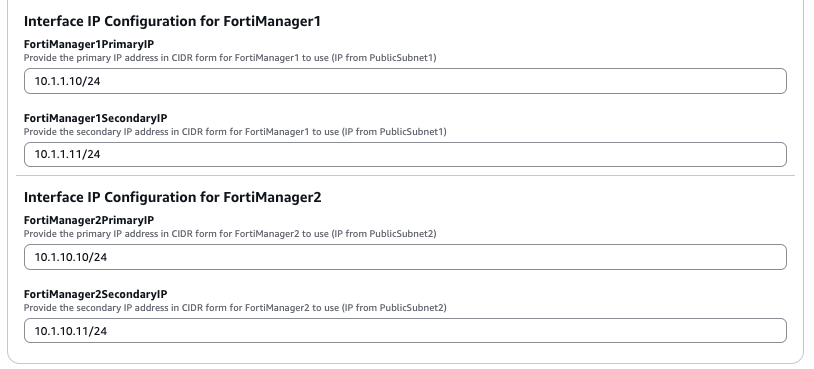
In the Interface IP Configuration for the FortiManager parameters section, we are going with the defaults in this example as the subnet addressing matches. This IP will be the primary IP assigned to the FortiManager ENI.
On the Options page, scroll down to the capabilities section. As the template will create IAM resources, you need to acknowledge this by checking the box next to ‘I acknowledge that AWS CloudFormation might create IAM resources’ and then click Next.

On the Review page, you can scroll to the bottom and select Submit.
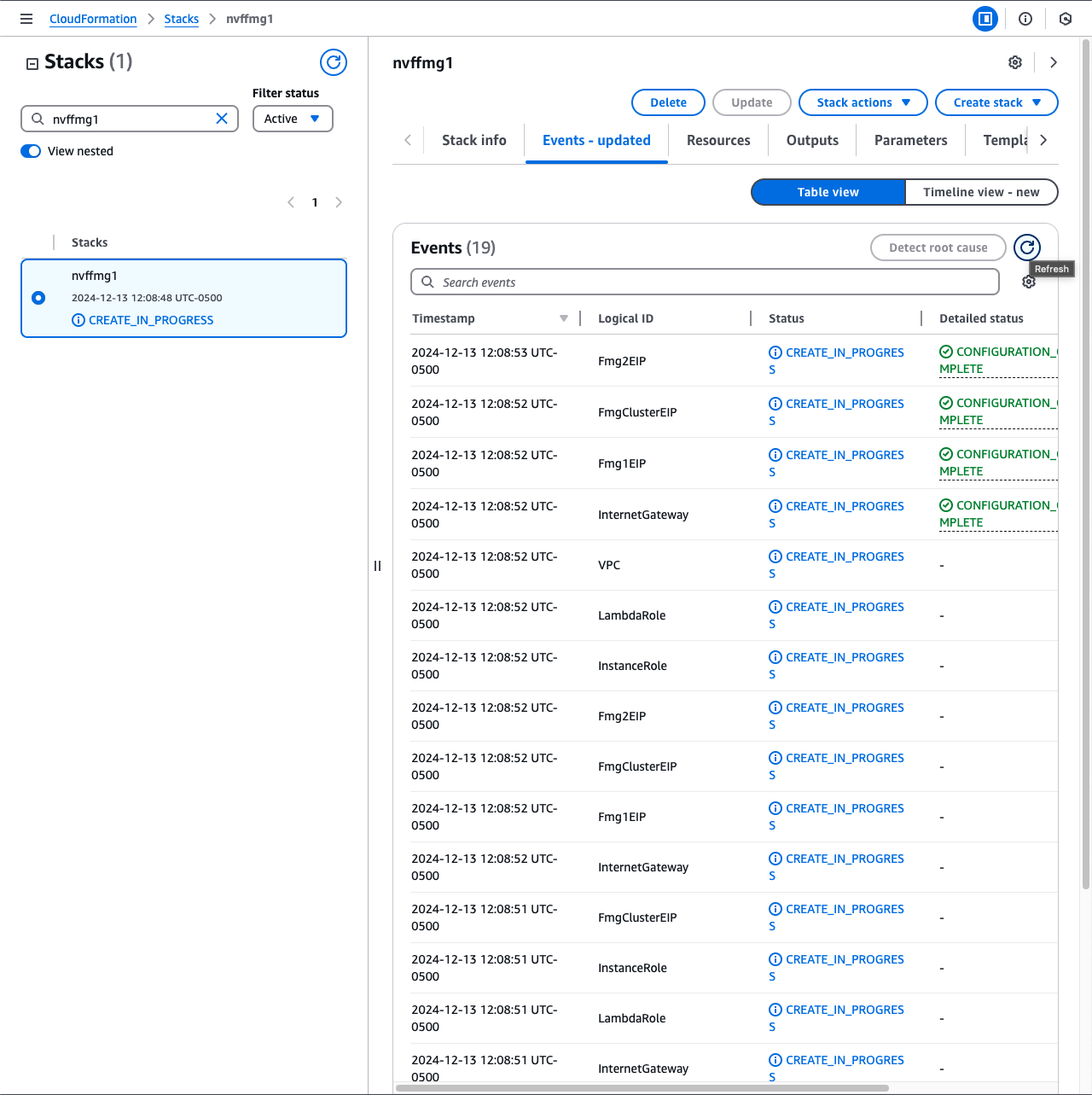
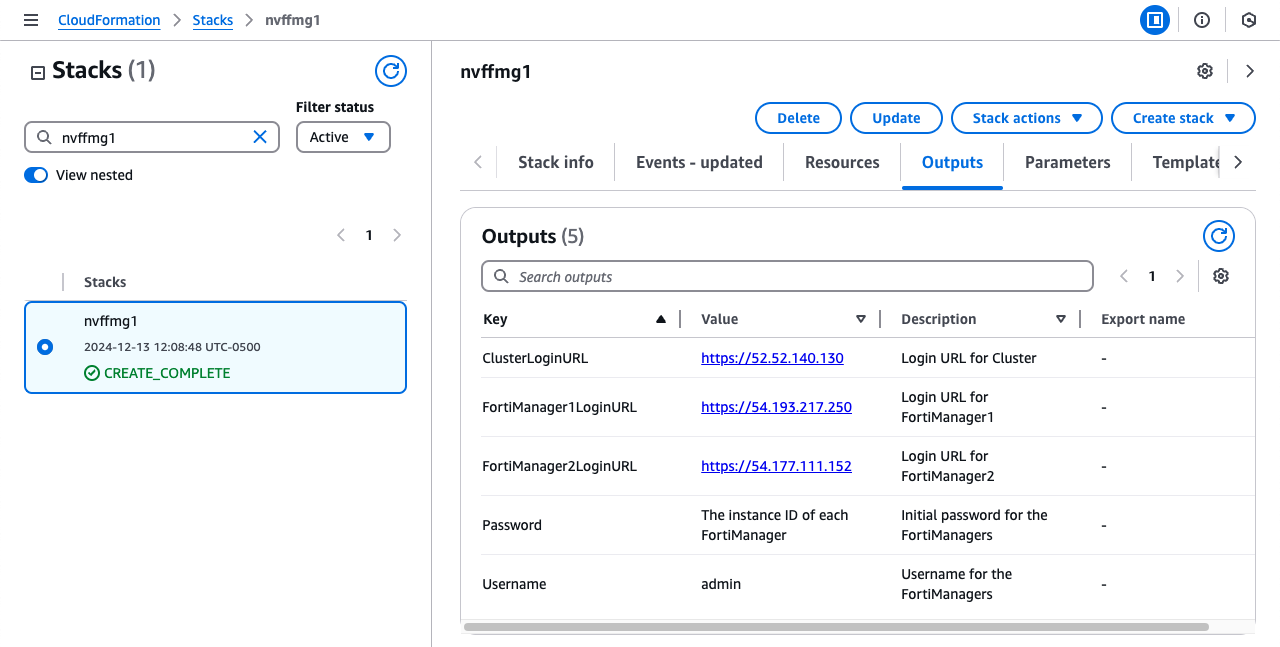
On the main AWS CloudFormation console, you will now see your stack being created. You can monitor the progress by selecting your stack and then select the Events tab.