Terraform Configuration Web UI

A graphical interface for configuring Terraform deployments.

Terraform Configuration Web UI Terraform Configuration Web UI

Generate terraform.tfvars files through a graphical interface. The UI dynamically builds forms from annotated terraform.tfvars.example files, making any Terraform template configurable without editing text files.

Included Templates

TemplateDescription
existing_vpc_resourcesBase AWS infrastructure: Management VPC, Transit Gateway, spoke VPCs
autoscale_templateElastic FortiGate cluster with Gateway Load Balancer
ha_pairFixed Active-Passive FortiGate cluster with FGCP

Quick Start

git clone https://github.com/FortinetCloudCSE/fortinet-ui-terraform.git
cd fortinet-ui-terraform/ui
./SETUP.sh      # First time only
./RESTART.sh

Open http://localhost:3000 and follow the Getting Started guide.

CloudCSE Version: v25.4.d
Revision:
Last updated: Thu, Feb 26, 2026 18:24:10 UTC
Copyright© 2026 Fortinet, Inc. All rights reserved. Fortinet®, FortiGate®, FortiCare® and FortiGuard®, and certain other marks are registered trademarks of Fortinet, Inc., and other Fortinet names herein may also be registered and/or common law trademarks of Fortinet. All other product or company names may be trademarks of their respective owners. Performance and other metrics contained herein were attained in internal lab tests under ideal conditions, and actual performance and other results may vary. Network variables, different network environments and other conditions may affect performance results. Nothing herein represents any binding commitment by Fortinet, and Fortinet disclaims all warranties, whether express or implied, except to the extent Fortinet enters a binding written contract, signed by Fortinet’s General Counsel, with a purchaser that expressly warrants that the identified product will perform according to certain expressly-identified performance metrics and, in such event, only the specific performance metrics expressly identified in such binding written contract shall be binding on Fortinet. For absolute clarity, any such warranty will be limited to performance in the same ideal conditions as in Fortinet’s internal lab tests. Fortinet disclaims in full any covenants, representations, and guarantees pursuant hereto, whether express or implied. Fortinet reserves the right to change, modify, transfer, or otherwise revise this publication without notice, and the most current version of the publication shall be applicable.

Subsections of Terraform Web UI

Introduction

FortiGate Terraform Web UI FortiGate Terraform Web UI

Welcome

The Terraform Configuration Web UI generates terraform.tfvars files through a graphical interface. Instead of manually editing variable files, you configure deployments through dynamically generated forms.

The UI reads annotated terraform.tfvars.example files and automatically builds configuration forms. Any Terraform template with properly annotated example files can be configured through this UI.

Included Templates

This repository includes three pre-annotated FortiGate deployment templates:

TemplateDescription
existing_vpc_resourcesBase infrastructure: Management VPC, Transit Gateway, spoke VPCs
autoscale_templateElastic FortiGate cluster with Gateway Load Balancer
ha_pairFixed Active-Passive FortiGate cluster with FGCP

Quick Start

git clone https://github.com/FortinetCloudCSE/fortinet-ui-terraform.git
cd fortinet-ui-terraform/ui
./SETUP.sh      # First time only
./RESTART.sh

Open http://localhost:3000 and follow the Getting Started guide for AWS credential setup and template configuration.

Documentation

SectionDescription
Getting StartedUI setup and AWS credentials
Example TemplatesStep-by-step UI configuration guides
Autoscale ReferenceArchitecture and configuration deep-dive
TemplatesManual Terraform and annotation reference

Getting Started

Get the Terraform Web UI running and configure AWS credentials.

Prerequisites

Before using the UI:

  1. Python 3.11+ installed
  2. Node.js 18+ installed
  3. AWS CLI installed and configured with at least one profile
  4. Repository cloned:
    git clone https://github.com/FortinetCloudCSE/fortinet-ui-terraform.git
    cd fortinet-ui-terraform

Quick Start

First Time Setup

Run the setup script to install Python and Node.js dependencies:

cd ui
./SETUP.sh

Start the UI

Use the restart script to start both backend and frontend:

cd ui
./RESTART.sh

Expected output:

Restarting Terraform Configuration UI...

Cleaning up old processes...
Verifying backend...
Starting backend (FastAPI)...
   Backend started (PID: 12345)
   Waiting for backend to be ready...
   Backend is healthy
Verifying frontend...
Starting frontend (Vite)...
   Frontend started (PID: 12346)
   Waiting for frontend to be ready...
   Frontend is ready

============================================
Services started successfully!
============================================

URLs:
   Frontend: http://localhost:3000
   Backend:  http://127.0.0.1:8000
   API Docs: http://127.0.0.1:8000/docs

Open http://localhost:3000 in your browser.


AWS Credentials

The UI requires AWS credentials to discover resources (regions, availability zones, key pairs, VPCs, Transit Gateways). Without credentials, you’ll need to manually type these values.

Use the aws_login.sh script in the sso_login/ directory:

source sso_login/aws_login.sh [profile] [backend_url]

Examples:

# Login with default profile (40netse) to default backend (http://127.0.0.1:8001)
source sso_login/aws_login.sh

# Login with specific profile
source sso_login/aws_login.sh my-aws-profile

# Login with specific profile and custom backend URL
source sso_login/aws_login.sh my-aws-profile http://localhost:8000

The script:

  1. Authenticates via AWS SSO
  2. Exports credentials to your shell environment
  3. Sends credentials to the UI backend
Tip

Use source (not just ./) so credentials are exported to your current shell.

IAM Users (Static Credentials)

Use the aws_static_login.sh script for IAM users with access keys:

source sso_login/aws_static_login.sh [profile] [backend_url]

Examples:

# Load default profile
source sso_login/aws_static_login.sh

# Load specific profile
source sso_login/aws_static_login.sh my-profile

Verify Credentials

Check that credentials are working:

curl http://localhost:8000/api/aws/credentials/status

Response:

{
  "valid": true,
  "account": "123456789012",
  "arn": "arn:aws:iam::123456789012:user/example",
  "source": "session",
  "message": "AWS credentials are valid"
}

Using the UI

The UI workflow consists of three steps:

1. Select Template

Choose a template from the dropdown:

  • existing_vpc_resources - Base infrastructure (deploy first)
  • autoscale_template - Elastic FortiGate cluster with GWLB
  • ha_pair - Fixed Active-Passive FortiGate cluster

2. Configure

Fill out the form fields. The UI provides:

  • Dynamic dropdowns - AWS regions, AZs, and key pairs populated from your account
  • Field validation - Real-time validation prevents configuration errors
  • Smart dependencies - Fields update automatically based on your selections
  • Grouped sections - Related options organized into collapsible sections

3. Generate and Deploy

Click Generate to create the terraform.tfvars file, then either:

  • Download - Save the file locally
  • Save to Template - Write directly to the template directory

Docker Containers (Alternative)

Run the UI and Hugo documentation server in Docker containers instead of locally.

Start Containers

cd ui/docker-containers
docker-compose up -d

Services

ServicePortURL
Frontend3001http://localhost:3001
Backend8001http://localhost:8001
Hugo Docs1313http://localhost:1313/fortinet-ui-terraform/

AWS Credentials for Containers

Send credentials to the containerized backend (note port 8001):

source sso_login/aws_login.sh my-profile http://localhost:8001

Container Commands

# Start all services
docker-compose up -d

# Start only UI (no Hugo)
docker-compose up -d backend frontend

# View logs
docker-compose logs -f

# Stop all services
docker-compose down

# Rebuild after code changes
docker-compose up -d --build

Troubleshooting

Backend Won’t Start

Error: command not found: uv

Solution: Install uv package manager:

curl -LsSf https://astral.sh/uv/install.sh | sh

Error: ModuleNotFoundError

Solution: Sync dependencies:

cd ui/backend
uv sync

Frontend Won’t Start

Error: command not found: npm

Solution: Install Node.js from https://nodejs.org/

Error: Cannot find module

Solution: Install dependencies:

cd ui/frontend
npm install

AWS Dropdowns Empty

Symptom: Region, AZ, and key pair dropdowns are empty or show errors.

Solutions:

  1. Check credential status:

    curl http://localhost:8000/api/aws/credentials/status
  2. If using SSO, ensure session is active:

    source sso_login/aws_login.sh your-profile
  3. If credentials expired, re-run the login script.


Next Steps

See Example Templates for step-by-step configuration guides for each template.

Subsections of Getting Started

Working in the UI

Developer guide for extending and customizing the Terraform Configuration Web UI.

Architecture Overview

The UI uses a template registry architecture. Templates are registered from external git repositories, cloned on demand, and managed through a SQLite database with drift detection.

ui/
├── backend/                    # FastAPI Python backend
   ├── app/
      ├── api/                # API routers
         ├── templates.py    # Template registry CRUD
         ├── tfvars_ui.py    # Scaffold, export/import, drift
         ├── template_terraform.py  # Plan/apply/destroy
         ├── aws.py          # AWS resource discovery
         └── gcp.py          # GCP resource discovery
      ├── services/           # Business logic
         ├── git_service.py         # Git clone/pull
         ├── drift_service.py       # Drift detection
         ├── file_hash_service.py   # SHA-256 file scanning
         ├── scaffold_generator.py  # tfvars.ui generation
         ├── hcl_parser.py          # variables.tf parser
         └── tfvars_example_parser.py  # Annotation parser
      ├── db/                 # Database layer (SQLite)
         ├── crud.py         # TemplateDB, FileHashDB
         └── models.py       # Pydantic models
      └── config.py           # App settings
   └── tests/                  # 250+ pytest tests
├── frontend/                   # React/Vite frontend
   ├── src/
      ├── components/
         ├── TerraformConfig.jsx       # Main UI
         ├── TemplateRegistration.jsx  # Register templates
         └── DriftResolution.jsx       # Resolve drift
      └── services/api.js     # API client
   └── nginx.conf              # Production reverse proxy
└── docker-compose.yml          # Container deployment

Data Flow

  1. User registers a template (git repo URL + path)
  2. Backend clones the repo, scans files, stores hashes in SQLite
  3. Scaffold generator creates tfvars.ui from variables.tf + terraform.tfvars.example
  4. User enriches annotations, imports back
  5. Drift detection compares stored hashes with current repo state
  6. Terraform execution streams plan/apply/destroy output (blocks on hard-stop drift)

Starting the UI

First Time Setup

Install dependencies for both backend and frontend:

cd ui
./SETUP.sh

This script:

  1. Creates a Python virtual environment using uv
  2. Installs Python dependencies (FastAPI, aiosqlite, boto3, etc.)
  3. Installs Node.js dependencies via npm install

Running the UI

Use the restart script to start both services:

cd ui
./RESTART.sh

Services started:

  • Backend (FastAPI): http://127.0.0.1:8000
  • Frontend (Vite): http://localhost:3000
  • API Docs (Swagger): http://127.0.0.1:8000/docs

Manual Startup

For development, you may want to run services separately:

Backend:

cd ui/backend
uv run uvicorn app.main:app --reload --port 8000

Frontend:

cd ui/frontend
npm run dev

Container Deployment

cd ui
docker compose up --build

This starts backend (port 8000) and frontend (port 3000) with a shared registry-data volume for the SQLite database and cloned repositories.


Developer Topics

TopicDescription
Annotation Reference@ui- annotation tags for tfvars.ui and tfvars.example files
Registering TemplatesHow to add templates via the registry
Backend APIsTemplate registry, tfvars.ui, and terraform execution endpoints
Parsers & ServicesHCL parser, annotation parser, scaffold generator, drift detection
Cloud Provider APIsIntegrating AWS, Azure, GCP APIs
Frontend DevelopmentReact components, template selector, drift UI
TestingBackend pytest suite (250+ tests) and frontend builds
TroubleshootingCommon issues and fixes

Subsections of Working in the UI

Annotation Reference

The UI dynamically generates configuration forms by reading @ui- annotations in terraform.tfvars.example files. The scaffold generator auto-creates these annotations from variables.tf metadata; users enrich them for better UI presentation.

Annotation Format

Add @ui- annotation comments directly above each variable assignment:

# @ui-label AWS Region
# @ui-description Select the AWS region for deployment
# @ui-type select
# @ui-options us-east-1|us-west-2|eu-west-1
# @ui-default us-west-2
# @ui-group Region Configuration
aws_region = "us-west-2"

Supported Tags

Core Tags

TagDescriptionExample
@ui-labelDisplay name in the form# @ui-label AWS Region
@ui-descriptionHelp text below the field# @ui-description Select the deployment region
@ui-typeInput control type# @ui-type select
@ui-optionsValues for select (pipe-separated)# @ui-options dev|staging|prod
@ui-defaultPre-filled value# @ui-default us-west-2
@ui-requiredField must be filled# @ui-required true
@ui-groupGroups related fields# @ui-group Network Settings
@ui-show-ifConditional visibility# @ui-show-if enable_tgw=true
@ui-sourceDynamic data source# @ui-source aws-regions

Resource Discovery Tags

Used with @ui-source aws-fortinet-resource for tag-based resource lookup:

TagDescriptionExample
@ui-tag-keyTag key for discovery# @ui-tag-key Fortinet-Role
@ui-tag-patternTag value with placeholders# @ui-tag-pattern {cp}-{env}-inspection-vpc
@ui-tag-resource-typeAWS resource type# @ui-tag-resource-type vpc

Mutual Exclusivity Tags

TagDescriptionExample
@ui-exclusive-withMutually exclusive with another field# @ui-exclusive-with enable_ha_pair_deployment
@ui-collapsibleGroup can be collapsed# @ui-collapsible true
@ui-collapsedGroup starts collapsed# @ui-collapsed true

Input Types

text

Single-line text input.

# @ui-label Customer Prefix
# @ui-type text
# @ui-required true
cp = ""

password

Masked text input for sensitive values.

# @ui-label Admin Password
# @ui-type password
# @ui-required true
admin_password = ""

number

Numeric input.

# @ui-label Desired Capacity
# @ui-type number
# @ui-default 2
asg_desired_capacity = 2

checkbox

Boolean toggle.

# @ui-label Enable FortiManager
# @ui-type checkbox
# @ui-default false
enable_fortimanager = false

select

Dropdown with predefined options.

# @ui-label Instance Type
# @ui-type select
# @ui-options c5n.xlarge|c5n.2xlarge|c5n.4xlarge
# @ui-default c5n.xlarge
instance_type = "c5n.xlarge"

list

Multiple values as a list.

# @ui-label Management CIDRs
# @ui-type list
# @ui-description IP ranges allowed to access management interfaces
management_cidr_sg = ["0.0.0.0/0"]

Grouping Fields

Use @ui-group to organize related fields together:

# @ui-label AWS Region
# @ui-group Region Configuration
aws_region = "us-west-2"

# @ui-label Availability Zone 1
# @ui-group Region Configuration
availability_zone_1 = "a"

# @ui-label Enable FortiManager
# @ui-group Optional Components
enable_fortimanager = false

Fields with the same @ui-group value appear together in the UI.


Conditional Fields

Use @ui-show-if to show fields only when a condition is met:

# @ui-label Enable FortiManager
# @ui-type checkbox
enable_fortimanager = false

# @ui-label FortiManager IP
# @ui-type text
# @ui-show-if enable_fortimanager=true
fortimanager_ip = ""

# @ui-label FortiManager Password
# @ui-type password
# @ui-show-if enable_fortimanager=true
fortimanager_password = ""

The FortiManager IP and password fields only appear when the checkbox is enabled.


Dynamic Data Sources

Use @ui-source to populate dropdowns from live cloud APIs:

# @ui-label AWS Region
# @ui-type select
# @ui-source aws-regions
aws_region = ""

# @ui-label Key Pair
# @ui-type select
# @ui-source aws-keypairs
keypair = ""

Fortinet-Role Tag Discovery

For fields that reference resources created by other templates:

# @ui-type select
# @ui-source aws-fortinet-resource
# @ui-tag-key Fortinet-Role
# @ui-tag-pattern {cp}-{env}-inspection-vpc
# @ui-tag-resource-type vpc
inspection_vpc = ""

Supported @ui-tag-resource-type values: vpc, subnet, igw, tgw, tgw-attachment, tgw-rtb

Placeholder tokens {cp}, {env}, {region}, {az1}, {az2} are replaced with the corresponding field values from the current form.


Scaffold Generation

When you register a template, the scaffold generator auto-creates annotations from variables.tf:

HCL TypeGenerated @ui-type
stringtext
numbernumber
boolcheckbox
list(*)list
map(*)text

Variable names are converted to labels (e.g., enable_jump_box becomes Enable Jump Box). HCL description fields become @ui-description. Validation rules with condition expressions generate @ui-options.

Existing annotations in terraform.tfvars.example are preserved and merged with the generated scaffold.

Registering Templates

How to add Terraform templates to the UI via the template registry.

Overview

The UI uses a template registry to manage templates. Instead of placing templates in a local directory, you register a git repository URL and the backend clones it, parses variables.tf, and generates a scaffold tfvars.ui file with UI annotations.


Step 1: Prepare Your Template

Your template repository must contain at minimum:

my-template/
├── main.tf                      # Required - Terraform configuration
├── variables.tf                 # Required - Variable definitions (parsed for scaffold)
├── outputs.tf                   # Optional
└── terraform.tfvars.example     # Recommended - Pre-annotated defaults

The scaffold generator reads variables.tf for variable names, types, defaults, and descriptions. If terraform.tfvars.example exists, its @ui- annotations are merged into the scaffold.

Step 2: Register via UI

  1. Click the "+" button next to the template dropdown
  2. Fill in the registration form:
    • Name — Display name (e.g., “AWS Autoscale Template”)
    • Repository URL — Git clone URL (e.g., https://github.com/org/repo.git)
    • Branch — Branch to track (default: main)
    • Path in Repo — Subdirectory containing the template (e.g., terraform/aws/autoscale_template)
  3. Click Register

The backend will:

  1. Clone the repository
  2. Verify the path exists
  3. Scan all files and store SHA-256 hashes
  4. Auto-generate a scaffold tfvars.ui

Register via API

curl -X POST http://127.0.0.1:8000/api/templates/ \
  -H "Content-Type: application/json" \
  -d '{
    "name": "AWS Autoscale Template",
    "repo_url": "https://github.com/FortinetCloudCSE/fortinet-ui-terraform.git",
    "branch": "main",
    "repo_path": "terraform/aws/autoscale_template"
  }'

Step 3: Review and Enrich the Scaffold

After registration, the scaffold tfvars.ui is auto-generated with basic annotations. To improve the UI:

  1. Click Export to download the tfvars.ui file
  2. Edit annotations to add:
    • Better @ui-label values
    • @ui-description help text
    • @ui-group for organizing fields
    • @ui-show-if for conditional visibility
    • @ui-source for dynamic dropdowns (e.g., aws-regions, aws-keypairs)
    • @ui-options for static select lists
  3. Click Import to upload the enriched file

Export/Import via API

# Export scaffold
curl http://127.0.0.1:8000/api/templates/1/export

# Import enriched tfvars.ui
curl -X POST http://127.0.0.1:8000/api/templates/1/import \
  -H "Content-Type: application/json" \
  -d '{"content": "# @ui-label AWS Region\n# @ui-type select\naws_region = \"us-west-2\"\n"}'

Step 4: Verify in UI

  1. Select your template from the dropdown
  2. Verify all fields render correctly
  3. Test conditional fields (@ui-show-if)
  4. Test dynamic dropdowns (@ui-source)
  5. Check drift status indicator (should show “Clean”)

Drift Detection

After registration, the backend tracks file hashes. When the upstream repository changes:

  • Warning drift (non-critical .tf files changed): Yellow banner, does not block plan/apply
  • Hard-stop drift (critical files like variables.tf, terraform.tfvars.example): Red indicator, blocks plan/apply until resolved

To resolve drift:

  1. Click the drift indicator to open the resolution UI
  2. Review changed files (side-by-side diff)
  3. Re-scaffold if needed (pulls latest variables.tf changes)
  4. Save & re-hash to clear the drift

Updating a Template

When the upstream repo changes:

# Update repo URL or branch
curl -X PUT http://127.0.0.1:8000/api/templates/1 \
  -H "Content-Type: application/json" \
  -d '{"branch": "v2.0"}'

The backend re-clones and re-hashes. If critical files changed, drift will be detected.

Deleting a Template

curl -X DELETE http://127.0.0.1:8000/api/templates/1

This removes the template record, file hashes, and cloned directory.


Best Practices

  1. Write good variables.tf descriptions — The scaffold generator uses them for @ui-description
  2. Use validation rules — HCL validation blocks with condition expressions generate @ui-options automatically
  3. Pre-annotate terraform.tfvars.example — Existing @ui- annotations are preserved during scaffold generation
  4. Group related fields — Use @ui-group to organize the form
  5. Use @ui-show-if for conditional fields — Keeps the form clean
  6. Mark sensitive fields as @ui-type password — Masks input appropriately
  7. Set sensible @ui-default values — Reduces required user input
  8. Track a stable branch — Avoid tracking main if it changes frequently (causes frequent drift)

Backend APIs

The backend provides three API routers for template management, configuration, and terraform execution.

API Structure

app/api/
├── templates.py           # Template registry CRUD
├── tfvars_ui.py           # Scaffold, export/import, drift detection
├── template_terraform.py  # Plan/apply/destroy against cloned repos
├── terraform.py           # Shared utilities (run_command_stream)
├── aws.py                 # AWS resource discovery
└── gcp.py                 # GCP resource discovery

Template Registry (/api/templates/)

CRUD operations for registered templates.

EndpointMethodDescription
/api/templates/GETList all registered templates
/api/templates/{id}GETGet single template by ID
/api/templates/POSTRegister new template (clones repo, scans files)
/api/templates/{id}PUTUpdate template (re-clones if URL/branch changes)
/api/templates/{id}DELETEDelete template and clean up clone

Register a Template

curl -X POST http://127.0.0.1:8000/api/templates/ \
  -H "Content-Type: application/json" \
  -d '{
    "name": "My Template",
    "repo_url": "https://github.com/org/repo.git",
    "branch": "main",
    "repo_path": "terraform/aws/my_template"
  }'

Response: Template object with id, name, repo_url, branch, repo_path, created_date, updated_date.


tfvars.ui Management (/api/templates/{id}/...)

Scaffold generation, export/import, and drift detection.

EndpointMethodDescription
/api/templates/{id}/scaffoldPOSTGenerate skeleton tfvars.ui from variables.tf + example
/api/templates/{id}/exportGETExport current tfvars.ui content
/api/templates/{id}/importPOSTImport updated tfvars.ui content (re-hashes files)
/api/templates/{id}/driftGETCheck drift status against stored file hashes

Scaffold Response

{
  "content": "# @ui-label AWS Region\n# @ui-type select\naws_region = \"us-west-2\"\n...",
  "variable_count": 42
}

Drift Response

{
  "status": "warning",
  "entries": [
    {"filename": "main.tf", "type": "changed", "hard_stop": false},
    {"filename": "variables.tf", "type": "changed", "hard_stop": true}
  ]
}

Drift statuses: clean (no changes), warning (non-critical files changed), hard_stop (critical files changed — blocks terraform execution).

Hard-stop files: *.tf, terraform.tfvars.example, terraform.tfvars, *.cfg, *.tpl, *.tftpl


Terraform Execution (/api/templates/{id}/terraform/...)

Run terraform commands against cloned template directories with drift guards.

EndpointMethodDescription
/api/templates/{id}/terraform/write-tfvarsPOSTWrite terraform.tfvars to cloned directory
/api/templates/{id}/terraform/planGETRun init + plan (streaming)
/api/templates/{id}/terraform/applyGETRun init + apply -auto-approve (streaming)
/api/templates/{id}/terraform/destroyGETRun init + destroy -auto-approve (streaming)

All plan/apply/destroy endpoints:

  • Perform a drift check before execution
  • Return HTTP 409 Conflict if hard-stop drift is detected
  • Stream output in real-time (text/plain)
  • Inject cloud credentials (AWS env vars, GCP GOOGLE_CREDENTIALS)

Write terraform.tfvars

curl -X POST http://127.0.0.1:8000/api/templates/1/terraform/write-tfvars \
  -H "Content-Type: application/json" \
  -d '{"content": "aws_region = \"us-west-2\"\ncp = \"acme\"\n..."}'

Adding a New API Endpoint

Create a new router file in app/api/:

from fastapi import APIRouter, HTTPException
from pydantic import BaseModel

router = APIRouter(prefix="/api/my-feature", tags=["my-feature"])

class MyRequest(BaseModel):
    name: str
    enabled: bool = False

@router.post("/action")
async def perform_action(request: MyRequest):
    if not request.name:
        raise HTTPException(status_code=400, detail="Name required")
    return {"success": True, "message": f"Action on {request.name}"}

Register in app/main.py:

from app.api import my_feature
app.include_router(my_feature.router)

Parsers & Services

The backend uses a service layer for parsing, hashing, scaffolding, and drift detection.

Service Layer

app/services/
├── __init__.py                 # Central exports
├── hcl_parser.py               # Parse variables.tf
├── tfvars_example_parser.py    # Parse terraform.tfvars.example annotations
├── scaffold_generator.py       # Generate tfvars.ui from parsed data
├── git_service.py              # Clone/pull git repositories
├── file_hash_service.py        # SHA-256 file scanning
└── drift_service.py            # Drift detection between stored and current hashes

HCL Parser (hcl_parser.py)

Parses variables.tf to extract variable definitions.

from app.services import parse_variables, HCLVariable

variables: list[HCLVariable] = parse_variables(content)

Each HCLVariable contains:

  • name — Variable name
  • type — HCL type string (e.g., string, number, bool, list(string))
  • description — Variable description
  • default — Default value (if any)
  • validation — Validation rules (condition + error_message)

Terraform.tfvars.example Parser (tfvars_example_parser.py)

Parses terraform.tfvars.example files to extract annotations and variable assignments.

from app.services import parse_tfvars_example, TfvarsEntry

entries: list[TfvarsEntry] = parse_tfvars_example(content)

Each TfvarsEntry contains:

  • name — Variable name
  • value — Assigned value (string)
  • hcl_type — Inferred type
  • comments — Plain comments above the variable
  • annotations — Dict of @ui- annotations (e.g., {"ui-label": "AWS Region", "ui-type": "select"})
  • group — Group name from @ui-group

Scaffold Generator (scaffold_generator.py)

Merges HCL variable definitions with existing annotations to produce a tfvars.ui file.

from app.services import generate_scaffold

content: str = generate_scaffold(variables, example_entries)

The generator:

  1. Auto-infers @ui-type from HCL type (stringtext, boolcheckbox, etc.)
  2. Converts variable names to labels (enable_jump_boxEnable Jump Box)
  3. Extracts @ui-options from HCL validation rules
  4. Preserves existing @ui- annotations from terraform.tfvars.example
  5. Groups variables by common prefix when @ui-group is present in example

Git Service (git_service.py)

Manages cloned template repositories.

from app.services import GitService

git = GitService(clone_dir=Path("data/clones"))

# Clone or update a repository
clone_path = await git.clone_or_pull("https://github.com/org/repo.git", branch="main")

# Get template subdirectory within clone
template_dir = git.get_template_dir("https://github.com/org/repo.git", "terraform/aws/template")

# Clean up
removed = await git.cleanup_clone("https://github.com/org/repo.git")
count = await git.cleanup_stale(max_age_days=30)

Clone directories are named by first 12 chars of SHA-256 hash of the repo URL.


File Hash Service (file_hash_service.py)

Scans directories and computes SHA-256 hashes for drift detection.

from app.services import FileHashService, FileHashEntry

service = FileHashService()

# Scan a directory
entries: list[FileHashEntry] = service.scan_directory(template_dir)

Each FileHashEntry contains:

  • filename — Relative file path
  • hash — SHA-256 hex digest
  • hard_stop — Whether changes to this file block terraform execution

Hard-stop file patterns: *.tf, *.cfg, *.tpl, *.tftpl, terraform.tfvars, terraform.tfvars.example


Drift Service (drift_service.py)

Compares stored file hashes against current filesystem state.

from app.services import DriftService, DriftStatus, DriftType

drift = DriftService(file_hash_service=FileHashService())
report = drift.compare(stored_hashes, current_entries)

# report.status: DriftStatus.CLEAN | .WARNING | .HARD_STOP
# report.entries: list[DriftEntry] with filename, drift_type, hard_stop, old_hash, new_hash

Drift types:

  • CHANGED — File exists but hash differs
  • ADDED — New file appeared
  • REMOVED — File was deleted

Status logic:

  • CLEAN — No drift entries
  • WARNING — Drift entries exist but none are hard-stop
  • HARD_STOP — At least one hard-stop file changed

Adding a New Annotation Type

  1. Update tfvars_example_parser.py to extract the new annotation
  2. Update scaffold_generator.py to emit it during scaffold generation
  3. Update the frontend FormField.jsx to handle the new annotation
  4. Add tests in tests/test_tfvars_example_parser.py

Cloud Provider APIs

Integrating AWS, Azure, and GCP APIs for dynamic dropdowns.

AWS Provider Integration

Location: backend/providers/aws.py

The AWS provider uses boto3 to query AWS resources for dynamic dropdowns.


Adding a New AWS API

Example: Adding VPC discovery:

import boto3

def get_vpcs(region: str, credentials: dict) -> List[dict]:
    """Get VPCs in a region."""
    ec2 = boto3.client(
        'ec2',
        region_name=region,
        aws_access_key_id=credentials.get('access_key'),
        aws_secret_access_key=credentials.get('secret_key'),
        aws_session_token=credentials.get('session_token')
    )

    response = ec2.describe_vpcs()

    return [
        {
            "id": vpc['VpcId'],
            "cidr": vpc['CidrBlock'],
            "name": get_tag_value(vpc.get('Tags', []), 'Name')
        }
        for vpc in response['Vpcs']
    ]

Exposing via API Endpoint

@router.get("/api/aws/vpcs")
async def list_vpcs(region: str):
    """List VPCs in the specified region."""
    credentials = get_current_credentials()
    if not credentials:
        raise HTTPException(status_code=401, detail="AWS credentials not configured")

    vpcs = get_vpcs(region, credentials)
    return {"vpcs": vpcs}

Adding a New Cloud Provider

To add support for Azure or GCP:

1. Create Provider Module

backend/providers/azure.py:

from azure.identity import DefaultAzureCredential
from azure.mgmt.compute import ComputeManagementClient

def get_regions() -> List[dict]:
    """Get available Azure regions."""
    # Implementation

def get_resource_groups(subscription_id: str) -> List[dict]:
    """Get resource groups."""
    # Implementation

2. Add API Routes

In main.py:

from providers import azure

@router.get("/api/azure/regions")
async def list_azure_regions():
    return {"regions": azure.get_regions()}

@router.get("/api/azure/resource-groups")
async def list_resource_groups(subscription_id: str):
    return {"resource_groups": azure.get_resource_groups(subscription_id)}

3. Update Frontend

Update frontend to use new endpoints for Azure templates.

Frontend Development

React components and API client development.

Component Structure

frontend/src/
├── components/
│   ├── TerraformConfig.jsx       # Main UI: template selector, form, build controls
│   ├── TemplateRegistration.jsx  # Modal: register new template from git repo
│   ├── DriftResolution.jsx       # Modal: side-by-side drift resolution
│   └── FormField.jsx             # Individual field renderer (text, select, etc.)
├── services/
│   └── api.js                    # Backend API client
└── App.jsx

Key Components

TerraformConfig.jsx

The main UI component. Manages:

  • Template selector — DB-driven dropdown populated from /api/templates/
  • Drift indicators — Badge next to selector showing Clean/Warning/Hard Stop
  • Warning banner — Non-blocking yellow banner for warning-level drift
  • Template metadata — Repo URL, branch, last updated for selected template
  • Form rendering — Dynamically generated from template schema
  • Build controls — Plan/apply/destroy with streaming output

TemplateRegistration.jsx

Two-step modal workflow:

  1. Registration form — Name, repo URL, branch, path in repo
  2. Scaffold review — Shows generated tfvars.ui with Export/Import buttons

DriftResolution.jsx

Side-by-side modal for resolving hard-stop drift:

  • Left panel — List of changed files with type icons (A=Added, M=Modified, D=Removed)
  • Right panel — Inline tfvars.ui editor with Re-scaffold button
  • Save & Re-hash — Persists changes and clears drift

API Client

Location: frontend/src/services/api.js

Template Registry Methods

import { api } from './services/api';

// List registered templates
const templates = await api.templates.list();

// Register a new template
const template = await api.templates.create({
  name: "My Template",
  repo_url: "https://github.com/org/repo.git",
  branch: "main",
  repo_path: "terraform/aws/my_template"
});

// Generate scaffold
const scaffold = await api.templates.scaffold(template.id);

// Export/import tfvars.ui
const exported = await api.templates.export(template.id);
await api.templates.import(template.id, enrichedContent);

// Check drift
const drift = await api.templates.getDrift(template.id);

// Delete
await api.templates.delete(template.id);

Cloud Provider Methods

// AWS
const regions = await api.aws.getRegions();
const azs = await api.aws.getAvailabilityZones(region);
const keypairs = await api.aws.getKeypairs(region);
const resources = await api.aws.discoverFortinetResources(region, cp, env);

// GCP
const projects = await api.gcp.getProjects();
const regions = await api.gcp.getRegions(project);
const networks = await api.gcp.getNetworks(project);

Adding Dynamic Dropdowns

To make a field populate from a cloud API:

1. Add Annotation

# @ui-label AWS Region
# @ui-type select
# @ui-source aws-regions
aws_region = "us-west-2"

2. Handle in FormField

The FormField.jsx component checks the source annotation and fetches data from the appropriate API endpoint. Supported sources:

SourceAPI Call
aws-regionsapi.aws.getRegions()
aws-availability-zonesapi.aws.getAvailabilityZones(region)
aws-keypairsapi.aws.getKeypairs(region)
aws-vpcsapi.aws.getVpcs(region)
aws-fortinet-resourceapi.aws.discoverResourceByTag(...)
gcp-projectsapi.gcp.getProjects()
gcp-regionsapi.gcp.getRegions(project)
gcp-zonesapi.gcp.getZones(project, region)
gcp-networksapi.gcp.getNetworks(project)

3. Add a New Source

To add a new dynamic source (e.g., aws-security-groups):

  1. Add the API endpoint in app/api/aws.py
  2. Add the client method in api.js under api.aws
  3. Add the source handler in FormField.jsx

Testing

Backend and frontend testing.

Backend Tests

The backend has 250+ pytest tests covering all services, database operations, and API endpoints.

cd ui/backend
uv run python -m pytest tests/ -v

Test Files

Test FileCoverage
test_db.pySQLite CRUD operations (TemplateDB, FileHashDB)
test_git_service.pyGit clone/pull, cleanup, error handling
test_file_hash_service.pySHA-256 scanning, hard-stop classification
test_drift_service.pyDrift detection logic, status escalation
test_hcl_parser.pyvariables.tf parsing (types, defaults, validation)
test_tfvars_example_parser.pyAnnotation extraction, value parsing
test_scaffold_generator.pytfvars.ui generation, annotation merging
test_templates_api.pyTemplate registry CRUD endpoints
test_tfvars_ui_api.pyScaffold, export, import, drift endpoints
test_template_terraform_api.pyTerraform plan/apply/destroy endpoints

Running Specific Tests

# Run a single test file
uv run python -m pytest tests/test_drift_service.py -v

# Run tests matching a pattern
uv run python -m pytest tests/ -k "test_scaffold" -v

# Run with coverage
uv run python -m pytest tests/ --cov=app --cov-report=term-missing

Test Configuration

Tests use asyncio_mode = "auto" in pyproject.toml, so no @pytest.mark.asyncio decorators are needed. API tests use httpx.AsyncClient with the FastAPI test client.


Frontend Build Verification

The frontend uses Vite for building. Verify the build succeeds:

cd ui/frontend
npx vite build

A successful build produces output like:

vite v5.4.21 building for production...
✓ 47 modules transformed.
dist/index.html                   0.47 kB
dist/assets/index-*.css          17.79 kB
dist/assets/index-*.js          182.51 kB
✓ built in 274ms

Manual Testing Checklist

When adding new features:

  • Template selector populates from database
  • “+” button opens registration modal
  • Registration form clones repo and generates scaffold
  • Export downloads tfvars.ui file
  • Import uploads enriched tfvars.ui
  • Drift indicator shows correct status (Clean/Warning/Hard Stop)
  • Warning banner appears for non-critical drift
  • Drift resolution modal opens on hard-stop click
  • Conditional fields show/hide correctly (@ui-show-if)
  • Dynamic dropdowns populate from cloud APIs (@ui-source)
  • Plan/apply/destroy stream output in real-time
  • Hard-stop drift blocks plan/apply with 409 error
  • AWS/GCP credential status displays correctly

Troubleshooting

Common issues and fixes for UI development.

Backend Issues

ModuleNotFoundError

cd ui/backend
uv sync

Port Already in Use

lsof -i :8000
kill -9 <PID>

Database Errors

If the SQLite database is corrupted or schema is outdated:

# Delete and recreate (data will be lost)
rm -f ui/backend/data/registry.db
# Restart backend — tables are auto-created on startup

Git Clone Failures

If template registration fails with a git error:

  1. Verify the repo URL is accessible: git ls-remote <url>
  2. Check the branch exists: git ls-remote --heads <url> <branch>
  3. Check clone directory permissions: ls -la ui/backend/data/clones/
  4. Clean up stale clones: rm -rf ui/backend/data/clones/*

Frontend Issues

Cannot Find Module

cd ui/frontend
npm install

Vite Build Fails

Always run the build from the ui/frontend/ directory:

cd ui/frontend
npx vite build

Running npx vite build from the repo root will pick up a global Vite version and fail with “Could not resolve entry module index.html”.

API Calls Failing

Check that backend is running and CORS is configured. The CORS origins are set in .env:

CORS_ORIGINS=http://localhost:3000,http://127.0.0.1:3000,http://localhost:5173,http://127.0.0.1:5173

AWS Credential Issues

  1. Check credential status:

    curl http://localhost:8000/api/aws/credentials/status
  2. If using SSO, ensure session is active:

    source ~/.local/bin/aws_login.sh your-profile
  3. If credentials expired, re-run the login script.

GCP Credential Issues

GCP Dropdowns Empty

  1. Check credential status:

    curl http://localhost:8000/api/gcp/credentials/status
  2. Inject service account credentials:

    curl -X POST http://127.0.0.1:8000/api/gcp/credentials/set \
      -H "Content-Type: application/json" \
      -d @/path/to/service-account-key.json

Drift Issues

“Hard-stop drift detected” Error (409)

This means critical template files changed since last registration/import. To resolve:

  1. Click the drift indicator in the UI to open the resolution modal
  2. Review changed files
  3. Re-scaffold if variables.tf changed
  4. Save & re-hash to clear drift

Or via API:

# Check what drifted
curl http://127.0.0.1:8000/api/templates/1/drift

# Re-scaffold to pick up variable changes
curl -X POST http://127.0.0.1:8000/api/templates/1/scaffold

# Re-import to update hashes
curl -X POST http://127.0.0.1:8000/api/templates/1/import \
  -H "Content-Type: application/json" \
  -d '{"content": "<updated tfvars.ui content>"}'

Template Shows “Warning” Drift

Warning drift means non-critical files changed (e.g., a .tf file that isn’t variables.tf). This does not block plan/apply. The warning banner is dismissible.


Container Issues

Backend Not Starting in Docker

Check logs:

docker compose logs backend

Common causes:

  • Missing data/ volume mount
  • Port conflict on 8000
  • Git not available in container (should be installed by Dockerfile)

Frontend Can’t Reach Backend

In container deployment, the frontend nginx proxies /api/ requests to the backend service. Ensure:

  • Backend healthcheck passes: docker compose ps
  • Frontend depends on backend: check docker-compose.yml depends_on condition

Example Templates

Introduction

The FortiGate Autoscale Simplified Template consists of three complementary Terraform templates that work together to deploy FortiGate architectures in AWS:

  1. existing_vpc_resources (Deploy First): Creates supporting infrastructure including management VPC, Transit Gateway, spoke VPCs, and deployment mode configuration
  2. autoscale_template (Choose One): Deploys FortiGate AutoScale group with Gateway Load Balancer for elastic scaling
  3. ha_pair (Choose One): Deploys FortiGate Active-Passive HA Pair with FGCP for fixed-capacity deployment

This modular approach allows you to:

  • Choose between AutoScale (elastic scaling) or HA Pair (fixed Active-Passive) deployment modes
  • Deploy only the inspection VPC to integrate with existing production environments
  • Create a complete lab environment including management VPC, Transit Gateway, and spoke VPCs with traffic generators
  • Mix and match components based on your specific requirements

Template Architecture

Component Relationships

DIAGRAM PLACEHOLDER: “template-architecture-overview”

Show three-tier architecture:
1. Top: existing_vpc_resources (Management VPC, TGW, Spoke VPCs)
2. Middle: Decision point - AutoScale OR HA Pair
3. Bottom Left: autoscale_template (ASG, GWLB, Lambda)
3. Bottom Right: ha_pair (2x FortiGates, VPC Endpoint, EIPs)

Use arrows to show:
- existing_vpc_resources connects to TGW
- TGW connects to both autoscale_template AND ha_pair (mutually exclusive)
- Both deployment modes integrate with Management VPC

Deployment Mode Decision

When deploying existing_vpc_resources, you must choose ONE deployment mode:

AutoScale Deployment Mode:

  • Creates GWLB subnets in inspection VPC
  • Use for elastic scaling requirements
  • Deploy autoscale_template next

HA Pair Deployment Mode:

  • Creates HA sync subnets in inspection VPC
  • Use for fixed-capacity Active-Passive deployment
  • Deploy ha_pair template next

Quick Decision Tree

Use this decision tree to determine which template(s) you need:

1. Do you need elastic scaling or fixed-capacity deployment?
   |--- ELASTIC SCALING --> Choose AutoScale deployment mode
   |   |                 Deploy existing_vpc_resources (AutoScale mode)
   |   |                 Then deploy autoscale_template
   |   \--------------------> Best for: Variable workloads, cost optimization
   |
   \--- FIXED CAPACITY --> Choose HA Pair deployment mode
       |                Deploy existing_vpc_resources (HA Pair mode)
       |                Then deploy ha_pair template
       \--------------------> Best for: Predictable workloads, stateful failover

2. Do you have existing AWS infrastructure (VPCs, Transit Gateway)?
   |--- YES --> Deploy existing_vpc_resources with appropriate mode
   |         Integrate with existing TGW and VPCs
   |         See: Production Integration Pattern
   |
   \--- NO --> Deploy existing_vpc_resources with appropriate mode
           Creates complete environment including TGW
           See: Lab Environment Pattern

3. Do you need centralized management (FortiManager/FortiAnalyzer)?
   |--- YES --> Enable FortiManager/FortiAnalyzer in existing_vpc_resources
   |         Configure integration in autoscale_template or ha_pair
   |         See: Management VPC Pattern
   |
   \--- NO --> Skip FortiManager/FortiAnalyzer components
           Deploy minimal configuration

Template Comparison

Aspectexisting_vpc_resourcesautoscale_templateha_pair
Required?Deploy FirstChoose OneChoose One
PurposeSupporting infrastructureElastic scalingFixed Active-Passive
Best ForAll deploymentsVariable workloadsPredictable workloads
ComponentsManagement VPC, TGW, Spoke VPCs, Mode ConfigFortiGate ASG, GWLB, Lambda2x FortiGates, VPC Endpoint, EIPs
ScalingN/AAuto scales 2-10+ instancesFixed 2 instances
FailoverN/AGWLB distributes trafficActive-Passive with session sync
CostMedium-High (FortiManager/FortiAnalyzer)Medium-High (GWLB + instances)Medium (2 instances + VPC endpoint)
ComplexityMediumHigh (Lambda, GWLB)Low (Native FortiOS HA)
Production UseCommon for testingCommon for elastic needsCommon for predictable needs

Common Integration Patterns

Pattern 1: Complete Lab Environment

Use case: Full-featured testing environment with management and traffic generation

Templates needed:

  1. existing_vpc_resources (with all components enabled)
  2. autoscale_template (connects to created TGW)

What you get:

  • Management VPC with FortiManager, FortiAnalyzer, and Jump Box
  • Transit Gateway with spoke VPCs
  • Linux instances for traffic generation
  • FortiGate autoscale group with GWLB
  • Complete end-to-end testing environment

Estimated cost: ~$300-400/month for complete lab

Deployment time: ~25-30 minutes

Next steps: Lab Environment Workflow


Pattern 2: Production Integration

Use case: Deploy FortiGate inspection to existing production infrastructure

Templates needed:

  1. existing_vpc_resources (skip entirely)
  2. autoscale_template (connects to existing infrastructure)

Prerequisites:

  • Existing inspection VPC (or create new)
  • Optional: Existing Transit Gateway (for centralized inspection)
  • Optional: Existing spoke VPCs with GWLBE subnets (for distributed inspection)

What you get:

  • FortiGate autoscale group with GWLB
  • Centralized inspection: Integration with Transit Gateway for spoke VPCs (traffic routed through inspection VPC)
  • Distributed inspection: GWLB endpoints in spoke VPCs (traffic hairpinned through autoscale group)
  • Both architectures simultaneously: Same FortiGate autoscale group can serve both centralized (TGW-attached) and distributed (direct GWLB) spoke VPCs

Estimated cost: ~$150-250/month (FortiGates only, excludes existing infrastructure)

Deployment time: ~15-20 minutes

Next steps: Production Integration Workflow


Pattern 3: Management VPC Only

Use case: Testing FortiManager/FortiAnalyzer integration without spoke VPCs

Templates needed:

  1. existing_vpc_resources (management VPC components only)
  2. autoscale_template (with FortiManager integration enabled)

What you get:

  • Dedicated management VPC with FortiManager and FortiAnalyzer
  • FortiGate autoscale group managed by FortiManager
  • No Transit Gateway or spoke VPCs

Estimated cost: ~$300/month

Deployment time: ~20-25 minutes

Next steps: Management VPC Workflow


Pattern 4: Distributed Inspection (No TGW)

Use case: Bump-in-the-wire inspection for distributed spoke VPCs

Templates needed:

  1. existing_vpc_resources (with distributed_vpc_cidrs configured)
  2. autoscale_template (with enable_distributed_inspection = true)

Prerequisites:

  • None - templates create everything needed

What you get:

  • FortiGate autoscale group with GWLB in inspection VPC
  • Distributed spoke VPCs with public, private, and GWLBE subnets
  • GWLB endpoints automatically created in distributed spoke VPCs
  • Bump-in-the-wire routing configured automatically
  • Test instances in distributed VPCs for validation

Estimated cost: ~$200-250/month (includes distributed VPC resources)

Deployment time: ~20 minutes

Next steps: Distributed Inspection Workflow


Deployment Workflows

Lab Environment Workflow

Objective: Create complete testing environment from scratch

# Step 1: Deploy existing_vpc_resources
cd terraform/aws/existing_vpc_resources
cp terraform.tfvars.example terraform.tfvars
# Edit: Enable all components (FortiManager, FortiAnalyzer, TGW, Spoke VPCs)
terraform init && terraform apply

# Step 2: Note outputs
terraform output  # Save TGW name and FortiManager IP

# Step 3: Deploy autoscale_template  
cd ../autoscale_template
cp terraform.tfvars.example terraform.tfvars
# Edit: Set attach_to_tgw_name from Step 2 output
#       Use same cp and env values
#       Configure FortiManager integration
terraform init && terraform apply

# Step 4: Verify
ssh -i ~/.ssh/keypair.pem ec2-user@<jump-box-ip>
curl http://<linux-instance-ip>  # Test connectivity

Time to complete: 30-40 minutes

See detailed guide: existing_vpc_resources Template


Production Integration Workflow

Objective: Deploy inspection VPC to existing production Transit Gateway

# Step 1: Identify existing resources
aws ec2 describe-transit-gateways --query 'TransitGateways[*].[Tags[?Key==`Name`].Value|[0],TransitGatewayId]'
# Note your production TGW name

# Step 2: Deploy autoscale_template
cd terraform/aws/autoscale_template
cp terraform.tfvars.example terraform.tfvars
# Edit: Set attach_to_tgw_name to production TGW
#       Configure production-appropriate capacity
#       Use BYOL or FortiFlex for cost optimization
terraform init && terraform apply

# Step 3: Update TGW route tables
# Route spoke VPC traffic (0.0.0.0/0) to inspection VPC attachment
# via AWS Console or CLI

# Step 4: Test and validate
# Verify traffic flows through FortiGate
# Check FortiGate logs and CloudWatch metrics

Time to complete: 20-30 minutes (plus TGW routing configuration)

See detailed guide: autoscale_template


Management VPC Workflow

Objective: Deploy management infrastructure with FortiManager/FortiAnalyzer

# Step 1: Deploy existing_vpc_resources (management only)
cd terraform/aws/existing_vpc_resources
cp terraform.tfvars.example terraform.tfvars
# Edit: enable_build_management_vpc = true
#       enable_fortimanager = true
#       enable_fortianalyzer = true
#       enable_build_existing_subnets = false
terraform init && terraform apply

# Step 2: Configure FortiManager
# Access FortiManager GUI: https://<fmgr-ip>
# Enable VM device recognition if FMG 7.6.3+
config system global
    set fgfm-allow-vm enable
end

# Step 3: Deploy autoscale_template
cd ../autoscale_template
cp terraform.tfvars.example terraform.tfvars
# Edit: enable_fortimanager_integration = true
#       fortimanager_ip = <from Step 1 output>
#       enable_dedicated_management_vpc = true
terraform init && terraform apply

# Step 4: Authorize devices on FortiManager
# Device Manager > Device & Groups
# Right-click unauthorized device > Authorize

Time to complete: 25-35 minutes


Distributed Inspection Workflow

Objective: Deploy FortiGate with distributed spoke VPCs (no Transit Gateway)

# Step 1: Deploy existing_vpc_resources with distributed VPCs
cd terraform/aws/existing_vpc_resources
cp terraform.tfvars.example terraform.tfvars

# Edit terraform.tfvars:
#   enable_autoscale_deployment = true
#   distributed_vpc_cidrs = ["10.50.0.0/16", "10.51.0.0/16"]  # Add your distributed VPCs
#   distributed_subnet_bits = 8

terraform init && terraform apply

# Step 2: Note outputs
terraform output distributed_vpc_ids
terraform output distributed_gwlbe_subnet_ids

# Step 3: Deploy autoscale_template with distributed inspection
cd ../autoscale_template
cp terraform.tfvars.example terraform.tfvars

# Edit terraform.tfvars:
#   cp = "your-prefix"           # Must match existing_vpc_resources
#   env = "your-env"             # Must match existing_vpc_resources
#   enable_distributed_inspection = true
#   firewall_policy_mode = "1-arm"  # Recommended for distributed

terraform init && terraform apply

# Step 4: Verify GWLB endpoints created
terraform output  # Check for distributed VPC GWLB endpoints

# Step 5: Test traffic flow from distributed VPC instances
# SSH to test instances (private IPs shown in existing_vpc_resources outputs)
# From distributed instance: curl https://ifconfig.me
# Verify traffic flows through FortiGate (check FortiGate logs)

What happens automatically:

  • Module discovers distributed VPCs by tag pattern ({cp}-{env}-distributed-*-vpc)
  • Creates GWLB endpoints in each distributed VPC’s GWLBE subnets
  • Configures bump-in-the-wire routing (private –> GWLBE –> FortiGate –> GWLBE –> IGW)
  • All distributed VPCs share same firewall policy (single VDOM mode)

Time to complete: 25-30 minutes


When to Use Each Template

Use existing_vpc_resources When:

Creating a lab or test environment from scratch

  • Need complete isolated environment
  • Want to test all features including FortiManager/FortiAnalyzer
  • Require traffic generation for load testing

Demonstrating FortiGate autoscale capabilities

  • Sales Engineering demonstrations
  • Proof-of-concept deployments
  • Training and enablement sessions

Need centralized management infrastructure

  • First-time FortiManager deployment
  • Want persistent management VPC separate from inspection VPC
  • Require FortiAnalyzer for logging/reporting

Skip existing_vpc_resources When:

Deploying to production

  • Existing Transit Gateway and VPCs available
  • Integration with established workloads required
  • Management infrastructure already exists

Cost-sensitive testing

  • FortiManager/FortiAnalyzer not needed for specific tests
  • Minimal viable deployment preferred
  • Short-term testing (< 1 week)

Distributed inspection architecture

  • Use existing_vpc_resources with distributed_vpc_cidrs to create distributed spoke VPCs
  • Templates automatically create GWLBE subnets and configure bump-in-the-wire routing
  • No Transit Gateway needed for distributed VPCs

Template Variable Coordination

When using both templates together, certain variables must match for proper integration:

Must Match Between Templates

VariablePurposeImpact if Mismatched
aws_regionAWS regionResources created in wrong region
availability_zone_1First AZSubnets in different AZs
availability_zone_2Second AZSubnets in different AZs
cp (customer prefix)Resource namingTag-based discovery fails
env (environment)Resource namingTag-based discovery fails
vpc_cidr_managementManagement VPC CIDRRouting conflicts
vpc_cidr_spokeSpoke VPC supernetRouting conflicts

Example Coordinated Configuration

existing_vpc_resources/terraform.tfvars:

aws_region          = "us-west-2"
availability_zone_1 = "a"
availability_zone_2 = "c"
cp                  = "acme"
env                 = "test"
vpc_cidr_management = "10.3.0.0/16"

autoscale_template/terraform.tfvars:

aws_region          = "us-west-2"  # MUST MATCH
availability_zone_1 = "a"          # MUST MATCH
availability_zone_2 = "c"          # MUST MATCH
cp                  = "acme"       # MUST MATCH
env                 = "test"       # MUST MATCH
vpc_cidr_management = "10.3.0.0/16"  # MUST MATCH

attach_to_tgw_name = "acme-test-tgw"  # Matches cp-env naming

Next Steps

Choose your deployment pattern and proceed to the appropriate template guide:

  1. Lab/Test Environment: Start with existing_vpc_resources Template
  2. Production Deployment: Go directly to autoscale_template
  3. Need to review components?: See Autoscale Reference
  4. Need licensing guidance?: See Licensing Options

Summary

The FortiGate Autoscale Simplified Template provides flexible deployment options through two complementary templates:

TemplateRequired?Best ForDeploy When
existing_vpc_resourcesOptionalLab/test environmentsCreating complete test environment or need management VPC
autoscale_templateRequiredAll deploymentsEvery deployment - integrates with existing or created resources

Key Principle: Start with the simplest deployment that meets your requirements. You can always add complexity later.

Recommended Starting Point:

  • First-time users: Deploy both templates for complete lab environment
  • Production deployments: Skip to autoscale_template with existing infrastructure
  • Cost-conscious testing: Deploy autoscale_template only with minimal capacity

Subsections of Example Templates

existing_vpc_resources Template

Overview

The existing_vpc_resources template is a Terraform template designed for testing, demonstration, and lab environments. It creates supporting infrastructure including management VPC, Transit Gateway, spoke VPCs, and configures the deployment mode for either AutoScale or HA Pair FortiGate deployments.

Warning

Deploy this template FIRST before deploying autoscale_template or ha_pair. You must choose a deployment mode during configuration.

Deployment Mode Selection

When deploying existing_vpc_resources, you must choose ONE deployment mode:

AutoScale Deployment Mode (enable_autoscale_deployment = true):

  • Creates GWLB subnets in inspection VPC (indices 4 & 5)
  • Use when planning to deploy autoscale_template
  • Best for elastic scaling requirements

HA Pair Deployment Mode (enable_ha_pair_deployment = true):

  • Creates HA sync subnets in inspection VPC (indices 10 & 11)
  • Use when planning to deploy ha_pair template
  • Best for fixed-capacity Active-Passive deployment
Info

These deployment modes are mutually exclusive. The UI automatically unchecks one when you select the other.


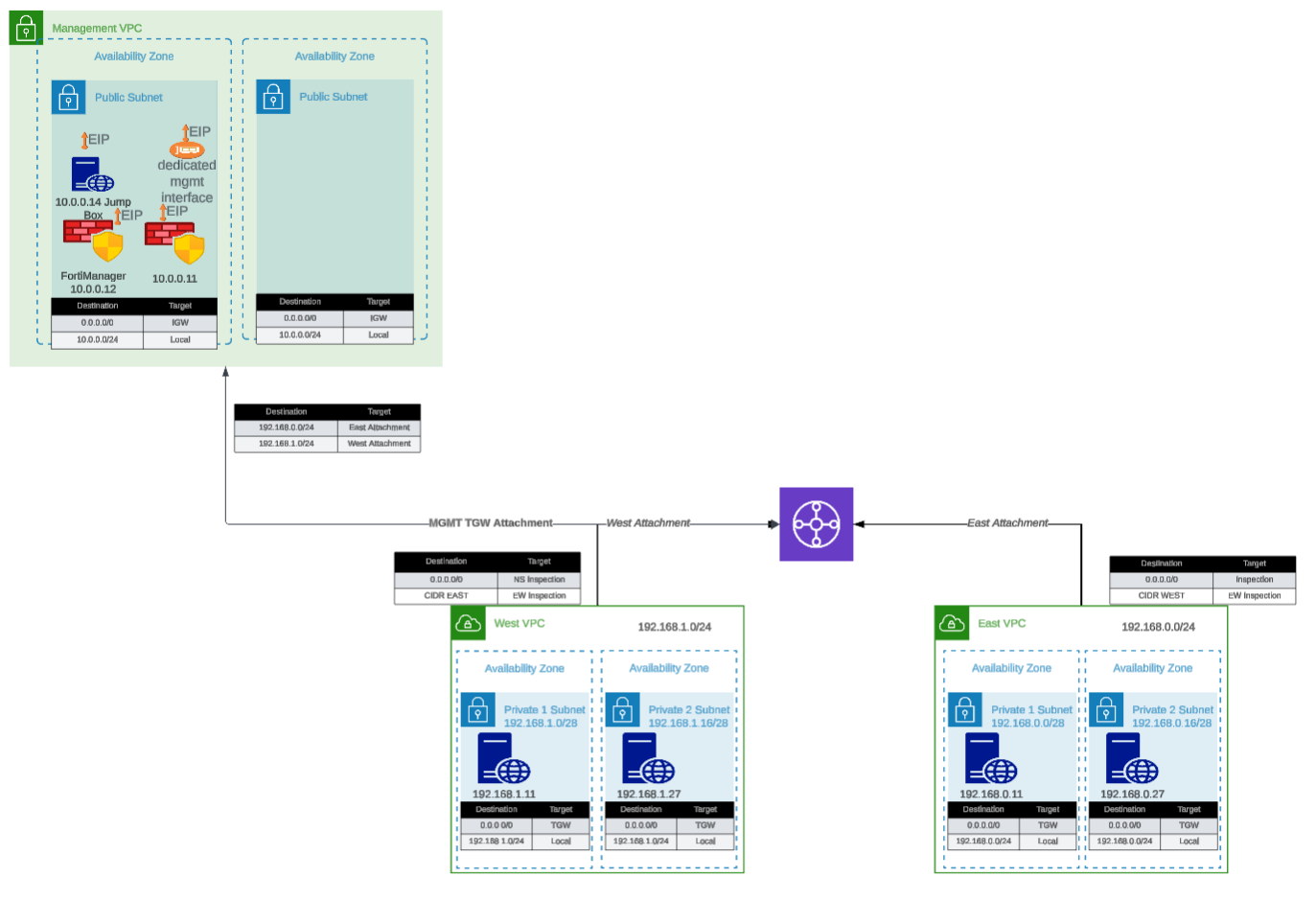
What It Creates

Existing Resources Diagram Existing Resources Diagram

The template conditionally creates the following components based on boolean variables:

Component Overview

ComponentPurposeRequiredTypical Cost/Month
Inspection VPCBase VPC for FortiGate deploymentYesMinimal (VPC free)
Deployment Mode ConfigAutoScale or HA Pair subnet creationYesMinimal (subnets free)
Management VPCCentralized management infrastructureNo~$50 (VPC/networking)
FortiManagerPolicy management and orchestrationNo~$73 (m5.large)
FortiAnalyzerLogging and reportingNo~$73 (m5.large)
Jump BoxBastion host for secure accessNo~$7 (t3.micro)
Transit GatewayCentral hub for VPC interconnectivityNo~$36 + data transfer
Spoke VPCs (East/West)Simulated workload VPCsNo~$50 (networking)
Linux InstancesHTTP servers and traffic generatorsNo~$14 (2x t3.micro)

Total estimated cost for complete lab: ~$300-400/month

Tip

Minimal Deployment: You can deploy just the Inspection VPC with deployment mode selection (~$0-5/month) and integrate with existing infrastructure.


Component Details

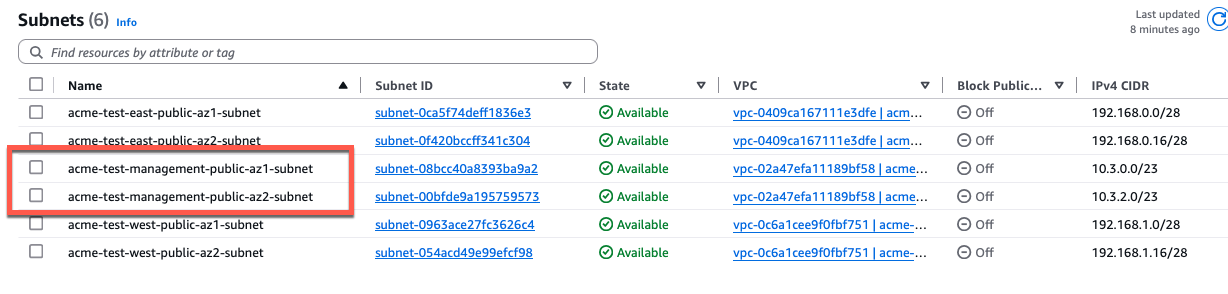
1. Management VPC (Optional)

Purpose: Centralized management infrastructure isolated from production traffic

Components:

  • Dedicated VPC with public and private subnets across two Availability Zones
  • Internet Gateway for external connectivity
  • Security groups for management traffic
  • Standardized resource tags for discovery by autoscale_template

Configuration variable:

enable_build_management_vpc = true

What gets created:

Management VPC (10.3.0.0/16)
|---- Public Subnet AZ1 (10.3.1.0/24)
|---- Public Subnet AZ2 (10.3.2.0/24)
|---- Internet Gateway
\---- Route Tables

Resource tags applied (for autoscale_template discovery):

Name: {cp}-{env}-management-vpc
Name: {cp}-{env}-management-public-az1-subnet
Name: {cp}-{env}-management-public-az2-subnet

FortiManager (Optional within Management VPC)

Configuration:

enable_fortimanager = true
fortimanager_instance_type = "m5.large"
fortimanager_os_version = "7.4.5"
fortimanager_host_ip = "10"  # Results in .3.0.10

Access:

  • GUI: https://<FortiManager-Public-IP>
  • SSH: ssh admin@<FortiManager-Public-IP>
  • Default credentials: admin / <instance-id>

Use cases:

  • Testing FortiManager integration with autoscale group
  • Centralized policy management demonstrations
  • Device orchestration testing

FortiAnalyzer (Optional within Management VPC)

Configuration:

enable_fortianalyzer = true
fortianalyzer_instance_type = "m5.large"
fortianalyzer_os_version = "7.4.5"
fortianalyzer_host_ip = "11"  # Results in .3.0.11

Access:

  • GUI: https://<FortiAnalyzer-Public-IP>
  • SSH: ssh admin@<FortiAnalyzer-Public-IP>
  • Default credentials: admin / <instance-id>

Use cases:

  • Centralized logging for autoscale group
  • Reporting and analytics demonstrations
  • Log retention testing

Jump Box (Optional within Management VPC)

Configuration:

enable_jump_box = true
jump_box_instance_type = "t3.micro"

Access:

ssh -i ~/.ssh/keypair.pem ec2-user@<jump-box-public-ip>

Use cases:

  • Secure access to spoke VPC instances
  • Testing connectivity without FortiGate in path (via debug attachment)
  • Management access to FortiGate private IPs

Management VPC TGW Attachment (Optional)

Configuration:

enable_mgmt_vpc_tgw_attachment = true

Purpose: Connects management VPC to Transit Gateway, allowing:

  • Jump box access to spoke VPC Linux instances
  • FortiManager/FortiAnalyzer access to FortiGate instances via TGW
  • Alternative management access paths

Routing:

  • Management VPC –> TGW –> Spoke VPCs
  • Can be combined with enable_debug_tgw_attachment for bypass testing

2. Inspection VPC and Deployment Mode (Required)

Purpose: Base VPC infrastructure for FortiGate deployment with mode-specific subnets

The inspection VPC is always created and includes subnets based on your chosen deployment mode. This template does not create the inspection VPC itself (that’s created by autoscale_template or ha_pair), but it does create the deployment mode-specific subnets that will be used by the inspection VPC.

AutoScale Deployment Mode

Configuration:

enable_autoscale_deployment = true

What gets created:

  • GWLB subnets in two Availability Zones (indices 4 & 5)
  • Named: {cp}-{env}-inspection-gwlb-az1-subnet and {cp}-{env}-inspection-gwlb-az2-subnet
  • Used by autoscale_template for Gateway Load Balancer endpoints

Subnet layout:

Inspection VPC Subnets (AutoScale Mode)
|---- Index 0: Public Subnet AZ1 (FortiGate Port1)
|---- Index 1: Public Subnet AZ2 (FortiGate Port1)
|---- Index 2: Private Subnet AZ1 (FortiGate Port2)
|---- Index 3: Private Subnet AZ2 (FortiGate Port2)
|---- Index 4: GWLB Subnet AZ1 <-- Created by existing_vpc_resources
\---- Index 5: GWLB Subnet AZ2 <-- Created by existing_vpc_resources

When to use: Choose AutoScale mode when deploying autoscale_template for elastic scaling with Gateway Load Balancer.

HA Pair Deployment Mode

Configuration:

enable_ha_pair_deployment = true

What gets created:

  • HA sync subnets in two Availability Zones (indices 10 & 11)
  • Named: {cp}-{env}-inspection-hasync-az1-subnet and {cp}-{env}-inspection-hasync-az2-subnet
  • Used by ha_pair template for FGCP cluster synchronization and VPC Endpoint

Subnet layout:

Inspection VPC Subnets (HA Pair Mode)
|---- Index 0: Public Subnet AZ1 (Primary FGT Port1)
|---- Index 1: Public Subnet AZ2 (Secondary FGT Port1)
|---- Index 2: Private Subnet AZ1 (Primary FGT Port2)
|---- Index 3: Private Subnet AZ2 (Secondary FGT Port2)
|---- Index 6: TGW Subnet AZ1 (Primary FGT Port3)
|---- Index 7: TGW Subnet AZ2 (Secondary FGT Port3)
|---- Index 8: Management Subnet AZ1 (Primary FGT Port4)
|---- Index 9: Management Subnet AZ2 (Secondary FGT Port4)
|---- Index 10: HA Sync Subnet AZ1 <-- Created by existing_vpc_resources
\---- Index 11: HA Sync Subnet AZ2 <-- Created by existing_vpc_resources

HA Sync Subnet Purpose:

  • Heartbeat traffic: HA cluster health monitoring (UDP 5405, 5406)
  • Configuration synchronization: FortiOS config sync between Primary/Secondary
  • Session synchronization: Active connection state sync (TCP 703)
  • VPC Endpoint access: Private AWS API calls (EC2, TGW) without IGW

When to use: Choose HA Pair mode when deploying ha_pair template for fixed-capacity Active-Passive deployment with FGCP.

Deployment Mode Mutual Exclusivity

Warning

Important: Choose One Mode Only

You cannot enable both deployment modes simultaneously:

  • enable_autoscale_deployment = true –> Creates GWLB subnets (indices 4 & 5)
  • enable_ha_pair_deployment = true –> Creates HA sync subnets (indices 10 & 11)

The UI automatically unchecks one when you select the other. Attempting to enable both will result in configuration errors.

Why separate subnet indices?

  • AutoScale uses lower indices (4 & 5) for GWLB subnets
  • HA Pair uses higher indices (10 & 11) for HA sync subnets
  • This prevents conflicts and allows clear separation of deployment architectures
  • Each mode has different network requirements and traffic patterns

3. Transit Gateway and Spoke VPCs (Optional)

Purpose: Simulates production multi-VPC environment for traffic generation and testing

Configuration variable:

enable_build_existing_subnets = true

What gets created:

Transit Gateway
|---- East Spoke VPC (192.168.0.0/24)
|   |---- Public Subnet AZ1
|   |---- Private Subnet AZ1
|   |---- NAT Gateway (optional)
|   \---- Linux Instance (optional)
|
|---- West Spoke VPC (192.168.1.0/24)
|   |---- Public Subnet AZ1
|   |---- Private Subnet AZ1
|   |---- NAT Gateway (optional)
|   \---- Linux Instance (optional)
|
\---- TGW Route Tables
    |---- Spoke-to-Spoke (via inspection VPC)
    \---- Inspection-to-Internet

Transit Gateway

Configuration:

# Created automatically when enable_build_existing_subnets = true
# Named: {cp}-{env}-tgw

Purpose:

  • Central hub for VPC interconnectivity
  • Enables centralized egress architecture
  • Allows east-west traffic inspection

Attachments:

  • East Spoke VPC
  • West Spoke VPC
  • Inspection VPC (created by autoscale_template)
  • Management VPC (if enable_mgmt_vpc_tgw_attachment = true)
  • Debug attachment (if enable_debug_tgw_attachment = true)

Spoke VPCs (East and West)

Configuration:

vpc_cidr_east = "192.168.0.0/24"
vpc_cidr_west = "192.168.1.0/24"
vpc_cidr_spoke = "192.168.0.0/16"  # Supernet

Components per spoke VPC:

  • Public and private subnets
  • NAT Gateway for internet egress
  • Route tables for internet and TGW connectivity
  • Security groups for instance access

Linux Instances (Traffic Generators)

Configuration:

enable_east_linux_instances = true
east_linux_instance_type = "t3.micro"

enable_west_linux_instances = true
west_linux_instance_type = "t3.micro"

What they provide:

  • HTTP server on port 80 (for connectivity testing)
  • Internet egress capability (for testing FortiGate inspection)
  • East-West traffic generation between spoke VPCs

Testing with Linux instances:

# From jump box or another instance
curl http://<linux-instance-ip>
# Returns: "Hello from <hostname>"

# Generate internet egress traffic
ssh ec2-user@<linux-instance-ip>
curl http://www.google.com  # Traffic goes through FortiGate

Debug TGW Attachment (Optional)

Configuration:

enable_debug_tgw_attachment = true

Purpose: Creates a bypass attachment from Management VPC directly to Transit Gateway, allowing traffic to flow:

Jump Box --> TGW --> Spoke VPC Linux Instances (bypassing FortiGate inspection)

Debug path use cases:

  • Validate spoke VPC connectivity independent of FortiGate inspection
  • Compare latency/throughput with and without inspection
  • Troubleshoot routing issues by eliminating FortiGate as variable
  • Generate baseline traffic patterns for capacity planning
Warning

Security Consideration

The debug attachment bypasses FortiGate inspection entirely. Do not enable in production environments. This is strictly for testing and validation purposes.


Documentation Sections

This documentation is organized into the following sections:

Subsections of existing_vpc_resources Template

UI Deployment

Overview

This guide walks you through configuring the existing_vpc_resources template using the Web UI. This template creates the base infrastructure including management VPC, Transit Gateway, spoke VPCs, and test instances.

Warning

Deploy existing_vpc_resources FIRST before deploying autoscale_template or ha_pair. You must choose a deployment mode during configuration.


Step 1: Select Template

  1. Open the UI at http://localhost:3000
  2. In the Template dropdown at the top, select existing_vpc_resources
  3. The form will load with default values

FortiGate Terraform Web Dropdown FortiGate Terraform Web Dropdown


Step 2: Region Configuration

AWS Region

  1. Locate the Region Configuration section
  2. Click the AWS Region dropdown
  3. Select your desired region (e.g., us-west-2)
Tip

AWS Integration

If AWS credentials are configured, the dropdown will show all available regions. Without credentials, type the region name manually.

Availability Zones

  1. Availability Zone 1 dropdown will automatically populate with zones for your selected region
  2. Select first AZ (e.g., a)
  3. Availability Zone 2 dropdown updates automatically
  4. Select second AZ - must be different from first (e.g., c)

Region Section Region Section


Step 3: Customer Prefix and Environment

These values tag all resources for identification and must match between existing_vpc_resources and your chosen FortiGate template.

Customer Prefix (cp)

  1. Enter your company or project identifier (e.g., acme)
  2. Rules:
    • Lowercase letters, numbers, and hyphens only
    • Will prefix all resource names: acme-test-vpc

Environment (env)

  1. Enter environment name (e.g., test, prod, dev)
  2. Rules:
    • Lowercase letters, numbers, and hyphens only
    • Will be included in resource names: acme-test-vpc

{{% notice note %}} TODO: Add diagram - cp-env-fields

Show:

  • Customer Prefix field with “acme” entered
  • Environment field with “test” entered
  • Help text explaining naming convention
  • Example showing result: “acme-test-management-vpc” {{% /notice %}}
Info

Configuration Inheritance

The UI automatically passes your cp and env values to autoscale_template and ha_pair. These fields will appear as read-only (inherited) in the subsequent templates.


Step 4: Deployment Mode Selection (REQUIRED)

This is the most important decision - choose ONE deployment mode based on which FortiGate template you’ll deploy next.

Option A: AutoScale Deployment Mode

Choose this if you plan to deploy autoscale_template:

  1. Check the box: Enable AutoScale Deployment
  2. Uncheck: Enable HA Pair Deployment

This creates GWLB subnets (indices 4 & 5) for Gateway Load Balancer endpoints.

Option B: HA Pair Deployment Mode

Choose this if you plan to deploy ha_pair:

  1. Check the box: Enable HA Pair Deployment
  2. Uncheck: Enable AutoScale Deployment

This creates HA sync subnets (indices 10 & 11) for FGCP cluster synchronization.

{{% notice note %}} TODO: Add diagram - deployment-mode-selection

Show:

  • Two checkboxes
  • Enable AutoScale Deployment [[x]]
  • Enable HA Pair Deployment [ ]
  • Warning message: “These modes are mutually exclusive - choose one”
  • Help text explaining what each mode creates {{% /notice %}}
Info

What This Choice Does

Your selection controls which subnet configuration fields appear:

  • AutoScale mode: Shows GWLB subnet configuration fields
  • HA Pair mode: Shows HA Sync subnet configuration fields

To change modes after deployment, you’ll need to destroy and recreate the infrastructure.


Step 5: Component Flags

Enable or disable optional components based on your needs.

Management VPC

Check Enable Build Management VPC to create:

  • Management VPC with public/private subnets
  • Internet Gateway
  • Security groups
  • Optional: FortiManager, FortiAnalyzer, Jump Box

Enable this if you want management infrastructure deployed in a separate VPC.

Spoke VPCs and Transit Gateway

Check Enable Build Existing Subnets to create:

  • Transit Gateway
  • East spoke VPC
  • West spoke VPC
  • TGW route tables
  • Optional: Linux test instances

Enable this for complete lab environment or if testing with spoke VPCs.

{{% notice note %}} TODO: Add diagram - component-flags

Show checkboxes for: [[x]] Enable Build Management VPC [[x]] Enable Build Existing Subnets With descriptions of what each creates {{% /notice %}}


Step 6: FortiManager Configuration (Optional)

If you enabled Management VPC and want FortiManager:

  1. Check Enable FortiManager
  2. Select Instance Type (default: m5.large)
    • m5.large: 2 vCPU / 8GB RAM
    • m5.xlarge: 4 vCPU / 16GB RAM
    • m5.2xlarge: 8 vCPU / 32GB RAM
  3. Enter FortiManager OS Version (e.g., 7.4.5 or 7.6)
  4. Admin Password - REQUIRED if enabled
    • Minimum 8 characters
    • Used to login to FortiManager GUI
  5. Host IP (last octet only, e.g., 10 becomes 10.3.0.10)
  6. License File (optional) - Path to BYOL license file (leave empty for PAYG)

{{% notice note %}} TODO: Add diagram - fortimanager-config

Show FortiManager section with:

  • Enable FortiManager checkbox [[x]]
  • Instance Type dropdown: “m5.large” selected
  • OS Version field: “7.4.5”
  • Admin Password field: [password masked]
  • Host IP field: “10”
  • License File field: empty (optional) {{% /notice %}}
Info

FortiManager Purpose

FortiManager provides centralized policy management for FortiGate autoscale groups. Enable if you want to test FortiManager integration or need centralized configuration.


Step 7: FortiAnalyzer Configuration (Optional)

If you enabled Management VPC and want FortiAnalyzer:

  1. Check Enable FortiAnalyzer
  2. Configure similarly to FortiManager:
    • Instance Type (default: m5.large)
    • OS Version (e.g., 7.4.5)
    • Admin Password (minimum 8 characters)
    • Host IP (e.g., 11 becomes 10.3.0.11)
    • License File (optional)

{{% notice note %}} TODO: Add diagram - fortianalyzer-config

Show FortiAnalyzer section similar to FortiManager {{% /notice %}}

Info

FortiAnalyzer Purpose

FortiAnalyzer provides centralized logging and reporting. Enable if you want to test log aggregation from FortiGate autoscale instances.


Step 8: Jump Box Configuration (Optional)

If you enabled Management VPC and want a bastion host:

  1. Check Enable Jump Box
  2. Select Instance Type (default: t3.micro)
    • t3.micro: 2 vCPU / 1GB RAM
    • t3.small: 2 vCPU / 2GB RAM

The jump box provides SSH access to private resources and serves as a management bastion.


Step 9: Management VPC TGW Attachment (Optional)

If you enabled both Management VPC and Spoke VPCs:

  1. Check Enable Management VPC TGW Attachment

This connects the management VPC to the Transit Gateway, allowing:

  • Jump box access to spoke VPC instances
  • FortiManager/FortiAnalyzer access via TGW

{{% notice note %}} TODO: Add diagram - tgw-attachment

Show:

  • Enable Management VPC TGW Attachment checkbox
  • Diagram showing Management VPC –> TGW –> Spoke VPCs connection {{% /notice %}}

Step 10: Linux Traffic Generators (Optional)

If you enabled Spoke VPCs and want traffic generation instances:

East Spoke Linux Instance

  1. Check Enable East Linux Instances
  2. Select Instance Type (default: t3.micro)

West Spoke Linux Instance

  1. Check Enable West Linux Instances
  2. Select Instance Type (default: t3.micro)

These instances provide:

  • HTTP server on port 80 for connectivity testing
  • Traffic generation tools (iperf3, curl, etc.)
  • East-West traffic testing between spoke VPCs

Step 11: Debug TGW Attachment (Optional)

For advanced troubleshooting:

  1. Check Enable Debug TGW Attachment

This creates a bypass path from Management VPC directly to spoke VPCs, skipping FortiGate inspection. Useful for:

  • Validating connectivity independent of FortiGate
  • Comparing performance with/without inspection
  • Troubleshooting routing issues
Warning

Security Warning

Debug attachment bypasses FortiGate inspection. Do not enable in production. Use only for testing and validation.


Step 12: Network CIDRs

Configure IP address ranges for all VPCs.

Management VPC CIDR

  1. Enter Management VPC CIDR (default: 10.3.0.0/16)
    • Used for jump box, FortiManager, FortiAnalyzer
    • Must not overlap with spoke VPCs

Spoke VPC CIDRs

If you enabled Spoke VPCs:

  1. Spoke VPC Supernet (default: 192.168.0.0/16)

    • Parent CIDR containing all spoke VPCs
  2. East Spoke VPC CIDR (default: 192.168.0.0/24)

    • Must be within spoke supernet
    • Used for east workload VPC
  3. West Spoke VPC CIDR (default: 192.168.1.0/24)

    • Must be within spoke supernet
    • Used for west workload VPC

{{% notice note %}} TODO: Add diagram - cidr-configuration

Show:

  • Management VPC CIDR: “10.3.0.0/16”
  • Spoke Supernet: “192.168.0.0/16”
  • East VPC CIDR: “192.168.0.0/24”
  • West VPC CIDR: “192.168.1.0/24”
  • Visual validation showing no overlaps
  • Diagram showing CIDR relationships {{% /notice %}}
Tip

CIDR Planning

Ensure CIDRs:

  • Don’t overlap with existing networks
  • Leave room for growth
  • Match between existing_vpc_resources and your FortiGate template

Step 13: Security Configuration

EC2 Key Pair

  1. Click the Key Pair dropdown
  2. Select an existing key pair in your region
Info

No Key Pair?

If you don’t have a key pair, create one first:

aws ec2 create-key-pair --key-name my-keypair --region us-west-2 \
  --query 'KeyMaterial' --output text > my-keypair.pem
chmod 400 my-keypair.pem

Management CIDR Security Group

  1. Enter Management CIDR - List of IP addresses/ranges for SSH/HTTPS access
    • Format: x.x.x.x/32 for single IP
    • Add multiple CIDRs by clicking “Add Item”
    • Example: 203.0.113.10/32, 10.0.0.0/8
    • Find your IP: https://ifconfig.me

{{% notice note %}} TODO: Add diagram - security-config

Show:

  • Key Pair dropdown with “my-keypair” selected
  • Management CIDR list field with:
    • First item: “203.0.113.10/32”
    • “Add Item” button to add more CIDRs
  • Help text: “Restricts SSH and HTTPS access to management interfaces”
  • Button: “Get My IP” (auto-fills current public IP) {{% /notice %}}
Warning

Important: Management Access

The mgmt_cidr_sg variable controls who can access FortiManager, FortiAnalyzer, and jump box. Add all IP ranges that need management access.


Step 14: Save Configuration

Before generating the terraform.tfvars file:

  1. Click the Save Configuration button at the bottom
  2. Confirmation message: “Configuration saved successfully!”

This saves your settings so you can return later and resume editing.

{{% notice note %}} TODO: Add diagram - save-button

Show:

  • “Save Configuration” button (blue)
  • “Reset to Defaults” button (gray)
  • Success message after saving {{% /notice %}}

Step 15: Generate terraform.tfvars

  1. Click the Generate terraform.tfvars button
  2. A preview window appears showing the generated file contents
  3. Review the configuration

{{% notice note %}} TODO: Add diagram - generated-preview

Show preview window with:

  • Generated terraform.tfvars content
  • Syntax highlighting
  • Buttons: “Download”, “Save to Template”, “Clear” {{% /notice %}}

Step 16: Download or Save

Choose how to use the generated file:

Option A: Download File

  1. Click Download
  2. File saves as existing_vpc_resources.tfvars
  3. Copy to terraform directory:
    cp ~/Downloads/existing_vpc_resources.tfvars \
      terraform/aws/existing_vpc_resources/terraform.tfvars

Option B: Save Directly to Template

  1. Click Save to Template
  2. Confirmation: “terraform.tfvars saved to: terraform/aws/existing_vpc_resources/terraform.tfvars”
  3. Ready to deploy!

{{% notice note %}} TODO: Add diagram - download-save-options

Show:

  • “Download” button
  • “Save to Template” button
  • Success message after saving {{% /notice %}}

Step 17: Deploy with Terraform

Now that your terraform.tfvars is configured:

cd terraform/aws/existing_vpc_resources

# Initialize Terraform
terraform init

# Review execution plan
terraform plan

# Deploy infrastructure
terraform apply

Type yes when prompted.

Expected deployment time: 10-15 minutes


Common Configuration Patterns

Pattern 1: Minimal Lab (Management VPC Only)

[x] Enable Build Management VPC
[x] Enable Jump Box
[ ] Enable FortiManager
[ ] Enable FortiAnalyzer
[ ] Enable Build Existing Subnets

Use case: Testing FortiGate deployment with minimal supporting infrastructure


Pattern 2: Complete Lab (Everything)

[x] Enable AutoScale Deployment (or HA Pair Deployment)
[x] Enable Build Management VPC
[x] Enable FortiManager
[x] Enable FortiAnalyzer
[x] Enable Jump Box
[x] Enable Management VPC TGW Attachment
[x] Enable Build Existing Subnets
[x] Enable East Linux Instances
[x] Enable West Linux Instances
[x] Enable Debug TGW Attachment

Use case: Full-featured training environment with all components


Pattern 3: Production Testing (No Debug Features)

[x] Enable AutoScale Deployment (or HA Pair Deployment)
[x] Enable Build Management VPC
[x] Enable FortiManager
[x] Enable FortiAnalyzer
[x] Enable Jump Box
[x] Enable Management VPC TGW Attachment
[x] Enable Build Existing Subnets
[ ] Enable East/West Linux Instances (use real workloads)
[ ] Enable Debug TGW Attachment

Use case: Production-like testing environment


Validation and Errors

The UI provides real-time validation:

CIDR Validation

  • Valid CIDR format (e.g., 10.0.0.0/16)
  • Invalid format shows error message
  • Overlapping CIDRs highlighted

Required Fields

  • Red border indicates required field not filled
  • Cannot generate terraform.tfvars until all required fields valid

AWS Resource Validation

  • Availability zones must be different
  • Key pair must exist in selected region

{{% notice note %}} TODO: Add diagram - validation-errors

Show form with validation errors:

  • Red border around empty required field
  • Error message: “This field is required”
  • CIDR overlap warning
  • AZ conflict warning {{% /notice %}}

Next Steps

After deploying existing_vpc_resources:

  1. Save the outputs:

    terraform output > ../outputs.txt
  2. Record these critical values:

    • tgw_name - Transit Gateway name
    • fortimanager_private_ip - FortiManager IP (if enabled)
    • fortianalyzer_private_ip - FortiAnalyzer IP (if enabled)
    • deployment_mode - Verify correct mode was deployed
  3. Continue to next template:


Resetting Configuration

To start over with default values:

  1. Click Reset to Defaults
  2. Confirm: “Are you sure you want to reset to default values?”
  3. Form resets to template defaults
  4. Saved configuration is deleted
Warning

Reset Cannot Be Undone

Resetting deletes your saved configuration permanently. Make sure to generate and save your terraform.tfvars first if you want to keep it.

Manual Step-by-Step Deployment

Step-by-Step Deployment

Prerequisites

  • AWS account with appropriate permissions
  • Terraform 1.0 or later installed
  • AWS CLI configured with credentials
  • Git installed
  • SSH keypair created in target AWS region

Step 1: Clone the Repository

Clone the repository containing both templates:

git clone https://github.com/FortinetCloudCSE/fortinet-ui-terraform.git
cd fortinet-ui-terraform/terraform/aws/existing_vpc_resources

Clone Repository Clone Repository

Step 2: Create terraform.tfvars

Copy the example file and customize:

cp terraform.tfvars.example terraform.tfvars

Step 3: Configure Core Variables

Region and Availability Zones

Region and AZ Region and AZ

aws_region         = "us-west-2"
availability_zone_1 = "a"
availability_zone_2 = "c"
Tip

Availability Zone Selection

Choose AZs that:

  • Support your desired instance types
  • Have sufficient capacity
  • Match your production environment (if testing for production)

Verify AZ availability:

aws ec2 describe-availability-zones --region us-west-2

Customer Prefix and Environment

Customer Prefix and Environment Customer Prefix and Environment

These values are prepended to all resources for identification:

cp  = "acme"    # Customer prefix
env = "test"    # Environment: prod, test, dev

Result: Resources named like acme-test-management-vpc, acme-test-tgw, etc.

Customer Prefix Example Customer Prefix Example

Warning

Critical: Variable Coordination

These cp and env values must match between existing_vpc_resources and autoscale_template for proper resource discovery via tags.

Step 4: Select Deployment Mode (REQUIRED)

This is a critical decision - you must choose ONE deployment mode:

Option A: AutoScale Deployment

Choose this if you plan to deploy autoscale_template for elastic scaling:

enable_autoscale_deployment = true
enable_ha_pair_deployment   = false

This creates GWLB subnets (indices 4 & 5) for Gateway Load Balancer endpoints.

Option B: HA Pair Deployment

Choose this if you plan to deploy ha_pair template for fixed Active-Passive deployment:

enable_autoscale_deployment = false
enable_ha_pair_deployment   = true

This creates HA sync subnets (indices 10 & 11) for FGCP cluster synchronization and VPC Endpoint.

Warning

Deployment Mode Cannot Be Changed

Once deployed, changing deployment modes requires destroying and recreating the infrastructure. Choose carefully based on your deployment architecture requirements.

Step 5: Configure Component Flags

Management VPC

Build Management VPC Build Management VPC

enable_build_management_vpc = true

Spoke VPCs and Transit Gateway

Build Existing Subnets Build Existing Subnets

enable_build_existing_subnets = true

Step 6: Configure Optional Components

FortiManager and FortiAnalyzer

FortiManager and FortiAnalyzer Options FortiManager and FortiAnalyzer Options

enable_fortimanager  = true
fortimanager_instance_type = "m5.large"
fortimanager_os_version = "7.4.5"
fortimanager_host_ip = "10"  # .3.0.10 within management VPC CIDR

enable_fortianalyzer = true
fortianalyzer_instance_type = "m5.large"
fortianalyzer_os_version = "7.4.5"
fortianalyzer_host_ip = "11"  # .3.0.11 within management VPC CIDR
Info

Instance Sizing Recommendations

For testing/lab environments:

  • FortiManager: m5.large (minimum)
  • FortiAnalyzer: m5.large (minimum)

For heavier workloads or production evaluation:

  • FortiManager: m5.xlarge or m5.2xlarge
  • FortiAnalyzer: m5.xlarge or larger (depends on log volume)

Management VPC Transit Gateway Attachment

Management VPC TGW Attachment Management VPC TGW Attachment

enable_mgmt_vpc_tgw_attachment = true

This allows jump box and management instances to reach spoke VPC Linux instances for testing.

Linux Traffic Generators

Linux Instances Linux Instances

enable_jump_box = true
jump_box_instance_type = "t3.micro"

enable_east_linux_instances = true
east_linux_instance_type = "t3.micro"

enable_west_linux_instances = true
west_linux_instance_type = "t3.micro"

Debug TGW Attachment

enable_debug_tgw_attachment = true

Enables bypass path for connectivity testing without FortiGate inspection.

Step 7: Configure Network CIDRs

Management and Spoke CIDRs Management and Spoke CIDRs

vpc_cidr_management = "10.3.0.0/16"
vpc_cidr_east       = "192.168.0.0/24"
vpc_cidr_west       = "192.168.1.0/24"
vpc_cidr_spoke      = "192.168.0.0/16"  # Supernet for all spoke VPCs
Warning

CIDR Planning

Ensure CIDRs:

  • Don’t overlap with existing networks
  • Match between existing_vpc_resources and either autoscale_template or ha_pair
  • Have sufficient address space for growth
  • Align with corporate IP addressing standards

Step 8: Configure Security Variables

keypair = "my-aws-keypair"  # Must exist in target region
my_ip   = "203.0.113.10/32" # Your public IP for SSH access
Tip

Security Group Source IP

The my_ip variable restricts SSH and HTTPS access to management interfaces.

For dynamic IPs, consider:

  • Using a CIDR range: "203.0.113.0/24"
  • VPN endpoint IP if accessing via corporate VPN
  • Multiple IPs: Configure directly in security groups after deployment

Step 9: Deploy the Template

Initialize Terraform:

terraform init

Review the execution plan:

terraform plan

Expected output will show resources to be created based on enabled flags.

Deploy the infrastructure:

terraform apply

Type yes when prompted to confirm.

Expected deployment time: 10-15 minutes

Deployment progress:

Apply complete! Resources: 47 added, 0 changed, 0 destroyed.

Outputs:

deployment_mode = "autoscale"  # or "ha_pair" based on selection
east_linux_instance_ip = "192.168.0.50"
fortianalyzer_public_ip = "52.10.20.30"
fortimanager_public_ip = "52.10.20.40"
jump_box_public_ip = "52.10.20.50"
management_vpc_id = "vpc-0123456789abcdef0"
tgw_id = "tgw-0123456789abcdef0"
tgw_name = "acme-test-tgw"
west_linux_instance_ip = "192.168.1.50"

Step 10: Verify Deployment

Verify Management VPC

aws ec2 describe-vpcs --filters "Name=tag:Name,Values=acme-test-management-vpc"

Expected: VPC ID and CIDR information

Access FortiManager (if enabled)

# Get public IP from outputs
terraform output fortimanager_public_ip

# Access GUI
open https://<FortiManager-Public-IP>

# Or SSH
ssh admin@<FortiManager-Public-IP>
# Default password: <instance-id>

First-time FortiManager setup:

  1. Login with admin / instance-id
  2. Change password when prompted
  3. Complete initial setup wizard
  4. Navigate to Device Manager > Device & Groups

Enable VM device recognition (FortiManager 7.6.3+):

config system global
    set fgfm-allow-vm enable
end

Access FortiAnalyzer (if enabled)

# Get public IP from outputs
terraform output fortianalyzer_public_ip

# Access GUI
open https://<FortiAnalyzer-Public-IP>

# Or SSH
ssh admin@<FortiAnalyzer-Public-IP>

Verify Transit Gateway (if enabled)

aws ec2 describe-transit-gateways --filters "Name=tag:Name,Values=acme-test-tgw"

Expected: Transit Gateway in “available” state

Test Linux Instances (if enabled)

# Get instance IPs from outputs
terraform output east_linux_instance_ip
terraform output west_linux_instance_ip

# Test HTTP connectivity (if jump box enabled)
ssh -i ~/.ssh/keypair.pem ec2-user@<jump-box-ip>
curl http://<east-linux-ip>
# Expected: "Hello from ip-192-168-0-50"

Step 11: Save Outputs for Next Template

Save key outputs for use in your chosen deployment template:

For AutoScale Deployment:

# Save all outputs
terraform output > ../outputs.txt

# Or save specific values
echo "tgw_name: $(terraform output -raw tgw_name)" >> ../autoscale_template/terraform.tfvars
echo "fortimanager_ip: $(terraform output -raw fortimanager_private_ip)" >> ../autoscale_template/terraform.tfvars

For HA Pair Deployment:

# Save all outputs
terraform output > ../outputs.txt

# Or save specific values for ha_pair template
echo "tgw_name: $(terraform output -raw tgw_name)" >> ../ha_pair/terraform.tfvars
echo "fortimanager_ip: $(terraform output -raw fortimanager_private_ip)" >> ../ha_pair/terraform.tfvars

Outputs Reference

The template provides these outputs for use by your chosen deployment template:

OutputDescriptionUsed By autoscale_template/ha_pair
deployment_modeSelected deployment mode (autoscale/ha_pair)Verification
management_vpc_idID of management VPCVPC peering or TGW routing
management_vpc_cidrCIDR of management VPCRoute table configuration
tgw_idTransit Gateway IDTGW attachment
tgw_nameTransit Gateway name tagattach_to_tgw_name variable
fortimanager_private_ipFortiManager private IPfortimanager_ip variable
fortimanager_public_ipFortiManager public IPGUI/SSH access
fortianalyzer_private_ipFortiAnalyzer private IPFortiGate syslog configuration
fortianalyzer_public_ipFortiAnalyzer public IPGUI/SSH access
jump_box_public_ipJump box public IPSSH bastion access
east_linux_instance_ipEast spoke instance IPConnectivity testing
west_linux_instance_ipWest spoke instance IPConnectivity testing

Operations & Troubleshooting

Post-Deployment Configuration

Configure FortiManager for Integration

If you enabled FortiManager and plan to integrate with autoscale group:

  1. Access FortiManager GUI: https://<FortiManager-Public-IP>

  2. Change default password:

    • Login with admin / <instance-id>
    • Follow password change prompts
  3. Enable VM device recognition (7.6.3+):

    config system global
        set fgfm-allow-vm enable
    end
  4. Create ADOM for autoscale group (optional):

    • Device Manager > ADOM
    • Create ADOM for organizing autoscale FortiGates
  5. Note FortiManager details for autoscale_template:

    • Private IP: From outputs
    • Serial number: Get from CLI: get system status

Configure FortiAnalyzer for Logging

If you enabled FortiAnalyzer:

  1. Access FortiAnalyzer GUI: https://<FortiAnalyzer-Public-IP>

  2. Change default password

  3. Configure log settings:

    • System Settings > Storage
    • Configure log retention policies
    • Enable features needed for testing
  4. Note FortiAnalyzer private IP for FortiGate syslog configuration


Important Notes

Resource Lifecycle Considerations

Warning

Management Resource Persistence

If you deploy the existing_vpc_resources template:

  • Management VPC and resources (FortiManager, FortiAnalyzer) will be destroyed when you run terraform destroy
  • If you want management resources to persist across inspection VPC redeployments, consider:
    • Deploying management VPC separately with different Terraform state
    • Using existing management infrastructure instead of template-created resources
    • Setting appropriate lifecycle rules in Terraform to prevent destruction

Cost Optimization Tips

Info

Managing Lab Costs

The existing_vpc_resources template can create expensive resources:

  • FortiManager m5.large: $0.10/hour ($73/month)
  • FortiAnalyzer m5.large: $0.10/hour ($73/month)
  • Transit Gateway: $0.05/hour (~$36/month) + data processing charges
  • NAT Gateways: $0.045/hour each (~$33/month each)

Cost reduction strategies:

  • Use smaller instance types (t3.micro, t3.small) where possible
  • Disable FortiManager/FortiAnalyzer if not testing those features
  • Destroy resources when not actively testing
  • Use AWS Cost Explorer to monitor spend
  • Consider AWS budgets and alerts

Example budget-conscious configuration:

enable_fortimanager = false    # Save $73/month
enable_fortianalyzer = false   # Save $73/month
jump_box_instance_type = "t3.micro"  # Use smallest size
east_linux_instance_type = "t3.micro"
west_linux_instance_type = "t3.micro"

State File Management

Store Terraform state securely:

# backend.tf (optional - recommended for teams)
terraform {
  backend "s3" {
    bucket = "my-terraform-state"
    key    = "existing-vpc-resources/terraform.tfstate"
    region = "us-west-2"
    encrypt = true
    dynamodb_table = "terraform-locks"
  }
}

Troubleshooting

Issue: Terraform Fails with “Resource Already Exists”

Symptoms:

Error: Error creating VPC: VpcLimitExceeded

Solutions:

  • Check VPC limits in your AWS account
  • Clean up unused VPCs
  • Request limit increase via AWS Support

Issue: Cannot Access FortiManager/FortiAnalyzer

Symptoms:

  • Timeout when accessing GUI
  • SSH connection refused

Solutions:

  1. Verify security groups allow your IP:

    aws ec2 describe-security-groups --group-ids <sg-id>
  2. Check instance is running:

    aws ec2 describe-instances --filters "Name=tag:Name,Values=*fortimanager*"
  3. Verify my_ip variable matches your current public IP:

    curl ifconfig.me
  4. Check instance system log for boot issues:

    aws ec2 get-console-output --instance-id <instance-id>

Issue: Transit Gateway Attachment Pending

Symptoms:

  • TGW attachment stuck in “pending” state
  • Spoke VPCs can’t communicate

Solutions:

  1. Wait 5-10 minutes for attachment to complete
  2. Check TGW route tables are configured
  3. Verify no CIDR overlaps between VPCs
  4. Check TGW attachment state:
    aws ec2 describe-transit-gateway-attachments

Issue: Linux Instances Not Reachable

Symptoms:

  • Cannot curl or SSH to Linux instances

Solutions:

  1. Verify you’re accessing from jump box (if not public)
  2. Check security groups allow port 80 and 22
  3. Verify NAT Gateway is functioning for internet access
  4. Check route tables in spoke VPCs

Issue: High Costs After Deployment

Symptoms:

  • AWS bill higher than expected

Solutions:

  1. Check what’s running:

    aws ec2 describe-instances --filters "Name=instance-state-name,Values=running"
  2. Identify expensive resources:

    # Use AWS Cost Explorer in AWS Console
    # Filter by resource tags: cp and env
  3. Shut down unused components:

    terraform destroy -target=module.fortimanager
    terraform destroy -target=module.fortianalyzer
  4. Or destroy entire deployment:

    terraform destroy

Cleanup

Destroying Resources

To destroy the existing_vpc_resources infrastructure:

cd terraform/aws/existing_vpc_resources
terraform destroy

Type yes when prompted.

Warning

Destroy Order is Critical

If you deployed either autoscale_template or ha_pair, destroy it FIRST before destroying existing_vpc_resources:

For AutoScale Deployment:

# Step 1: Destroy autoscale_template
cd terraform/aws/autoscale_template
terraform destroy

# Step 2: Destroy existing_vpc_resources
cd ../existing_vpc_resources
terraform destroy

For HA Pair Deployment:

# Step 1: Destroy ha_pair
cd terraform/aws/ha_pair
terraform destroy

# Step 2: Destroy existing_vpc_resources
cd ../existing_vpc_resources
terraform destroy

Why? The inspection VPC has a Transit Gateway attachment to the TGW created by existing_vpc_resources. Destroying the TGW first will cause the attachment deletion to fail.

Selective Cleanup

To destroy only specific components:

# Destroy only FortiManager
terraform destroy -target=module.fortimanager

# Destroy only spoke VPCs and TGW
terraform destroy -target=module.transit_gateway
terraform destroy -target=module.spoke_vpcs

# Destroy only management VPC
terraform destroy -target=module.management_vpc

Verify Complete Cleanup

After destroying, verify no resources remain:

# Check VPCs
aws ec2 describe-vpcs --filters "Name=tag:cp,Values=acme" "Name=tag:env,Values=test"

# Check Transit Gateways
aws ec2 describe-transit-gateways --filters "Name=tag:cp,Values=acme"

# Check running instances
aws ec2 describe-instances --filters "Name=instance-state-name,Values=running" "Name=tag:cp,Values=acme"

Next Steps

After deploying existing_vpc_resources, proceed to deploy your chosen FortiGate template:

For AutoScale Deployment

Deploy autoscale_template to create the FortiGate autoscale group with Gateway Load Balancer:

Key information to carry forward:

  • Transit Gateway name (from outputs): Use for attach_to_tgw_name
  • FortiManager private IP (if enabled): Use for fortimanager_ip
  • FortiAnalyzer private IP (if enabled): Use for FortiGate syslog config
  • Same cp and env values (critical for resource discovery)

Recommended next reading:

For HA Pair Deployment

Deploy ha_pair template to create the FortiGate Active-Passive HA Pair:

Key information to carry forward:

  • Transit Gateway name (from outputs): Use for attach_to_tgw_name
  • FortiManager private IP (if enabled): Use for fortimanager_ip
  • FortiAnalyzer private IP (if enabled): Use for FortiGate syslog config
  • Same cp and env values (critical for resource discovery)

Recommended next reading:

autoscale_template

Overview

The autoscale_template is the required Terraform template that deploys the core FortiGate autoscale infrastructure. This template is used for all deployments and can operate independently or integrate with resources created by the existing_vpc_resources template.

Info

This template is required for all deployments. It creates the inspection VPC, FortiGate autoscale group, Gateway Load Balancer, and all components necessary for traffic inspection.


Documentation Structure

This template documentation is organized into focused sections:

  1. Deployment Guide - Step-by-step deployment instructions
  2. Post-Deployment Configuration - Configure TGW routes, FortiGate policies, and FortiManager
  3. Operations & Troubleshooting - Monitoring, troubleshooting, best practices, and cleanup
  4. Reference - Outputs and variable reference

What It Creates

The autoscale_template deploys a complete FortiGate autoscale solution including:

Core Components

ComponentPurposeAlways Created
Inspection VPCDedicated VPC for FortiGate instances and GWLBYes
FortiGate Autoscale GroupsBYOL and/or on-demand instance groupsYes
Gateway Load BalancerDistributes traffic across FortiGate instancesYes
GWLB EndpointsConnection points in each AZYes
Lambda FunctionsLifecycle management and licensing automationYes
DynamoDB TableLicense tracking and state managementYes (if BYOL)
S3 BucketLicense file storage and Lambda codeYes (if BYOL)
IAM RolesPermissions for Lambda and EC2 instancesYes
Security GroupsNetwork access controlYes
CloudWatch AlarmsAutoscaling triggersYes

Optional Components

ComponentPurposeEnabled By
Transit Gateway AttachmentConnection to TGW for centralized architectureenable_tgw_attachment
Dedicated Management ENIIsolated management interfaceenable_dedicated_management_eni
Dedicated Management VPC ConnectionManagement in separate VPCenable_dedicated_management_vpc
FortiManager IntegrationCentralized policy managementenable_fortimanager_integration
East-West InspectionInter-spoke traffic inspectionenable_east_west_inspection

Architecture Patterns

The autoscale_template supports multiple deployment patterns:

Pattern 1: Centralized Architecture with TGW

Configuration:

enable_tgw_attachment = true
attach_to_tgw_name = "production-tgw"

Traffic flow:

Spoke VPCs --> TGW --> Inspection VPC --> FortiGate --> GWLB --> Internet

Use cases:

  • Production centralized egress
  • Multi-VPC environments
  • East-west traffic inspection

Pattern 2: Distributed Inspection Architecture

Configuration:

enable_distributed_inspection = true

Traffic flow:

VPC --> GWLBe --> GWLB --> GENEVE tunnel --> FortiGate --> GENEVE tunnel --> GWLB --> GWLBe --> VPC

Use cases:

  • Distributed security architecture with local GWLB endpoints
  • Per-VPC inspection without Transit Gateway
  • Bump-in-the-wire deployments (traffic hairpinned through same GWLB endpoint)

Key points:

  • Independent of Transit Gateway (can coexist with TGW-attached centralized spokes)
  • Requires distributed VPCs created with GWLBE subnets
  • Module automatically discovers and configures VPCs by tag pattern

Pattern 3: Hybrid with Management VPC

Configuration:

enable_tgw_attachment = true
enable_dedicated_management_vpc = true
enable_fortimanager_integration = true

Traffic flow:

Data: Spoke VPCs --> TGW --> FortiGate --> Internet
Management: FortiGate --> Management VPC --> FortiManager

Use cases:

  • Enterprise deployments
  • Centralized management requirements
  • Compliance-driven architectures

Integration Modes

Integration with existing_vpc_resources

When deploying after existing_vpc_resources:

Required variable coordination:

# Must match existing_vpc_resources values
aws_region          = "us-west-2"
availability_zone_1 = "a"
availability_zone_2 = "c"
cp                  = "acme"      # MUST MATCH
env                 = "test"      # MUST MATCH

# Connect to created TGW
enable_tgw_attachment = true
attach_to_tgw_name    = "acme-test-tgw"  # From existing_vpc_resources output

# Connect to management VPC (if created)
enable_dedicated_management_vpc = true
dedicated_management_vpc_tag = "acme-test-management-vpc"
dedicated_management_public_az1_subnet_tag = "acme-test-management-public-az1-subnet"
dedicated_management_public_az2_subnet_tag = "acme-test-management-public-az2-subnet"

# FortiManager integration (if enabled in existing_vpc_resources)
enable_fortimanager_integration = true
fortimanager_ip = "10.3.0.10"  # From existing_vpc_resources output
fortimanager_sn = "FMGVM0000000001"

Integration with Existing Production Infrastructure

When deploying to existing production environment:

Required information:

  • Existing Transit Gateway name (or skip TGW entirely)
  • Existing management VPC details (or skip)
  • Network CIDR ranges to avoid overlaps

Configuration:

# Connect to existing production TGW
enable_tgw_attachment = true
attach_to_tgw_name = "production-tgw"  # Your existing TGW

# Use existing management infrastructure
enable_fortimanager_integration = true
fortimanager_ip = "10.100.50.10"  # Your existing FortiManager
fortimanager_sn = "FMGVM1234567890"

Next Steps

Subsections of autoscale_template

Autoscale Reference

Detailed explanations of autoscale template components, configuration options, and architectural considerations.

Tip

New to FortiGate AWS deployments? Start with the Getting Started guide to deploy your first environment using the Web UI. Return here for deeper architectural understanding.

What You’ll Learn

This section covers the major architectural elements available in the autoscale_template:

  • Internet Egress Options: Choose between EIP or NAT Gateway architectures
  • Firewall Architecture: Understand 1-ARM vs 2-ARM configurations
  • Management Isolation: Configure dedicated management ENI and VPC options
  • Licensing: Manage BYOL licenses and integrate FortiFlex API
  • FortiManager Integration: Enable centralized management and policy orchestration
  • Capacity Planning: Configure autoscale group sizing and scaling strategies (AutoScale only)
  • Primary Protection: Implement scale-in protection for configuration stability (AutoScale only)
  • Additional Options: Fine-tune instance specifications and advanced settings

Each component page includes:

  • Configuration examples
  • Architecture diagrams
  • Best practices
  • Troubleshooting guidance
  • Use case recommendations

Deployment Mode Comparison

Componentautoscale_templateha_pair
Internet EgressEIP or NAT GatewayCluster EIP (moves on failover)
Firewall Architecture1-ARM or 2-ARM2-ARM (4 interfaces)
ManagementStandard, ENI, or VPCDedicated management interface (Port4)
LicensingBYOL, PAYG, FortiFlexBYOL or PAYG (no FortiFlex)
FortiManagerOptional integrationOptional integration
ScalingAuto scales 2-10+Fixed 2 instances (Primary/Secondary)
FailoverGWLB health checksFGCP Active-Passive with session sync

Select a component from the navigation menu to learn more about specific autoscale_template configuration options.

Subsections of Autoscale Reference

Internet Egress Options

Overview

The FortiGate autoscale solution provides two distinct architectures for internet egress traffic, each optimized for different operational requirements and cost considerations.


Option 1: Elastic IP (EIP) per Instance

Each FortiGate instance in the autoscale group receives a dedicated Elastic IP address. All traffic destined for the public internet is source-NATed behind the instance’s assigned EIP.

Configuration

access_internet_mode = "eip"

Architecture Behavior

In EIP mode, the architecture routes all internet-bound traffic to port2 (the public interface). The route table for the public subnet directs traffic to the Internet Gateway (IGW), where automatic source NAT to the associated EIP occurs.
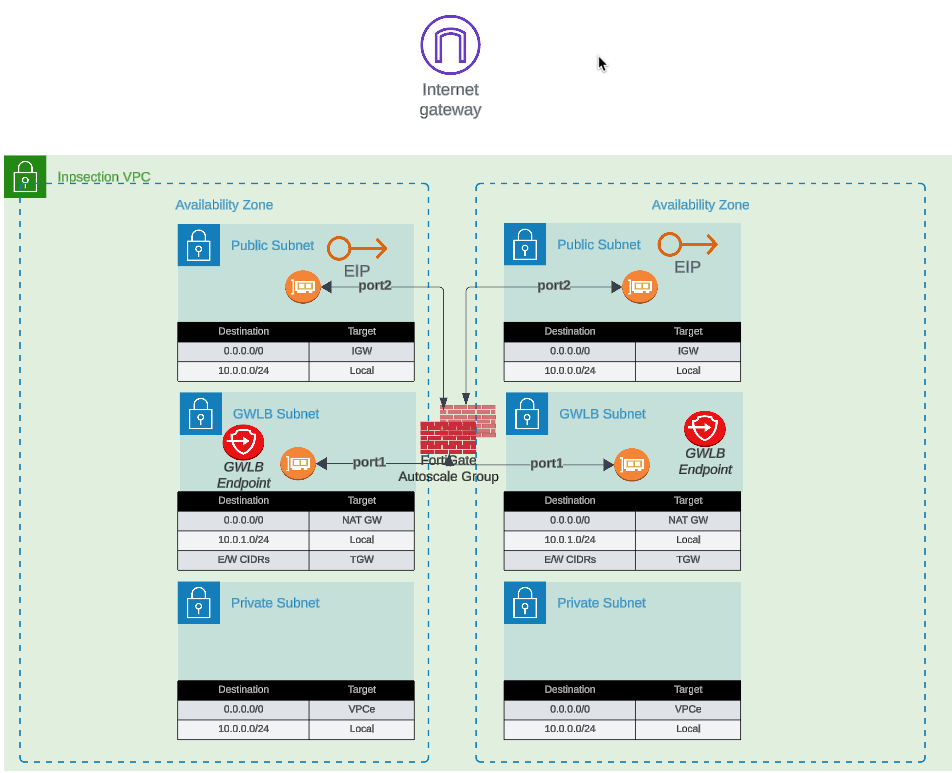
EIP Diagram EIP Diagram

Advantages

  • No NAT Gateway costs: Eliminates monthly NAT Gateway charges ($0.045/hour + data processing)
  • Distributed egress: Each instance has independent internet connectivity
  • Simplified troubleshooting: Per-instance source IP simplifies traffic flow analysis
  • No single point of failure: Loss of one instance’s EIP doesn’t affect others

Considerations

  • Unpredictable IP addresses: EIPs are allocated from AWS’s pool; you cannot predict or specify the assigned addresses
  • Allowlist complexity: Destinations requiring IP allowlisting must accommodate a pool of EIPs (one per maximum autoscale capacity)
  • IP churn during scaling: Scale-out events introduce new source IPs; scale-in events remove them
  • Limited EIP quota: AWS accounts have default limits (5 EIPs per region, increased upon request)

Best Use Cases

  • Cost-sensitive deployments where NAT Gateway charges exceed EIP allocation costs
  • Environments where destination allowlisting is not required
  • Architectures prioritizing distributed egress over consistent source IPs
  • Development and testing environments with limited budget

Option 2: NAT Gateway

All FortiGate instances share one or more NAT Gateways deployed in public subnets. Traffic is source-NATed to the NAT Gateway’s static Elastic IP address.

Configuration

access_internet_mode = "nat_gw"

Architecture Behavior

NAT Gateway mode requires additional subnet and route table configuration. Internet-bound traffic is first routed to the NAT Gateway in the public subnet, which performs source NAT to its static EIP before forwarding to the IGW.
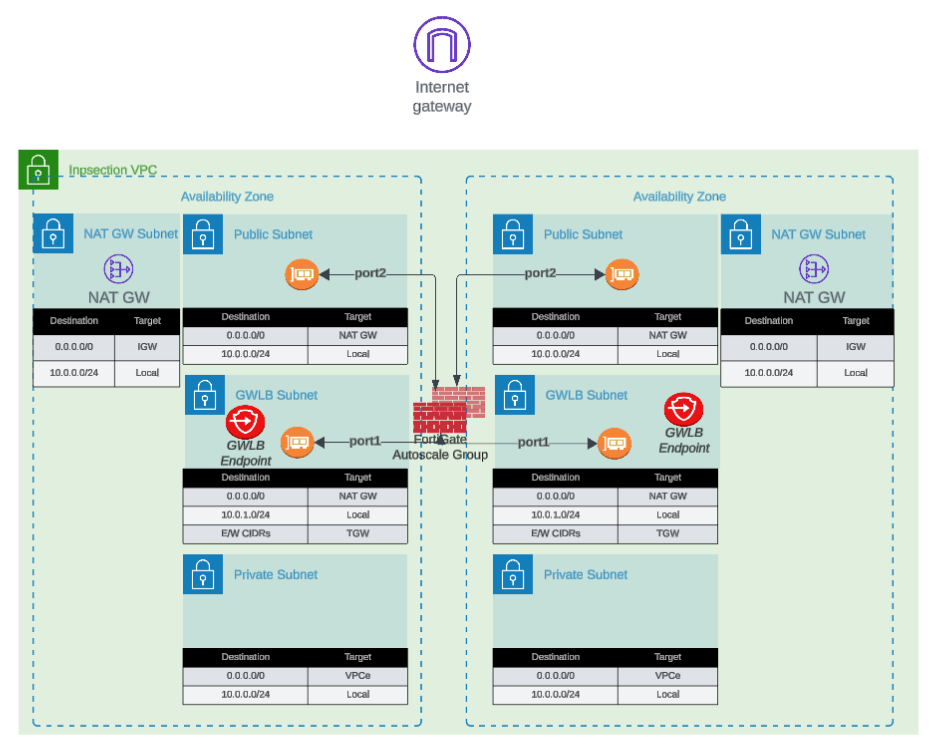
NAT Gateway Diagram NAT Gateway Diagram

Advantages

  • Predictable source IP: Single, stable public IP address for the lifetime of the NAT Gateway
  • Simplified allowlisting: Destinations only need to allowlist one IP address (per Availability Zone)
  • High throughput: NAT Gateway supports up to 45 Gbps per AZ
  • Managed service: AWS handles NAT Gateway scaling and availability
  • Independent of FortiGate scaling: Source IP remains constant during scale-in/scale-out events

Considerations

  • Additional costs: $0.045/hour per NAT Gateway + $0.045 per GB data processed
  • Per-AZ deployment: Multi-AZ architectures require NAT Gateway in each AZ for fault tolerance
  • Additional subnet requirements: Requires dedicated NAT Gateway subnet in each AZ
  • Route table complexity: Additional route tables needed for NAT Gateway routing

Cost Analysis Example

Scenario: 4 FortiGate instances processing 10 TB/month egress traffic

EIP Mode:

  • 4 EIP allocations: $0 (first EIP free, then $0.00/hour per EIP)
  • Total monthly: ~$0 (minimal costs)

NAT Gateway Mode (2 AZs):

  • 2 NAT Gateways: 2 x $0.045/hour x 730 hours = $65.70
  • Data processing: 10,000 GB x $0.045 = $450.00
  • Total monthly: $515.70

Decision Point: NAT Gateway makes sense when consistent source IP requirement justifies the additional cost.

Best Use Cases

  • Production environments requiring predictable source IPs
  • Compliance scenarios where destination IP allowlisting is mandatory
  • High-volume egress traffic to SaaS providers with IP allowlisting requirements
  • Architectures where operational simplicity outweighs additional cost

Decision Matrix

FactorEIP ModeNAT Gateway Mode
Monthly CostMinimal$500+ (varies with traffic)
Source IP PredictabilityVariable (changes with scaling)Stable
Allowlisting ComplexityHigh (multiple IPs)Low (single IP per AZ)
ThroughputPer-instance limitUp to 45 Gbps per AZ
Operational ComplexityLowMedium
Best ForDev/test, cost-sensitiveProduction, compliance-driven

Next Steps

After selecting your internet egress option, proceed to Firewall Architecture to configure the FortiGate interface model.

Firewall Architecture

Overview

FortiGate instances can operate in single-arm (1-ARM) or dual-arm (2-ARM) network configurations, fundamentally changing traffic flow patterns through the firewall.

Configuration

firewall_policy_mode = "1-arm"  # or "2-arm"

Firewall Policy Mode Firewall Policy Mode


Architecture Overview

The 2-ARM configuration deploys FortiGate instances with distinct “trusted” (private) and “untrusted” (public) interfaces, providing clear network segmentation.

Traffic Flow:

  1. Traffic arrives at GWLB Endpoints (GWLBe) in the inspection VPC
  2. GWLB load-balances traffic across healthy FortiGate instances
  3. Traffic encapsulated in Geneve tunnels arrives at FortiGate port1 (data plane)
  4. FortiGate inspects traffic and applies security policies
  5. Internet-bound traffic exits via port2 (public interface)
  6. Port2 traffic is source-NATed via EIP or NAT Gateway
  7. Return traffic follows reverse path back through Geneve tunnels

Interface Assignments

  • port1: Data plane interface for GWLB connectivity (Geneve tunnel termination)
  • port2: Public interface for internet egress (with optional dedicated management when enabled)

Network Interfaces Visualization
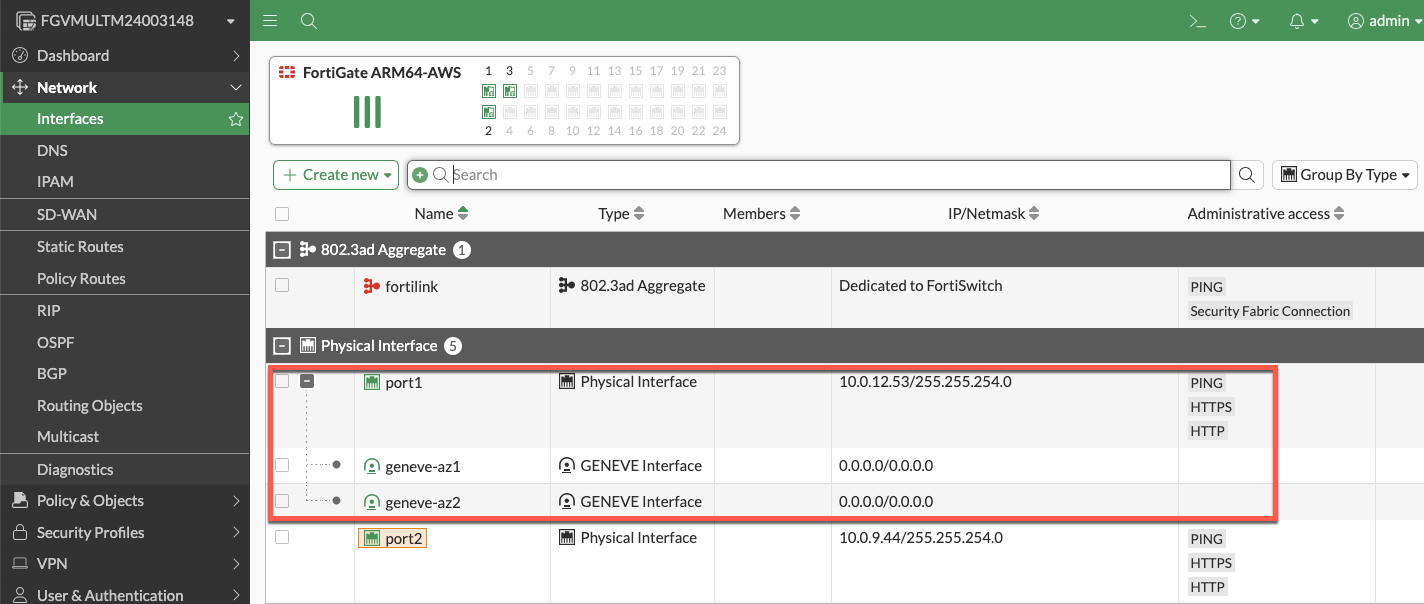
Network Interfaces Network Interfaces

The FortiGate GUI displays both physical interfaces and logical Geneve tunnel interfaces. Traffic inspection occurs on the logical tunnel interfaces, while physical port2 handles egress.

Advantages

  • Clear network segmentation: Separate trusted and untrusted zones
  • Traditional firewall model: Familiar architecture for network security teams
  • Simplified policy creation: North-South policies align with interface direction
  • Better traffic visibility: Distinct ingress/egress paths ease troubleshooting
  • Dedicated management option: Port2 can be isolated for management traffic

Best Use Cases

  • Production deployments requiring clear network segmentation
  • Environments with security policies mandating separate trusted/untrusted zones
  • Architectures where dedicated management interface is required
  • Standard north-south inspection use cases

1-ARM Configuration

Architecture Overview

The 1-ARM configuration uses a single interface (port1) for all data plane traffic, eliminating the need for a second network interface.

Traffic Flow:

  1. Traffic arrives at port1 encapsulated in Geneve tunnels from GWLB
  2. FortiGate inspects traffic and applies security policies
  3. Traffic is hairpinned back through the same Geneve tunnel it arrived on
  4. Traffic returns to originating distributed VPC through GWLB
  5. Distributed VPC uses its own internet egress path (IGW/NAT Gateway)

This “bump-in-the-wire” architecture is the typical 1-ARM pattern for distributed inspection, where the FortiGate provides security inspection but traffic egresses from the spoke VPC, not the inspection VPC.

Important Behavior: Stateful Load Balancing

GWLB Statefulness: The Gateway Load Balancer maintains connection state tables for traffic flows.

Primary Traffic Pattern (Distributed Architecture):

  • Traffic enters via Geneve tunnel –> FortiGate inspection –> Hairpins back through same Geneve tunnel
  • Distributed VPC handles actual internet egress via its own IGW/NAT Gateway
  • This “bump-in-the-wire” model provides security inspection without routing traffic through inspection VPC

Key Requirement: Symmetric routing through the GWLB. Traffic must return via the same Geneve tunnel it arrived on to maintain proper state table entries.

Info

Centralized Egress Architecture (Transit Gateway Pattern)

In centralized egress deployments with Transit Gateway, the traffic flow is fundamentally different and represents the primary use case for internet egress through the inspection VPC:

Traffic Flow:

  1. Spoke VPC traffic routes to Transit Gateway
  2. TGW routes traffic to inspection VPC
  3. Traffic enters GWLBe (same AZ to avoid cross-AZ charges)
  4. GWLB forwards traffic through Geneve tunnel to FortiGate
  5. FortiGate inspects traffic and applies security policies
  6. Traffic exits port1 (1-ARM) or port2 (2-ARM) toward internet
  7. Egress via EIP or NAT Gateway in inspection VPC
  8. Response traffic returns via same interface to same Geneve tunnel

This is the standard architecture for centralized internet egress where:

  • All spoke VPCs route internet-bound traffic through the inspection VPC
  • FortiGate autoscale group provides centralized security inspection AND NAT
  • Single egress point simplifies security policy management and reduces costs
  • Requires careful route table configuration to maintain symmetric routing

When to use: Centralized egress architectures where spoke VPCs do NOT have their own internet gateways.

Note

Distributed Architecture - Alternative Pattern (Advanced Use Case)

In distributed architectures where spoke VPCs have their own internet egress, it is possible (but not typical) to configure traffic to exit through the inspection VPC instead of hairpinning:

  • Traffic enters via Geneve tunnel –> Exits port1 to internet –> Response returns via port1 to same Geneve tunnel

This pattern requires:

  • Careful route table configuration in the inspection VPC
  • Specific firewall policies on the FortiGate
  • Proper symmetric routing to maintain GWLB state tables

This is rarely used in distributed architectures since spoke VPCs typically handle their own egress. The standard bump-in-the-wire pattern (hairpin through same Geneve tunnel) is recommended when spoke VPCs have internet gateways.

Interface Assignments

  • port1: Combined data plane (Geneve) and egress (internet) interface

Advantages

  • Reduced complexity: Single interface simplifies routing and subnet allocation
  • Lower costs: Fewer ENIs to manage and potential for smaller instance types
  • Simplified subnet design: Only requires one data subnet per AZ

Considerations

  • Hairpinning pattern: Traffic typically hairpins back through same Geneve tunnel
  • Higher port1 bandwidth requirements: All traffic flows through single interface (both directions)
  • Limited management options: Cannot enable dedicated management ENI in true 1-ARM mode
  • Symmetric routing requirement: All traffic must egress and return via port1 for proper state table maintenance

Best Use Cases

  • Cost-optimized deployments with lower throughput requirements
  • Simple north-south inspection without management VPC integration
  • Development and testing environments
  • Architectures where simplified subnet design is prioritized

Comparison Matrix

Factor1-ARM2-ARM
Interfaces Required1 (port1)2 (port1 + port2)
Network ComplexityLowerHigher
CostLowerSlightly higher
Management IsolationNot availableAvailable
Traffic PatternHairpin (distributed) or egress (centralized)Clear ingress/egress separation
Best ForSimple deployments, cost optimizationProduction, clear segmentation

Next Steps

After selecting your firewall architecture, proceed to Dedicated Management ENI to learn about management plane isolation options.

Management Isolation Options

Overview

The FortiGate autoscale solution provides multiple approaches to isolating management traffic from data plane traffic, ranging from shared interfaces to complete physical network separation.

This page covers three progressive levels of management isolation, allowing you to choose the appropriate security posture for your deployment requirements.


Option 1: Combined Data + Management (Default)

Architecture Overview

In the default configuration, port2 serves dual purposes:

  • Data plane: Internet egress for inspected traffic (in 2-ARM mode)
  • Management plane: GUI, SSH, SNMP access

Configuration

enable_dedicated_management_eni = false
enable_dedicated_management_vpc = false

Characteristics

  • Simplest configuration: No additional interfaces or VPCs required
  • Lower cost: Minimal infrastructure overhead
  • Shared security groups: Same rules govern data and management traffic
  • Single failure domain: Management access tied to data plane availability

When to Use

  • Development and testing environments
  • Proof-of-concept deployments
  • Budget-constrained projects
  • Simple architectures without compliance requirements

Option 2: Dedicated Management ENI

Architecture Overview

Port2 is removed from the data plane and dedicated exclusively to management functions. FortiOS configures the interface with set dedicated-to management, placing it in an isolated VRF with independent routing.
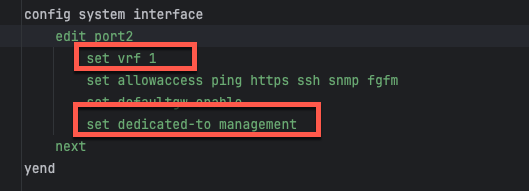
Dedicated Management ENI Dedicated Management ENI

Configuration

enable_dedicated_management_eni = true

How It Works

  1. Dedicated-to attribute: FortiOS configures port2 with set dedicated-to management
  2. Separate VRF: Port2 is placed in an isolated VRF with independent routing table
  3. Policy restrictions: FortiGate prevents creation of firewall policies using port2
  4. Management-only traffic: GUI, SSH, SNMP, and FortiManager/FortiAnalyzer connectivity

FortiOS Configuration Impact

The dedicated management ENI can be verified in the FortiGate GUI:
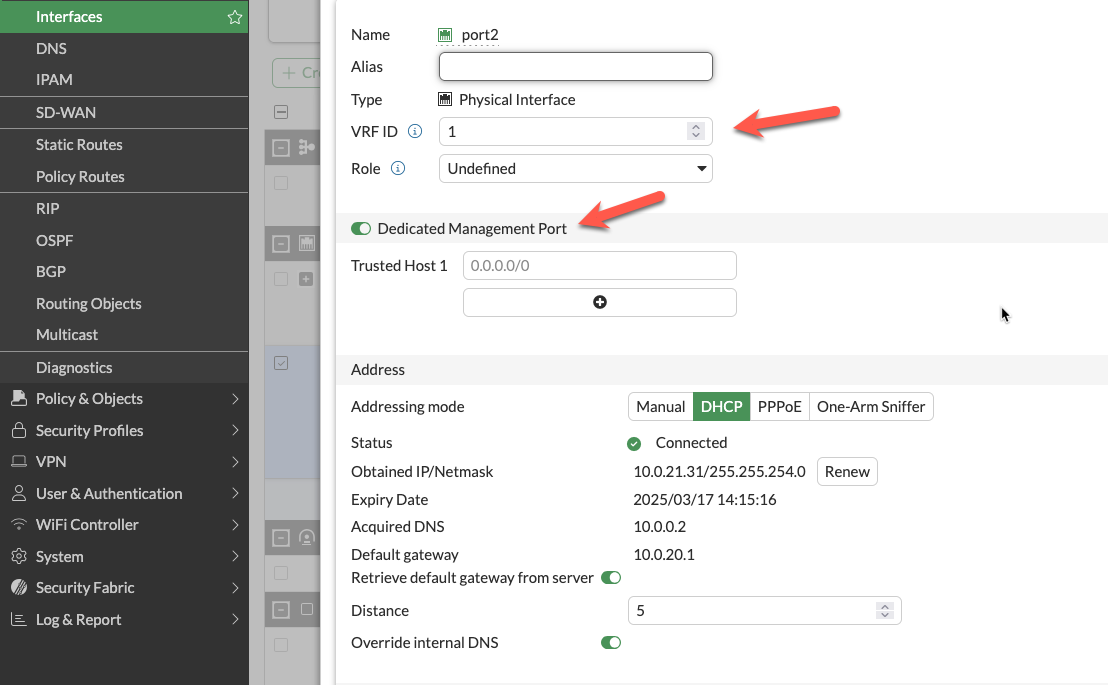
GUI Dedicated Management ENI GUI Dedicated Management ENI

The interface shows the dedicated-to: management attribute and separate VRF assignment, preventing data plane traffic from using this interface.

Important Compatibility Notes

Warning

Critical Limitation: 2-ARM + NAT Gateway + Dedicated Management ENI

When combining:

  • firewall_policy_mode = "2-arm"
  • access_internet_mode = "nat_gw"
  • enable_dedicated_management_eni = true

Port2 will NOT receive an Elastic IP address. This is a valid configuration, but imposes connectivity restrictions:

  • Cannot access FortiGate management from public internet
  • Can access via private IP through AWS Direct Connect or VPN
  • Can access via management VPC (see Option 3 below)

If you require public internet access to the FortiGate management interface with NAT Gateway egress, either:

  1. Use access_internet_mode = "eip" (assigns EIP to port2)
  2. Use dedicated management VPC with separate internet connectivity (Option 3)
  3. Implement AWS Systems Manager Session Manager for private connectivity

Characteristics

  • Clear separation of concerns: Management traffic isolated from data plane
  • Independent security policies: Separate security groups for management interface
  • Enhanced security posture: Reduces attack surface on management plane
  • Moderate complexity: Requires additional subnet and routing configuration

When to Use

  • Production deployments requiring management isolation
  • Security-conscious environments
  • Architectures without dedicated management VPC
  • Compliance requirements for management plane separation

Option 3: Dedicated Management VPC (Full Isolation)

Architecture Overview

The dedicated management VPC provides complete physical network separation by deploying FortiGate management interfaces in an entirely separate VPC from the data plane.
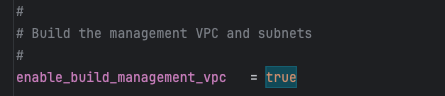
Dedicated Management VPC Architecture Dedicated Management VPC Architecture

Configuration

enable_dedicated_management_vpc = true
dedicated_management_vpc_tag = "your-mgmt-vpc-tag"
dedicated_management_public_az1_subnet_tag = "your-az1-subnet-tag"
dedicated_management_public_az2_subnet_tag = "your-az2-subnet-tag"

Benefits

  • Physical network separation: Management traffic never traverses inspection VPC
  • Independent internet connectivity: Management VPC has dedicated IGW or VPN
  • Centralized management infrastructure: FortiManager and FortiAnalyzer deployed in management VPC
  • Separate security controls: Management VPC security groups independent of data plane
  • Isolated failure domains: Management VPC issues don’t affect data plane

Management VPC Creation Options

The existing_vpc_resources template creates the management VPC with standardized tags that the simplified template automatically discovers.

Advantages:

  • Management VPC lifecycle independent of inspection VPC
  • FortiManager/FortiAnalyzer persistence across inspection VPC redeployments
  • Separation of concerns for infrastructure management

Default Tags (automatically created):
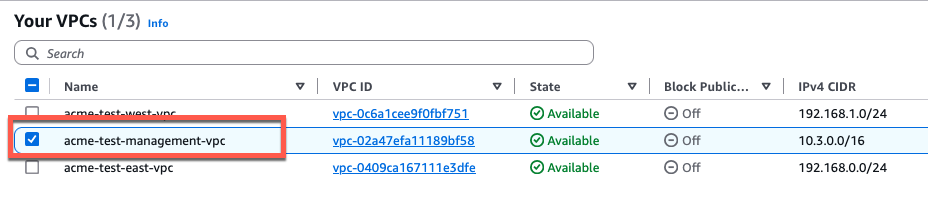
Default Tags Management VPC Default Tags Management VPC Default Tags Management Subnets Default Tags Management Subnets

Configuration (terraform.tfvars):

enable_dedicated_management_vpc = true
dedicated_management_vpc_tag = "acme-test-management-vpc"
dedicated_management_public_az1_subnet_tag = "acme-test-management-public-az1-subnet"
dedicated_management_public_az2_subnet_tag = "acme-test-management-public-az2-subnet"

Option B: Use Existing Management VPC

If you have an existing management VPC with custom tags, configure the template to discover it:
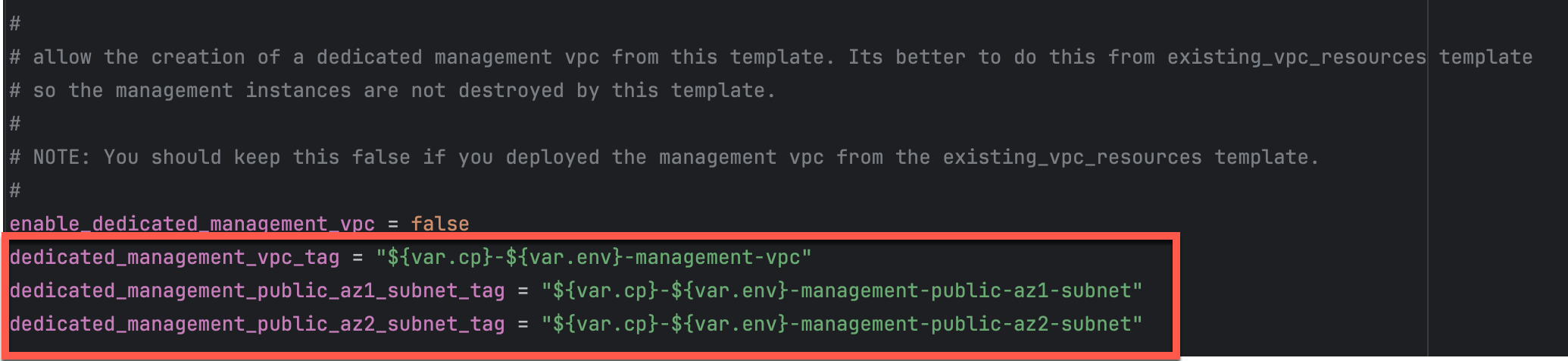
Non-Default Tags Management Non-Default Tags Management

Configuration:

enable_dedicated_management_vpc = true
dedicated_management_vpc_tag = "my-custom-mgmt-vpc-tag"
dedicated_management_public_az1_subnet_tag = "my-custom-mgmt-public-az1-tag"
dedicated_management_public_az2_subnet_tag = "my-custom-mgmt-public-az2-tag"

The template uses these tags to locate the management VPC and subnets via Terraform data sources.

Behavior When Enabled

When enable_dedicated_management_vpc = true:

  1. Automatic ENI creation: Template creates dedicated management ENI (port2) in management VPC subnets
  2. Implies dedicated management ENI: Automatically sets enable_dedicated_management_eni = true
  3. VPC peering/TGW: Management VPC must have connectivity to inspection VPC for HA sync
  4. Security group creation: Appropriate security groups created for management traffic

Network Connectivity Requirements

Management VPC –> Inspection VPC Connectivity:

  • Required for FortiGate HA synchronization between instances
  • Typically implemented via VPC peering or Transit Gateway attachment
  • Must allow TCP port 443 (HA sync), TCP 22 (SSH), ICMP (health checks)

Management VPC –> Internet Connectivity:

  • Required for FortiGuard services (signature updates, licensing)
  • Required for administrator access to FortiGate management interfaces
  • Can be via Internet Gateway, NAT Gateway, or AWS Direct Connect

Characteristics

  • Highest security posture: Complete physical isolation
  • Greatest flexibility: Independent infrastructure lifecycle
  • Higher complexity: Requires VPC peering or TGW configuration
  • Additional cost: Separate VPC infrastructure and data transfer charges

When to Use

  • Enterprise production deployments
  • Strict compliance requirements (PCI-DSS, HIPAA, etc.)
  • Multi-account AWS architectures
  • Environments with dedicated management infrastructure
  • Organizations with existing management VPCs for network security appliances

Comparison Matrix

FactorCombined (Default)Dedicated ENIDedicated VPC
Security IsolationLowMediumHigh
ComplexityLowestMediumHighest
CostLowestLowMedium
Management AccessVia data plane interfaceVia dedicated interfaceVia separate VPC
Failure Domain IsolationNoPartialComplete
VPC Peering RequiredNoNoYes
Compliance SuitabilityBasicGoodExcellent
Best ForDev/test, simple deploymentsProduction, security-consciousEnterprise, compliance-driven

Decision Tree

Use this decision tree to select the appropriate management isolation level:

1. Is this a production deployment?
   |--- No --> Combined Data + Management (simplest)
   \--- Yes --> Continue to question 2

2. Do you have compliance requirements for management plane isolation?
   |--- No --> Dedicated Management ENI (good balance)
   \--- Yes --> Continue to question 3

3. Do you have existing management VPC infrastructure?
   |--- Yes --> Dedicated Management VPC (leverage existing)
   \--- No --> Evaluate cost/benefit:
       |--- High security requirements --> Dedicated Management VPC
       \--- Moderate requirements --> Dedicated Management ENI

Deployment Patterns

Pattern 1: Dedicated ENI + EIP Mode

firewall_policy_mode = "2-arm"
access_internet_mode = "eip"
enable_dedicated_management_eni = true
  • Port2 receives EIP for public management access
  • Suitable for environments without management VPC
  • Simplified deployment with direct internet management access

Pattern 2: Dedicated ENI + Management VPC

firewall_policy_mode = "2-arm"
access_internet_mode = "nat_gw"
enable_dedicated_management_vpc = true
dedicated_management_vpc_tag = "my-mgmt-vpc"
  • Port2 connects to separate management VPC
  • Management VPC has dedicated internet gateway or VPN connectivity
  • Preferred for production environments with strict network segmentation

Pattern 3: Combined Management (Default)

firewall_policy_mode = "2-arm"
access_internet_mode = "eip"
enable_dedicated_management_eni = false
  • Port2 remains in data plane
  • Management access shares public interface with egress traffic
  • Simplest configuration but lacks management plane isolation

Best Practices

  1. Enable dedicated management ENI for production: Provides clear separation of concerns
  2. Use dedicated management VPC for enterprise deployments: Optimal security posture
  3. Document connectivity requirements: Ensure operations teams understand access paths
  4. Test connectivity before production: Verify alternative access methods work
  5. Plan for failure scenarios: Ensure backup access methods (SSM, VPN) are available
  6. Use existing_vpc_resources template for management VPC: Separates lifecycle management
  7. Document tag conventions: Ensure consistent tagging across environments
  8. Monitor management interface health: Set up CloudWatch alarms for management connectivity

Troubleshooting

Issue: Cannot access FortiGate management interface

Check:

  1. Security groups allow inbound traffic on management port (443, 22)
  2. Route tables provide path from your location to management interface
  3. If using dedicated management VPC, verify VPC peering or TGW is operational
  4. If using NAT Gateway mode, verify you have alternative access method (VPN, Direct Connect)

Issue: Management interface has no public IP

Cause: Public IP assignment was disabled for the management interface, or using a dedicated management VPC without public subnets.

Note: The access_internet_mode variable only controls how data plane egress traffic leaves the inspection VPC (EIP vs NAT Gateway). It does not affect management interface IP assignment.

Solutions:

  1. Enable public IP assignment for the management interface in your configuration
  2. If using dedicated management VPC, ensure the management subnets have routes to an Internet Gateway
  3. If public management access is not required, access FortiGate via private IP through AWS Direct Connect or VPN
  4. Use AWS Systems Manager Session Manager for private access

Issue: HA sync not working

Note: HA sync interfaces are always placed in dedicated sync subnets within the inspection VPC to avoid latency. They are never placed in a separate VPC. The dedicated management VPC option only affects the management interfaces (GUI/SSH access), not the HA sync interfaces.

Check:

  1. Security groups allow TCP 703 (HA heartbeat) and TCP 23 (session sync) between FortiGate instances
  2. HA sync subnets have proper route tables configured
  3. Network ACLs permit required traffic between FortiGate sync interfaces
  4. Verify FortiGate HA configuration matches (HA group name, password, priority settings)

Next Steps

After configuring management isolation, proceed to Licensing Options to choose between BYOL, FortiFlex, or PAYG.

Licensing Options

Overview

The FortiGate autoscale solution supports three distinct licensing models, each optimized for different use cases, cost structures, and operational requirements. You can use a single licensing model or combine them in hybrid configurations for optimal cost efficiency.


Licensing Model Comparison

FactorBYOLFortiFlexPAYG
Total Cost (12 months)LowestMediumHighest
Upfront InvestmentHighMediumNone
License ManagementManual (files)API-drivenNone
FlexibilityLowHighHighest
Capacity ConstraintsYes (license pool)Soft (point balance)None
Best ForLong-term, predictableVariable, flexibleShort-term, simple
Setup ComplexityMediumHighLowest

Option 1: BYOL (Bring Your Own License)

Overview

BYOL uses traditional FortiGate-VM license files that you purchase from Fortinet or resellers. The template automates license distribution through S3 bucket storage and Lambda-based assignment.

License Directory Structure License Directory Structure

Configuration

asg_license_directory = "asg_license"
asg_byol_asg_min_size = 2
asg_byol_asg_max_size = 4

Directory Structure Requirements

Place BYOL license files in the directory specified by asg_license_directory:

terraform/aws/autoscale_template/
|---- terraform.tfvars
|---- asg_license/
|   |---- FGVM01-001.lic
|   |---- FGVM01-002.lic
|   |---- FGVM01-003.lic
|   \---- FGVM01-004.lic

Automated License Assignment

  1. Terraform uploads .lic files to S3 during terraform apply
  2. Lambda retrieves available licenses when instances launch
  3. DynamoDB tracks assignments to prevent duplicates
  4. Lambda injects license via user-data script
  5. Licenses return to pool when instances terminate

Critical Capacity Planning

Warning

License Pool Exhaustion

Ensure your license directory contains at minimum licenses equal to asg_byol_asg_max_size.

What happens if licenses are exhausted:

  • New BYOL instances launch but remain unlicensed
  • Unlicensed instances operate at 1 Mbps throughput
  • FortiGuard services will not activate
  • If PAYG ASG is configured, scaling continues using on-demand instances

Recommended: Provision 20% more licenses than max_size

Characteristics

  • Lowest total cost: Best value for long-term (12+ months)
  • Predictable costs: Fixed licensing regardless of usage
  • License management: Requires managing physical files
  • Upfront investment: Must purchase licenses in advance

When to Use

  • Long-term production (12+ months)
  • Predictable, steady-state workloads
  • Existing FortiGate BYOL licenses
  • Cost-conscious deployments

Option 2: FortiFlex (Usage-Based Licensing)

Overview

FortiFlex provides consumption-based, API-driven licensing. Points are consumed daily based on configuration, offering flexibility and cost optimization compared to PAYG.

Prerequisites

  1. Register FortiFlex Program via FortiCare
  2. Purchase Point Packs
  3. Create Configurations in FortiFlex portal
  4. Generate API Credentials via IAM

Details for each step are provided below.

Configuration

fortiflex_username      = "xxxxxxxx-xxxx-xxxx-xxxx-xxxxxxxxxxxx"
fortiflex_password      = "xxxxxxxxxxxxxxxxxxxxx"
fortiflex_sn_list       = ["FGVMELTMxxxxxxxx"]
fortiflex_configid_list = ["My_4CPU_Config"]
Warning

FortiFlex Serial Number List - Optional

  • If defined: Use entitlements from specific programs only
  • If omitted: Use any available entitlements with matching configurations

Important: Entitlements must be created manually in FortiFlex portal before deployment.

Obtaining Required Values

1. API Username and Password:

  • Navigate to Services > IAM in FortiCare
  • Create permission profile with FortiFlex Read/Write access
  • Create API user and download credentials
  • Username is UUID in credentials file

2. Serial Number List:

  • Navigate to Services > Assets & Accounts > FortiFlex
  • View your FortiFlex programs
  • Note serial numbers from program details

3. Configuration ID List:

  • In FortiFlex portal, go to Configurations
  • Configuration ID is the Name field you assigned

Match CPU counts:

fgt_instance_type = "c6i.xlarge"  # 4 vCPUs
fortiflex_configid_list = ["My_4CPU_Config"]  # Must match
Warning

Security Best Practice

Never commit FortiFlex credentials to version control. Use:

  • Terraform Cloud sensitive variables
  • AWS Secrets Manager
  • Environment variables: TF_VAR_fortiflex_username
  • HashiCorp Vault

Lambda Integration Behavior

At instance launch:

  1. Lambda authenticates to FortiFlex API
  2. Creates new entitlement under specified configuration
  3. Receives and injects license token
  4. Instance activates, point consumption begins

At instance termination:

  1. Lambda calls API to STOP entitlement
  2. Point consumption halts immediately
  3. Entitlement preserved for reactivation

Troubleshooting

Problem: Instances don’t activate license

  • Check Lambda CloudWatch logs for API errors
  • Verify FortiFlex portal for failed entitlements
  • Confirm network connectivity to FortiFlex API

Problem: “Insufficient points” error

  • Check point balance in FortiFlex portal
  • Purchase additional point packs
  • Verify configurations use expected CPU counts

Characteristics

  • Flexible consumption: Pay only for what you use
  • No license file management: API-driven automation
  • Lower cost than PAYG: Typically 20-40% less
  • Point-based: Requires monitoring consumption
  • API credentials: Additional security considerations

When to Use

  • Variable workloads with unpredictable scaling
  • Development and testing
  • Short to medium-term (3-12 months)
  • Burst capacity in hybrid architectures

Option 3: PAYG (Pay-As-You-Go)

Overview

PAYG uses AWS Marketplace on-demand instances with licensing included in hourly EC2 charge.

Configuration

asg_ondemand_asg_min_size = 0
asg_ondemand_asg_max_size = 4
asg_ondemand_asg_desired_size = 0

How It Works

  1. Accept FortiGate-VM AWS Marketplace terms
  2. Lambda launches instances using Marketplace AMI
  3. FortiGate activates automatically via AWS
  4. Hourly licensing cost added to EC2 charge

Characteristics

  • Simplest option: Zero license management
  • No upfront commitment: Pay per running hour
  • Instant availability: No license pool constraints
  • Highest hourly cost: Premium pricing for convenience

When to Use

  • Proof-of-concept and evaluation
  • Very short-term (< 3 months)
  • Burst capacity in hybrid architectures
  • Zero license administration requirement

Cost Comparison Example

Scenario: 2 FortiGate-VM instances (c6i.xlarge, 4 vCPU, UTP) running 24/7

DurationBYOLFortiFlexPAYGWinner
1 month$2,730$1,030$1,460FortiFlex
3 months$4,190$3,090$4,380FortiFlex
12 months$10,760$12,360$17,520BYOL
24 months$19,520$24,720$35,040BYOL

Note: Illustrative costs. Actual pricing varies by term and bundle.


Hybrid Licensing Strategies

# BYOL for baseline
asg_license_directory = "asg_license"
asg_byol_asg_min_size = 2
asg_byol_asg_max_size = 4

# PAYG for burst
asg_ondemand_asg_max_size = 4

Best for: Production with occasional spikes

Strategy 2: FortiFlex Baseline + PAYG Burst

# FortiFlex for flexible baseline
fortiflex_configid_list = ["My_4CPU_Config"]
asg_byol_asg_max_size = 4

# PAYG for burst
asg_ondemand_asg_max_size = 4

Best for: Variable workloads with unpredictable spikes

Strategy 3: All BYOL (Cost-Optimized)

asg_license_directory = "asg_license"
asg_byol_asg_min_size = 2
asg_byol_asg_max_size = 6
asg_ondemand_asg_max_size = 0

Best for: Stable, predictable workloads

Strategy 4: All PAYG (Simplest)

asg_byol_asg_max_size = 0
asg_ondemand_asg_min_size = 2
asg_ondemand_asg_max_size = 8

Best for: POC, short-term, extreme variability


Decision Tree

1. Expected deployment duration?
   |--- < 3 months --> PAYG
   |--- 3-12 months --> FortiFlex or evaluate costs
   \--- > 12 months --> BYOL + PAYG burst

2. Workload predictable?
   |--- Yes, stable --> BYOL
   \--- No, variable --> FortiFlex or Hybrid

3. Want to manage license files?
   |--- No --> FortiFlex or PAYG
   \--- Yes, for cost savings --> BYOL

4. Tolerance for complexity?
   |--- Low --> PAYG
   |--- Medium --> FortiFlex
   \--- High (cost focus) --> BYOL

Best Practices

  1. Calculate TCO: Use comparison matrix for your scenario
  2. Start simple: Begin with PAYG for POC, optimize for production
  3. Monitor costs: Track consumption via CloudWatch and FortiFlex reports
  4. Provision buffer: 20% more licenses/entitlements than max_size
  5. Secure credentials: Never commit FortiFlex credentials to git
  6. Test assignment: Verify Lambda logs show successful injection
  7. Plan exhaustion: Configure PAYG burst as safety net
  8. Document strategy: Ensure ops team understands hybrid configs

Next Steps

After configuring licensing, proceed to FortiManager Integration for centralized management.

FortiManager Integration

Overview

The template supports optional integration with FortiManager for centralized management, policy orchestration, and configuration synchronization across the autoscale group.

Configuration

Enable FortiManager integration by setting the following variables in terraform.tfvars:

enable_fortimanager_integration = true
fortimanager_ip                 = "10.0.100.50"
fortimanager_sn                 = "FMGVM0000000001"
fortimanager_vrf_select         = 1

Variable Definitions

VariableTypeRequiredDescription
enable_fortimanager_integrationbooleanYesMaster switch to enable/disable FortiManager integration
fortimanager_ipstringYesFortiManager IP address or FQDN accessible from FortiGate management interfaces
fortimanager_snstringYesFortiManager serial number for device registration
fortimanager_vrf_selectnumberNoVRF ID for routing to FortiManager (default: 0 for global VRF)

How FortiManager Integration Works

When enable_fortimanager_integration = true:

  1. Lambda generates FortiOS config: Lambda function creates config system central-management stanza
  2. Primary instance registration: Only the primary FortiGate instance registers with FortiManager
  3. VDOM exception configured: Lambda adds config system vdom-exception to prevent central-management config from syncing to secondaries
  4. Configuration synchronization: Primary instance syncs configuration to secondary instances via FortiGate-native HA sync
  5. Policy deployment: Policies deployed from FortiManager propagate through primary –> secondary sync

Generated FortiOS Configuration

Lambda automatically generates the following configuration on the primary instance only:

config system vdom-exception
    edit 0
        set object system.central-management
    next
end

config system central-management
    set type fortimanager
    set fmg 10.0.100.50
    set serial-number FMGVM0000000001
    set vrf-select 1
end

Secondary instances do not receive central-management configuration, preventing:

  • Orphaned device entries on FortiManager during scale-in events
  • Confusion about which instance is authoritative for policy
  • Unnecessary FortiManager license consumption

Network Connectivity Requirements

FortiGate –> FortiManager:

  • TCP 541: FortiManager to FortiGate communication (FGFM protocol)
  • TCP 514 (optional): Syslog if logging to FortiManager
  • HTTPS 443: FortiManager GUI access for administrators

Ensure:

  • Security groups allow traffic from FortiGate management interfaces to FortiManager
  • Route tables provide path to FortiManager IP
  • Network ACLs permit required traffic
  • VRF routing configured if using non-default VRF

VRF Selection

The fortimanager_vrf_select parameter specifies which VRF to use for FortiManager connectivity:

Common scenarios:

  • 0 (default): Use global VRF; FortiManager accessible via default routing table
  • 1 or higher: Use specific management VRF; FortiManager accessible via separate routing domain

When to use non-default VRF:

  • FortiManager in separate management VPC requiring VPC peering or TGW
  • Network segmentation requires management traffic in dedicated VRF
  • Multiple VRFs configured and explicit path selection needed

FortiManager 7.6.3+ Critical Requirement

Warning

CRITICAL: FortiManager 7.6.3+ Requires VM Device Recognition

Starting with FortiManager version 7.6.3, VM serial numbers are not recognized by default for security purposes.

If you deploy FortiGate-VM instances with enable_fortimanager_integration = true to a FortiManager 7.6.3 or later WITHOUT enabling VM device recognition, instances will FAIL to register.

Required Configuration on FortiManager 7.6.3+:

Before deploying FortiGate instances, log into FortiManager CLI and enable VM device recognition:

config system global
    set fgfm-allow-vm enable
end

Verify the setting:

show system global | grep fgfm-allow-vm

Important notes:

  • This configuration must be completed BEFORE deploying FortiGate-VM instances
  • When upgrading from FortiManager < 7.6.3, existing managed VM devices continue functioning, but new VM devices cannot be added until fgfm-allow-vm is enabled
  • This setting is global and affects all ADOMs on the FortiManager
  • This is a one-time configuration change per FortiManager instance

Verification after deployment:

  1. Navigate to Device Manager > Device & Groups in FortiManager GUI
  2. Confirm FortiGate-VM instances appear as unauthorized devices (not as errors)
  3. Authorize devices as normal

Troubleshooting if instances fail to register:

  1. Check FortiManager version: get system status
  2. If version is 7.6.3 or later, verify fgfm-allow-vm is enabled
  3. If disabled, enable it and wait 1-5 minutes for FortiGate instances to retry registration
  4. Check FortiManager logs: diagnose debug application fgfmd -1

FortiManager Workflow

After deployment:

  1. Verify device registration:

    • Log into FortiManager GUI
    • Navigate to Device Manager > Device & Groups
    • Confirm primary FortiGate instance appears as unauthorized device
  2. Authorize device:

    • Right-click on unauthorized device
    • Select Authorize
    • Assign to appropriate ADOM and device group
  3. Install policy package:

    • Create or assign policy package to authorized device
    • Click Install to push policies to FortiGate
  4. Verify configuration sync:

    • Make configuration change on FortiManager
    • Install policy package to primary FortiGate
    • Verify change appears on secondary FortiGate instances via HA sync

Best Practices

  1. Pre-configure FortiManager: Create ADOMs, device groups, and policy packages before deploying autoscale group
  2. Test in non-production: Validate FortiManager integration in dev/test environment first
  3. Monitor device status: Set up FortiManager alerts for device disconnections
  4. Document policy workflow: Ensure team understands FortiManager –> Primary –> Secondary sync pattern
  5. Plan for primary failover: If primary instance fails, new primary automatically registers with FortiManager
  6. Backup FortiManager regularly: Critical single point of management; ensure proper backup strategy

Reference Documentation

For complete FortiManager integration details, including User Managed Scaling (UMS) mode, see the project file: FortiManager Integration Configuration


Next Steps

After configuring FortiManager integration, proceed to Autoscale Group Capacity to configure instance counts and scaling behavior.

Autoscale Group Capacity

Overview

Configure the autoscale group size parameters to define minimum, maximum, and desired instance counts for both BYOL and on-demand (PAYG) autoscale groups.

Configuration
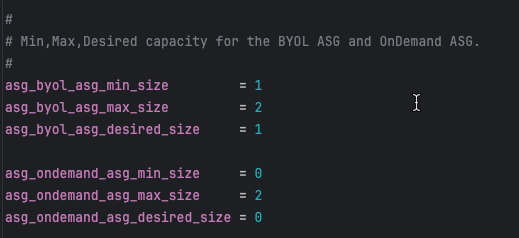
Autoscale Group Capacity Autoscale Group Capacity

# BYOL ASG capacity
asg_byol_asg_min_size         = 1
asg_byol_asg_max_size         = 2
asg_byol_asg_desired_size     = 1

# On-Demand (PAYG) ASG capacity
asg_ondemand_asg_min_size     = 0
asg_ondemand_asg_max_size     = 2
asg_ondemand_asg_desired_size = 0

Parameter Definitions

ParameterDescriptionRecommendations
min_sizeMinimum number of instances ASG maintainsSet to baseline capacity requirement
max_sizeMaximum number of instances ASG can scale toSet based on peak traffic projections + 20% buffer
desired_sizeTarget number of instances ASG attempts to maintainTypically equals min_size for baseline capacity

Capacity Planning Strategies

Objective: Optimize costs by using BYOL for steady-state traffic and PAYG for unpredictable spikes

# BYOL handles baseline 24/7 traffic
asg_byol_asg_min_size = 2
asg_byol_asg_max_size = 4
asg_byol_asg_desired_size = 2

# PAYG handles burst traffic only
asg_ondemand_asg_min_size = 0
asg_ondemand_asg_max_size = 6
asg_ondemand_asg_desired_size = 0

Scaling behavior:

  1. Normal operations: 2 BYOL instances handle traffic
  2. Traffic increases: BYOL ASG scales up to 4 instances
  3. Traffic continues increasing: PAYG ASG scales from 0 –> 6 instances
  4. Traffic decreases: PAYG ASG scales down to 0, then BYOL ASG scales down to 2

Strategy 2: All PAYG (Simplest)

Objective: Maximum flexibility with zero license management overhead

# No BYOL instances
asg_byol_asg_min_size = 0
asg_byol_asg_max_size = 0
asg_byol_asg_desired_size = 0

# All capacity is PAYG
asg_ondemand_asg_min_size = 2
asg_ondemand_asg_max_size = 8
asg_ondemand_asg_desired_size = 2

Use cases:

  • Proof of concept or testing
  • Short-term projects (< 6 months)
  • Extreme variability where license planning is impractical

Strategy 3: All BYOL (Lowest Cost)

Objective: Minimum operating costs for long-term, predictable workloads

# All capacity is BYOL
asg_byol_asg_min_size = 2
asg_byol_asg_max_size = 6
asg_byol_asg_desired_size = 2

# No PAYG instances
asg_ondemand_asg_min_size = 0
asg_ondemand_asg_max_size = 0
asg_ondemand_asg_desired_size = 0

Requirements:

  • Sufficient BYOL licenses for max_size (6 in this example)
  • Predictable traffic patterns that rarely exceed max capacity
  • Willingness to accept capacity ceiling (no burst beyond BYOL max)

CloudWatch Alarm Integration

Autoscale group scaling is triggered by CloudWatch alarms monitoring CPU utilization:

Default thresholds (set in underlying module):

  • Scale-out alarm: CPU > 70% for 2 consecutive periods (2 minutes)
  • Scale-in alarm: CPU < 30% for 2 consecutive periods (2 minutes)

Customization (requires editing underlying module):

# Located in module: fortinetdev/cloud-modules/aws
scale_out_threshold = 80  # Higher threshold = more aggressive cost optimization
scale_in_threshold  = 20  # Lower threshold = more aggressive cost optimization

Capacity Planning Calculator

Formula: Capacity Needed = (Peak Gbps Throughput) / (Per-Instance Gbps) x 1.2

Example:

  • Peak throughput requirement: 8 Gbps
  • c6i.xlarge (4 vCPU) with IPS enabled: ~2 Gbps per instance
  • Calculation: 8 / 2 x 1.2 = 4.8 –> round up to 5 instances
  • Set max_size = 5 or higher for safety margin

Important Considerations

Tip

Testing Capacity Settings

For initial deployments and testing:

  1. Start with min_size = 1 and max_size = 2 to verify traffic flows correctly
  2. Test scaling by generating load and monitoring ASG behavior
  3. Once validated, increase capacity to production values via AWS Console or Terraform update
  4. No need to destroy/recreate stack just to change capacity settings

Next Steps

After configuring capacity, proceed to Primary Scale-In Protection to protect the primary instance from being terminated during scale-in events.

Primary Scale-In Protection

Overview

Protect the primary FortiGate instance from scale-in events to maintain configuration synchronization stability and prevent unnecessary primary elections.

Configuration

Scale-in Protection Scale-in Protection

primary_scalein_protection = true

Why Protect the Primary Instance?

In FortiGate autoscale architecture:

  • Primary instance: Elected leader responsible for configuration management and HA sync
  • Secondary instances: Receive configuration from primary via FortiGate-native HA synchronization

Without scale-in protection:

  1. AWS autoscaling may select primary instance for termination during scale-in
  2. Remaining instances must elect new primary
  3. Configuration may be temporarily unavailable during election
  4. Potential for configuration loss if primary was processing updates

With scale-in protection:

  1. AWS autoscaling only terminates secondary instances
  2. Primary instance remains stable unless it is the last instance
  3. Configuration synchronization continues uninterrupted
  4. Predictable autoscale group behavior

How It Works

The primary_scalein_protection variable is passed through to the autoscale group configuration:

Scale-in Passthru 1 Scale-in Passthru 1

In the underlying Terraform module (autoscale_group.tf):

Scale-in Passthru 2 Scale-in Passthru 2

AWS autoscaling respects the protection attribute and never selects protected instances for scale-in events.


Verification

You can verify scale-in protection in the AWS Console:

  1. Navigate to EC2 > Auto Scaling Groups
  2. Select your autoscale group
  3. Click Instance management tab
  4. Look for Scale-in protection column showing “Protected” for primary instance

When Protection is Removed

Scale-in protection automatically removes when:

  • Instance is the last remaining instance in the ASG (respecting min_size)
  • Manual termination via AWS Console or API (protection can be overridden)
  • Autoscale group is deleted

Best Practices

  1. Always enable for production: Set primary_scalein_protection = true for production deployments
  2. Consider disabling for dev/test: Development environments may not require protection
  3. Monitor primary health: Protected instances still fail health checks and can be replaced
  4. Document protection status: Ensure operations teams understand why primary instance is protected

AWS Documentation Reference

For more information on AWS autoscaling instance protection:


Next Steps

After configuring primary protection, review Additional Configuration Options for fine-tuning instance specifications and advanced settings.

Additional Configuration Options

Overview

This section covers additional configuration options for fine-tuning FortiGate instance specifications and advanced deployment settings.


FortiGate Instance Specifications

Instance Type Selection

fgt_instance_type = "c7gn.xlarge"

Instance type selection considerations:

  • c6i/c7i series: Intel-based compute-optimized (best for x86 workloads)
  • c6g/c7g/c7gn series: AWS Graviton (ARM-based, excellent performance)
  • Sizing: Choose vCPU count matching expected throughput requirements

Common instance types for FortiGate:

Instance TypevCPUsMemoryNetwork PerformanceBest For
c6i.large24 GBUp to 12.5 GbpsSmall deployments, dev/test
c6i.xlarge48 GBUp to 12.5 GbpsStandard production workloads
c6i.2xlarge816 GBUp to 12.5 GbpsHigh-throughput environments
c7gn.xlarge48 GBUp to 30 GbpsHigh-performance networking
c7gn.2xlarge816 GBUp to 30 GbpsVery high-performance networking

FortiOS Version

fortios_version = "7.4.5"

Version specification options:

  • Exact version (e.g., "7.4.5"): Pin to specific version for consistency across environments
  • Major version (e.g., "7.4"): Automatically use latest minor version within major release
  • Latest: Omit or use "latest" to always deploy newest available version

Recommendations:

  • Production: Use exact version numbers to prevent unexpected changes
  • Dev/Test: Use major version or latest to test new features and fixes
  • Always test new FortiOS versions in non-production before upgrading production deployments

Version considerations:

  • Newer versions may include critical security fixes
  • Performance improvements and new features
  • Potential breaking changes in configuration syntax
  • Always review release notes before upgrading

FortiGate GUI Port

fortigate_gui_port = 443

Common options:

  • 443 (default): Standard HTTPS port
  • 8443: Alternate HTTPS port (some organizations prefer moving GUI off default port for security)
  • 10443: Another common alternate port

When changing the GUI port:

  • Update security group rules to allow traffic to new port
  • Update documentation and runbooks with new port
  • Existing sessions will be dropped when port changes
  • Coordinate change with operations team

Gateway Load Balancer Cross-Zone Load Balancing

allow_cross_zone_load_balancing = true
  • GWLB distributes traffic to healthy FortiGate instances in any Availability Zone
  • Better utilization of capacity during partial AZ failures
  • Improved overall availability and fault tolerance
  • Traffic can flow to any healthy instance regardless of AZ

Disabled (false)

  • GWLB only distributes traffic to instances in same AZ as GWLB endpoint
  • Traffic remains within single AZ (lowest latency)
  • Reduced capacity during AZ-specific health issues
  • Must maintain sufficient capacity in each AZ independently

Decision Factors

Enable for:

  • Production environments requiring maximum availability
  • Multi-AZ deployments where instance distribution may be uneven
  • Architectures where AZ-level failures must be transparent to applications
  • Workloads where availability is prioritized over lowest latency

Disable for:

  • Workloads with strict latency requirements
  • Architectures with guaranteed even instance distribution across AZs
  • Environments with predictable AZ-local traffic patterns
  • Data residency requirements mandating AZ-local processing

Recommendation: Enable for production deployments to maximize availability and capacity utilization


SSH Key Pair

keypair_name = "my-fortigate-keypair"

Purpose: SSH key pair for emergency CLI access to FortiGate instances

Best practices:

  • Create dedicated key pair for FortiGate instances (separate from application instances)
  • Store private key securely in password manager or AWS Secrets Manager
  • Rotate key pairs periodically (every 6-12 months)
  • Document key pair name and location in runbooks
  • Limit access to private key to authorized personnel only

Creating a key pair:

# Via AWS CLI
aws ec2 create-key-pair --key-name my-fortigate-keypair --query 'KeyMaterial' --output text > my-fortigate-keypair.pem
chmod 400 my-fortigate-keypair.pem

# Or via AWS Console: EC2 > Key Pairs > Create Key Pair

Resource Tagging

resource_tags = {
  Environment = "Production"
  Project     = "FortiGate-Autoscale"
  Owner       = "security-team@example.com"
  CostCenter  = "CC-12345"
}

Common tags to include:

  • Environment: Production, Development, Staging, Test
  • Project: Project or application name
  • Owner: Team or individual responsible for resources
  • CostCenter: For cost allocation and chargeback
  • ManagedBy: Terraform, CloudFormation, etc.
  • CreatedDate: When resources were initially deployed

Benefits of comprehensive tagging:

  • Cost allocation and reporting
  • Resource organization and filtering
  • Access control policies
  • Automation and orchestration
  • Compliance and governance

Summary Checklist

Before proceeding to deployment, verify you’ve configured:

  • Internet Egress: EIP or NAT Gateway mode selected
  • Firewall Architecture: 1-ARM or 2-ARM mode chosen
  • Management Isolation: Dedicated ENI and/or VPC configured (if required)
  • Licensing: BYOL directory populated or FortiFlex configured
  • FortiManager: Integration enabled (if centralized management required)
  • Capacity: ASG min/max/desired sizes set appropriately
  • Primary Protection: Scale-in protection enabled for production
  • Instance Specs: Instance type and FortiOS version selected
  • Additional Options: GUI port, cross-zone LB, key pair, tags configured

Next Steps

You’re now ready to proceed to the Summary page for a complete overview of all solution components, or jump directly to Templates Overview to begin deployment.

Solution Components Summary

Overview

This summary provides a comprehensive reference of all solution components covered in this section, with quick decision guides and configuration references.


Component Quick Reference

1. Internet Egress Options

OptionHourly CostData ProcessingMonthly Cost (2 AZs)Source IPBest For
EIP Mode$0.005/IPNone~$7.20VariableCost-sensitive, dev/test
NAT Gateway$0.045/NAT x 2$0.045/GB~$65 base + data*StableProduction, compliance
  • Data processing example: 1 TB/month = $45 additional cost
    Total NAT Gateway cost estimate: $65 (base) + $45 (1TB data) = $110/month for 2 AZs with 1TB egress
access_internet_mode = "eip"  # or "nat_gw"

Key Decision: Do you need predictable source IPs for allowlisting (white-listing)?

  • Yes –> NAT Gateway (stable IPs, higher cost)
  • No –> EIP (variable IPs, lower cost)

2. Firewall Architecture

ModeInterfacesComplexityBest For
2-ARMport1 + port2HigherProduction, clear segmentation
1-ARMport1 onlyLowerSimplified routing
firewall_policy_mode = "2-arm"  # or "1-arm"

3. Management Isolation

Three progressive levels:

  1. Combined (Default): Port2 serves data + management
  2. Dedicated ENI: Port2 dedicated to management only
  3. Dedicated VPC: Complete physical network separation
enable_dedicated_management_eni = true
enable_dedicated_management_vpc = true

4. Licensing Options

ModelBest ForCost (12 months)Management
BYOLLong-term, predictableLowestLicense files
FortiFlexVariable, flexibleMediumAPI-driven
PAYGShort-term, simpleHighestNone required

Hybrid Strategy (Recommended): BYOL baseline + PAYG burst


5. FortiManager Integration

enable_fortimanager_integration = true
fortimanager_ip                 = "10.0.100.50"
fortimanager_sn                 = "FMGVM0000000001"

Critical: FortiManager 7.6.3+ requires fgfm-allow-vm enabled before deployment


6. Autoscale Group Capacity

asg_byol_asg_min_size = 2
asg_byol_asg_max_size = 4
asg_ondemand_asg_max_size = 4

Formula: Capacity = (Peak Gbps / Per-Instance Gbps) x 1.2


7. Primary Scale-In Protection

primary_scalein_protection = true

Always enable for production to prevent primary instance termination during scale-in.


8. Additional Configuration

fgt_instance_type               = "c6i.xlarge"
fortios_version                 = "7.4.5"
fortigate_gui_port              = 443
allow_cross_zone_load_balancing = true
keypair_name                    = "my-fortigate-keypair"

Common Deployment Patterns

Pattern 1: Production with Maximum Isolation

access_internet_mode = "nat_gw"
firewall_policy_mode = "2-arm"
enable_dedicated_management_eni = true
enable_dedicated_management_vpc = true
asg_license_directory = "asg_license"
enable_fortimanager_integration = true
primary_scalein_protection = true

Use case: Enterprise production, compliance-driven


Pattern 2: Development and Testing

access_internet_mode = "eip"
firewall_policy_mode = "1-arm"
asg_ondemand_asg_min_size = 1
asg_ondemand_asg_max_size = 2
enable_fortimanager_integration = false

Use case: Development, testing, POC


Pattern 3: Balanced Production

access_internet_mode = "nat_gw"
firewall_policy_mode = "2-arm"
enable_dedicated_management_eni = true
fortiflex_username = "your-api-username"
enable_fortimanager_integration = true
primary_scalein_protection = true

Use case: Standard production, flexible licensing


Decision Tree

1. Do you need predictable source IPs for allowlisting?
   |--- Yes --> NAT Gateway (~$110/month for 2 AZs + 1TB data)
   \--- No --> EIP (~$7/month)

2. Dedicated management interface?
   |--- Yes --> 2-ARM + Dedicated ENI
   \--- No --> 1-ARM

3. Complete management isolation?
   |--- Yes --> Dedicated Management VPC
   \--- No --> Dedicated ENI or skip

4. Licensing model?
   |--- Long-term (12+ months) --> BYOL
   |--- Variable workload --> FortiFlex
   |--- Short-term (< 3 months) --> PAYG
   \--- Best optimization --> BYOL + PAYG hybrid

5. Centralized policy management?
   |--- Yes --> Enable FortiManager
   \--- No --> Standalone

6. Production deployment?
   |--- Yes --> Enable primary scale-in protection
   \--- No --> Optional

Pre-Deployment Checklist

Infrastructure:

  • AWS account with permissions
  • VPC architecture designed
  • Subnet CIDR planning complete
  • Transit Gateway configured (if needed)

Licensing:

  • BYOL: License files ready (>= max_size)
  • FortiFlex: Program registered, API credentials
  • PAYG: Marketplace subscription accepted

FortiManager (if applicable):

  • FortiManager deployed and accessible
  • FortiManager 7.6.3+: fgfm-allow-vm enabled
  • ADOMs and device groups created
  • Network connectivity verified

Configuration:

  • terraform.tfvars populated
  • SSH key pair created
  • Resource tags defined
  • Instance type selected

Troubleshooting Quick Reference

IssueCheck
No internet connectivityRoute tables, IGW, NAT GW, EIP
Management inaccessibleSecurity groups, routing, EIP
License not activatingLambda logs, S3, DynamoDB, FortiFlex API
FortiManager registration failsfgfm-allow-vm, network, serial number
Scaling not workingCloudWatch alarms, ASG health checks
Primary terminatedVerify protection enabled

Next Steps

Proceed to Templates Overview for step-by-step deployment procedures.


Additional Resources

UI Deployment

Overview

This guide walks you through configuring the autoscale_template using the Web UI. This template deploys FortiGate autoscale groups with Gateway Load Balancer for elastic scaling.

Warning

Prerequisites:

  1. Deploy existing_vpc_resources first with AutoScale Deployment mode enabled
  2. Record the cp, env, and tgw_name values from existing_vpc_resources outputs

Step 1: Select Template

  1. Open the UI at http://localhost:3000
  2. In the Template dropdown at the top, select autoscale_template
  3. The form will load with inherited values from existing_vpc_resources

{{% notice note %}} TODO: Add diagram - template-dropdown-autoscale

Show dropdown with “autoscale_template” selected {{% /notice %}}

Info

Configuration Inheritance

The UI automatically inherits cp, env, aws_region, and other base settings from existing_vpc_resources. These fields will be pre-filled and shown as “Inherited from existing_vpc_resources”.


Step 2: Verify Inherited Values

Review the inherited values (shown with gray background):

  • Customer Prefix (cp) - Should match existing_vpc_resources
  • Environment (env) - Should match existing_vpc_resources
  • AWS Region - Should match existing_vpc_resources
  • Availability Zones - Should match existing_vpc_resources
Warning

Do Not Change Inherited Values

These values must match existing_vpc_resources for proper resource discovery. If they’re incorrect, fix them in existing_vpc_resources first.

{{% notice note %}} TODO: Add diagram - inherited-fields

Show form fields with gray background indicating inherited values:

  • cp: “acme” (inherited)
  • env: “test” (inherited)
  • aws_region: “us-west-2” (inherited)
  • Note explaining these are read-only {{% /notice %}}

Step 3: Firewall Policy Mode

Choose how FortiGate processes traffic:

1-Arm Mode (Hairpin)

  • Traffic enters and exits same interface
  • Simplest configuration
  • Single data plane interface

2-Arm Mode (Traditional)

  • Separate untrusted and trusted interfaces
  • Traditional firewall model
  • Better performance for high throughput

Select: 1-arm or 2-arm from dropdown

{{% notice note %}} TODO: Add diagram - firewall-policy-mode

Show dropdown with options:

  • 1-arm - Single interface (hairpin)
  • 2-arm - Separate untrusted/trusted interfaces {{% /notice %}}

Step 4: FortiGate Configuration

Instance Type

  1. Select FortiGate Instance Type from dropdown:
    • c5n.xlarge - 4 vCPU / 10.5GB RAM (minimum)
    • c5n.2xlarge - 8 vCPU / 21GB RAM
    • c5n.4xlarge - 16 vCPU / 42GB RAM
    • c5n.9xlarge - 36 vCPU / 96GB RAM

FortiOS Version

  1. Enter FortiOS Version (e.g., 7.4.5 or 7.6)

Admin Password

  1. Enter FortiGate Admin Password
    • Minimum 8 characters
    • Used to login to FortiGate instances

{{% notice note %}} TODO: Add diagram - fortigate-config

Show:

  • Instance Type dropdown: “c5n.xlarge” selected
  • FortiOS Version field: “7.4.5”
  • Admin Password field: [password masked] {{% /notice %}}

Step 5: Autoscale Group Settings

Desired Capacity

  1. Enter Desired Capacity - Number of FortiGates to maintain (default: 2)

Minimum Size

  1. Enter Minimum Size - Minimum FortiGates in group (default: 2)

Maximum Size

  1. Enter Maximum Size - Maximum FortiGates in group (default: 6)

Scale-In Protection

  1. Check Enable Scale-In Protection to prevent automatic instance termination

{{% notice note %}} TODO: Add diagram - autoscale-settings

Show:

  • Desired Capacity: 2
  • Minimum Size: 2
  • Maximum Size: 6
  • Scale-In Protection checkbox {{% /notice %}}
Tip

Autoscaling Recommendations

  • Start with desired capacity = 2 for testing
  • Set maximum based on expected peak load
  • Enable scale-in protection during initial testing

Step 6: Licensing Configuration

Choose ONE licensing mode:

PAYG (Pay-As-You-Go)

  1. Select License Type: payg
  2. No additional fields required
  3. AWS Marketplace billing applies

BYOL (Bring Your Own License)

  1. Select License Type: byol
  2. Upload license files to terraform/aws/autoscale_template/asg_license/:
    cp license1.lic terraform/aws/autoscale_template/asg_license/
    cp license2.lic terraform/aws/autoscale_template/asg_license/
    # Add as many licenses as your maximum ASG size
  3. Lambda will apply licenses automatically on instance launch

FortiFlex

  1. Select License Type: fortiflex
  2. Enter FortiFlex Token
  3. Lambda retrieves licenses from FortiFlex automatically

{{% notice note %}} TODO: Add diagram - licensing

Show:

  • License Type dropdown with three options: payg, byol, fortiflex
  • FortiFlex Token field (visible when fortiflex selected)
  • Help text explaining each licensing mode {{% /notice %}}

Step 7: Transit Gateway Integration (Optional)

If you enabled Transit Gateway in existing_vpc_resources:

Enable TGW Attachment

  1. Check Enable Transit Gateway Attachment
  2. Enter Transit Gateway Name from existing_vpc_resources outputs
    • Example: acme-test-tgw
    • Find with: terraform output tgw_name

{{% notice note %}} TODO: Add diagram - tgw-integration

Show:

  • Enable TGW Attachment checkbox [[x]]
  • Transit Gateway Name field: “acme-test-tgw”
  • Help text: “Use ’tgw_name’ from existing_vpc_resources outputs” {{% /notice %}}
Info

TGW Routing

When enabled, the template automatically:

  • Creates TGW attachment for inspection VPC
  • Updates spoke VPC route tables to point to inspection VPC
  • Enables east-west and north-south traffic inspection

Step 8: Distributed Inspection (Optional)

If you want GWLB endpoints in distributed spoke VPCs:

  1. Check Enable Distributed Inspection
  2. The template will discover VPCs tagged with your cp and env values
  3. GWLB endpoints will be created in discovered VPCs

{{% notice note %}} TODO: Add diagram - distributed-inspection

Show:

  • Enable Distributed Inspection checkbox
  • Help text explaining bump-in-the-wire inspection
  • Diagram: VPC –> GWLBe –> GWLB –> GENEVE –> FortiGate {{% /notice %}}
Info

Distributed vs Centralized

  • Centralized (TGW): Traffic flows through TGW to inspection VPC
  • Distributed: GWLB endpoints placed directly in spoke VPCs
  • Both can be enabled simultaneously

Step 9: Internet Access Mode

Choose how FortiGates access the internet:

EIP Mode (Default)

  1. Select Access Internet Mode: eip
  2. Each FortiGate gets an Elastic IP
  3. Distributed egress from each instance

NAT Gateway Mode

  1. Select Access Internet Mode: nat_gw
  2. Centralized egress through NAT Gateways
  3. Requires NAT Gateways in inspection VPC

{{% notice note %}} TODO: Add diagram - internet-access

Show dropdown with options:

  • eip - Elastic IP per instance (distributed egress)
  • nat_gw - NAT Gateway (centralized egress) {{% /notice %}}

Step 10: Management Configuration

Choose management access mode:

Standard Management (Default)

  • Management via data plane interfaces
  • No additional ENIs required
  • Simplest configuration

Dedicated Management ENI

  1. Check Enable Dedicated Management ENI
  2. Converts port2 to dedicated management interface (instead of data plane)
  3. Better security isolation

Dedicated Management VPC

  1. Check Enable Dedicated Management VPC
  2. Management interfaces in separate management VPC
  3. Requires existing_vpc_resources with management VPC enabled
  4. Maximum security isolation

{{% notice note %}} TODO: Add diagram - management-config

Show:

  • Enable Dedicated Management ENI checkbox
  • Enable Dedicated Management VPC checkbox
  • Help text explaining security isolation {{% /notice %}}

Step 11: FortiManager Integration (Optional)

If you deployed FortiManager in existing_vpc_resources:

  1. Check Enable FortiManager
  2. Enter FortiManager IP from existing_vpc_resources outputs
    • Example: 10.3.0.10
    • Find with: terraform output fortimanager_private_ip
  3. Enter FortiManager Serial Number
    • Login to FortiManager CLI: get system status

{{% notice note %}} TODO: Add diagram - fortimanager-integration

Show:

  • Enable FortiManager checkbox [[x]]
  • FortiManager IP field: “10.3.0.10”
  • Serial Number field
  • Help text: “Get from existing_vpc_resources outputs” {{% /notice %}}
Info

FortiManager Registration

When enabled:

  • FortiGate instances automatically register with FortiManager on launch
  • Lambda handles authorization
  • ADOM configuration optional

Step 12: FortiAnalyzer Integration (Optional)

If you deployed FortiAnalyzer in existing_vpc_resources:

  1. Check Enable FortiAnalyzer
  2. Enter FortiAnalyzer IP from existing_vpc_resources outputs
    • Example: 10.3.0.11
    • Find with: terraform output fortianalyzer_private_ip

{{% notice note %}} TODO: Add diagram - fortianalyzer-integration

Show:

  • Enable FortiAnalyzer checkbox [[x]]
  • FortiAnalyzer IP field: “10.3.0.11” {{% /notice %}}

Step 13: Security Configuration

EC2 Key Pair

  1. Select Key Pair from dropdown (should match existing_vpc_resources)

Management CIDR

  1. Management CIDR list is inherited from existing_vpc_resources
    • Shows list of allowed IP ranges for SSH/HTTPS access
    • Cannot be modified here (inherited)

{{% notice note %}} TODO: Add diagram - security-config-autoscale

Show:

  • Key Pair dropdown: “my-keypair” (inherited)
  • Management CIDR list field: [“203.0.113.10/32”] (inherited, read-only) {{% /notice %}}

Step 14: Save Configuration

  1. Click the Save Configuration button
  2. Confirmation: “Configuration saved successfully!”

{{% notice note %}} TODO: Add diagram - save-autoscale

Show Save Configuration button with success message {{% /notice %}}


Step 15: Generate terraform.tfvars

  1. Click Generate terraform.tfvars
  2. Review the generated configuration in preview window
  3. Verify all settings are correct

{{% notice note %}} TODO: Add diagram - generated-preview-autoscale

Show preview window with generated terraform.tfvars content {{% /notice %}}


Step 16: Download or Save to Template

Option A: Download

  1. Click Download
  2. File saves as autoscale_template.tfvars
  3. Copy to terraform directory:
    cp ~/Downloads/autoscale_template.tfvars \
      terraform/aws/autoscale_template/terraform.tfvars

Option B: Save Directly

  1. Click Save to Template
  2. Confirmation: “terraform.tfvars saved to: terraform/aws/autoscale_template/terraform.tfvars”

Step 17: Deploy with Terraform

cd terraform/aws/autoscale_template

# Initialize Terraform
terraform init

# Review execution plan
terraform plan

# Deploy infrastructure
terraform apply

Type yes when prompted.

Expected deployment time: 15-20 minutes


Common Configuration Patterns

Pattern 1: Simple Autoscale with TGW

Firewall Policy Mode: 1-arm
License Type: payg
[x] Enable Transit Gateway Attachment
[ ] Enable Distributed Inspection
[ ] Enable Dedicated Management ENI
[ ] Enable FortiManager
Desired Capacity: 2
Minimum Size: 2
Maximum Size: 4

Use case: Basic autoscaling with centralized inspection via TGW


Pattern 2: Distributed Inspection

Firewall Policy Mode: 2-arm
License Type: byol
[ ] Enable Transit Gateway Attachment
[x] Enable Distributed Inspection
[ ] Enable Dedicated Management ENI
[ ] Enable FortiManager
Desired Capacity: 2
Minimum Size: 2
Maximum Size: 6

Use case: Bump-in-the-wire inspection in distributed spoke VPCs


Pattern 3: Full Management with FortiManager

Firewall Policy Mode: 2-arm
License Type: payg
[x] Enable Transit Gateway Attachment
[ ] Enable Distributed Inspection
[x] Enable Dedicated Management VPC
[x] Enable FortiManager
[x] Enable FortiAnalyzer
Desired Capacity: 2
Minimum Size: 2
Maximum Size: 6

Use case: Production-like environment with centralized management


Validation and Errors

The UI validates:

  • FortiGate admin password minimum length (8 characters)
  • Autoscale group sizes (min <= desired <= max)
  • FortiManager IP format
  • Transit Gateway name format
  • All required fields filled

{{% notice note %}} TODO: Add diagram - validation-errors-autoscale

Show form with validation errors highlighted {{% /notice %}}


Next Steps

After deploying autoscale_template:

  1. Verify deployment:

    terraform output
  2. Access FortiGate:

    • Get load balancer DNS from outputs
    • GUI: https://<load-balancer-dns>
    • Username: admin
    • Password: <fortigate_asg_password>
  3. Test traffic flow:

    • From spoke VPC instances, test internet connectivity
    • Verify traffic appears in FortiGate logs
    • Test east-west traffic between spoke VPCs
  4. Monitor autoscaling:

    • Check CloudWatch metrics
    • Review Lambda logs
    • Monitor ASG activity

Troubleshooting

FortiGates Not Joining FortiManager

Check:

  • FortiManager IP is correct
  • FortiManager serial number is correct
  • Security groups allow traffic between inspection VPC and management VPC
  • FortiManager has fgfm-allow-vm enable set

License Application Failed

Check:

  • License files are in asg_license/ directory
  • Sufficient licenses for maximum ASG size
  • FortiFlex token is valid (if using FortiFlex)
  • Lambda logs for error messages

No Traffic Flowing Through FortiGates

Check:

  • TGW route tables point to inspection VPC attachment
  • Security groups allow traffic on FortiGate interfaces
  • FortiGate firewall policies exist and allow traffic
  • Gateway Load Balancer health checks passing

Deployment Guide

Step-by-Step Deployment

Prerequisites

  • AWS account with appropriate permissions
  • Terraform 1.0 or later installed
  • AWS CLI configured with credentials
  • SSH keypair created in target AWS region
  • FortiGate licenses (if using BYOL) or FortiFlex account (if using FortiFlex)
  • existing_vpc_resources deployed (if using lab environment)

Step 1: Navigate to Template Directory

cd fortinet-ui-terraform/terraform/aws/autoscale_template

Step 2: Create terraform.tfvars

cp terraform.tfvars.example terraform.tfvars

Step 3: Configure Core Variables

Region and Availability Zones

Region and AZ Region and AZ

aws_region         = "us-west-2"
availability_zone_1 = "a"
availability_zone_2 = "c"
Warning

Variable Coordination

If you deployed existing_vpc_resources, these values MUST MATCH exactly:

  • aws_region
  • availability_zone_1
  • availability_zone_2
  • cp (customer prefix)
  • env (environment)

Mismatched values will cause resource discovery failures and deployment errors.

Customer Prefix and Environment

Customer Prefix and Environment Customer Prefix and Environment

cp  = "acme"    # Customer prefix
env = "test"    # Environment: prod, test, dev

Step 4: Configure Security Variables

Security Variables Security Variables

keypair                 = "my-aws-keypair"  # Must exist in target region
my_ip                   = "203.0.113.10/32" # Your public IP for management access
fortigate_asg_password  = "SecurePassword123!"  # Admin password for FortiGates
Warning

Password Requirements

The fortigate_asg_password must meet FortiOS password requirements:

  • Minimum 8 characters
  • At least one uppercase letter
  • At least one lowercase letter
  • At least one number
  • No special characters that might cause shell escaping issues

Never commit passwords to version control. Consider using:

  • Terraform variables marked as sensitive
  • Environment variables: TF_VAR_fortigate_asg_password
  • AWS Secrets Manager
  • HashiCorp Vault

Step 5: Configure Transit Gateway Integration

TGW Attachment TGW Attachment

To connect to Transit Gateway:

enable_tgw_attachment = true

TGW Name TGW Name

Specify TGW name:

# If using existing_vpc_resources template
attach_to_tgw_name = "acme-test-tgw"  # Matches existing_vpc_resources output

# If using existing production TGW
attach_to_tgw_name = "production-tgw"  # Your production TGW name
Tip

Finding Your Transit Gateway Name

If you don’t know your TGW name:

aws ec2 describe-transit-gateways \
  --query 'TransitGateways[*].[Tags[?Key==`Name`].Value | [0], TransitGatewayId]' \
  --output table

The attach_to_tgw_name should match the Name tag of your Transit Gateway.

To skip TGW attachment (distributed architecture):

enable_tgw_attachment = false

East-West Inspection (requires TGW attachment):

enable_east_west_inspection = true  # Routes spoke-to-spoke traffic through FortiGate

Step 6: Configure Architecture Options

Firewall Mode

firewall_policy_mode = "2-arm"  # or "1-arm"

Recommendations:

  • 2-arm: Recommended for most deployments (better throughput)
  • 1-arm: Use when simplified routing is required

See Firewall Architecture for detailed comparison.

Internet Egress Mode

access_internet_mode = "nat_gw"  # or "eip"

Recommendations:

  • nat_gw: Production deployments (higher availability)
  • eip: Lower cost, simpler architecture

See Internet Egress for detailed comparison.

Step 7: Configure Management Options

Dedicated Management ENI

enable_dedicated_management_eni = true

Separates management traffic from data plane. Recommended for production.

Dedicated Management VPC

enable_dedicated_management_vpc = true

# If using existing_vpc_resources with default tags:
dedicated_management_vpc_tag = "acme-test-management-vpc"
dedicated_management_public_az1_subnet_tag = "acme-test-management-public-az1-subnet"
dedicated_management_public_az2_subnet_tag = "acme-test-management-public-az2-subnet"

# If using existing management VPC with custom tags:
dedicated_management_vpc_tag = "my-custom-mgmt-vpc-tag"
dedicated_management_public_az1_subnet_tag = "my-custom-mgmt-az1-tag"
dedicated_management_public_az2_subnet_tag = "my-custom-mgmt-az2-tag"

See Management Isolation for options and recommendations.

Info

Automatic Implication

When enable_dedicated_management_vpc = true, the template automatically sets enable_dedicated_management_eni = true. You don’t need to configure both explicitly.

Step 8: Configure Licensing

License Variables License Variables

The template supports three licensing models. Choose one or combine them for hybrid licensing.

Option 1: BYOL (Bring Your Own License)

asg_license_directory = "asg_license"  # Directory containing .lic files

Prerequisites:

  1. Create the license directory:

    mkdir asg_license
  2. Place license files in the directory:

    terraform/aws/autoscale_template/
    |---- terraform.tfvars
    |---- asg_license/
    |   |---- FGVM01-001.lic
    |   |---- FGVM01-002.lic
    |   |---- FGVM01-003.lic
    |   \---- FGVM01-004.lic
  3. Ensure you have at least as many licenses as asg_byol_asg_max_size

Warning

License Pool Exhaustion

If you run out of BYOL licenses:

  • New BYOL instances launch but remain unlicensed
  • Unlicensed instances operate at 1 Mbps throughput
  • FortiGuard services will not activate
  • If on-demand ASG is configured, scaling continues using PAYG instances

Recommended: Provision 20% more licenses than asg_byol_asg_max_size

Option 2: FortiFlex (API-Driven)

fortiflex_username      = "xxxxxxxx-xxxx-xxxx-xxxx-xxxxxxxxxxxx"  # API username (UUID)
fortiflex_password      = "xxxxxxxxxxxxxxxxxxxxx"  # API password
fortiflex_sn_list       = ["FGVMELTMxxxxxxxx"]  # Optional: specific program serial numbers
fortiflex_configid_list = ["My_4CPU_Config"]  # Configuration names (must match CPU count)

Prerequisites:

  1. Register FortiFlex program via FortiCare
  2. Purchase point packs
  3. Create configurations matching your instance types
  4. Generate API credentials via IAM portal

CPU count matching:

fgt_instance_type = "c6i.xlarge"  # 4 vCPUs
fortiflex_configid_list = ["My_4CPU_Config"]  # MUST have 4 CPUs configured
Warning

Security Best Practice

Never commit FortiFlex credentials to version control. Use:

  • Terraform Cloud sensitive variables
  • AWS Secrets Manager
  • Environment variables: TF_VAR_fortiflex_username and TF_VAR_fortiflex_password
  • HashiCorp Vault

Example using environment variables:

export TF_VAR_fortiflex_username="xxxxxxxx-xxxx-xxxx-xxxx-xxxxxxxxxxxx"
export TF_VAR_fortiflex_password="xxxxxxxxxxxxxxxxxxxxx"
terraform apply

See FortiFlex Setup Guide for complete configuration details.

Option 3: PAYG (AWS Marketplace)

# No explicit configuration needed
# Just set on-demand ASG capacities

asg_byol_asg_min_size = 0
asg_byol_asg_max_size = 0

asg_ondemand_asg_min_size = 2
asg_ondemand_asg_max_size = 8

Prerequisites:

  • Accept FortiGate-VM terms in AWS Marketplace
  • No license files or API credentials required
  • Licensing cost included in hourly EC2 charge

Combine licensing models for cost optimization:

# BYOL for baseline capacity (lowest cost)
asg_license_directory = "asg_license"
asg_byol_asg_min_size = 2
asg_byol_asg_max_size = 4

# PAYG for burst capacity (highest flexibility)
asg_ondemand_asg_min_size = 0
asg_ondemand_asg_max_size = 4

See Licensing Options for detailed comparison and cost analysis.

Step 9: Configure Autoscale Group Capacity

# BYOL ASG
asg_byol_asg_min_size     = 2
asg_byol_asg_max_size     = 4
asg_byol_asg_desired_size = 2

# On-Demand ASG  
asg_ondemand_asg_min_size     = 0
asg_ondemand_asg_max_size     = 4
asg_ondemand_asg_desired_size = 0

# Primary scale-in protection
primary_scalein_protection = true

Capacity planning guidance:

Deployment TypeRecommended Configuration
Development/Testmin=1, max=2, desired=1
Small Productionmin=2, max=4, desired=2
Medium Productionmin=2, max=8, desired=4
Large Productionmin=4, max=16, desired=6

Scaling behavior:

  • BYOL instances scale first (up to asg_byol_asg_max_size)
  • On-demand instances scale when BYOL capacity exhausted
  • CloudWatch alarms trigger scale-out at 80% CPU (default)
  • Scale-in occurs at 30% CPU (default)

See Autoscale Group Capacity for detailed planning.

Step 10: Configure FortiGate Specifications

fgt_instance_type = "c7gn.xlarge"
fortios_version   = "7.4.5"
fortigate_gui_port = 443

Instance type recommendations:

Use CaseRecommended TypevCPUsNetwork Performance
Testing/Labt3.xlarge4Up to 5 Gbps
Small Productionc6i.xlarge4Up to 12.5 Gbps
Medium Productionc6i.2xlarge8Up to 12.5 Gbps
High Performancec7gn.xlarge4Up to 25 Gbps
Very High Performancec7gn.4xlarge1650 Gbps

FortiOS version selection:

  • Use latest stable release for new deployments
  • Test new versions in dev/test before production
  • Check FortiOS Release Notes for compatibility

Step 11: Configure FortiManager Integration (Optional)

enable_fortimanager_integration = true
fortimanager_ip                 = "10.3.0.10"  # FortiManager IP
fortimanager_sn                 = "FMGVM0000000001"  # FortiManager serial number
fortimanager_vrf_select         = 1  # VRF for management routing
Warning

FortiManager 7.6.3+ Configuration Required

If using FortiManager 7.6.3 or later, you must enable VM device recognition before deploying:

On FortiManager CLI:

config system global
    set fgfm-allow-vm enable
end

Verify the setting:

show system global | grep fgfm-allow-vm

Without this configuration, FortiGate-VM instances will fail to register with FortiManager.

See FortiManager Integration for complete details.

FortiManager integration behavior:

  • Lambda generates config system central-management on primary FortiGate only
  • Primary FortiGate registers with FortiManager as unauthorized device
  • VDOM exception prevents sync to secondary instances
  • Configuration syncs from FortiManager –> Primary –> Secondaries

See FortiManager Integration Configuration for advanced options including UMS mode.

Step 12: Configure Network CIDRs

vpc_cidr_inspection = "10.0.0.0/16"
vpc_cidr_management = "10.3.0.0/16"  # Must match existing_vpc_resources if used
vpc_cidr_spoke      = "192.168.0.0/16"  # Supernet for all spoke VPCs
vpc_cidr_east       = "192.168.0.0/24"
vpc_cidr_west       = "192.168.1.0/24"

subnet_bits = 8  # /16 + 8 = /24 subnets
Warning

CIDR Planning Considerations

Ensure:

  • No overlap with existing networks
  • Management VPC CIDR matches existing_vpc_resources if used
  • Spoke supernet encompasses all individual spoke VPC CIDRs
  • Sufficient address space for growth
  • Alignment with corporate IP addressing standards

Common mistakes:

  • Overlapping inspection VPC with management VPC
  • Spoke CIDR too small for number of VPCs
  • Mismatched CIDRs between templates

Step 13: Configure GWLB Endpoint Names

endpoint_name_az1 = "asg-gwlbe_az1"
endpoint_name_az2 = "asg-gwlbe_az2"

These names are used for route table lookups when configuring TGW routing or spoke VPC routing.

Step 14: Configure Additional Options

FortiGate System Autoscale

enable_fgt_system_autoscale = true

Enables FortiGate-native HA synchronization between instances. Recommended to leave enabled.

CloudWatch Alarms

# Scale-out threshold (default: 80% CPU)
scale_out_threshold = 80

# Scale-in threshold (default: 30% CPU)
scale_in_threshold = 30

Adjust based on your traffic patterns and capacity requirements.

Step 15: Review Complete Configuration

Review your complete terraform.tfvars file before deployment. Here’s a complete example:

Click to expand complete example terraform.tfvars
#-----------------------------------------------------------------------
# Core Configuration
#-----------------------------------------------------------------------
aws_region          = "us-west-2"
availability_zone_1 = "a"
availability_zone_2 = "c"
cp                  = "acme"
env                 = "prod"

#-----------------------------------------------------------------------
# Security
#-----------------------------------------------------------------------
keypair                = "acme-keypair"
my_ip                  = "203.0.113.10/32"
fortigate_asg_password = "SecurePassword123!"

#-----------------------------------------------------------------------
# Transit Gateway
#-----------------------------------------------------------------------
enable_tgw_attachment      = true
attach_to_tgw_name         = "acme-prod-tgw"
enable_east_west_inspection = true

#-----------------------------------------------------------------------
# Architecture Options
#-----------------------------------------------------------------------
firewall_policy_mode = "2-arm"
access_internet_mode = "nat_gw"

#-----------------------------------------------------------------------
# Management Options
#-----------------------------------------------------------------------
enable_dedicated_management_eni = true
enable_dedicated_management_vpc = true
dedicated_management_vpc_tag = "acme-prod-management-vpc"
dedicated_management_public_az1_subnet_tag = "acme-prod-management-public-az1-subnet"
dedicated_management_public_az2_subnet_tag = "acme-prod-management-public-az2-subnet"

#-----------------------------------------------------------------------
# FortiManager Integration
#-----------------------------------------------------------------------
enable_fortimanager_integration = true
fortimanager_ip                 = "10.3.0.10"
fortimanager_sn                 = "FMGVM0000000001"
fortimanager_vrf_select         = 1

#-----------------------------------------------------------------------
# Licensing - Hybrid BYOL + PAYG
#-----------------------------------------------------------------------
asg_license_directory = "asg_license"

#-----------------------------------------------------------------------
# Autoscale Group Capacity
#-----------------------------------------------------------------------
# BYOL baseline
asg_byol_asg_min_size     = 2
asg_byol_asg_max_size     = 4
asg_byol_asg_desired_size = 2

# PAYG burst
asg_ondemand_asg_min_size     = 0
asg_ondemand_asg_max_size     = 4
asg_ondemand_asg_desired_size = 0

# Scale-in protection
primary_scalein_protection = true

#-----------------------------------------------------------------------
# FortiGate Specifications
#-----------------------------------------------------------------------
fgt_instance_type       = "c6i.xlarge"
fortios_version         = "7.4.5"
fortigate_gui_port      = 443
enable_fgt_system_autoscale = true

#-----------------------------------------------------------------------
# Network CIDRs
#-----------------------------------------------------------------------
vpc_cidr_inspection = "10.0.0.0/16"
vpc_cidr_management = "10.3.0.0/16"
vpc_cidr_spoke      = "192.168.0.0/16"
vpc_cidr_east       = "192.168.0.0/24"
vpc_cidr_west       = "192.168.1.0/24"
subnet_bits         = 8

#-----------------------------------------------------------------------
# GWLB Endpoints
#-----------------------------------------------------------------------
endpoint_name_az1 = "acme-prod-gwlbe-az1"
endpoint_name_az2 = "acme-prod-gwlbe-az2"

Step 16: Deploy the Template

Initialize Terraform:

terraform init

Review the execution plan:

terraform plan

Expected output will show ~40-60 resources to be created.

Deploy the infrastructure:

terraform apply

Type yes when prompted.

Expected deployment time: 15-20 minutes

Deployment progress indicators:

  • VPC and networking: ~2 minutes
  • Security groups and IAM: ~1 minute
  • Lambda functions and DynamoDB: ~2 minutes
  • GWLB and endpoints: ~5 minutes
  • FortiGate instances launching: ~5-10 minutes

Step 17: Monitor Deployment

Watch CloudWatch logs for Lambda execution:

# Get Lambda function name from Terraform
terraform output lambda_function_name

# Stream logs
aws logs tail /aws/lambda/<function-name> --follow

Watch Auto Scaling Group activity:

# Get ASG name
aws autoscaling describe-auto-scaling-groups \
  --query 'AutoScalingGroups[?contains(AutoScalingGroupName, `acme-prod`)].AutoScalingGroupName'

# Watch instance launches
aws autoscaling describe-scaling-activities \
  --auto-scaling-group-name <asg-name> \
  --max-records 10

Step 18: Verify Deployment

Check FortiGate Instances

# List running FortiGate instances
aws ec2 describe-instances \
  --filters "Name=tag:cp,Values=acme" \
           "Name=tag:env,Values=prod" \
           "Name=instance-state-name,Values=running" \
  --query 'Reservations[*].Instances[*].[InstanceId,PublicIpAddress,Tags[?Key==`Name`].Value|[0]]' \
  --output table

Access FortiGate GUI

# Get FortiGate public IP
terraform output fortigate_instance_ips

# Access GUI
open https://<fortigate-public-ip>:443

Login credentials:

  • Username: admin
  • Password: Value from fortigate_asg_password variable

Verify License Assignment

For BYOL:

# SSH to FortiGate
ssh -i ~/.ssh/keypair.pem admin@<fortigate-ip>

# Check license status
get system status

# Look for:
# Serial-Number: FGVMxxxxxxxxxx (not FGVMEVXXXXXXXXX)
# License Status: Valid

For FortiFlex:

  • Check Lambda CloudWatch logs for successful API calls
  • Verify entitlements created in FortiFlex portal
  • Check FortiGate shows licensed status

For PAYG:

  • Instances automatically licensed via AWS
  • Verify license status in FortiGate GUI

Verify Transit Gateway Attachment

aws ec2 describe-transit-gateway-attachments \
  --filters "Name=state,Values=available" \
           "Name=resource-type,Values=vpc" \
  --query 'TransitGatewayAttachments[?contains(Tags[?Key==`Name`].Value|[0], `inspection`)]'

Verify FortiManager Registration

If FortiManager integration enabled:

  1. Access FortiManager GUI: https://<fortimanager-ip>
  2. Navigate to Device Manager > Device & Groups
  3. Look for unauthorized device with serial number matching primary FortiGate
  4. Right-click device and select Authorize

Test Traffic Flow

From jump box (if using existing_vpc_resources):

# SSH to jump box
ssh -i ~/.ssh/keypair.pem ec2-user@<jump-box-ip>

# Test internet connectivity (should go through FortiGate)
curl https://www.google.com

# Test spoke VPC connectivity
curl http://<linux-instance-ip>

On FortiGate:

# SSH to FortiGate
ssh -i ~/.ssh/keypair.pem admin@<fortigate-ip>

# Monitor real-time traffic
diagnose sniffer packet any 'host 192.168.0.50' 4

# Check firewall policies
get firewall policy

# View active sessions
diagnose sys session list

Post-Deployment Configuration

Post-Deployment Configuration

Configure TGW Route Tables

If you enabled enable_tgw_attachment = true, configure Transit Gateway route tables to route traffic through inspection VPC:

For Centralized Egress

Spoke VPC route table (route internet traffic to inspection VPC):

# Get inspection VPC TGW attachment ID
INSPECT_ATTACH_ID=$(aws ec2 describe-transit-gateway-attachments \
  --filters "Name=resource-type,Values=vpc" \
           "Name=tag:Name,Values=*inspection*" \
  --query 'TransitGatewayAttachments[0].TransitGatewayAttachmentId' \
  --output text)

# Add default route to spoke route table
aws ec2 create-transit-gateway-route \
  --destination-cidr-block 0.0.0.0/0 \
  --transit-gateway-route-table-id <spoke-rt-id> \
  --transit-gateway-attachment-id $INSPECT_ATTACH_ID

Inspection VPC route table (route spoke traffic to internet):

# This is typically configured automatically by the template
# Verify it exists:
aws ec2 describe-transit-gateway-route-tables \
  --transit-gateway-route-table-ids <inspection-rt-id>

For East-West Inspection

If you enabled enable_east_west_inspection = true:

Spoke-to-spoke traffic routes through inspection VPC automatically.

Verify routing:

# From east spoke instance
ssh ec2-user@<east-linux-ip>
ping <west-linux-ip>  # Should succeed and be inspected by FortiGate

# Check FortiGate logs
diagnose debug flow trace start 10
diagnose debug enable
# Generate traffic and watch logs

Configure FortiGate Policies

Access FortiGate GUI and configure firewall policies:

Basic Internet Egress Policy

Policy & Objects > Firewall Policy > Create New

Name: Internet-Egress
Incoming Interface: port1 (or TGW interface)
Outgoing Interface: port2 (internet interface)
Source: all
Destination: all
Service: ALL
Action: ACCEPT
NAT: Enable
Logging: All Sessions

East-West Inspection Policy

Policy & Objects > Firewall Policy > Create New

Name: East-West-Inspection
Incoming Interface: port1 (TGW interface)
Outgoing Interface: port1 (TGW interface)
Source: 192.168.0.0/16
Destination: 192.168.0.0/16
Service: ALL
Action: ACCEPT
NAT: Disable
Logging: All Sessions
Security Profiles: Enable IPS, Application Control, etc.

Configure FortiManager (If Enabled)

  1. Authorize FortiGate device:

    • Device Manager > Device & Groups
    • Right-click unauthorized device > Authorize
    • Assign to ADOM
  2. Create policy package:

    • Policy & Objects > Policy Package
    • Create new package
    • Add firewall policies
  3. Install policy:

    • Select device
    • Policy & Objects > Install
    • Select package
    • Click Install
  4. Verify sync to secondary instances:

    • Check secondary FortiGate instances
    • Policies should appear automatically via HA sync

Operations & Troubleshooting

Monitoring and Operations

CloudWatch Metrics

Key metrics to monitor:

# CPU utilization (triggers autoscaling)
aws cloudwatch get-metric-statistics \
  --namespace AWS/EC2 \
  --metric-name CPUUtilization \
  --dimensions Name=AutoScalingGroupName,Value=<asg-name> \
  --start-time 2024-01-01T00:00:00Z \
  --end-time 2024-01-02T00:00:00Z \
  --period 3600 \
  --statistics Average

# Network throughput
aws cloudwatch get-metric-statistics \
  --namespace AWS/EC2 \
  --metric-name NetworkIn \
  --dimensions Name=AutoScalingGroupName,Value=<asg-name> \
  --start-time 2024-01-01T00:00:00Z \
  --end-time 2024-01-02T00:00:00Z \
  --period 3600 \
  --statistics Sum

Lambda Function Logs

Monitor license assignment and lifecycle events:

# Stream Lambda logs
aws logs tail /aws/lambda/<function-name> --follow

# Search for errors
aws logs filter-log-events \
  --log-group-name /aws/lambda/<function-name> \
  --filter-pattern "ERROR"

# Search for license assignments
aws logs filter-log-events \
  --log-group-name /aws/lambda/<function-name> \
  --filter-pattern "license"

Auto Scaling Group Activity

# View scaling activities
aws autoscaling describe-scaling-activities \
  --auto-scaling-group-name <asg-name> \
  --max-records 20

# View current capacity
aws autoscaling describe-auto-scaling-groups \
  --auto-scaling-group-names <asg-name> \
  --query 'AutoScalingGroups[0].[MinSize,DesiredCapacity,MaxSize]'

Troubleshooting

Issue: Instances Launch But Don’t Get Licensed

Symptoms:

  • Instances running but showing unlicensed
  • Throughput limited to 1 Mbps
  • FortiGuard services not working

Causes and Solutions:

For BYOL:

  1. Check license files exist in directory:

    ls -la asg_license/
  2. Check S3 bucket has licenses uploaded:

    aws s3 ls s3://<bucket-name>/licenses/
  3. Check Lambda CloudWatch logs for errors:

    aws logs tail /aws/lambda/<function-name> --follow | grep -i error
  4. Verify DynamoDB table has available licenses:

    aws dynamodb scan --table-name <table-name>

For FortiFlex:

  1. Check Lambda CloudWatch logs for API errors
  2. Verify FortiFlex credentials are correct
  3. Check point balance in FortiFlex portal
  4. Verify configuration ID matches instance CPU count
  5. Check entitlements created in FortiFlex portal

For PAYG:

  1. Verify AWS Marketplace subscription is active
  2. Check instance profile has correct permissions
  3. Verify internet connectivity from FortiGate

Issue: Cannot Access FortiGate GUI

Symptoms:

  • Timeout when accessing FortiGate IP
  • Connection refused

Solutions:

  1. Verify instance is running:

    aws ec2 describe-instances --instance-ids <instance-id>
  2. Check security groups allow your IP:

    aws ec2 describe-security-groups --group-ids <sg-id>
  3. Verify you’re using correct port (default 443):

    https://<fortigate-ip>:443
  4. Try alternate access methods:

    # SSH to check if instance is responsive
    ssh -i ~/.ssh/keypair.pem admin@<fortigate-ip>
    
    # Check system status
    get system status
  5. If using dedicated management VPC:

    • Ensure you’re accessing via correct IP (management interface)
    • Check VPC peering or TGW attachment is working
    • Verify route tables allow return traffic

Issue: Traffic Not Flowing Through FortiGate

Symptoms:

  • No traffic visible in FortiGate logs
  • Connectivity tests bypass FortiGate
  • Sessions not appearing on FortiGate

Solutions:

  1. Verify TGW routing (if using TGW):

    # Check TGW route tables
    aws ec2 describe-transit-gateway-route-tables \
      --transit-gateway-id <tgw-id>
    
    # Verify routes point to inspection VPC attachment
    aws ec2 search-transit-gateway-routes \
      --transit-gateway-route-table-id <spoke-rt-id> \
      --filters "Name=state,Values=active"
  2. Check GWLB health checks:

    aws elbv2 describe-target-health \
      --target-group-arn <gwlb-target-group-arn>
  3. Verify FortiGate firewall policies:

    # SSH to FortiGate
    ssh admin@<fortigate-ip>
    
    # Check policies
    get firewall policy
    
    # Enable debug
    diagnose debug flow trace start 10
    diagnose debug enable
    # Generate traffic and watch logs
  4. Check spoke VPC route tables (for distributed architecture):

    # Verify routes point to GWLB endpoints
    aws ec2 describe-route-tables \
      --filters "Name=vpc-id,Values=<spoke-vpc-id>"

Issue: Primary Election Issues

Symptoms:

  • No primary instance elected
  • Multiple instances think they’re primary
  • HA sync not working

Solutions:

  1. Check Lambda logs for election logic:

    aws logs tail /aws/lambda/<function-name> --follow | grep -i primary
  2. Verify enable_fgt_system_autoscale = true:

    # On FortiGate
    get system auto-scale
  3. Check for network connectivity between instances:

    # From one FortiGate, ping another
    execute ping <other-fortigate-private-ip>
  4. Manually verify auto-scale configuration:

    # SSH to FortiGate
    ssh admin@<fortigate-ip>
    
    # Check auto-scale config
    show system auto-scale
    
    # Should show:
    # set status enable
    # set role primary (or secondary)
    # set sync-interface "port1"
    # set psksecret "..."

Issue: FortiManager Integration Not Working

Symptoms:

  • FortiGate doesn’t appear in FortiManager device list
  • Device shows as unauthorized but can’t authorize
  • Connection errors in FortiManager

Solutions:

  1. Verify FortiManager 7.6.3+ VM recognition enabled:

    # On FortiManager CLI
    show system global | grep fgfm-allow-vm
    # Should show: set fgfm-allow-vm enable
  2. Check network connectivity:

    # From FortiGate
    execute ping <fortimanager-ip>
    
    # Check FortiManager reachability
    diagnose debug application fgfmd -1
    diagnose debug enable
  3. Verify central-management config:

    # On FortiGate
    show system central-management
    
    # Should show:
    # set type fortimanager
    # set fmg <fortimanager-ip>
    # set serial-number <fmgr-sn>
  4. Check FortiManager logs:

    # On FortiManager CLI
    diagnose debug application fgfmd -1
    diagnose debug enable
    # Watch for connection attempts from FortiGate
  5. Verify only primary instance has central-management config:

    # On primary: Should have config
    show system central-management
    
    # On secondary: Should NOT have config (or be blocked by vdom-exception)
    show system vdom-exception

Reference

Outputs Reference

Important outputs from the template:

terraform output
OutputDescriptionUse Case
inspection_vpc_idID of inspection VPCVPC peering, routing configuration
inspection_vpc_cidrCIDR of inspection VPCRoute table configuration
gwlb_arnGateway Load Balancer ARNGWLB endpoint creation
gwlb_endpoint_az1_idGWLB endpoint ID in AZ1Spoke VPC route tables
gwlb_endpoint_az2_idGWLB endpoint ID in AZ2Spoke VPC route tables
fortigate_autoscale_group_nameBYOL ASG nameCloudWatch, monitoring
fortigate_ondemand_autoscale_group_namePAYG ASG nameCloudWatch, monitoring
lambda_function_nameLifecycle Lambda function nameCloudWatch logs, debugging
dynamodb_table_nameLicense tracking table nameLicense management
s3_bucket_nameLicense storage bucket nameLicense management
tgw_attachment_idTGW attachment IDTGW routing configuration

Best Practices

Pre-Deployment

  1. Plan capacity thoroughly: Use Autoscale Group Capacity guidance
  2. Test in dev/test first: Validate configuration before production
  3. Document customizations: Maintain runbook of configuration decisions
  4. Review security groups: Ensure least-privilege access
  5. Coordinate with network team: Verify CIDR allocations don’t conflict

During Deployment

  1. Monitor Lambda logs: Watch for errors during instance launch
  2. Verify license assignments: Check first instance gets licensed before scaling
  3. Test connectivity incrementally: Validate routing at each step
  4. Document public IPs: Save instance IPs for troubleshooting access

Post-Deployment

  1. Configure firewall policies immediately: Don’t leave FortiGates in pass-through mode
  2. Enable security profiles: IPS, Application Control, Web Filtering
  3. Set up monitoring: CloudWatch alarms, FortiGate logging
  4. Test failover scenarios: Verify autoscaling behavior
  5. Document recovery procedures: Maintain runbook for common issues

Ongoing Operations

  1. Monitor autoscale events: Review CloudWatch metrics weekly
  2. Update FortiOS regularly: Test updates in dev first
  3. Review firewall logs: Look for blocked traffic patterns
  4. Optimize scaling thresholds: Adjust based on observed traffic
  5. Plan capacity additions: Add licenses/entitlements before needed

Cleanup

Destroying the Deployment

To destroy the autoscale_template infrastructure:

cd terraform/aws/autoscale_template
terraform destroy

Type yes when prompted.

Warning

Destroy Order is Critical

If you also deployed existing_vpc_resources, destroy in this order:

  1. First: Destroy autoscale_template (this template)
  2. Second: Destroy existing_vpc_resources

Why? The inspection VPC has a Transit Gateway attachment to the TGW created by existing_vpc_resources. Destroying the TGW first will cause the attachment deletion to fail.

# Correct order:
cd terraform/aws/autoscale_template
terraform destroy

cd ../existing_vpc_resources
terraform destroy

Selective Cleanup

To destroy only specific components:

# Destroy only BYOL ASG
terraform destroy -target=module.fortigate_byol_asg

# Destroy only on-demand ASG
terraform destroy -target=module.fortigate_ondemand_asg

# Destroy only Lambda and DynamoDB
terraform destroy -target=module.lambda_functions
terraform destroy -target=module.dynamodb_table

Verify Complete Cleanup

After destroying, verify no resources remain:

# Check VPCs
aws ec2 describe-vpcs --filters "Name=tag:cp,Values=acme" "Name=tag:env,Values=prod"

# Check running instances
aws ec2 describe-instances \
  --filters "Name=instance-state-name,Values=running" \
           "Name=tag:cp,Values=acme"

# Check GWLB
aws elbv2 describe-load-balancers \
  --query 'LoadBalancers[?contains(LoadBalancerName, `acme`)]'

# Check Lambda functions
aws lambda list-functions --query 'Functions[?contains(FunctionName, `acme`)]'

Summary

The autoscale_template is the core component of the FortiGate Autoscale Simplified Template, providing:

Complete autoscale infrastructure: FortiGate ASG, GWLB, Lambda, IAM Flexible deployment options: Centralized, distributed, or hybrid architectures Multiple licensing models: BYOL, FortiFlex, PAYG, or hybrid Management options: Dedicated ENI, dedicated VPC, FortiManager integration Production-ready: High availability, autoscaling, lifecycle management

Next Steps:


Document Version: 1.0
Last Updated: November 2025
Terraform Module Version: Compatible with terraform-aws-cloud-modules v1.0+
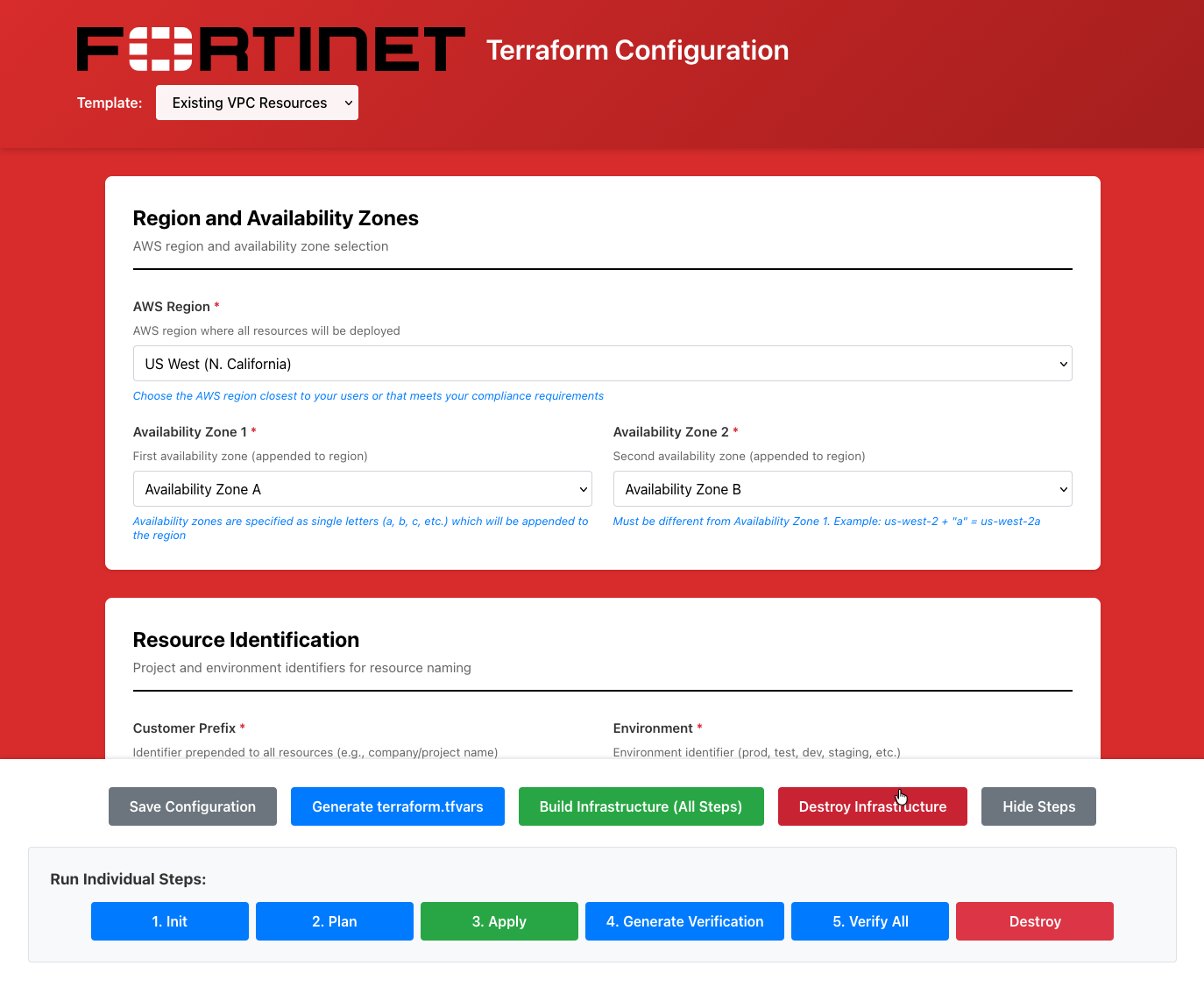
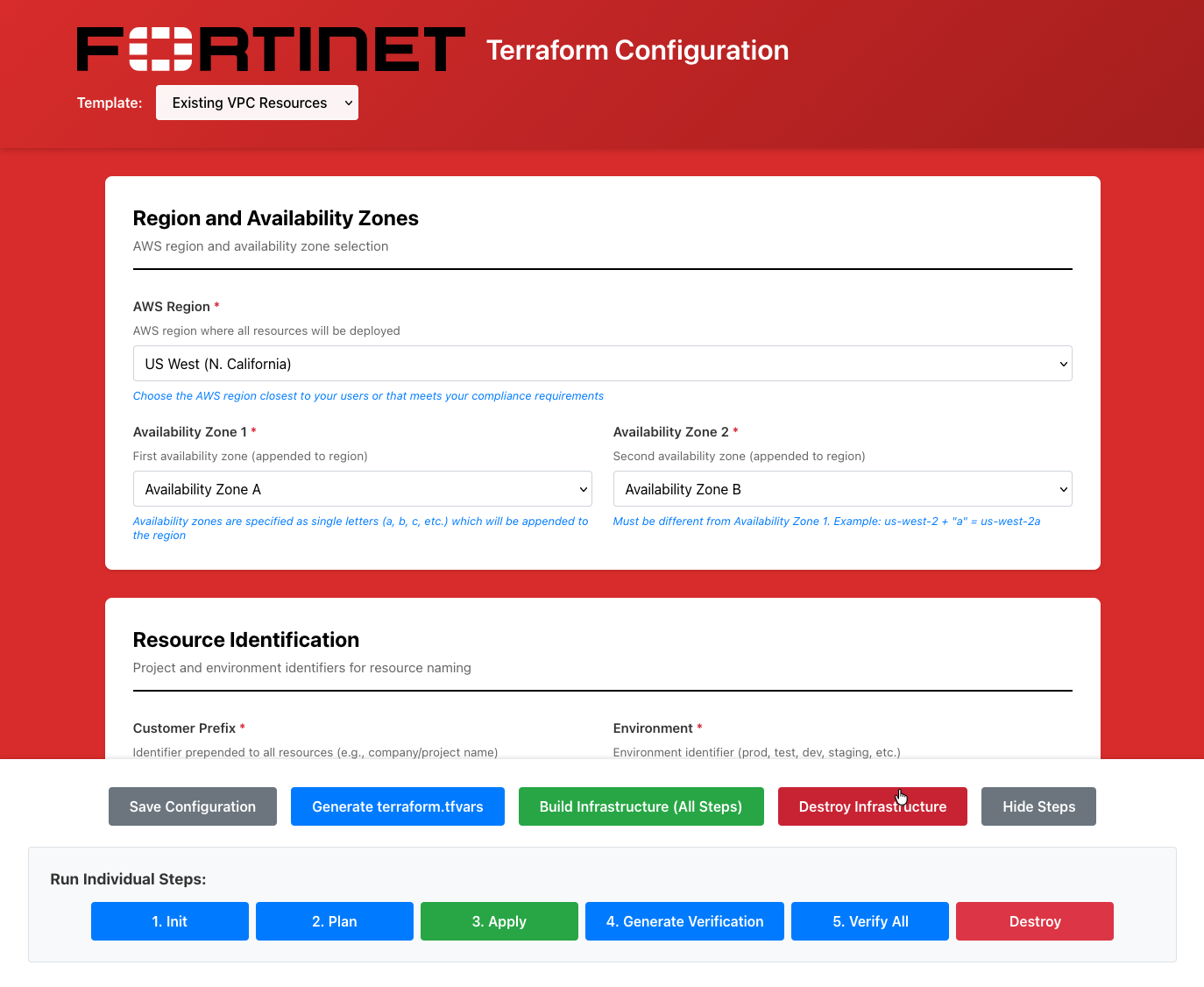
HA Pair Template

Introduction

The ha_pair template deploys a FortiGate Active-Passive High Availability pair using FortiGate Clustering Protocol (FGCP) in AWS. Unlike the autoscale_template which uses Gateway Load Balancer for elastic scaling, the HA Pair provides a fixed-capacity deployment with native FortiOS failover capabilities.

Key Features

  • Active-Passive HA: One FortiGate active, one standby with automatic failover
  • Session Synchronization: Maintains TCP sessions during failover for stateful inspection
  • FGCP (FortiGate Clustering Protocol): Industry-standard clustering with unicast heartbeat
  • AWS Native Failover: Automatic EIP and ENI reassignment via AWS API
  • No GWLB Required: Uses native AWS routing without additional load balancer costs
  • VPC Endpoint: Private AWS API access for failover operations
  • Transit Gateway Integration: Automatic TGW route table updates

Prerequisites

Warning

The ha_pair template requires existing_vpc_resources to be deployed first with HA Pair Deployment mode enabled.

Before deploying the ha_pair template:

  1. Deploy existing_vpc_resources template
  2. Set enable_ha_pair_deployment = true in existing_vpc_resources configuration
  3. Verify HA sync subnets were created (indices 10 & 11 in inspection VPC)
  4. Note the cp and env values - they must match in ha_pair configuration

Architecture Overview

DIAGRAM PLACEHOLDER: “ha-pair-architecture”

Show complete HA Pair architecture:
- Management VPC (top) with FortiManager, FortiAnalyzer, Jump Box
- Transit Gateway (center) connecting Management, Inspection, East, West VPCs
- Inspection VPC (main focus):
  * Primary FortiGate in AZ1 with 4 interfaces:
    - Port1: Untrusted (public subnet)
    - Port2: Trusted (private subnet)
    - Port3: HA Sync (HA sync subnet)
    - Port4: Management (management subnet OR combined with port3)
  * Secondary FortiGate in AZ2 with same interface layout
  * VPC Endpoint in HA sync subnets
  * Cluster EIP that moves on failover
  * Route tables showing traffic flow
- East/West Spoke VPCs with Linux instances generating traffic
- Arrows showing:
  * Heartbeat between FortiGates over port3
  * Traffic flow: Spoke --> TGW --> Primary FGT --> Internet
  * Failover: EIP reassignment, route table updates

Network Interfaces

Each FortiGate in the HA pair has four network interfaces:

InterfacePurposeSubnetEIP
Port1 (eth0)Untrusted/ExternalPublic subnetPer-instance EIP
Port2 (eth1)Trusted/InternalPrivate subnetNo EIP
Port3 (eth2)HA Sync + Management*HA sync subnetOptional (management access)
Port4 (eth3)Dedicated Management*Management subnetOptional (management access)

*Depending on management configuration: Port3 can handle both HA sync and management, or Port4 can be dedicated management

High Availability Components

HA Sync Subnets:

  • Created by existing_vpc_resources (indices 10 & 11)
  • One subnet in each AZ for HA pair
  • Route tables with IGW routes for AWS API access
  • VPC endpoint for private AWS EC2 API calls

Failover Mechanism:

  1. Primary FortiGate monitors secondary via unicast heartbeat (port3)
  2. On primary failure, secondary detects loss of heartbeat
  3. Secondary calls AWS EC2 API via VPC endpoint
  4. AWS reassigns cluster EIP to secondary’s port1
  5. AWS updates route table entries to point to secondary’s ENIs
  6. Session tables remain synchronized (stateful failover)

IAM Permissions:

  • AssociateAddress / DisassociateAddress (for EIP reassignment)
  • ReplaceRoute / CreateRoute / DeleteRoute (for route table updates)
  • DescribeInstances / DescribeRouteTables (for discovery)

Deployment Modes

Management Options

The ha_pair template supports three management configurations:

1. Combined HA Sync + Management (Default)

  • Port3 handles both HA heartbeat and management traffic
  • Simplest configuration
  • Optional EIP on port3 for internet-based management

2. Dedicated Management ENI in Inspection VPC

  • Port3: HA sync only
  • Port4: Dedicated management in inspection VPC management subnets
  • Better security isolation
  • Optional EIP on port4

3. Dedicated Management VPC

  • Port3: HA sync only
  • Port4: Dedicated management in separate management VPC
  • Maximum security isolation
  • Requires existing_vpc_resources to create management VPC
  • Optional EIP on port4

Internet Access Modes

EIP Mode (Default)

  • Each FortiGate gets public IPs on port1 (untrusted interface)
  • Cluster EIP moves to active instance on failover
  • Direct internet access from FortiGates

NAT Gateway Mode

  • Centralized egress through AWS NAT Gateways
  • No public IPs on FortiGate port1
  • Requires NAT Gateways created by existing_vpc_resources
  • Better for predictable source IPs

Configuration Parameters

Required Variables

These variables must be configured:

VariableDescriptionExample
cpCustomer prefix (must match existing_vpc_resources)"acme"
envEnvironment name (must match existing_vpc_resources)"test"
aws_regionAWS region"us-west-2"
availability_zone_1First AZ letter"a"
availability_zone_2Second AZ letter"c"
keypairEC2 key pair name"my-keypair"
fortigate_admin_passwordFortiGate admin password"SecureP@ssw0rd!"
ha_passwordHA heartbeat password"HASecretPass!"

Licensing Variables

Choose ONE licensing mode:

PAYG (Pay-As-You-Go):

license_type = "payg"
# No additional variables needed

BYOL (Bring Your Own License):

license_type = "byol"
fgt_primary_license_file = "/path/to/primary.lic"
fgt_secondary_license_file = "/path/to/secondary.lic"

FortiFlex:

license_type = "fortiflex"
fortiflex_token = "your-fortiflex-token"

Optional Variables

VariableDefaultDescription
fortigate_instance_type"c5n.xlarge"EC2 instance type (c5n.xlarge or larger recommended)
fortios_version"7.4.5"FortiOS version to deploy
enable_management_eiptrueAssociate EIP with management interface
enable_fortimanagerfalseRegister with FortiManager
fortimanager_ip""FortiManager private IP
enable_fortianalyzerfalseSend logs to FortiAnalyzer
fortianalyzer_ip""FortiAnalyzer private IP
access_internet_mode"eip"Internet access: “eip” or “nat_gw”
update_tgw_routestrueUpdate TGW route tables automatically

Documentation Sections

This documentation is organized into the following sections:

Subsections of HA Pair Template

UI Deployment

Overview

This guide walks you through configuring the ha_pair template using the Web UI. This template deploys a FortiGate Active-Passive HA pair using FGCP (FortiGate Clustering Protocol).

Warning

Prerequisites:

  1. Deploy existing_vpc_resources first with HA Pair Deployment mode enabled
  2. Record the cp, env, and tgw_name values from existing_vpc_resources outputs

Step 1: Select Template

  1. Open the UI at http://localhost:3000
  2. In the Template dropdown at the top, select ha_pair
  3. The form will load with inherited values from existing_vpc_resources

{{% notice note %}} TODO: Add diagram - template-dropdown-ha

Show dropdown with “ha_pair” selected {{% /notice %}}

Info

Configuration Inheritance

The UI automatically inherits cp, env, aws_region, and other base settings from existing_vpc_resources. These fields will be pre-filled and shown as “Inherited from existing_vpc_resources”.


Step 2: Verify Inherited Values

Review the inherited values (shown with gray background):

  • Customer Prefix (cp) - Should match existing_vpc_resources
  • Environment (env) - Should match existing_vpc_resources
  • AWS Region - Should match existing_vpc_resources
  • Availability Zones - Should match existing_vpc_resources
Warning

Do Not Change Inherited Values

These values must match existing_vpc_resources for proper resource discovery. If they’re incorrect, fix them in existing_vpc_resources first.

{{% notice note %}} TODO: Add diagram - inherited-fields-ha

Show form fields with gray background indicating inherited values:

  • cp: “acme” (inherited)
  • env: “test” (inherited)
  • aws_region: “us-west-2” (inherited)
  • availability_zone_1: “a” (inherited)
  • availability_zone_2: “c” (inherited) {{% /notice %}}

Step 3: FortiGate Configuration

Instance Type

  1. Select FortiGate Instance Type from dropdown:
    • c5n.xlarge - 4 vCPU / 10.5GB RAM (minimum)
    • c5n.2xlarge - 8 vCPU / 21GB RAM
    • c5n.4xlarge - 16 vCPU / 42GB RAM
    • c5n.9xlarge - 36 vCPU / 96GB RAM
Tip

HA Pair Sizing

For HA pairs, both instances are always running. Size for peak load, not average load.

FortiOS Version

  1. Enter FortiOS Version (e.g., 7.4.5 or 7.6)

Admin Password

  1. Enter FortiGate Admin Password
    • Minimum 8 characters
    • Used to login to both FortiGate instances

{{% notice note %}} TODO: Add diagram - fortigate-config-ha

Show:

  • Instance Type dropdown: “c5n.xlarge” selected
  • FortiOS Version field: “7.4.5”
  • Admin Password field: [password masked] {{% /notice %}}

Step 4: HA Configuration

HA Group Name

  1. Enter HA Group Name
    • Cluster identifier
    • Example: ha-cluster or acme-test-ha

HA Password

  1. Enter HA Password
    • Minimum 8 characters
    • Secures heartbeat communication between FortiGates
    • Keep this secure - compromised HA password allows cluster takeover

{{% notice note %}} TODO: Add diagram - ha-config

Show:

  • HA Group Name field: “ha-cluster”
  • HA Password field: [password masked]
  • Help text: “Used for secure heartbeat communication” {{% /notice %}}
Warning

HA Password Security

The HA password protects cluster communication. Use a strong password different from the admin password.


Step 5: Licensing Configuration

Choose ONE licensing mode:

PAYG (Pay-As-You-Go)

  1. Select License Type: payg
  2. No additional fields required
  3. AWS Marketplace billing applies to both instances

BYOL (Bring Your Own License)

  1. Select License Type: byol
  2. Enter Primary License File Path
    • Example: ./licenses/primary.lic
  3. Enter Secondary License File Path
    • Example: ./licenses/secondary.lic
  4. Place license files in the specified paths

FortiFlex

  1. Select License Type: fortiflex
  2. Enter FortiFlex Token
  3. Both instances retrieve licenses using the same token

{{% notice note %}} TODO: Add diagram - licensing-ha

Show:

  • License Type dropdown with three options: payg, byol, fortiflex
  • Primary License File field (visible when byol selected)
  • Secondary License File field (visible when byol selected)
  • FortiFlex Token field (visible when fortiflex selected) {{% /notice %}}

Step 6: Transit Gateway Integration (Optional)

If you enabled Transit Gateway in existing_vpc_resources:

Enable TGW Attachment

  1. Check Enable Transit Gateway Attachment
  2. Enter Transit Gateway Name from existing_vpc_resources outputs
    • Example: acme-test-tgw
    • Find with: terraform output tgw_name

Update TGW Routes

  1. Check Update TGW Routes (recommended)
    • Automatically updates spoke VPC route tables
    • Points default routes to inspection VPC
    • Enables traffic inspection through HA pair

{{% notice note %}} TODO: Add diagram - tgw-integration-ha

Show:

  • Enable Transit Gateway Attachment checkbox [[x]]
  • Transit Gateway Name field: “acme-test-tgw”
  • Update TGW Routes checkbox [[x]]
  • Help text explaining route updates {{% /notice %}}
Info

Automatic Route Updates

When enabled, the template:

  • Deletes old default routes pointing to management VPC
  • Creates new default routes pointing to inspection VPC
  • Traffic flows: Spoke VPC –> TGW –> Primary FortiGate –> Internet

Step 7: Internet Access Mode

Choose how FortiGates access the internet:

EIP Mode (Default)

  1. Select Access Internet Mode: eip
  2. Each FortiGate gets Elastic IPs on port1
  3. Cluster EIP moves to active instance on failover

NAT Gateway Mode

  1. Select Access Internet Mode: nat_gw
  2. Centralized egress through NAT Gateways
  3. Requires NAT Gateways in inspection VPC
  4. More predictable source IPs

{{% notice note %}} TODO: Add diagram - internet-access-ha

Show dropdown with options:

  • eip - Elastic IP per instance
  • nat_gw - NAT Gateway (centralized) {{% /notice %}}

Step 8: Management Configuration

Management EIP

  1. Check Enable Management EIP to assign public IPs to management interfaces
    • Allows direct internet access to FortiGate management
    • Uncheck if accessing via management VPC or VPN

{{% notice note %}} TODO: Add diagram - management-eip

Show:

  • Enable Management EIP checkbox
  • Help text: “Public IP for port3 (or port4) management access” {{% /notice %}}
Tip

Management Access Considerations

  • With EIP: Direct HTTPS/SSH access from internet (requires management_cidr security group)
  • Without EIP: Access via jump box in management VPC or VPN connection

Step 9: FortiManager Integration (Optional)

If you deployed FortiManager in existing_vpc_resources:

  1. Check Enable FortiManager
  2. Enter FortiManager IP from existing_vpc_resources outputs
    • Example: 10.3.0.10
    • Find with: terraform output fortimanager_private_ip

{{% notice note %}} TODO: Add diagram - fortimanager-integration-ha

Show:

  • Enable FortiManager checkbox [[x]]
  • FortiManager IP field: “10.3.0.10” {{% /notice %}}
Info

HA Pair and FortiManager

Both FortiGates register with FortiManager independently. After deployment:

  1. Login to FortiManager
  2. Device Manager > Device & Groups
  3. Right-click each FortiGate > Authorize
  4. FortiManager will recognize HA pair relationship

Step 10: FortiAnalyzer Integration (Optional)

If you deployed FortiAnalyzer in existing_vpc_resources:

  1. Check Enable FortiAnalyzer
  2. Enter FortiAnalyzer IP from existing_vpc_resources outputs
    • Example: 10.3.0.11
    • Find with: terraform output fortianalyzer_private_ip

{{% notice note %}} TODO: Add diagram - fortianalyzer-integration-ha

Show:

  • Enable FortiAnalyzer checkbox [[x]]
  • FortiAnalyzer IP field: “10.3.0.11” {{% /notice %}}

Step 11: Security Configuration

EC2 Key Pair

  1. Select Key Pair from dropdown (should match existing_vpc_resources)

Management CIDR

  1. Management CIDR list is inherited from existing_vpc_resources
    • Shows list of allowed IP ranges for SSH/HTTPS access
    • Controls access to management interfaces
    • Cannot be modified here (inherited)

{{% notice note %}} TODO: Add diagram - security-config-ha

Show:

  • Key Pair dropdown: “my-keypair” (inherited)
  • Management CIDR list field: [“203.0.113.10/32”] (inherited, read-only) {{% /notice %}}

Step 12: Save Configuration

  1. Click the Save Configuration button
  2. Confirmation: “Configuration saved successfully!”

{{% notice note %}} TODO: Add diagram - save-ha

Show Save Configuration button with success message {{% /notice %}}


Step 13: Generate terraform.tfvars

  1. Click Generate terraform.tfvars
  2. Review the generated configuration in preview window
  3. Verify all settings are correct

{{% notice note %}} TODO: Add diagram - generated-preview-ha

Show preview window with generated terraform.tfvars content {{% /notice %}}


Step 14: Download or Save to Template

Option A: Download

  1. Click Download
  2. File saves as ha_pair.tfvars
  3. Copy to terraform directory:
    cp ~/Downloads/ha_pair.tfvars \
      terraform/aws/ha_pair/terraform.tfvars

Option B: Save Directly

  1. Click Save to Template
  2. Confirmation: “terraform.tfvars saved to: terraform/aws/ha_pair/terraform.tfvars”

Step 15: Deploy with Terraform

cd terraform/aws/ha_pair

# Initialize Terraform
terraform init

# Review execution plan
terraform plan

# Deploy infrastructure
terraform apply

Type yes when prompted.

Expected deployment time: 15-20 minutes


Step 16: Verify HA Status

After deployment completes:

Access Primary FortiGate

# Get management IPs from outputs
terraform output fortigate_primary_management_url

# SSH to primary
ssh admin@<primary-management-ip>

Check HA Status

# On FortiGate CLI
get system ha status

# Expected output:
# HA Health Status: OK
# Mode: HA A-P
# Group: ha-cluster
# Priority: 255 (primary)
# State: Primary
# Slave:
#   Serial: <secondary-serial>
#   Priority: 1
#   State: Standby

{{% notice note %}} TODO: Add diagram - ha-status-output

Show example output of ‘get system ha status’ command {{% /notice %}}


Common Configuration Patterns

Pattern 1: Simple HA Pair with TGW

License Type: payg
[x] Enable Transit Gateway Attachment
[x] Update TGW Routes
[x] Enable Management EIP
[ ] Enable FortiManager
Access Internet Mode: eip

Use case: Basic HA pair with centralized inspection via TGW


Pattern 2: HA Pair with Centralized Management

License Type: byol
[x] Enable Transit Gateway Attachment
[x] Update TGW Routes
[ ] Enable Management EIP (access via management VPC)
[x] Enable FortiManager
[x] Enable FortiAnalyzer
Access Internet Mode: eip

Use case: Production-like HA pair with FortiManager/FortiAnalyzer integration


Pattern 3: HA Pair with NAT Gateway

License Type: payg
[x] Enable Transit Gateway Attachment
[x] Update TGW Routes
[x] Enable Management EIP
[ ] Enable FortiManager
Access Internet Mode: nat_gw

Use case: HA pair with predictable egress IPs through NAT Gateway


Validation and Errors

The UI validates:

  • FortiGate admin password minimum length (8 characters)
  • HA password minimum length (8 characters)
  • HA group name format
  • FortiManager IP format
  • Transit Gateway name format
  • License file paths (for BYOL)
  • All required fields filled

{{% notice note %}} TODO: Add diagram - validation-errors-ha

Show form with validation errors highlighted {{% /notice %}}


Testing Failover

After successful deployment, test HA failover:

Manual Failover Test

  1. SSH to primary FortiGate
  2. Trigger failover:
    execute ha manage 1 admin
  3. Secondary becomes active
  4. Verify:
    • Cluster EIP moves to secondary
    • Route tables update to secondary ENIs
    • Traffic continues flowing
    • Sessions maintained (stateful failover)

Failover time: Typically 30-60 seconds

{{% notice note %}} TODO: Add diagram - failover-test

Show:

  • Command to trigger failover
  • Expected HA status after failover
  • Diagram showing EIP movement {{% /notice %}}

Troubleshooting

HA Pair Not Forming

Symptoms: FortiGates don’t see each other

Check:

  • HA sync subnets were created by existing_vpc_resources
  • Security groups allow all traffic between HA sync IPs
  • HA password matches on both instances
  • Verify connectivity: execute ping <peer-port3-ip>

AWS API Calls Failing

Symptoms: Failover doesn’t update EIPs or routes

Check:

  • VPC endpoint exists in HA sync subnets
  • IAM role has required permissions (AssociateAddress, ReplaceRoute)
  • Private DNS enabled on VPC endpoint
  • Test: diag test app awsd 4

Session Synchronization Not Working

Symptoms: Active sessions drop during failover

Check:

# Verify session pickup enabled
show system ha | grep session-pickup

# Enable if needed
config system ha
    set session-pickup enable
    set session-pickup-connectionless enable
end

TGW Routes Not Updating

Symptoms: Spoke VPC traffic not reaching FortiGates

Check:

  • update_tgw_routes is enabled in configuration
  • TGW route tables show inspection VPC attachment
  • Run: terraform apply to update routes manually

Next Steps

After deploying ha_pair:

  1. Configure firewall policies:

    • Login to primary FortiGate
    • Policy & Objects > Firewall Policy
    • Create policies for your traffic flows
  2. Test connectivity:

    • From spoke VPC instances, test internet access
    • Verify traffic appears in FortiGate logs
    • Test east-west traffic between spoke VPCs
  3. Test failover:

    • Trigger manual failover
    • Verify EIP and route updates
    • Check session synchronization
  4. Monitor HA status:

    • Check HA health regularly: get system ha status
    • Monitor CloudWatch logs
    • Review FortiGate system events

Deployment Guide

Deployment Workflow

Step 1: Deploy existing_vpc_resources

cd terraform/aws/existing_vpc_resources

# Copy and edit configuration
cp terraform.tfvars.example terraform.tfvars

# IMPORTANT: Set deployment mode to HA Pair
# edit terraform.tfvars:
enable_autoscale_deployment = false
enable_ha_pair_deployment = true

# Deploy
terraform init
terraform plan
terraform apply

# Save outputs
terraform output

Key Outputs to Note:

  • ha_sync_subnet_az1_id - HA sync subnet in AZ1
  • ha_sync_subnet_az2_id - HA sync subnet in AZ2
  • attach_to_tgw_name - Transit Gateway name
  • fortimanager_private_ip - FortiManager IP (if enabled)
  • fortianalyzer_private_ip - FortiAnalyzer IP (if enabled)

Step 2: Configure ha_pair Template

cd terraform/aws/ha_pair

# Copy example configuration
cp terraform.tfvars.example terraform.tfvars

# Edit terraform.tfvars
# REQUIRED: Match these values with existing_vpc_resources
aws_region          = "us-west-2"  # MUST MATCH
availability_zone_1 = "a"          # MUST MATCH
availability_zone_2 = "c"          # MUST MATCH
cp                  = "acme"       # MUST MATCH
env                 = "test"       # MUST MATCH

# Configure FortiGate
keypair                   = "my-keypair"
fortigate_admin_password  = "SecureP@ssw0rd!"
ha_password               = "HASecretPass!"
ha_group_name             = "ha-cluster"

# Choose licensing mode
license_type = "payg"  # or "byol" or "fortiflex"

# Optional: FortiManager integration
enable_fortimanager = true
fortimanager_ip     = "10.3.0.10"  # From existing_vpc_resources output

# Optional: Management EIP
enable_management_eip = true

Step 3: Deploy HA Pair

# Initialize Terraform
terraform init

# Review plan
terraform plan

# Deploy
terraform apply

# Save outputs
terraform output > ha_pair_outputs.txt

Deployment Time: ~15-20 minutes


Step 4: Verify Deployment

Access FortiGate Management

Primary FortiGate:

# Get management URL from outputs
terraform output fortigate_primary_management_url

# Access via browser
# Username: admin
# Password: <fortigate_admin_password>

Secondary FortiGate:

terraform output fortigate_secondary_management_url

Verify HA Status

SSH to primary FortiGate:

ssh admin@<primary-management-ip>

# Check HA status
get system ha status

# Expected output:
# HA Health Status: OK
# Model: FortiGate-VM64-AWS
# Mode: HA A-P
# Group: <ha_group_name>
# Priority: 255  (primary)
# Override: Disabled
# State: Primary
# Slave:
#   Serial: <secondary-serial>
#   Priority: 1
#   State: Standby

Test AWS API Access

# On FortiGate CLI
diag test app awsd 4

# Should show successful AWS API connectivity

Verify Transit Gateway Routing

# Check TGW route tables
aws ec2 describe-transit-gateway-route-tables \
  --filters "Name=tag:Name,Values=*east*" \
  --query 'TransitGatewayRouteTables[*].TransitGatewayRouteTableId' \
  --output text | \
  xargs -I {} aws ec2 search-transit-gateway-routes \
  --transit-gateway-route-table-id {} \
  --filters "Name=type,Values=static"

# Verify default route (0.0.0.0/0) points to inspection VPC attachment

Operations & Testing

Transit Gateway Routing

Two-Stage Routing Approach

The ha_pair template implements automatic TGW route updates:

Stage 1: After existing_vpc_resources deployment

  • East/West spoke VPC default routes –> Management VPC attachment
  • Allows spoke instances to bootstrap via jump box NAT

Stage 2: After ha_pair deployment

  • ha_pair template deletes old default routes from east/west TGW route tables
  • Creates new default routes –> Inspection VPC attachment
  • Traffic now flows through FortiGate HA pair
  • Management VPC routes remain for ongoing access

This two-stage approach is handled automatically by tgw_routes.tf.

To disable automatic TGW route updates:

update_tgw_routes = false

Testing and Validation

Test Traffic Flow

From a spoke VPC Linux instance:

# SSH to Linux instance in east or west spoke VPC
ssh -i ~/.ssh/keypair.pem ec2-user@<linux-ip>

# Test internet connectivity
curl -I https://www.fortinet.com

# Test cross-VPC connectivity
ping <other-spoke-instance-ip>

# Generate sustained traffic
ab -n 10000 -c 100 http://<other-spoke-instance-ip>/

Monitor on FortiGate

# SSH to primary FortiGate
ssh admin@<primary-management-ip>

# View real-time sessions
diag sys session list

# View traffic logs
execute log filter category traffic
execute log display

# View HA sync status
get system ha status
diagnose sys ha status

Test Failover

Manual Failover Test:

# SSH to primary FortiGate
ssh admin@<primary-management-ip>

# Trigger failover
execute ha manage ?
execute ha manage 1 admin  # Switch to secondary

# Or simulate failure
config system ha
    set priority 1  # Lower than secondary
end

Verify Failover:

  1. Secondary becomes active
  2. Cluster EIP moves to secondary
  3. Route tables update to secondary ENIs
  4. Sessions maintained (check with diag sys session list)
  5. Traffic continues flowing

Failover Time: Typically 30-60 seconds


Maintenance Operations

Upgrading FortiOS

Warning

Upgrade secondary first, then primary to minimize downtime.

Procedure:

  1. Upgrade Secondary:
# SSH to secondary
ssh admin@<secondary-management-ip>

# Upload firmware
execute restore image tftp <firmware-file> <tftp-server>

# Secondary will reboot, remain in standby
  1. Verify Secondary:
# After reboot, verify version
get system status | grep Version

# Verify HA status
get system ha status
  1. Failover to Secondary:
# SSH to primary
execute ha manage 1 admin
# Traffic now flows through upgraded secondary
  1. Upgrade Former Primary:
# SSH to new secondary (former primary)
execute restore image tftp <firmware-file> <tftp-server>
  1. Verify Both Running Same Version:
get system ha status
# Check both running same FortiOS version

Scaling Instance Size

To change instance type (e.g., c5n.xlarge –> c5n.2xlarge):

# Edit terraform.tfvars
fortigate_instance_type = "c5n.2xlarge"

# Apply changes
terraform apply
# Terraform will recreate instances one at a time
# HA pair maintains service during recreation

Adding FortiManager Integration

# Edit terraform.tfvars
enable_fortimanager = true
fortimanager_ip = "10.3.0.10"

# Apply changes
terraform apply

# Authorize on FortiManager
# Device Manager > Device & Groups > Right-click > Authorize

Troubleshooting & Comparison

Troubleshooting

HA Pair Not Forming

Symptoms: FortiGates don’t see each other in HA status

Checks:

# Verify HA sync connectivity
execute ping-options source <port3-ip>
execute ping <peer-port3-ip>

# Check HA configuration
show system ha

# Check security group rules
# Ensure UDP 23/703 and all TCP allowed on HA sync subnet

Resolution:

  • Verify HA sync subnets were created
  • Check security group allows all traffic between HA sync IPs
  • Verify unicast heartbeat configuration matches

AWS API Calls Failing

Symptoms: Failover doesn’t update EIPs or routes

Checks:

# Test AWS connectivity
diag test app awsd 4

# Verify IAM role
diag deb app awsd -1
diag deb enable
# Trigger failover and watch logs

Resolution:

  • Verify VPC endpoint exists in HA sync subnets
  • Check IAM role has required permissions
  • Verify Private DNS enabled on VPC endpoint

Session Synchronization Not Working

Symptoms: Active sessions drop during failover

Checks:

# Verify session pickup enabled
show system ha | grep session-pickup

# Check current sessions
diag sys session list

Resolution:

config system ha
    set session-pickup enable
    set session-pickup-connectionless enable
end

TGW Routes Not Updating

Symptoms: Spoke VPC traffic not reaching FortiGates

Checks:

# Verify update_tgw_routes is enabled
terraform show | grep update_tgw_routes

# Check TGW route tables manually
aws ec2 search-transit-gateway-routes \
  --transit-gateway-route-table-id <rtb-id> \
  --filters "Name=type,Values=static"

Resolution:

  • Set update_tgw_routes = true in terraform.tfvars
  • Run terraform apply to update routes
  • Or manually update TGW route tables

Cost Optimization

Estimated Monthly Costs

Minimum Configuration (PAYG):

  • 2x FortiGate c5n.xlarge: ~$350/month
  • 4-6x Elastic IPs: ~$15-20/month
  • VPC Interface Endpoint: ~$7/month
  • Total: ~$370-380/month

With Management (BYOL):

  • 2x FortiGate c5n.xlarge (compute only): ~$140/month
  • FortiManager m5.xlarge: ~$73/month
  • FortiAnalyzer m5.xlarge: ~$73/month
  • EIPs and VPC endpoint: ~$22/month
  • Total: ~$310/month + BYOL licenses

Cost Savings Tips

  1. Use BYOL for long-term deployments (break-even ~6-8 months)
  2. Stop non-production environments when not in use
  3. Right-size instance types based on throughput requirements
  4. Disable management EIPs if using management VPC with VPN
  5. Use NAT Gateway mode for predictable egress costs

Comparison: HA Pair vs AutoScale

FeatureHA PairAutoScale
ScalingFixed 2 instancesAuto scales 2-10+
FailoverActive-Passive (seconds)Load balanced (instant)
Session SyncYes (stateful)No (stateless)
ComplexityLowHigh
CostFixed (~$370/mo)Variable (scales with load)
Best ForPredictable workloadsVariable/elastic workloads
ManagementStandard FortiOS HALambda + CloudWatch
GWLBNot requiredRequired

Choose HA Pair When:

  • Workload is predictable and consistent
  • Stateful failover is critical
  • Simplicity preferred over elastic scaling
  • Cost predictability important
  • Standard FortiOS HA experience desired

Choose AutoScale When:

  • Workload varies significantly
  • Need to scale beyond 2 instances
  • Cost optimization through scaling down
  • Can tolerate stateless failover
  • Want AWS-native auto scaling

Additional Resources

FortiGate HA Documentation

Terraform Documentation


Summary

The ha_pair template provides a robust Active-Passive FortiGate HA deployment using native FortiOS clustering:

Key Capabilities:

  • FGCP Active-Passive with automatic failover
  • Session synchronization for stateful inspection
  • Native AWS integration (EIP/route reassignment)
  • VPC endpoint for private AWS API access
  • Automatic Transit Gateway routing updates
  • Support for PAYG, BYOL, and FortiFlex licensing
  • FortiManager/FortiAnalyzer integration

Deployment Time: 20-30 minutes after existing_vpc_resources

Next Steps:

  1. Deploy existing_vpc_resources with HA Pair mode
  2. Configure ha_pair terraform.tfvars
  3. Deploy ha_pair template
  4. Verify HA status and test failover
  5. Configure policies and begin production traffic