Task 3 - Install Kubernetes
Use kubeadm to install kubernetes
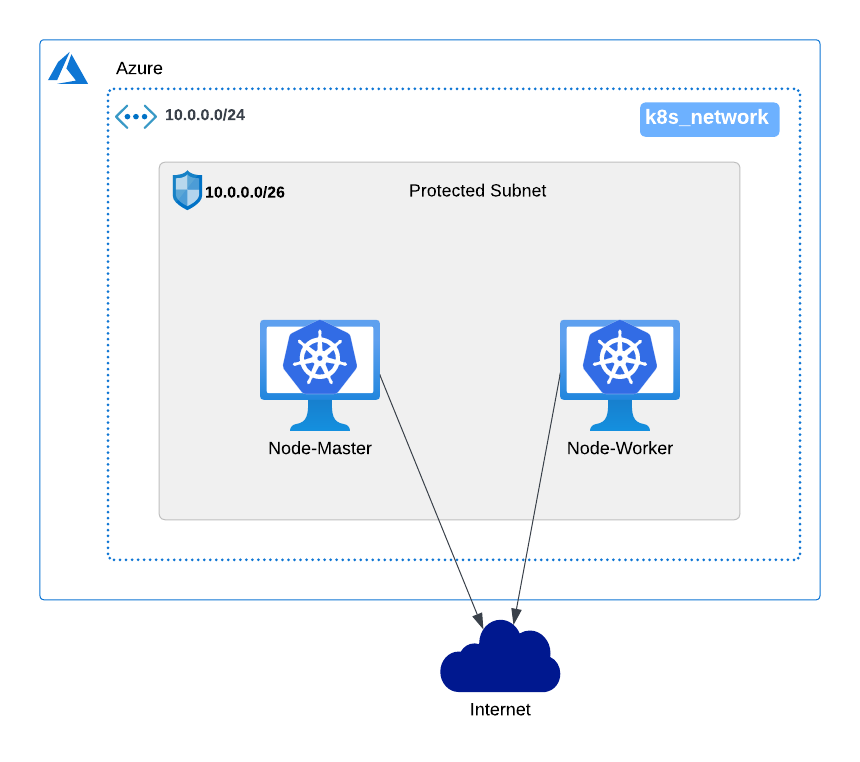
This task builds a simple Kubernetes cluster with one control-plane node and one worker node.
The scripts in this workshop now use the Kubernetes package repository at pkgs.k8s.io, containerd as the container runtime, kubeadm for cluster bootstrap, and Calico as the CNI.
Info
This lab pins Kubernetes to `v1.30` for repeatable workshop builds and FortiAIGate readiness. FortiAIGate 8.0.1 requires Kubernetes 1.25.0 or later, plus working CNI, Helm, ingress, and storage prerequisites.
Default versions used by the scripts:
K8S_MINOR=v1.30
CALICO_VERSION=v3.28.2
POD_CIDR=10.244.0.0/16
SERVICE_CIDR=10.96.0.0/12
The master and worker scripts are non-interactive. They automatically overwrite existing Kubernetes apt keyring files and use apt-get -y, so students should not see manual y/N prompts during package setup.
If you need to pin a different supported Kubernetes minor version, export it before running the scripts, for example:
export K8S_MINOR=v1.30Use Azure Cloud Shell as kubernetes client
To use Azure Cloud Shell as a Kubernetes client, ensure you have completed your Terraform deployment in Azure Cloud Shell. Azure Cloud Shell comes with kubectl pre-installed, facilitating Kubernetes operations.
Preflight check
There is no cluster yet, so this check is about the two lab VMs. Confirm Terraform finished and that both VM DNS names are published. From Azure Cloud Shell:
cd $HOME/k8s-101-workshop/terraform/
terraform output -raw linuxvm_master_FQDN; echo
terraform output -raw linuxvm_worker_FQDN; echo
Expected output — one name per node, with your own username in place of k8sxx:
k8sxx-master.eastus.cloudapp.azure.com
k8sxx-worker.eastus.cloudapp.azure.com
If either command errors or prints nothing, the VMs are not there. Finish Task 2 - Run Terraform before continuing.
- Navigate to your project directory where your Kubernetes workshop materials are located:
cd $HOME/k8s-101-workshop- Create helper aliases for SSH access to the master and worker nodes.
cat <<'EOF_ALIAS' >> $HOME/.bashrc
ssh_worker_function() {
    cd $HOME/k8s-101-workshop/terraform/
    nodename=$(terraform output -json | jq -r .linuxvm_worker_FQDN.value)
    username=$(terraform output -json | jq -r .linuxvm_username.value)
    ssh -o "StrictHostKeyChecking=no" $username@$nodename
}
alias ssh_worker="ssh_worker_function"

ssh_master_function() {
    cd $HOME/k8s-101-workshop/terraform/
    nodename=$(terraform output -json | jq -r .linuxvm_master_FQDN.value)
    username=$(terraform output -json | jq -r .linuxvm_username.value)
    export FQDN=${nodename}
    ssh -o "StrictHostKeyChecking=no" -t $username@$nodename "export FQDN=${FQDN}; exec bash"
}
alias ssh_master="ssh_master_function"

alias k='kubectl'
EOF_ALIAS
source $HOME/.bashrc- Generate SSH key and copy it to both nodes.
rm -f ~/.kube/config

rm -f /home/$(whoami)/.ssh/known_hosts

cd $HOME/k8s-101-workshop/terraform/
vmpassword=$(terraform output -json | jq -r .linuxvm_password.value)
echo $vmpassword

[ ! -f ~/.ssh/id_rsa ] && ssh-keygen -q -N "" -f ~/.ssh/id_rsa

cd $HOME/k8s-101-workshop/terraform/
nodename=$(terraform output -json | jq -r .linuxvm_master_FQDN.value)
username=$(terraform output -json | jq -r .linuxvm_username.value)
ssh-copy-id -f -o 'StrictHostKeyChecking=no' $username@$nodename

nodename=$(terraform output -json | jq -r .linuxvm_worker_FQDN.value)
username=$(terraform output -json | jq -r .linuxvm_username.value)
ssh-copy-id -f -o 'StrictHostKeyChecking=no' $username@$nodename- Install Kubernetes on the master node.
cd $HOME/k8s-101-workshop/terraform/
nodename=$(terraform output -json | jq -r .linuxvm_master_FQDN.value)
username=$(terraform output -json | jq -r .linuxvm_username.value)

ssh -o 'StrictHostKeyChecking=no' $username@$nodename sudo kubeadm reset -f || true
scp -o 'StrictHostKeyChecking=no' $HOME/k8s-101-workshop/scripts/install_kubeadm_masternode.sh $username@$nodename:~/install_kubeadm_masternode.sh
ssh -o 'StrictHostKeyChecking=no' -t $username@$nodename "export FQDN=${nodename}; export K8S_MINOR=v1.30; bash ~/install_kubeadm_masternode.sh"
The FQDN value is unique for each student and is pulled from Terraform output. It is added to the Kubernetes API server certificate so kubectl can connect from Azure Cloud Shell without a TLS certificate error.
- Install Kubernetes packages and container runtime on the worker node.
cd $HOME/k8s-101-workshop/terraform/
nodename=$(terraform output -json | jq -r .linuxvm_worker_FQDN.value)
username=$(terraform output -json | jq -r .linuxvm_username.value)

ssh -o 'StrictHostKeyChecking=no' $username@$nodename sudo kubeadm reset -f || true
scp -o 'StrictHostKeyChecking=no' $HOME/k8s-101-workshop/scripts/install_kubeadm_workernode.sh $username@$nodename:~/install_kubeadm_workernode.sh
ssh -o 'StrictHostKeyChecking=no' -t $username@$nodename "export K8S_MINOR=v1.30; bash ~/install_kubeadm_workernode.sh"- Join worker node to cluster.
cd $HOME/k8s-101-workshop/terraform/
master=$(terraform output -json | jq -r .linuxvm_master_FQDN.value)
worker=$(terraform output -json | jq -r .linuxvm_worker_FQDN.value)
username=$(terraform output -json | jq -r .linuxvm_username.value)

ssh -o 'StrictHostKeyChecking=no' $username@$master \
"kubeadm token create --print-join-command | sed 's#^kubeadm join#sudo kubeadm join --cri-socket unix:///run/containerd/containerd.sock#' > ~/workloadtojoin.sh && chmod +x ~/workloadtojoin.sh && cat ~/workloadtojoin.sh"

scp -o 'StrictHostKeyChecking=no' $username@$master:~/workloadtojoin.sh ./workloadtojoin.sh
scp -o 'StrictHostKeyChecking=no' ./workloadtojoin.sh $username@$worker:~/workloadtojoin.sh
ssh -o 'StrictHostKeyChecking=no' -t $username@$worker "bash ~/workloadtojoin.sh"- Prepare access Kubernetes from Azure Cloud Shell.
cd $HOME/k8s-101-workshop/terraform/
nodename=$(terraform output -json | jq -r .linuxvm_master_FQDN.value)
username=$(terraform output -json | jq -r .linuxvm_username.value)

rm -rf $HOME/.kube/
mkdir -p ~/.kube/
scp -o 'StrictHostKeyChecking=no' $username@$nodename:~/.kube/config $HOME/.kube/config
kubectl config view --minify -o jsonpath='{.clusters[0].cluster.server}'; echo- Verify the installation.
kubectl get nodes -o wide
kubectl get pods -A
kubectl cluster-info
You can also watch the worker become Ready:
watch kubectl get nodesNAME STATUS ROLES AGE VERSION
node-worker Ready <none> 10m v1.30.x
node-master Ready control-plane 15m v1.30.xContainer runtime should show containerd, for example:
kubectl get nodes -o wide
# CONTAINER-RUNTIME: containerd://...
Summary
This chapter installs Kubernetes using kubeadm. The workshop creates one control-plane node and one worker node. The current script uses containerd instead of CRI-O and installs Kubernetes through pkgs.k8s.io.
Continue to deploy and scaling application.
Review Questions
What is the kube-API FQDN name in kubeconfig?
What is the version of this Kubernetes server?
What is the container runtime name and version?
Describe the general steps to add a new VM as worker node in this cluster.
IN CASE YOU RUNNING INTO PROBLEM
You can reinstall Kubernetes or delete and recreate the VMs.
Re-Install Kubernetes
Warning
If you want a clean reset, run the following commands on both master and worker nodes. This removes Kubernetes state from the node.
sudo kubeadm reset -f
sudo rm -rf /etc/cni/net.d/* ~/.kube /etc/kubernetes /var/lib/etcd
sudo systemctl restart containerd kubelet
Then rerun this task from the master installation step.
Starting Over
Warning
If you want to delete the VMs completely and try again, use Terraform.
Delete VMs:
cd $HOME/k8s-101-workshop/terraform/ && terraform destroy -var="username=$(whoami)" --auto-approveCreate VMs again:
cd $HOME/k8s-101-workshop/terraform/ && terraform apply -var="username=$(whoami)" --auto-approve